
The Unified Worklist is a product for Premium EHR customers only. If you are interested in upgrading to the Premium EHR subscription to use this feature, click the I need help button to notify Elation and a member of the Elation Team will reach out to assist you. If you have Premium EHR and the Unified Worklist does not appear in the Requiring Action area of Practice Home, click I need help > Contact Elation Support.
Beta feature: The feature described in this article is part of a beta release and is only available to a select number of practices.
Opening an item
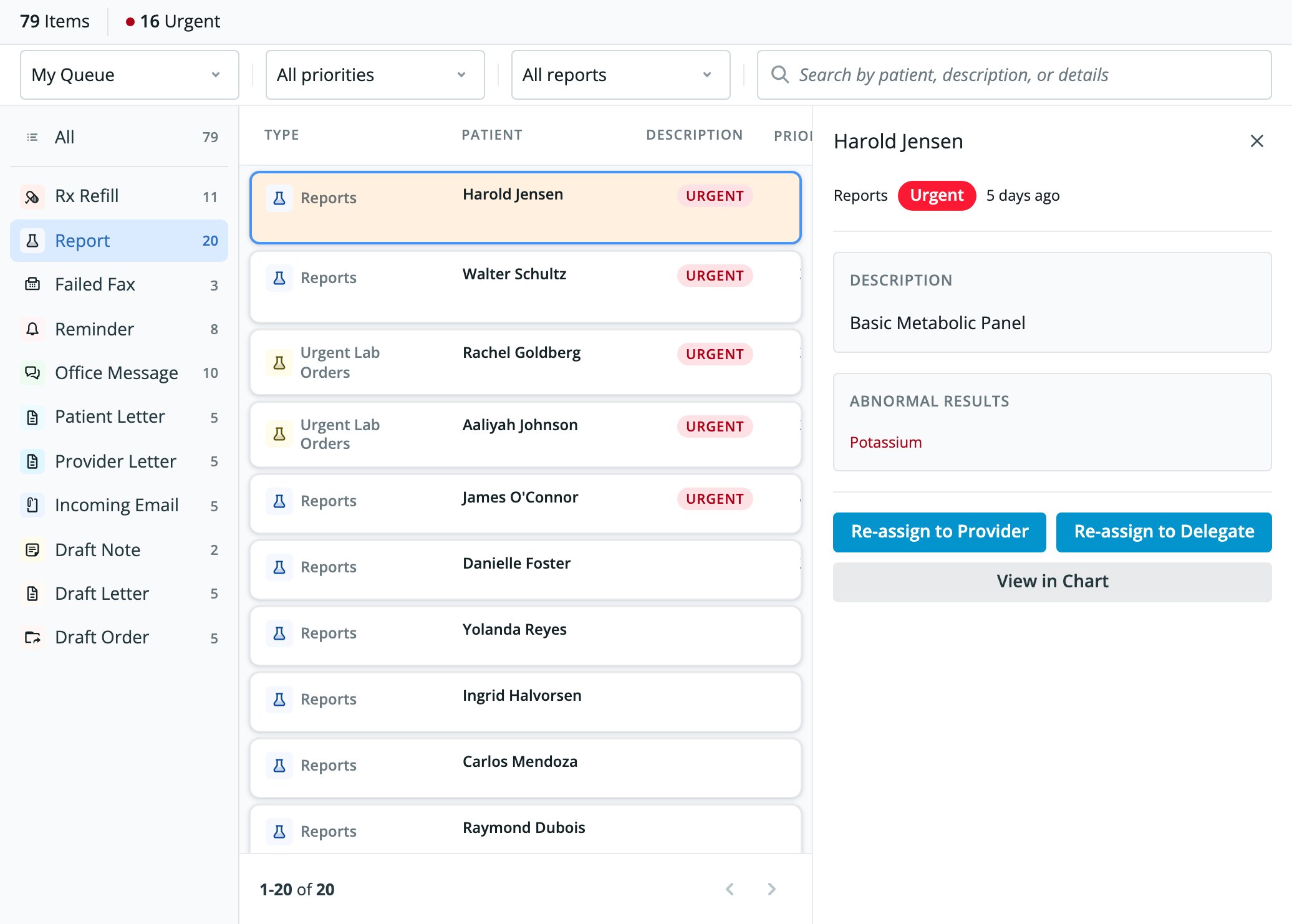
Click a row, or the arrow button at the end of the row, to open the item’s details panel. Press Esc or click the X to close the panel. Click View in Chart to open the patient’s chart in a new tab. For drafts, the button reads Edit in Chart.What you can do from the worklist
Some item types can be completed without leaving the worklist. Others need the patient chart.
A report that is not linked to a patient, or to a chart you cannot access, opens the details panel instead of the report dialog. See Report.
When you complete an action, the item leaves the worklist immediately, the panel closes, and the counts update.
If an action fails, the panel reads “The action could not be completed. You can still close this panel or open the chart.” If an item is not linked to a chart you can access, the panel reads “This item is not linked to an accessible patient chart.”
Workflow Instructions
Report
Clicking a report opens it in the report dialog, the same one you use from the Reports queue in Practice Home. This happens when the report is linked to a patient and you can access that patient’s chart. If the report is not linked to a patient, or you cannot access that patient’s chart, the details panel opens instead. From there you can re-assign the report or open it in the patient’s chart. In the dialog: the dialog’s header shows the patient name and the report name. Review the report, then click Sign Off (staff see Sign On Behalf Of Provider instead). The report leaves the worklist when you sign it. If you click Close without signing, the report stays in the list. Other actions in the dialog:- Annotate lets you add text, signatures, dates, and checkmarks to the report. It is not shown for reports that are already signed off. To learn more, see Annotate and eSign Clinical Reports and Documents.
- Share includes Send Provider Letter.
- Edit Details lets you change the document date, report type, custom title, and document tags.
- Re-assign is not shown in single-physician practices or for group queues.
- You can re-assign a report only from your own queue, unless you are a delegate.
- Re-assign to Delegate requires report-queue delegation to be enabled for your practice.
- Sign the report from the chart. Click View in Chart to open it.
Office Message
The message thread appears in the details panel with a reply area. The reply area has Keep Requiring Action and Urgent options (on a note you sent only to yourself, the first option reads Keep in my Requiring Action list), and the Send, Send & Sign Off, and Discard buttons. Quick Reply and Sign Off are also available. When your reply resolves the thread, the thread leaves the worklist. If the thread cannot load, the panel reads “This message thread could not be loaded. You can retry or open it in the chart.” Click Retry message to try again. For more about replying, signing, and acknowledging, see the Office Message Feature Guide.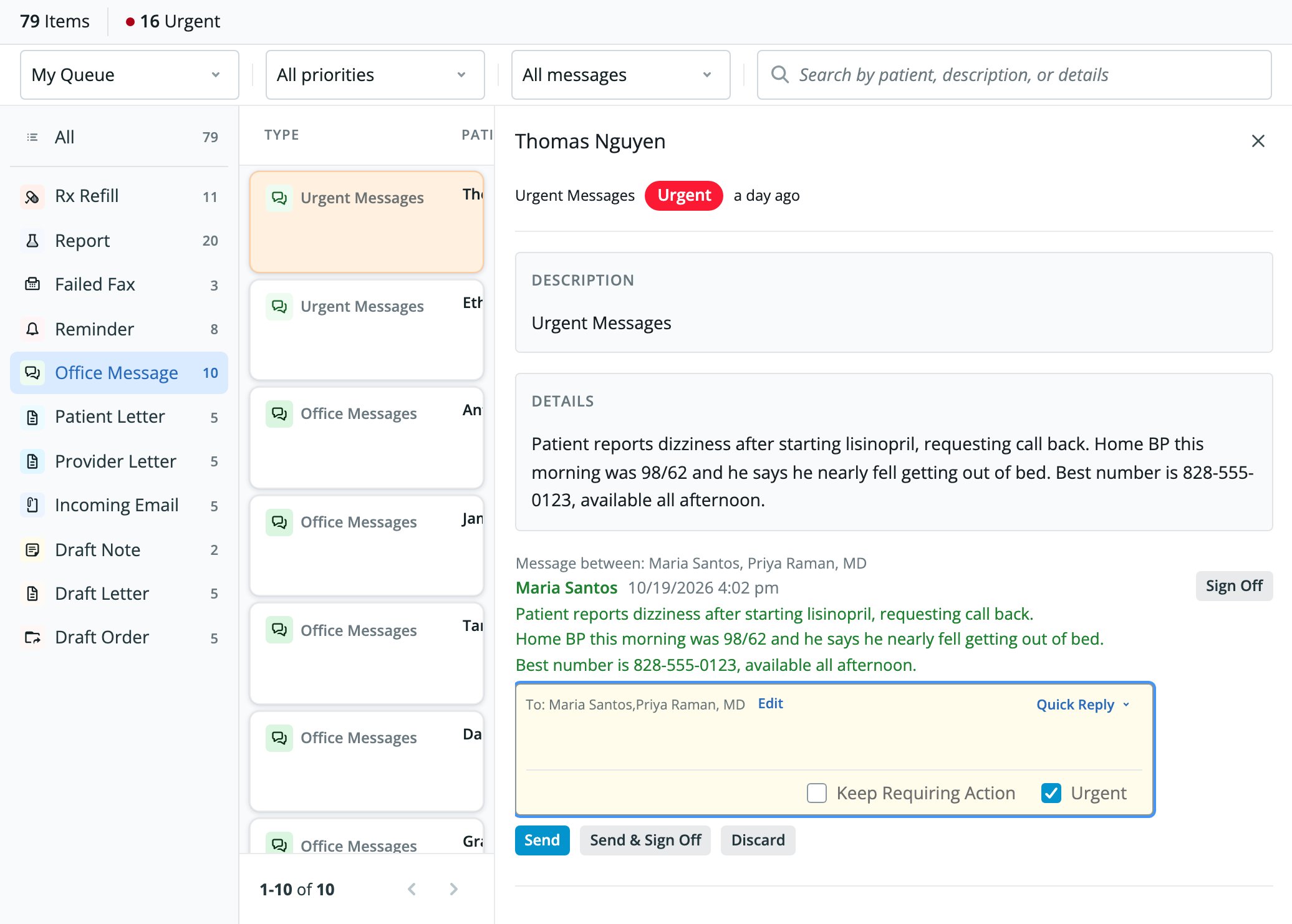
Reminder
For an order reminder, the panel offers these actions:- Cancel Order asks for a reason.
- Fulfilled opens Attach a Report. Choose a report and click Attach Item. If the patient has no reports, the dialog reads “This patient has no reports to attach.”
- Write Message
- Remind Later
- View in Chart
Letter reminder
Unread letter reminders also appear under Reminder. The panel shows To, Re, the body of the letter, Attachments, and “Signed by … on …”. It offers these actions:- Acknowledge
- Write Message
- More, which opens a menu with these options:
- Resend appears only when the letter was not sent through Elation. In the Resend Letter dialog, choose whether to select Include all attachments in fax, then click Send.
- Notify me again later
- View in Chart
Patient Letter and Provider Letter
- Click Sign Receipt when the receipt is not yet signed off.
- Click Acknowledge when the letter has new comments.
- Click View in Chart to open the letter in the patient’s chart.
Failed Fax
Click Re-fax to send the fax again. If the fax has new comments, click Acknowledge instead. To learn more about faxes, see the Fax Inbox Introduction.Incoming Email
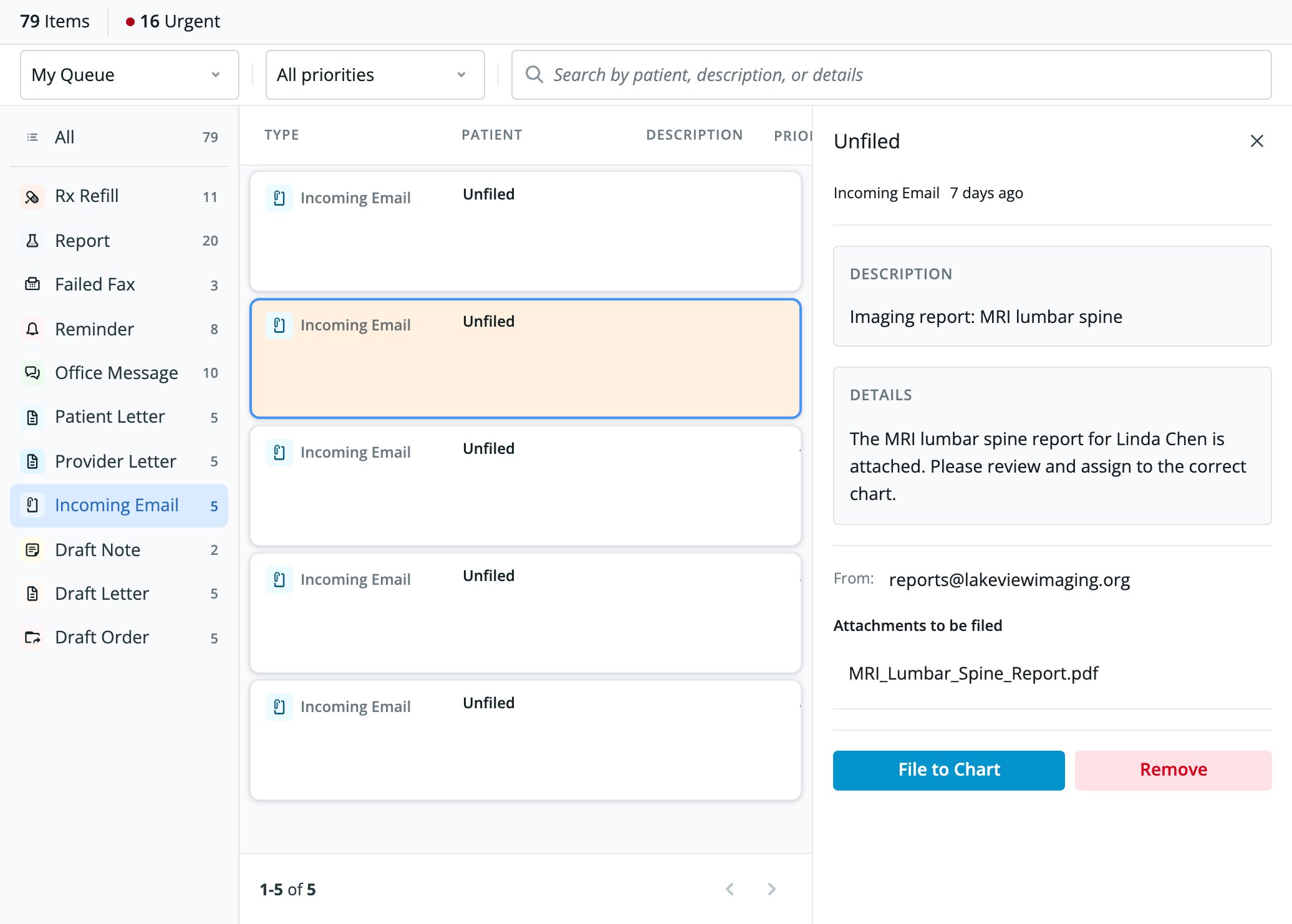
The panel shows From and Attachments to be filed. It offers these actions:- File to Chart opens a dialog that asks you to select the patient to file to. Select a patient and click File.
- Remove asks you to confirm in the Remove email dialog.
Rx Refill and failed eRx
The panel offers View in Chart only. Open the chart to act on the request. For more about refills and failed eRx, see the Prescriptions Guide.Draft Note, Draft Letter, and Draft Order
The panel offers Edit in Chart only. Open the chart to finish and sign the draft. Failed visit notes appear under Draft Note.Quick reference
Related Articles
- Unified Worklist Guide
- Practice Home Introduction- A hub for managing your practice
- Requiring Action – How to Clear Items and Who Can Sign Off (by Item Type)
- Office Message Feature Guide- The enhanced inter-office communications tool
- Prescriptions Guide - Managing electronic prescriptions to and from pharmacies