
The Unified Worklist is a product for Premium EHR customers only. If you are interested in upgrading to the Premium EHR subscription to use this feature, click the I need help button to notify Elation and a member of the Elation Team will reach out to assist you. If you have Premium EHR and the Unified Worklist does not appear in the Requiring Action area of Practice Home, click I need help > Contact Elation Support.
Beta feature: The feature described in this article is part of a beta release and is only available to a select number of practices.
Overview
What is the Unified Worklist?
The Unified Worklist is one prioritized list of everything that requires action, shown in the Requiring Action area of Practice Home. By default, all items requiring action, including reports, messages, letters, refill requests, reminders, and drafts, appear in one consolidated list sorted by priority and age. Filters are available to narrow the list by item type. Each row shows the item type, the patient, a description, a priority, and how long the item has been waiting. Urgent items are marked and listed first, so you can see what needs attention before you open anything.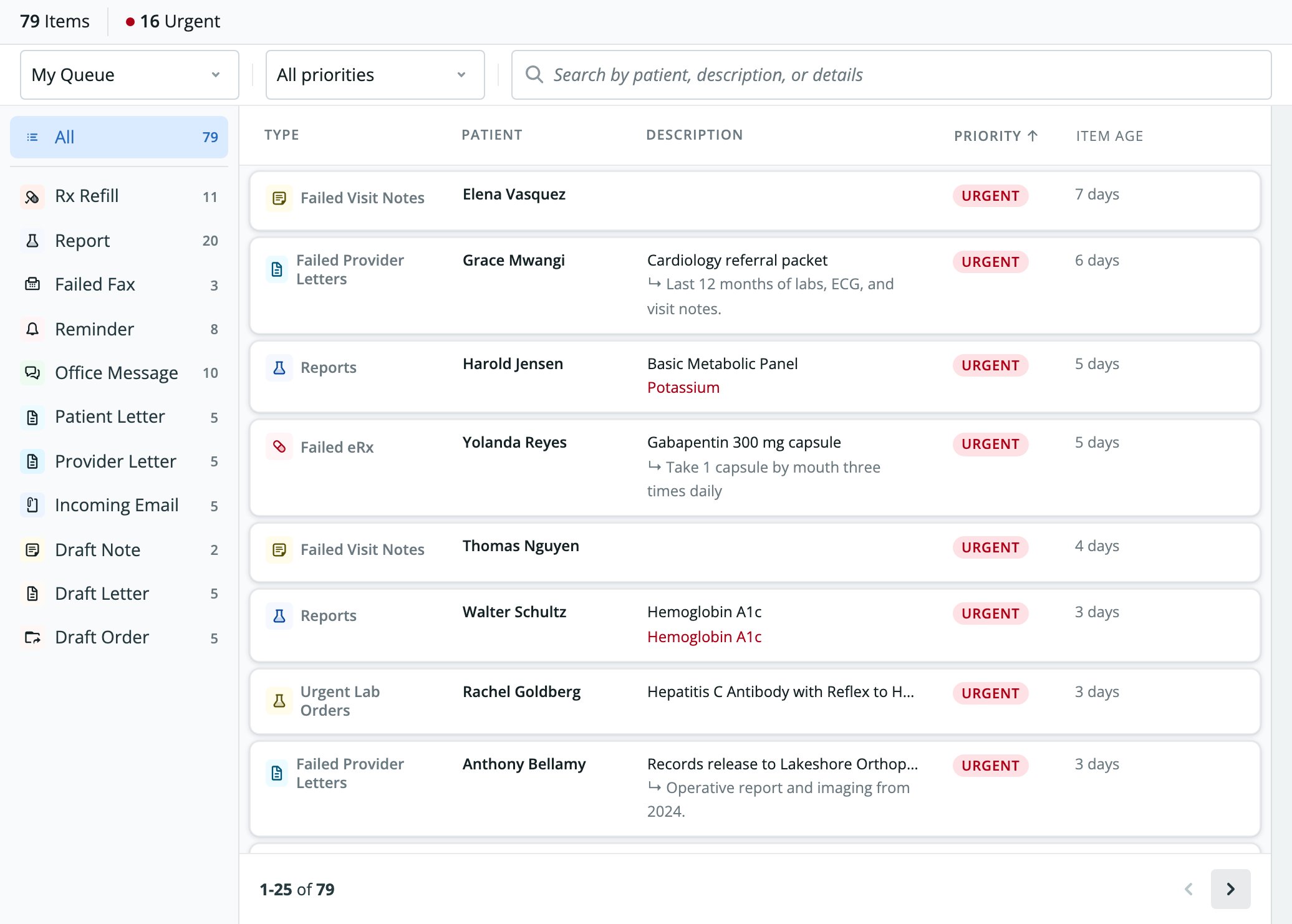
What can I use it for?
- Working through every type of requiring action item from a single list.
- Spotting urgent items, such as failed eRx, abnormal results, and controlled substance refill requests, without opening each queue.
- Reviewing the queue of another provider or staff member, or of a whole group.
- Narrowing the list by item type or priority, or searching by patient, description, or details.
- Opening an item, taking action on it, and moving to the next one without leaving Practice Home. See Unified Worklist Guide - Taking Action on Items.
Workflow Instructions
Understanding the layout
The top of the worklist shows two counts for the queue you are viewing: Items and Urgent. Filters do not change these counts. The sidebar lists the item types, each with a count:- All
- Rx Refill
- Report
- Failed Fax
- Reminder
- Office Message
- Patient Letter
- Provider Letter
- Incoming Email
- Draft Note
- Draft Letter
- Draft Order
The list has these columns:
- Type
- Patient
- Description
- Priority
- Item Age
Choosing whose queue to view
By default, the worklist shows My Queue. Use the View queue for selector to view another queue.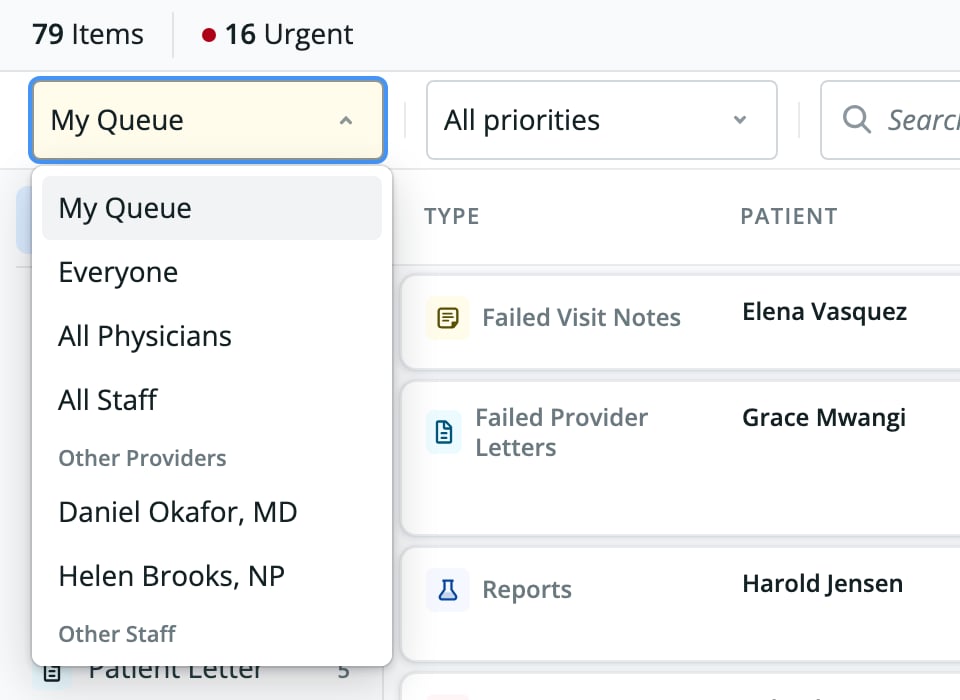
- My Queue
- Everyone
- All Physicians
- All Staff
- Individual users, grouped under Favorites, Other Providers, and Other Staff
Sorting, filtering, and searching

1
Choose an item type
Select a type in the sidebar, such as Report or Office Message. Select All to see every type.
2
Sort the list
Click the Priority or Item Age column header. Click the active header again to reverse the order. Only these two columns sort.By default, the list sorts by Priority: urgent items first, then the oldest items first. When you sort by Item Age, the oldest items appear first.
3
Filter the list
Use the filter bar to narrow the list:
- Use the priority menu to choose All priorities or Urgent only. Urgent only shows only urgent items.
- When the Report type is selected, an additional dropdown appears, showing All reports by default. Use it to narrow the list to one report type.
- When the Office Message type is selected and you belong to a staff group, an additional dropdown appears, showing All messages by default. Use it to choose All messages, Addressed to Self directly, or Group: . In another user’s queue, the direct option reads “Addressed to directly”.
4
Search the list
Type in the search box, which reads “Search by patient, description, or details”. It matches the patient name, the description, and the short preview line shown under the description.
5
Page through the results
The list shows 25 items per page. Use Prev and Next to move between pages. The total count is hidden while a search is active.
How items become urgent
An urgent item shows the Urgent badge in the list and in the details header. It also counts toward Urgent and sorts first by default.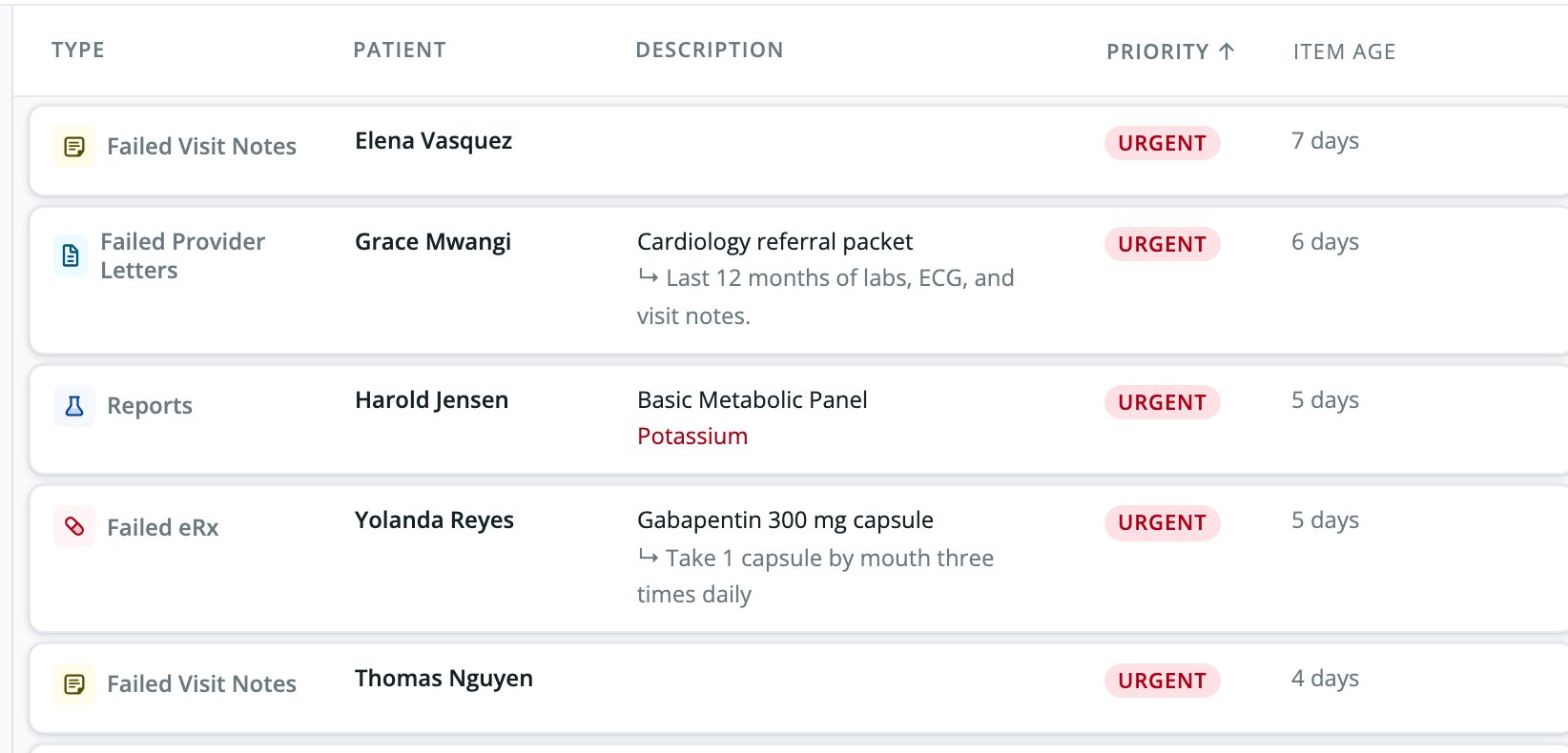
- Failed eRx
- Failed faxes (provider letters)
- Failed visit notes
- Urgent lab orders
- Urgent letter reminders
- Urgent office messages
- Reports are urgent when they are flagged urgent or when any lab result on the report is abnormal.
- Rx refill requests are urgent when they are for a controlled substance.
When items leave the worklist
When you complete an action on an item, the item leaves the list immediately. The details panel closes and the counts update. What completes an item depends on its type. See Unified Worklist Guide - Taking Action on Items for each type. The worklist does not refresh on its own and has no refresh button. Reload the page to see items that arrived after you opened it. If the worklist cannot load, it reads “Failed to load worklist items.” Click Retry. While it loads, it reads “Loading your worklist…”.Frequently Asked Questions
Why don’t I see the Requiring Action tabs on Practice Home?
When the Unified Worklist is enabled for your practice, it replaces the separate Requiring Action tabs in that area of Practice Home. The same items appear in the worklist, grouped by the item types in the sidebar.Why is a report marked urgent?
A report is urgent when it is flagged urgent or when any lab result on it is abnormal. See How items become urgent.Why don’t the counts change when I select an item type or apply a filter?
The Items and Urgent counts and the sidebar counts reflect the whole queue you are viewing. Selecting a type or applying a filter changes only which rows appear.Why isn’t a new item showing up?
The worklist does not refresh on its own. Reload the page to see newly arrived items.Can I see items that were already completed?
No. The worklist shows only items that still require action. It has no completed or history view. Completed items can be found in the patient’s chart.Can I add comments to an item in the worklist?
No. The worklist does not support comments on individual items.Why is an item I expected missing?
Items that are not matched to a patient are not shown in the worklist.Related Articles
- Unified Worklist Guide - Taking Action on Items
- Practice Home Introduction- A hub for managing your practice
- Requiring Action – How to Clear Items and Who Can Sign Off (by Item Type)
- Office Message Feature Guide- The enhanced inter-office communications tool
- Prescriptions Guide - Managing electronic prescriptions to and from pharmacies