
Documenting an encounter
How can I easily reference active problems in the visit note I am drafting?
As best practice, we recommend storing active problems for patients in the Problem List section of their Clinical Profile. This allows you to easily export the problems to various areas of the visit note (such as the HPI, Review of Systems, Assessment, or Billing sections) when you are documenting an encounter. Click here to learn more about the Problem List and how to export problems to your visit note.How do I copy content from a previous visit note to a new visit note?
To copy content from a previous visit note to a new visit note:- Locate the previous visit note you want to copy within the patient’s chronological record
- Click Actions —> New Note (under the Export To: section)
- This will copy all of the content from the previous visit note (except for vitals or referenced orders) into a new visit note draft.
Faxing
How do I send a fax that has more than 40 pages of attachments?
The behavior of a fax with more than 40 pages of attachments depends on the recipient:- If the recipient is also an Elation EHR user (they will have a logo next to their name), then the Letter/Referral along with its attachments will be sent electronically, directly to their Elation EHR and will not be sent to them via fax.
-
If the recipient is a secure Provider Portal user (they will have a logo next to their name), then the Letter/Referral along with its attachments will be sent electronically, directly to their secure Provider Portal. By default, if the Also fax copies of the attachments box is not checked, then we will fax them the Cover Letter and body of the Letter/Referral along with instructions to retrieve the remaining attachments online.
- If the recipient is a contact in your directory without a Provider Portal or Elation EHR designation (meaning they only have a name and fax number stored), and your attachments exceed the fax page limit, split them across multiple Provider Letters or Referrals and send each as a separate fax, or select Sign & Download PDF to download the full packet and send it using a conventional fax machine outside Elation.
-
If the recipient is a plain 10-digit fax number, they will receive the entire Letter/Referral, including its attachments, as a fax transmission when the packet is within the applicable fax page limit. If the packet exceeds that limit, split the attachments across multiple Provider Letters or Referrals and send each as a separate fax, or select Sign & Download PDF to download the full packet and send it using a conventional fax machine outside Elation.
Elation uses Voice Over IP for faxing, which is the method of faxing documents using internet connection. Voice Over IP faxing breaks down the fax into packets of data, and sends them out in chunks. If the transmission is interrupted (which commonly occurs regardless of faxing method), it only takes a few consecutive interrupted packets to reach the failure threshold and this will cause the fax to fail. The larger the fax transmission, the more likely it may run into interruptions, therefore we recommend keeping your faxes under 40 pages when possible.Limiting your faxes will also help you save money since each Standard Provider User is only allotted 1,500 free pages in combined inbound and outbound faxes each month. Any additional pages used per month will be charged at $0.07 per page. Elation processes fax overage charges on the first business day of each month for last month’s fax usage.Click here to learn more about managing your fax usage.
Managing patient charts
I have a few patients that have the same first and last name. What should I do to avoid any mix-up or confusion?
We recommend adding a Patient Tag to the patient’s chart to alert the different members of your practice that there are patients with the same first and last name. Patient Tags are visible when when you search for patients and are a good way to alert your staff. For example, you can use a Patient Tag called ‘Same Name Alert’. Click here to learn more about adding Patient Tags to a patient’s chart.Scheduling
How do I send custom visit instructions for in person visits?
To send custom visit instructions for in person visits, enter the text in the Visit instructions for patient box in the appointment. The text in the Visit instructions for patient box will be sent automatically along with appointment reminders (if the appointment reminders have not been sent already) or you can manually send the instructions by clicking the Send button.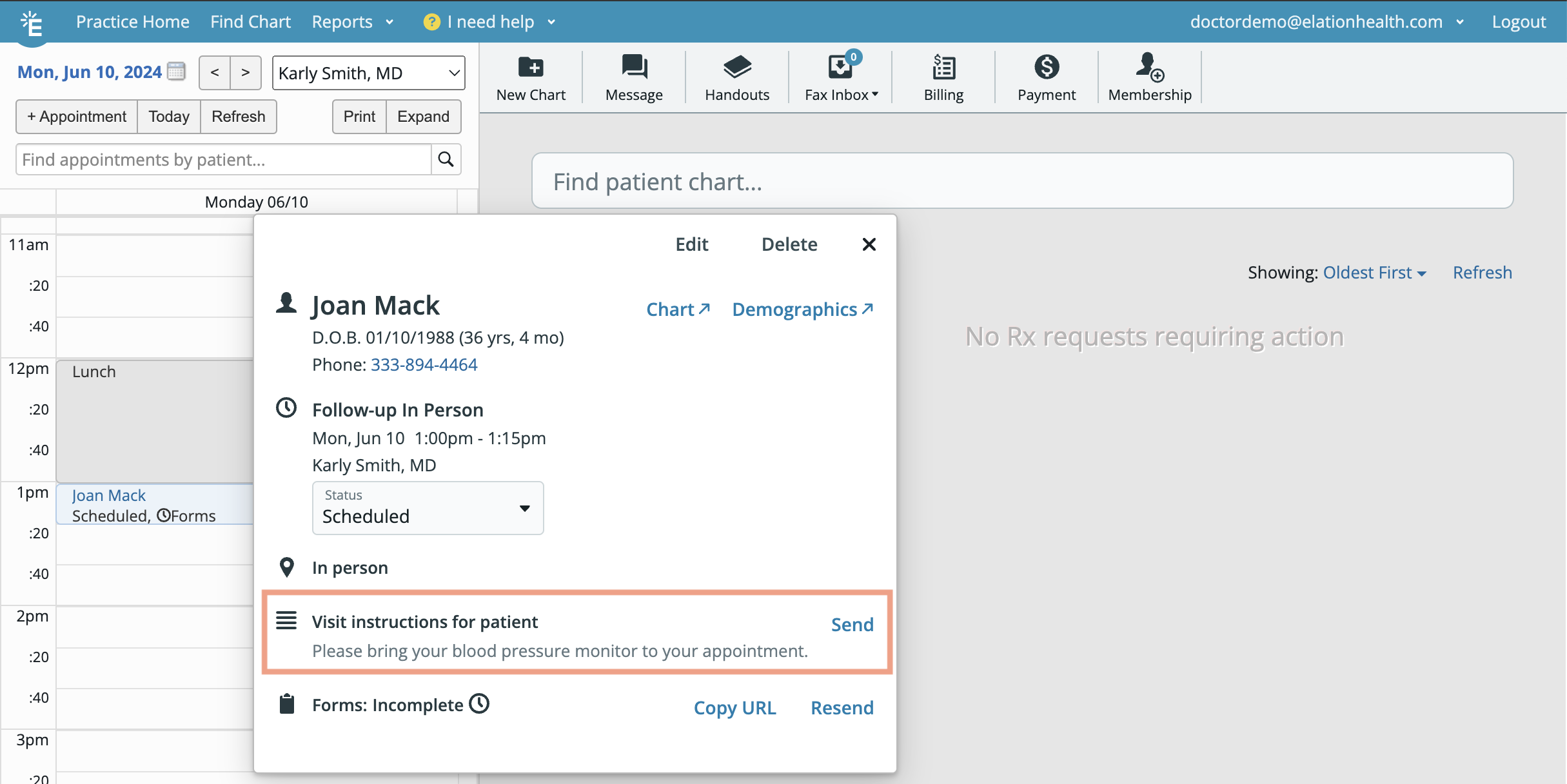
How can I tell who updated the status of an appointment?
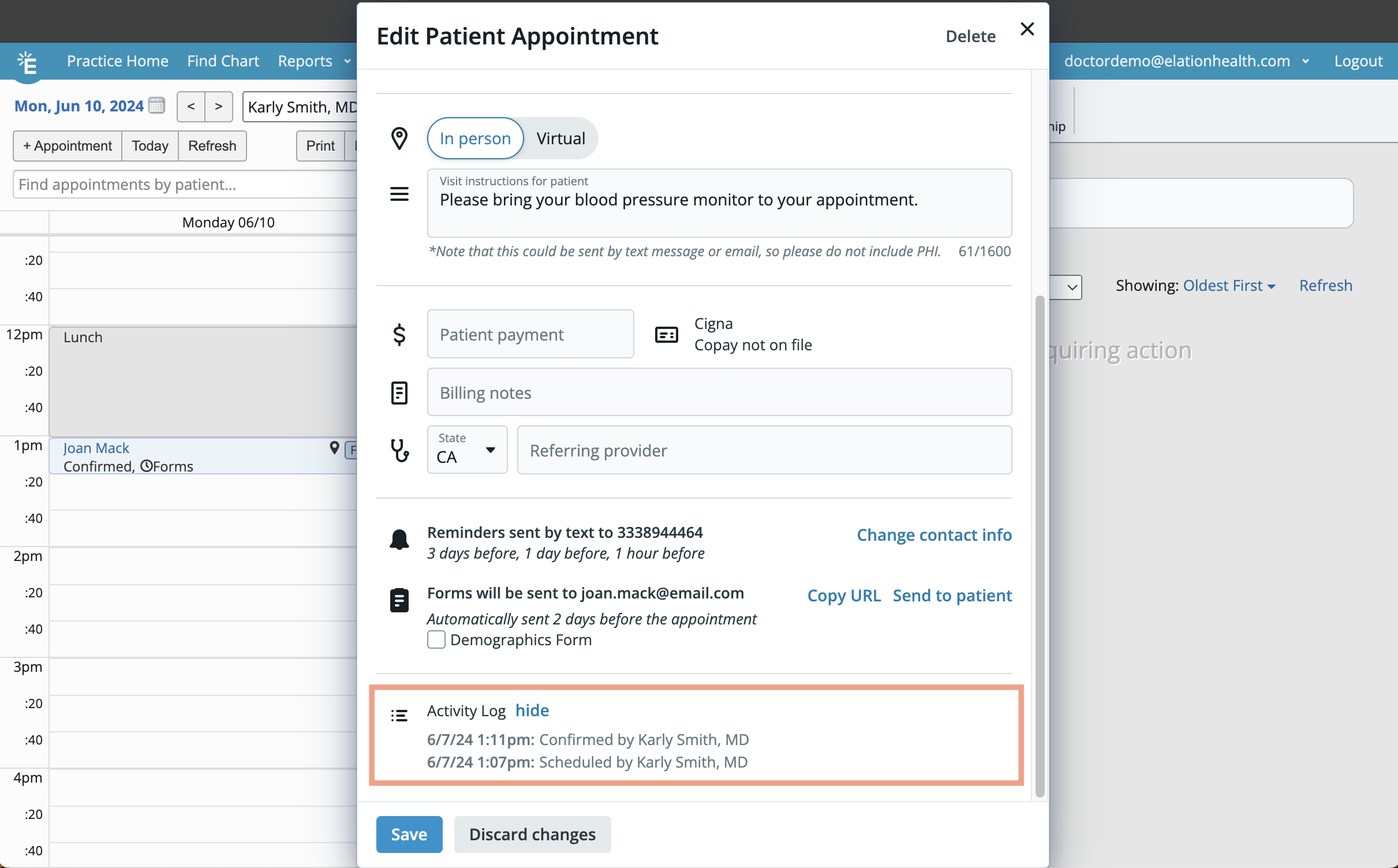
To view the edit history of an appointment:- Click into the shaded area of the appointment in the Calendar
- Click Edit
- Scroll down to the Activity Log section of the Edit Patient Appointment box
Related Articles
- Calendar Guide- Using the Calendar for appointments & events
- Letters & Referrals Introduction- Sharing clinical data outside of Elation
- Letters & Referrals Guide- How my colleagues can access shared patient information from my faxes and emails
- Patient Tags Guide- Classifying patients for administrative efficiency
- Problem List Guide