Each month, Elation compiles frequently asked questions from our customer interactions and Office Hours and shares the questions and answers through this help center. We hope to broaden our customers’ knowledge of our features and best practices. The topics from this edition include:

Medication management

Is there a way to check if the pharmacy got my prescription?
Yes, some pharmacies may acknowledge receipt of your prescription. If they do, an asterisk will appear at the end of the note in the prescription that says ‘Sent to [Pharmacy Name] …’. If you place your cursor over the asterisk you will see a note that says “The pharmacy has permanently accepted the order”.
Where can I view temporary medications?
You can view the temporary medications by clicking Meds Hx -> Medication History at the top of the patient’s chart.

Patient communication

How can I automatically share a patient’s lab results with them via Passport?
Lab results cannot be shared automatically with patients via Passport. You must manually send the lab results to the patient via a Patient Letter.
Can I set up an automated out-of-office reply for patient messages?
Automated out-of-office replies aren’t currently available. However, you can use the Bulk Letter feature to send a message to all your patients if you need to notify them about changes to your schedule.

Scheduling

How do I quickly reschedule a patient appointment?
To quickly reschedule a patient’s appointment:
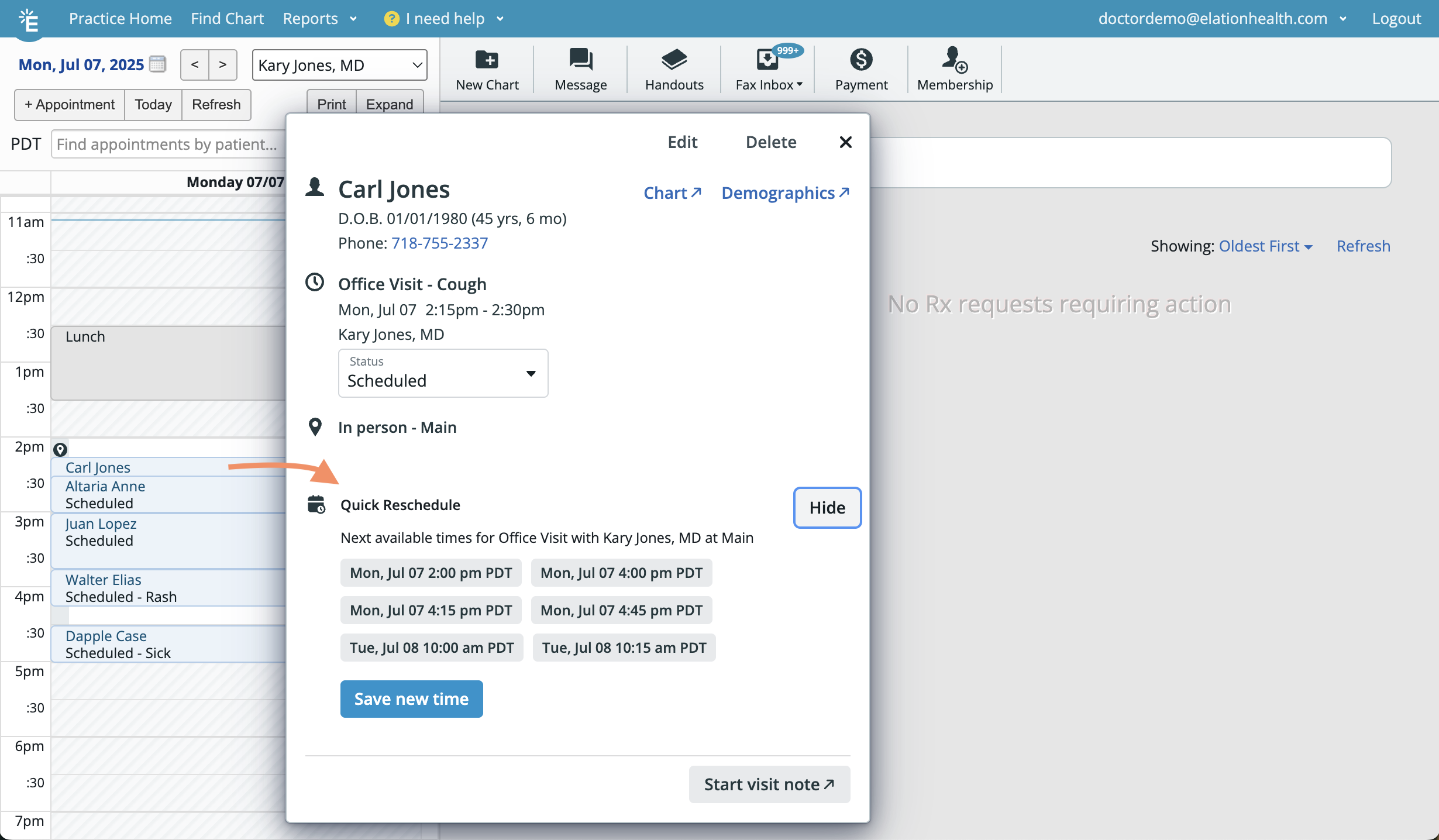
1Click in the shaded area of the appointment to open the appointment popover box.
2Click Show suggested times next to Quick Reschedule.
3Select a new appointment time from the list of the next six available options, based on the appointment’s Location and Duration and the Provider’s Availability. Click here for instructions on how to configure Provider Availability.
4Click Save new time .
Where can I see a list of patients with no upcoming scheduled visits?
To see a list of patients with no upcoming scheduled visits:
1Click Reports -> Patient List .
2(Optional) Filter for patients by assigned provider, demographics or clinical data if needed.
3Click Generate List to see matching patients.
4Look at the Next Appointment column to see which patients do not have a future appointment scheduled.
5Click Download -> Download CSV to download a spreadsheet for additional filtering if needed.