
This article only describes the ability to set Provider scheduling availability by Practice Location and Appointment Type on the Elation Calendar and Patient Booking Site. Please reference the Calendar Guide - How to set up the provider calendar and Patient Booking Site Guide for more information about other Calendar and Booking Site related features.
Overview
What is Provider Availability?
The Provider availability and scheduling features allow Practices to:- Define the availability of each Provider Level User for any Practice Location and Appointment Type within the EHR. (This is sometimes called setting availability templates, schedule templates, or office hours by location.) This availability will be visible on both the Practice Home calendar and the Booking Site calendar for each Provider Level User.
- Specify overlapping availability for different Practice Locations and Appointment Types.
- Assign a specific time zone to each Practice Location to ensure accurate configuration and patient communication regarding appointments.
Why is Provider Availability important?
The Provider availability and scheduling features:- Provide scheduling control and accuracy because:
- Staff can now visually discern on the Calendar both the availability of each Provider and the specific appointment types they are available for.
- Patients using the Booking Site can only select appointments based on the Provider’s chosen Practice Locations and Appointment Types.
- Help practices with multiple Practice Locations segment their patients according to each Provider’s availability
- Ensure that practices operating across different time zones:
- Provide clear time zone details to patients on the booking site.
- Accurately send appointment details to patients in their respective time zones.
How Availability, Events, and Booking Work together
Provider availability, calendar events, and the Booking Site all use the same scheduling feature. Understanding how these elements interact helps you configure your calendar accurately.Key scheduling elements
- Provider Availability (by location and appointment type): Weekly recurring time rules that define when a provider can see patients at each Practice Location for specific appointment types. Also referred to as availability templates, schedule templates, or office hours by location.
- Appointments: Booked patient visits that occupy calendar time and block additional bookings in that slot.
- Calendar Events: Events on the calendar that occupy time slots. By default, calendar events block patient self-scheduling via the Booking Site. However, staff and providers can still manually book appointments over these times if needed. These include:
- Events you create directly in Elation (such as lunch blocks, meetings, or personal time)
- Events synced from Google Calendar
- Non-Blocking Placeholders: Internal preference cues that do not block booking. Patients can still book appointments during these times via the Booking Site if the provider’s main availability allows it. Non-Blocking Placeholders are internal-only and will not appear on your Booking Site.
Booking Site and Quick Reschedule evaluation order
When patients view the Booking Site or staff use Quick Reschedule, the system checks availability in this order:- Is the provider’s availability configured for this location and appointment type?
- Is the time slot already occupied by an appointment or a calendar event (including synced Google Calendar events)?
- Does the appointment type meet the minimum notice requirement?
What actually blocks the Booking Site?
Use this quick reference to understand which calendar elements prevent patients from booking appointments online.Non-Blocking Placeholders are meant only as internal preference cues for staff. They do not appear on your Booking Site and do not prevent patients from booking.
Current limitations of Enhanced Availability
Keep these limitations in mind when configuring provider schedules:- Weekly patterns only: Availability is configured as weekly recurring patterns. You cannot set availability for a single specific date (e.g., this one Wednesday only) without making manual adjustments.
- No automatic rotating schedules: There is no native “every other week” rule. Rotating or irregular schedules must be modeled using weekly patterns plus manual overrides.
- Manual updates for varying hours: Providers who want varying monthly hours on the Booking Site must manually adjust their availability as their schedule changes.
Workflow Instructions
Configuring availability preferences for a Provider
The ability to adjust Provider availability preferences can be limited to Admin Level Users if the Admin Only toggle located in the top right corner of the Calendar & Booking settings page is toggled on (green).
Verifying each Practice Location has the correct time zone
To ensure the Booking Site displays the correct time zone for each Practice Location, make sure the time zone for each Practice Location is accurate when setting availability. If you attempt to add availability for a Practice Location that does not have a time zone set, you will see the following Location needs a time zone alert. You must click Update location time zone and set a time zone before you can add availability to the location.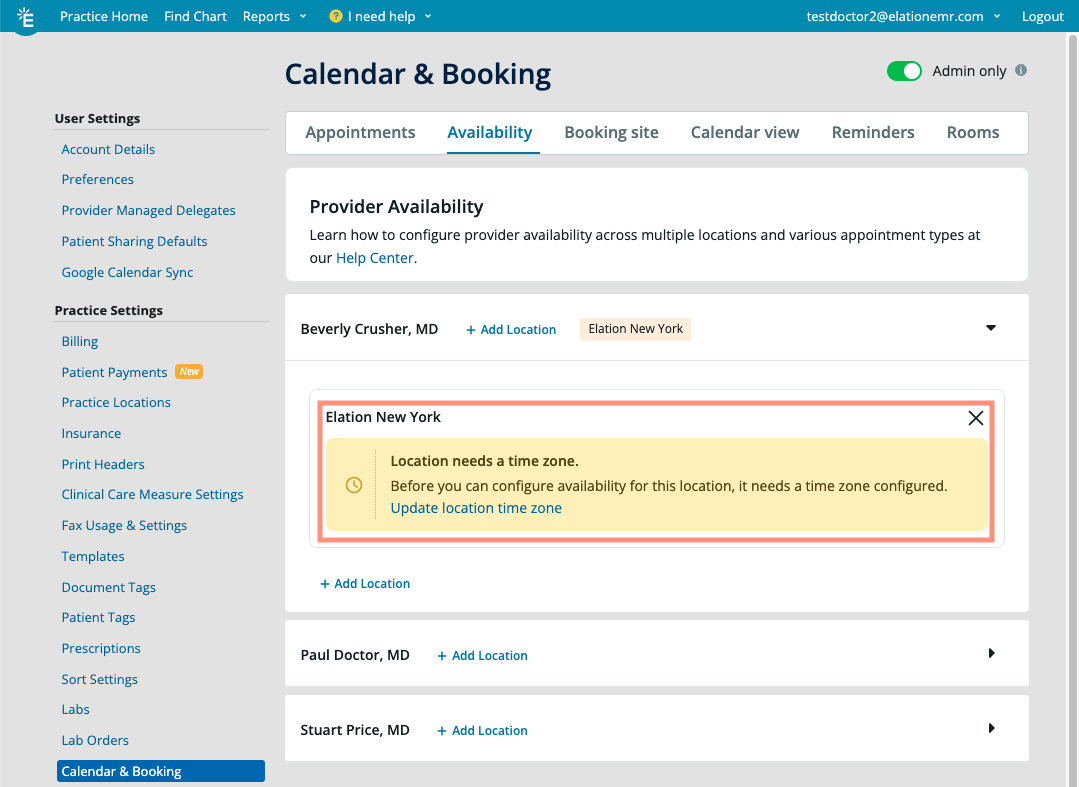
Configuring availability for a Practice Location
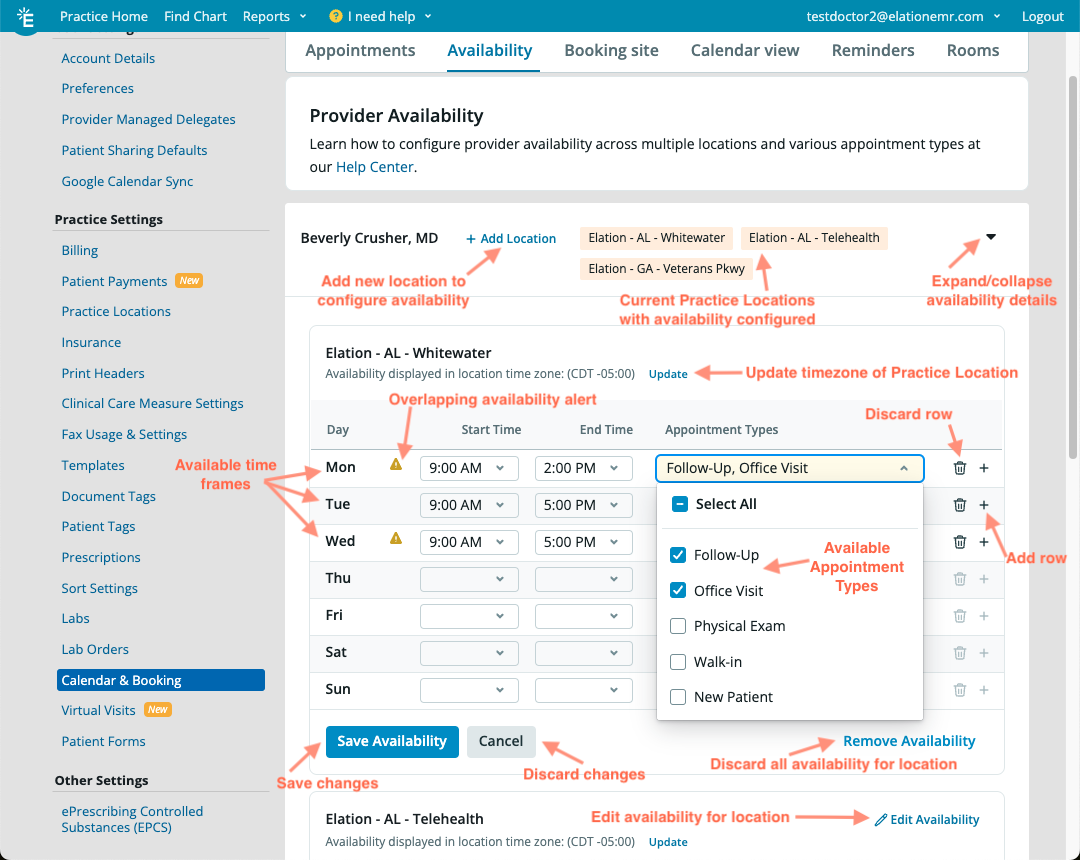
- To edit their availability for the primary Practice Location, jump to step 5 below.
If a time frame does not have both a Start Time and End Time , Elation will not allow you to save the time frame.
 5c
To delete an availability time frame, click the trash can icon. To add a new availability time frame for that day of the week, click the + icon.
6
Once you are done defining the availability for that Practice Location, click Save Availability to save your changes.
5c
To delete an availability time frame, click the trash can icon. To add a new availability time frame for that day of the week, click the + icon.
6
Once you are done defining the availability for that Practice Location, click Save Availability to save your changes.
- To discard your changes, click Cancel.
- To remove all of the availability for that Practice Location, click Remove Availability.
Cloning availability to another provider
If you have already configured availability for one provider at a location, you can copy that entire schedule to another provider at the same location — including all time blocks and appointment type restrictions — without re-entering it manually. To clone availability:
The copy is additive — if the target provider already has a block at that location on the same day and time, it is skipped. Running Clone Availability twice is safe and will not create duplicates.
If the target provider already has availability at that location, the dialog will let you know. If you want to fully replace their schedule, use Remove Availability on their card first, then clone.
Clone Availability only appears in view mode (not while editing) and only when the source card has saved blocks. It copies availability at one location at a time — repeat for other locations as needed.
Removing availability for an entire Practice Location
To completely remove a location and all of its availability for a Provider Level User:Removing availability within a Practice Location
To completely remove availability for a specific day of the week or a specific Appointment Type for a Provider Level User:Viewing a Provider’s availability on the EHR Calendar
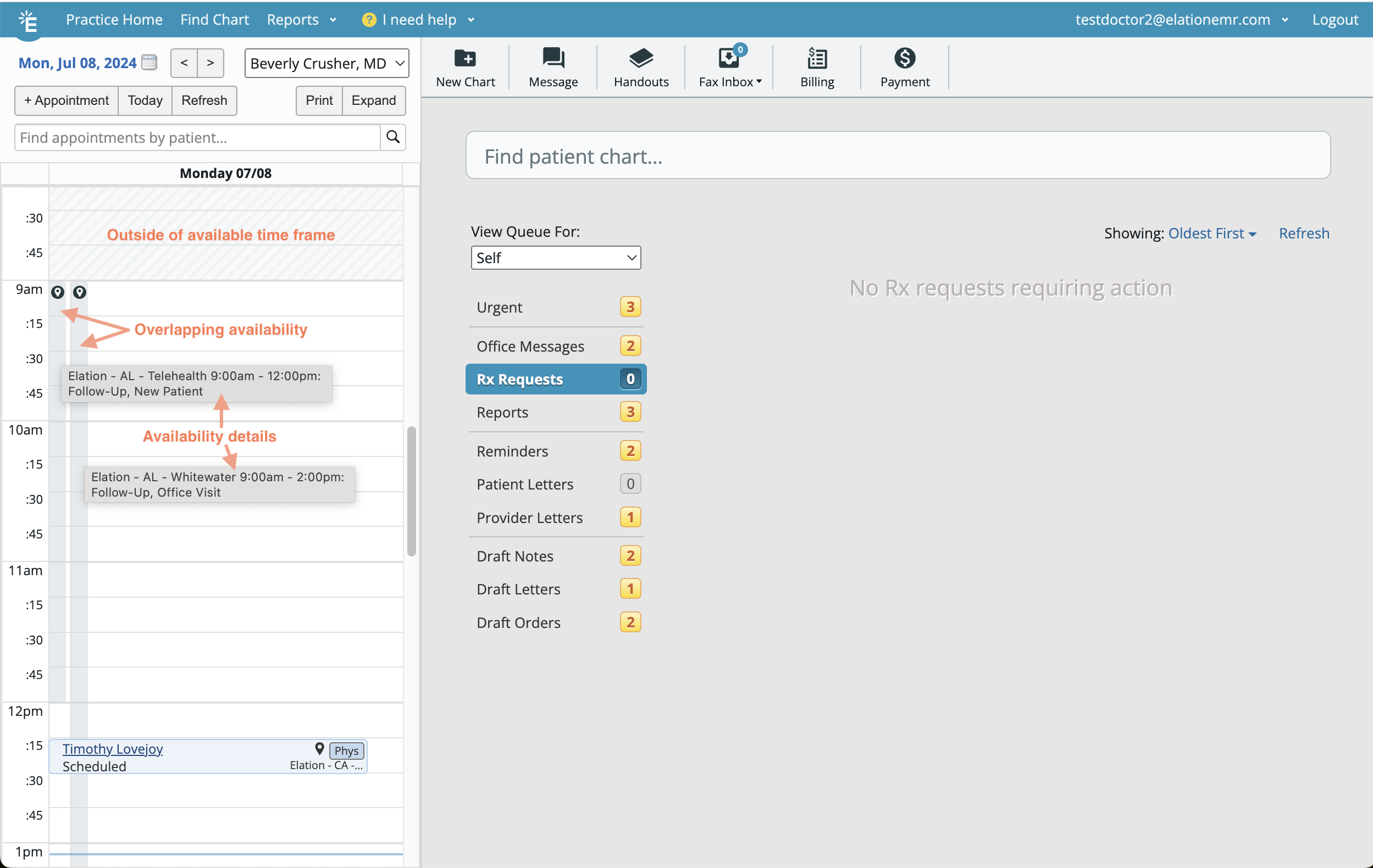
Adding appointments to the calendar when availability is configured
To schedule appointments on the calendar for a Practice Location where the Provider is available:Displaying a Provider’s availability on the Booking Site
Two steps are required for a provider to appear on the Booking Site: The appointment type must be marked as available on the Booking Site using the Show this appointment type on the booking site checkbox.The provider must be listed under Providers in that appointment type’s Booking Site section. Setting availability alone is not enough. If either step is missing, patients will not see that provider for that appointment type on the Booking Site.
To share a direct URL for each Appointment Type with patients:
Viewing a Provider’s availability on the Patient Booking Site as a patient
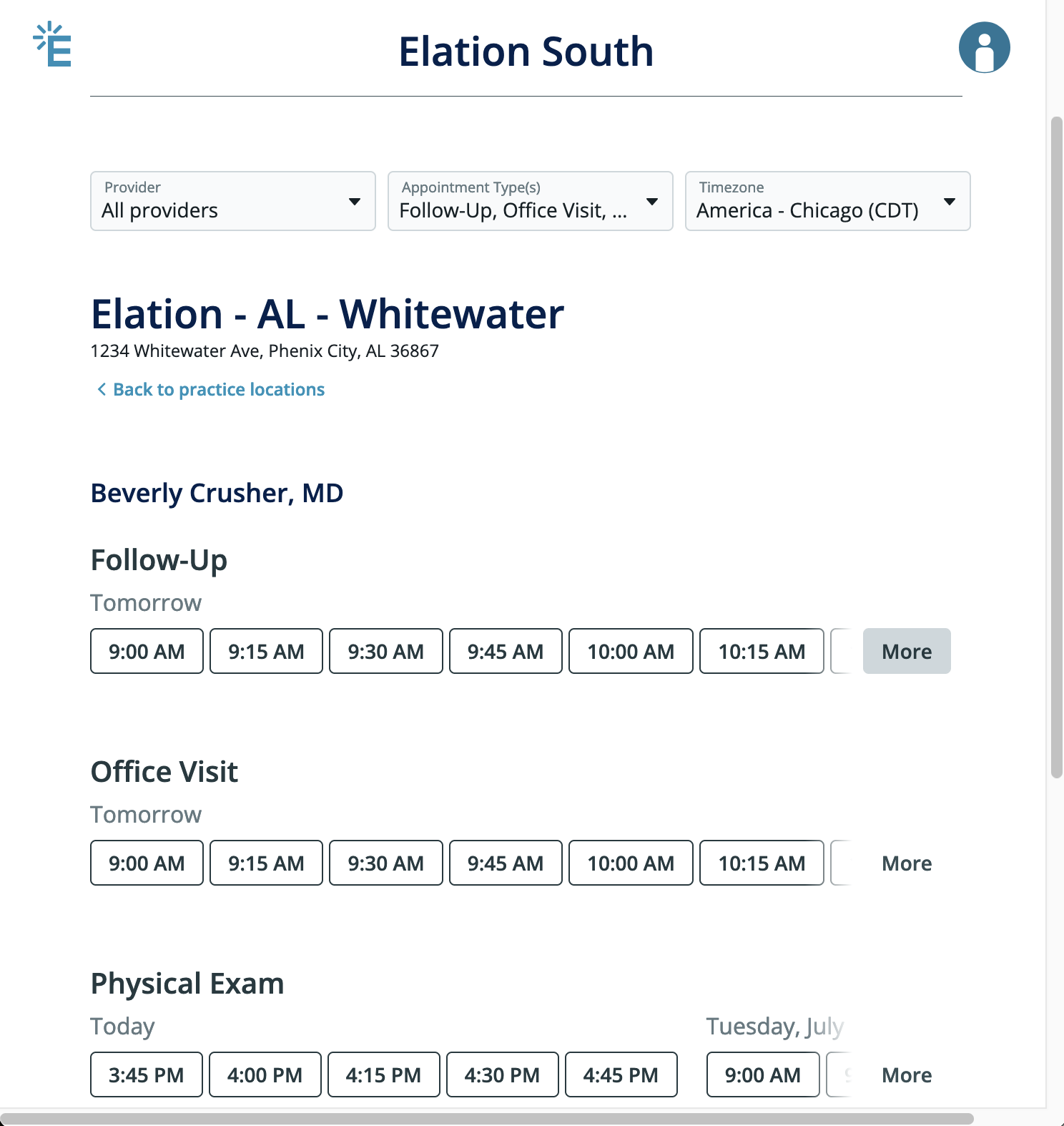
The Patient Booking Site will only display the Provider availability configured in the Calendar & Booking settings. When patients first navigate to your practice booking site, they will see a list of all available Practice Locations. Patients can narrow down the availability displayed by selecting a Practice Location, and/or filtering by Provider, Appointment Type, or Time zone. Default Booking Site display: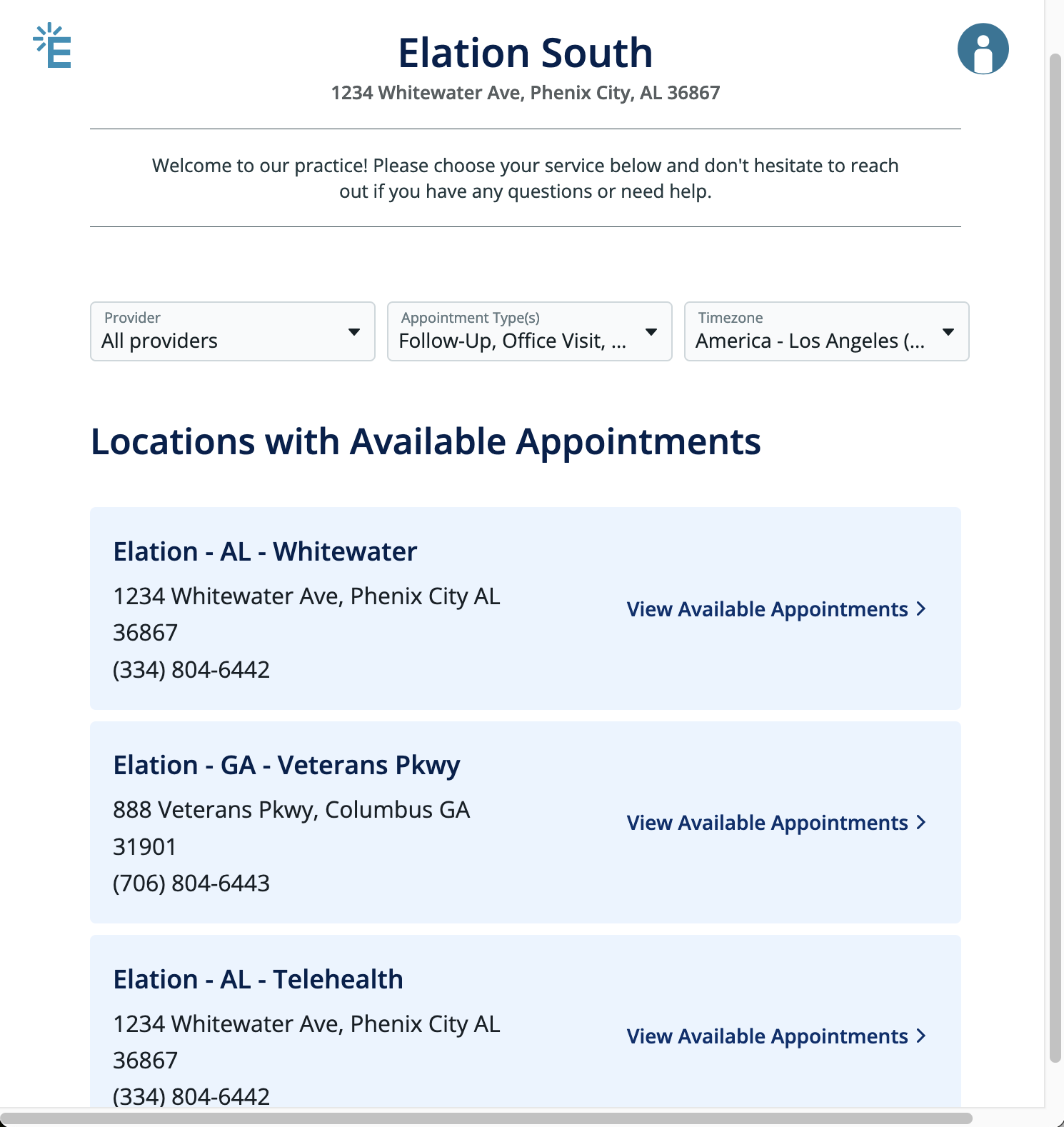
- If the patient selects a Practice Location, the page will display available providers and appointments for that Practice Location and the appointment times will display in the Practice Location’s default time zone unless the patient changes the time zone selection at the top of the Booking Site.
Configuring rotating or irregular schedules
If a provider works a rotating schedule (e.g., Mondays & Wednesdays one week, Tuesdays & Thursdays the next), you can still manage their availability using weekly patterns and manual overrides. Supported behavior:- Availability is configured as weekly recurring patterns by location and appointment type.
- You can define multiple availability blocks per day and remove availability for specific days or locations.
- There is no native “every other week” rule. Rotating schedules must be modeled using recurring weekly patterns plus manual overrides.
Example Scenario
Provider works Mondays and Wednesdays one week and Tuesdays and Thursdays the next:Storing & utilizing a patient’s time zone preferences
To ensure that appointment confirmation and reminder notifications display the appointment date and time according to the patient’s preference, save each patient’s preferred time zone in their Patient Demographics. The Time zone field is in the Contact Information section of Patient Demographics. Any patient communications sent by the EHR will follow these time zone rules:- If a patient’s preferred time zone is saved for the patient then appointment confirmation and appointment reminder notifications will use the preferred time zone.
- If a patient’s preferred time zone is not saved, but their Patient Demographics include a valid zip code, appointment confirmation and reminder notifications will calculate the appropriate time zone based on the patient’s zip code and use it for sending notifications.
- For practices with a single Practice Location:
- If a patient’s preferred time zone is not saved AND the patient does not have a valid zip code in the Patient demographics, then appointment confirmation and appointment reminder notifications will use the time zone of your practice’s primary Practice Location.
- For practice’s with multiple Practice Locations:
- If a patient’s preferred time zone is not saved AND the patient does not have a valid zip code in the Patient demographics, then the appointment confirmation and reminder notifications will be based on the time zone associated with the Practice Location of the appointment.
- If the Practice Location of the appointment does not have a defined time zone, then we will use the time zone of your practice’s primary Practice Location.
- Go to your Practice Location Settings to define a time zone for each Practice Location. Contact Elation Support if you need to update the time zone of your practice’s primary Practice Location.
- If a patient’s preferred time zone is not saved AND the patient does not have a valid zip code in the Patient demographics, AND the Practice Location for the appointment does not have a time zone set, then appointment confirmation and appointment reminder notifications will use the time zone of your practice’s primary Practice Location.