
Overview
Elation EHR + Billing Practices will use the EHR Calendar instead of the Elation Billing Calendar. This article applies to Legacy practices only.
Workflow Instructions
Editing or Canceling an Appointment
- Navigate - Click on the Appointment Calendar option under the Patients drop-down menu.
-
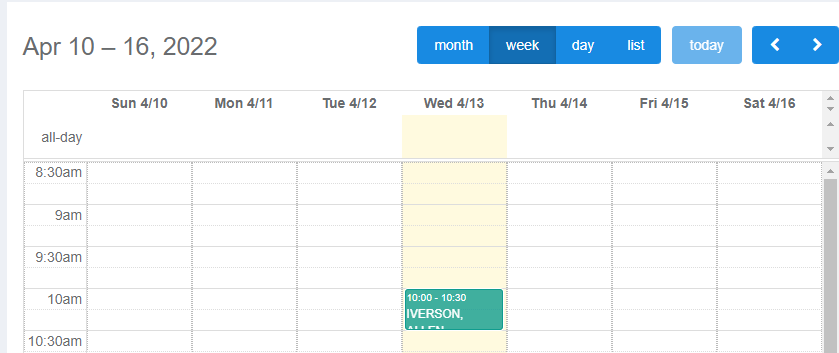
Select Calendar View - The default is by month, but viewing by week or day is easier when managing appointments.

-
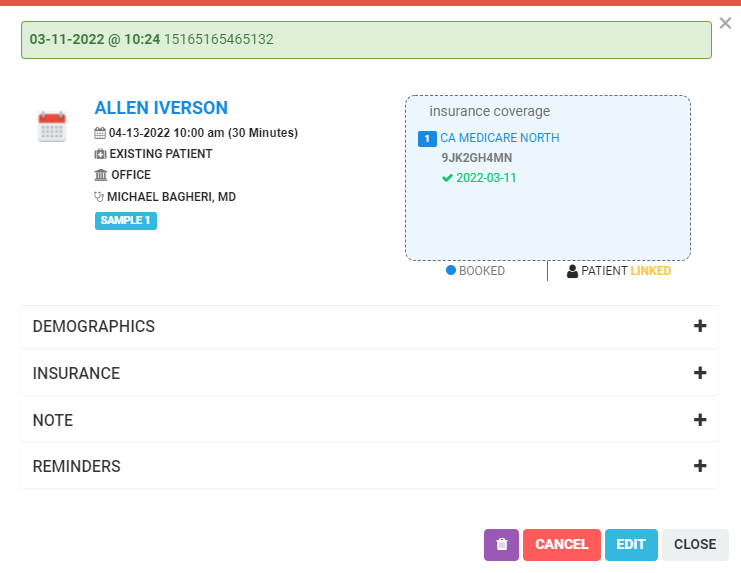
Click on an Existing Appointment - This will open a dialogue display of your appointment.
Available Actions
From the appointment dialogue, you can:- View a summary of the appointment, patient alerts, patient tags, and a preview of their insurance and eligibility
- Click on the insurance drop-down to quickly run eligibility
- Click EDIT to make adjustments or reschedule
- Click CANCEL to cancel the appointment
- Click DELETE to delete the appointment
- Adjust the status of the appointment in the WAITING ROOM