
Premium Scheduling is a product for Premium EHR customers only. If you are interested in upgrading to the Premium EHR subscription to use this feature, click the I need help button to notify Elation and a member of the Elation Team will reach out to assist you. If you have Premium EHR and Reschedule Worklist does not appear under Reports, click I need help > Contact Elation Support.
Premium Scheduling is currently in early access and is only available to a select number of practices.
Before you start
Send a provider’s schedule to the worklist
1
Open the Reschedule Worklist
Click Reports in the navigation bar and select Reschedule Worklist.
2
Open the intake tab
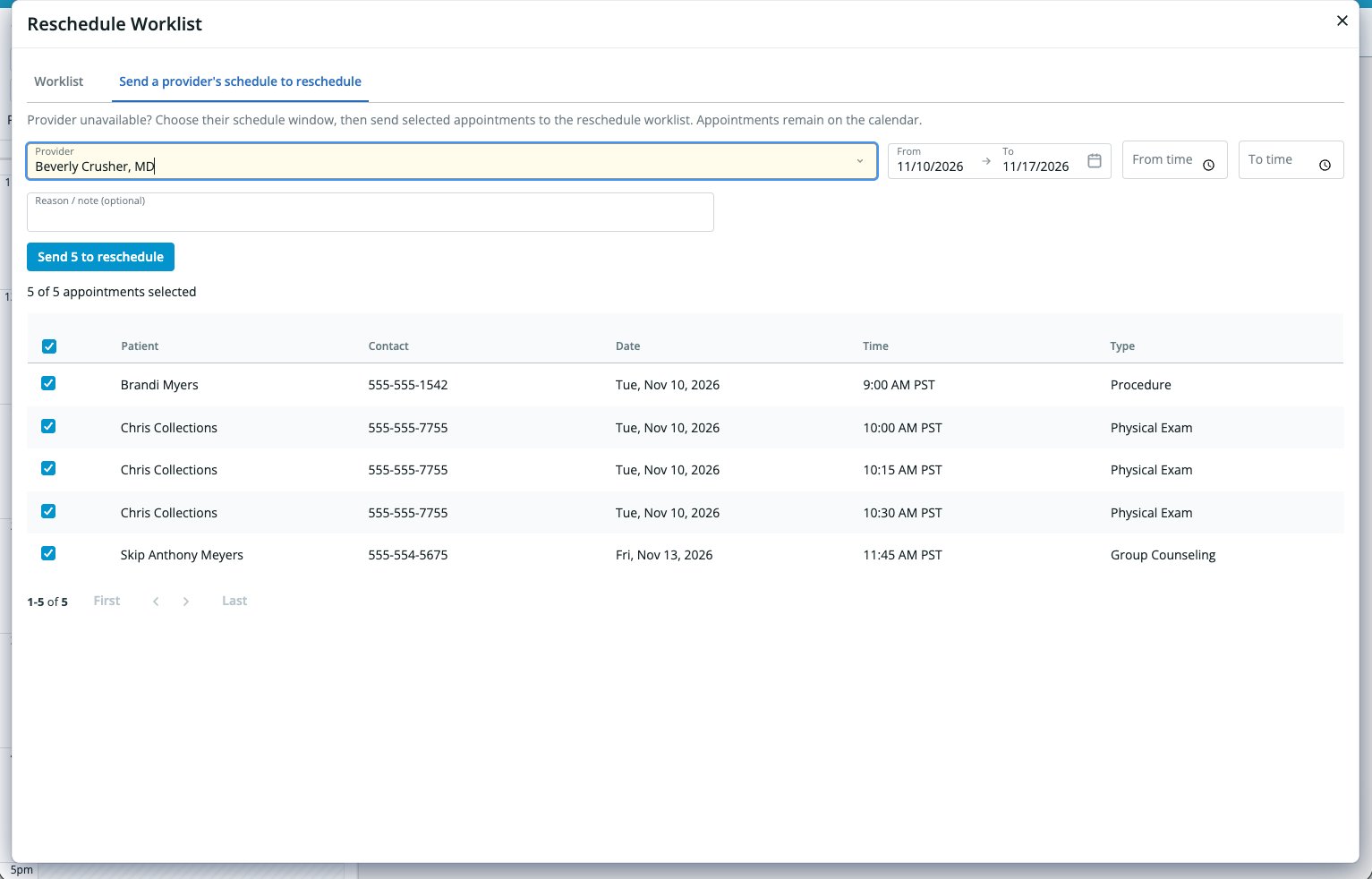
Select Send a provider’s schedule to reschedule.
3
Choose the provider and window
Choose a Provider and set a Date range. The range can be up to 90 days. Optionally set a From time and To time to limit the window to part of each day.
4
Add a reason
Optionally enter a Reason / note. Elation adds it to each appointment you send.
5
Review the appointments
Elation lists the scheduled appointments in that window and selects them all. Clear the checkbox for any appointment you do not want to send. The count shows how many are selected, such as 12 of 15 appointments selected.
6
Send them to the worklist
Click Send [number] to reschedule, then click Send to worklist to confirm.
Work the worklist
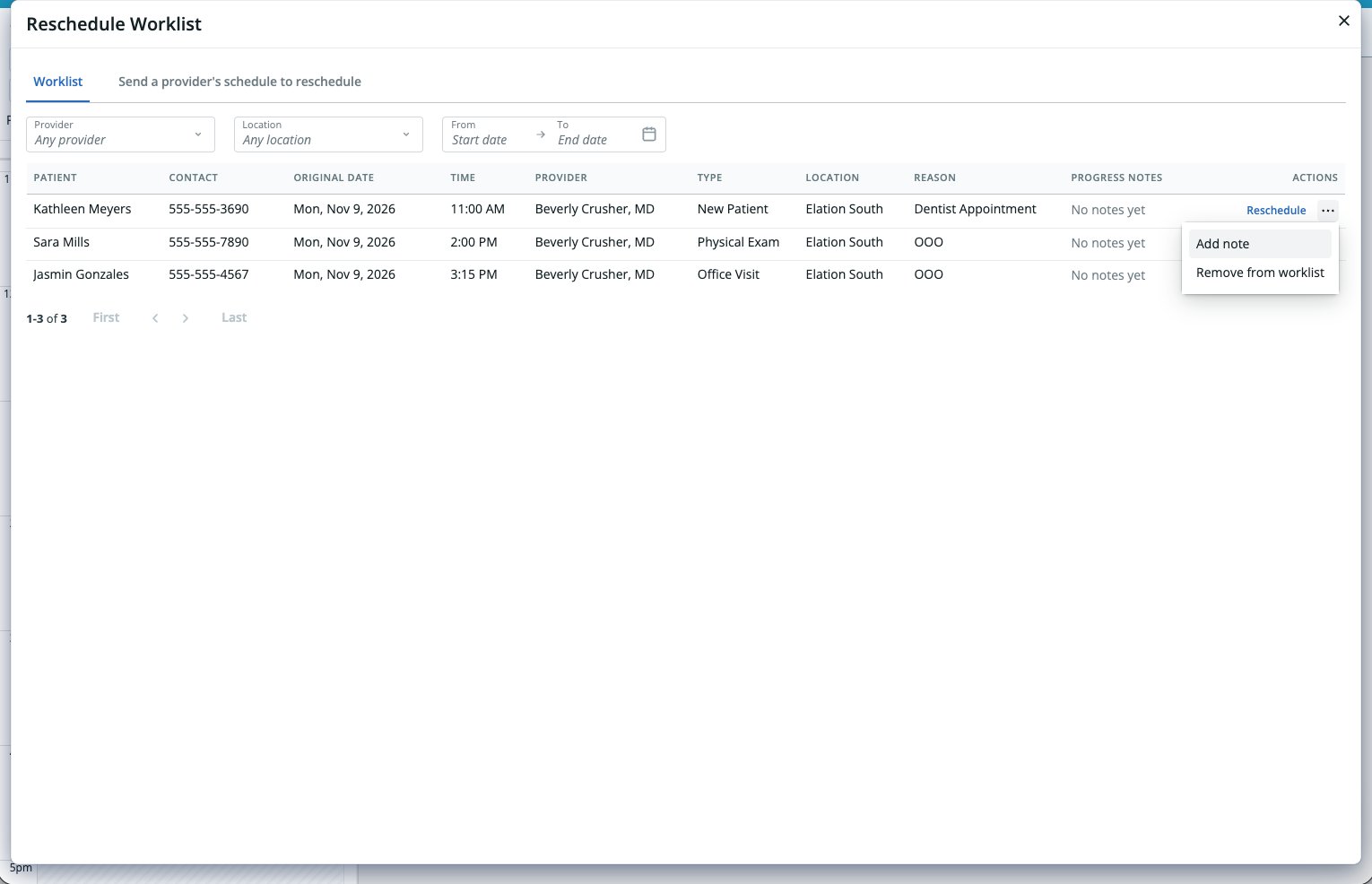
Select the Worklist tab to see every appointment marked Needs reschedule. Filter by Provider, Location, and Date range. Each row shows the Patient, Contact, Original date, Time, Provider, Type, Location, Reason, and Progress notes.Rebook a patient
- Click Reschedule on the row. Find Open Slots opens with the patient and appointment type locked, and the search filters filled in from the original appointment.
- Adjust the filters if needed and click Search.
- Click the new time and click Save in the appointment dialog.
Add a progress note
Use progress notes to record outreach, such as a voicemail left for the patient.- Click More actions on the row and select Add note.
- Enter the Note and click Save note.