Premium Scheduling is a product for Premium EHR customers only. If you are interested in upgrading to the Premium EHR subscription to use this feature, click the I need help button to notify Elation and a member of the Elation Team will reach out to assist you. If you have Premium EHR and Find Open Slots does not appear on the Calendar, click I need help > Contact Elation Support.
Premium Scheduling is currently in early access and is only available to a select number of practices.
Setup
Find Open Slots only shows times from provider availability. A slot appears in the results only if the provider has availability configured for it. Before you search, confirm that:- Each provider has availability configured under Settings > Calendar & Booking > Availability.
- The appointment types you want to book are enabled in that availability.
Search for open slots
1
Open Find Open Slots
Go to the Calendar and click Find Open Slots in the toolbar, next to + Appointment.
2
Choose the patient
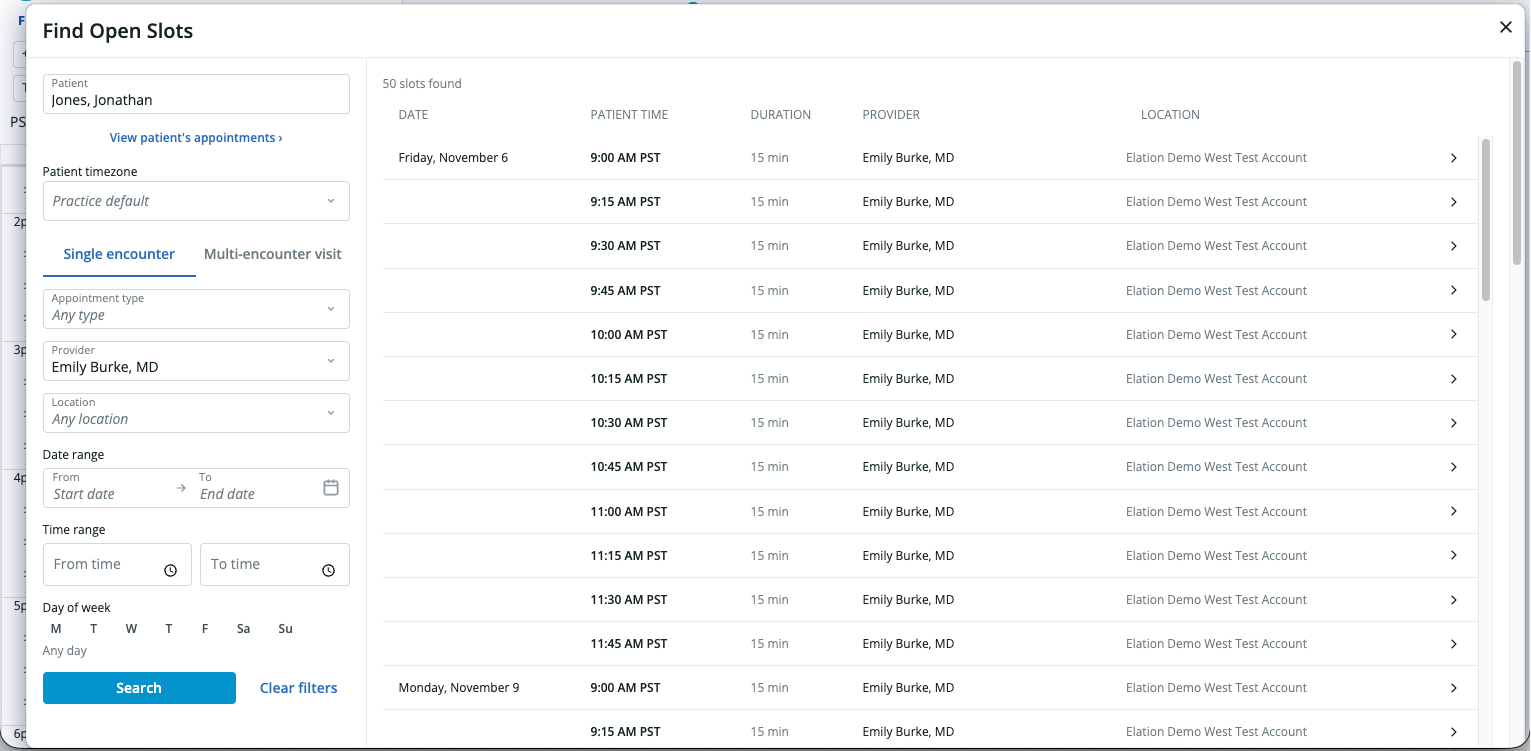
In Patient, enter the patient’s name and select them from the list. Select View patient’s appointments › to review the patient’s existing appointments before you book.
3
Check the patient timezone
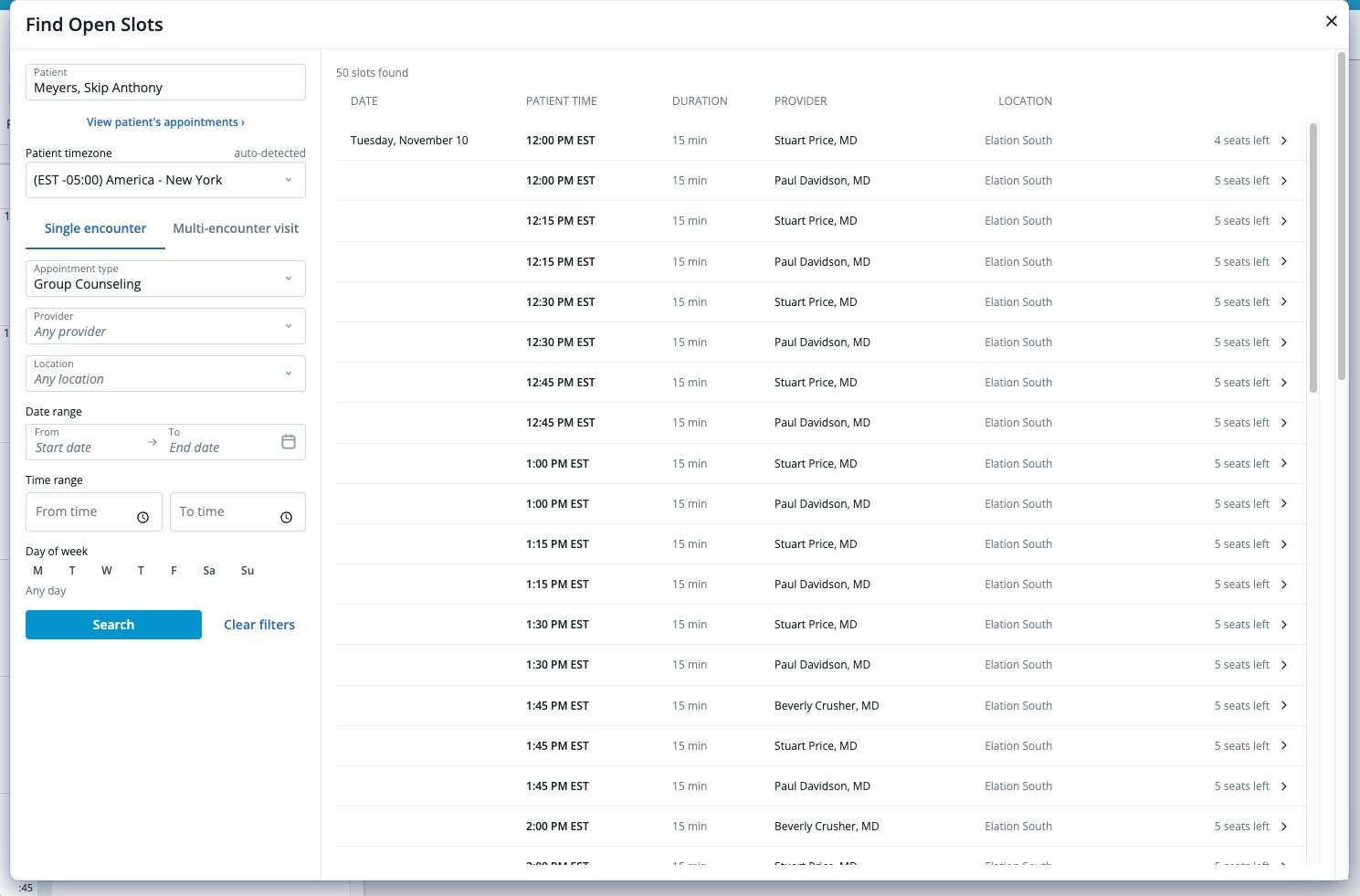
Elation shows Patient timezone and marks it auto-detected when it can set it from the patient’s information. If Elation cannot detect the patient’s timezone, the field shows Practice default and Elation uses your practice’s timezone. You can override it at any time by choosing a different timezone from the list.Result times display in this timezone, so you can offer times that make sense to the patient and avoid confusion or missed appointments.
4
Set your filters
On the Single encounter tab, narrow the search with any of these filters. Leave a filter empty to include everything.
- Appointment type
- Provider
- Location
- Date range: The end date must be on or after the start date, and the range can be up to 90 days. If you leave the range empty, Elation searches the next 30 days.
- Time range: Enter a From time, a To time, or both to limit results to part of the day. You can enter just one. For example, entering a To time of 12:00 PM shows all availability before 12:00 PM.
- Day of week: Select one or more days. Select Clear to return to Any day.
5
Search
Click Search. To start over, click Clear filters.
Review the results
Elation lists the matching slots with a count, such as 12 slots found. Each row shows:- Date
- Patient time: The start time in the patient’s timezone.
- Duration: The default duration of the appointment type.
- Provider
- Location: Hover over the location name to see its address and phone number.
Book from a result
- Click the row for the time you want.
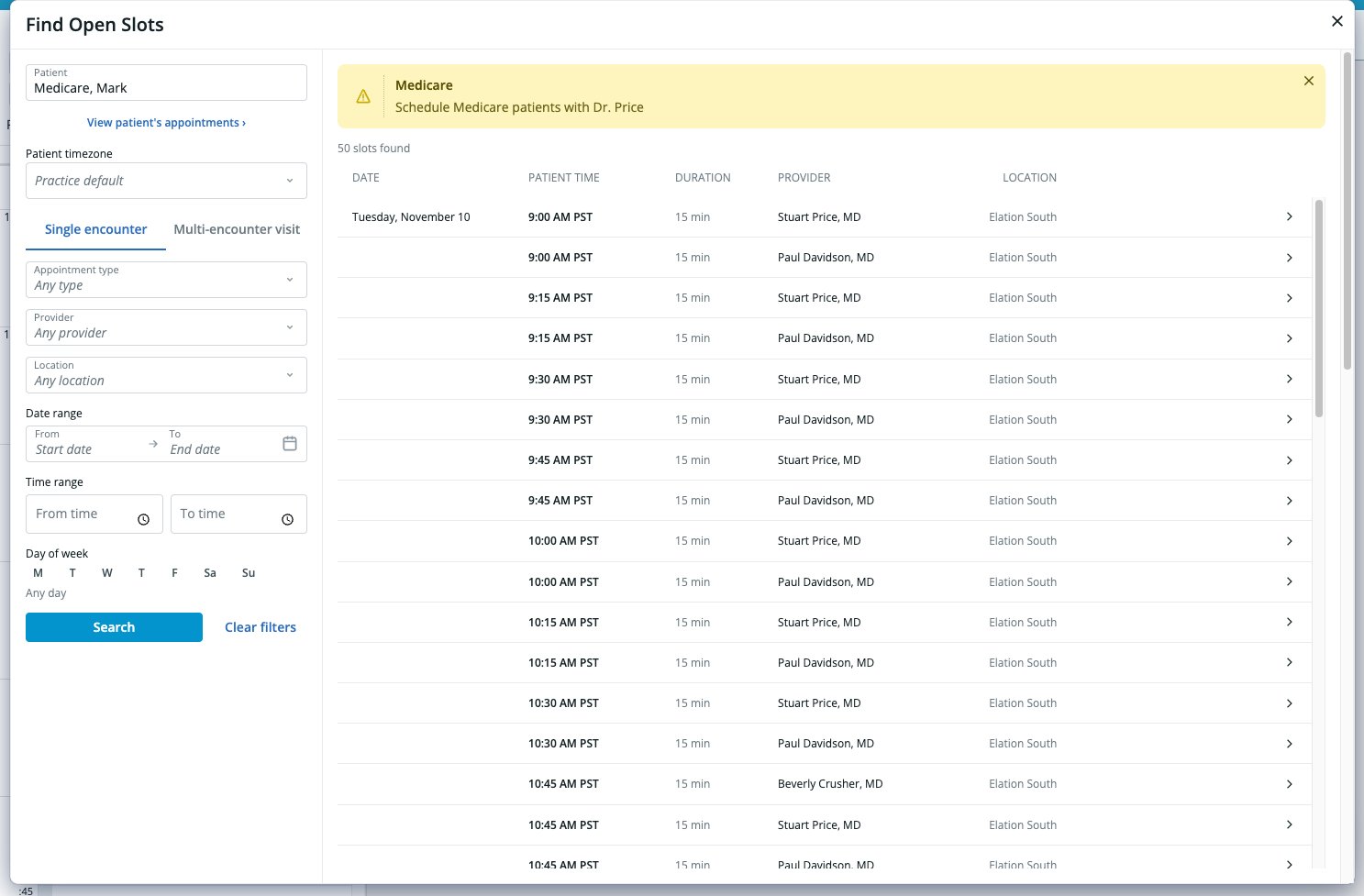
- In the appointment dialog, review the pre-filled patient, provider, location, appointment type, start time, and duration. Any scheduling alerts that matched the search also appear in the dialog.
- Make any changes, then click Save.
Book for a patient in another practice
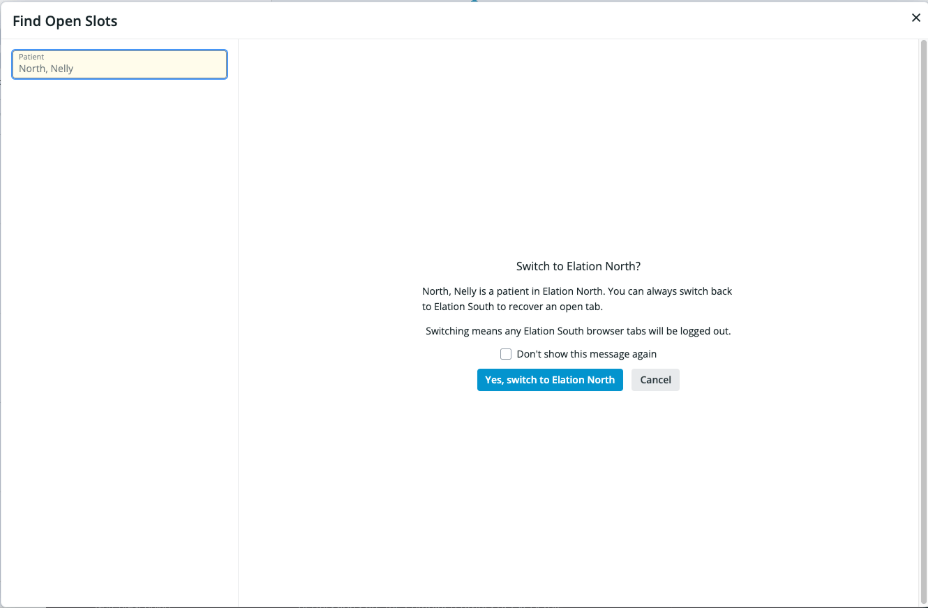
If your organization has more than one Elation practice and you have access to both, patients from the other practice appear in the patient search as Patient name — Practice name.- Select the patient. Elation asks Switch to [practice name]?
- Click Yes, switch to [practice name]. Find Open Slots reopens in that practice with the patient selected.