What is Google Calendar Sync?
Any Elation provider user can sync their Elation Calendar with their Google Calendar. Google Calendar Sync enables you to easily keep track of patient appointments and personal events in the same place. When turned on, you will be able to see the calendar events from your Google Calendar in Elation, and you will be able to see Elation patient appointments in your Google Calendar. Utilizing this feature will allow you to see patient appointments on your mobile device, reduce double bookings, and manage your time more effectively.How to set up Google Calendar Sync
To set up Google Calendar Sync, please follow the step-by-step instructions below.- Log into your Elation account
- Click on your email in the top right corner of the page and select Settings
- From the Settings menu on the left, click Google Calendar Sync
- Once on the Google Sync Connect page, click Connect Account
- Follow the prompts to connect your Google account
- Select the Gmail account you would like to link
- Allow Elation access to manage your calendar
- When you are redirected back to the Google Sync Settings, check the boxes next to the calendar(s) you would like imported into Elation under Google→Elation
- Select whether or not you want to hide event details
- Select the Elation events you want to sync with your Google Calendar under Elation→Google
- Click Save
-
Elation only syncs all events for up to one year in the future.
How Google Sync works
Once set up, all patient appointments will show up on your Google Calendar in a HIPAA compliant way, while personal events populate your Elation schedule at your desired level of privacy.Elation → Google
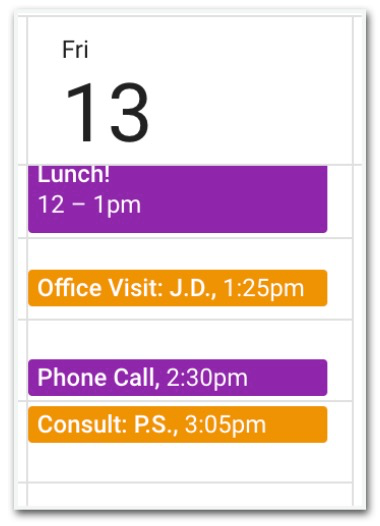
Patient appointments syncing from Elation → Google will show up in Google with the appointment type, and the patient’s first and last initials only, as seen in the screenshot below.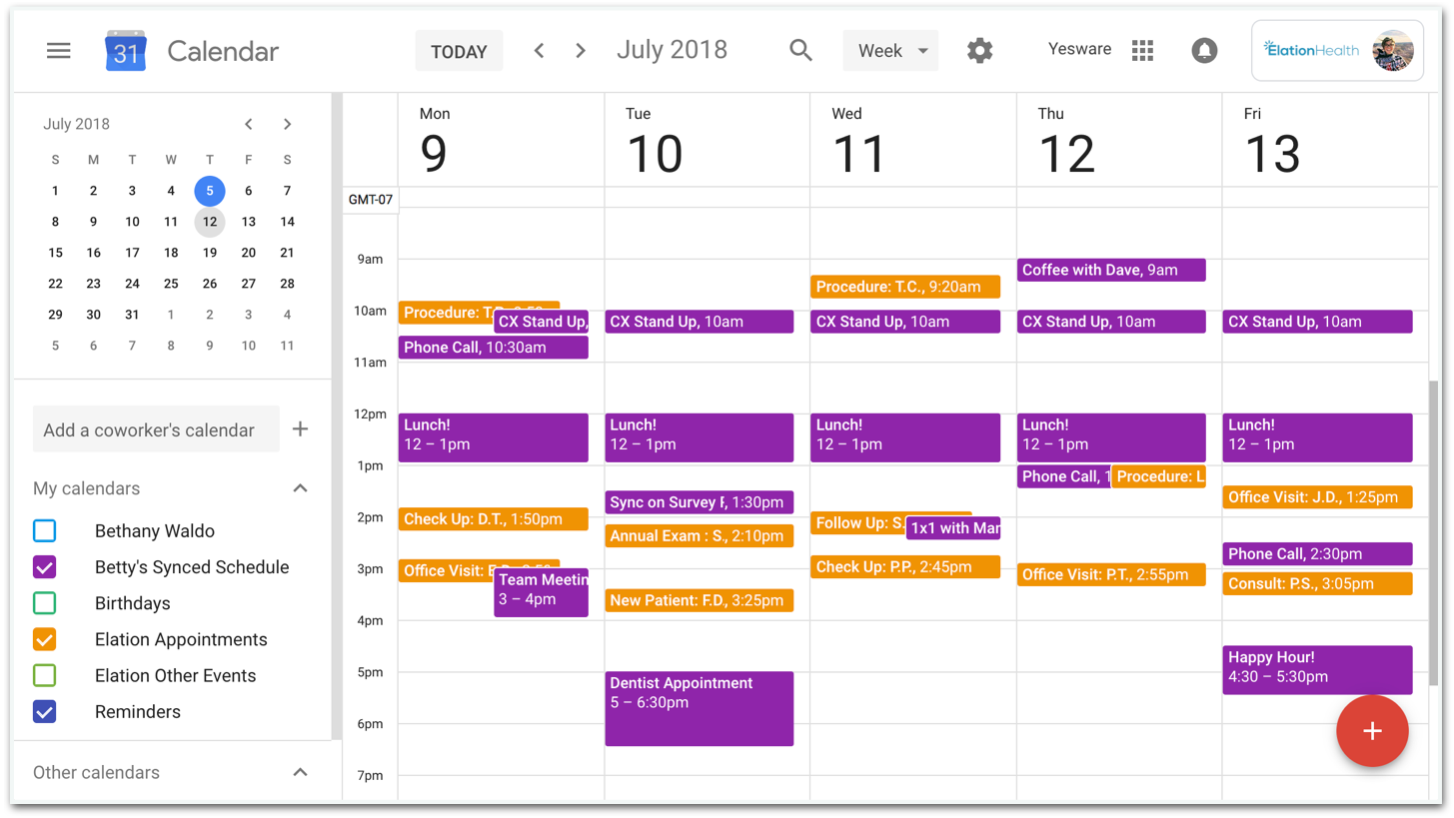
Google → Elation
For personal events syncing from Google → Elation, the provider will have an option of whether to make their personal information private or public from the Google Calendar Sync settings.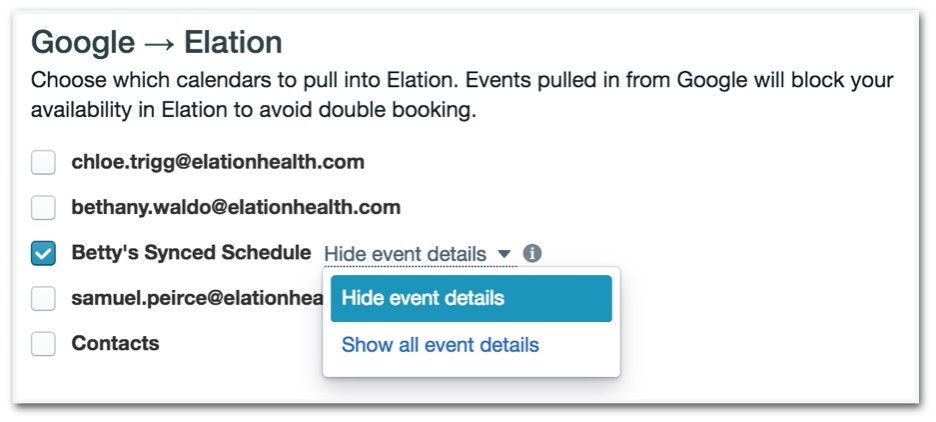
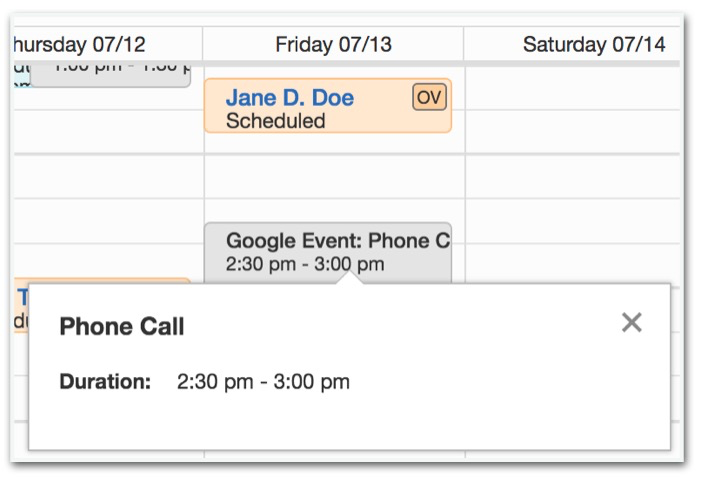
“All-Day” events in your Google Calendar such as vacation time or other all-day/multi-day events will not sync to Elation at this time. If you would like to block off an all-day or multi-day event in Elation, please do so by creating an Other Event on your Elation schedule to ensure those days are blocked off entirely. See our Calendar Guide- Using the Calendar for appointments & events article for more information on how to create an Other Event.Recurring events (non-patient appointments) in your Elation calendar will not sync to Google at this time. If you would like to block off recurring events in Google, please do so by creating multiple individual events in your Elation schedule, or creating a recurring block on your Google Calendar.
How to edit calendars, events, and appointments
Removing Calendars from Google
If you decide to delete an Elation calendar from within Google, the sync will be removed and all Elation events which were previously showing up in Google will be deleted from Google. These appointments will remain available in Elation. If you delete a Google calendar which is synced with Elation from within Google, the sync will be removed and all the Google events will be deleted from Elation. The option to select that calendar in Elation will also be removed, as the calendar no longer exists in Google. You can also un-sync a specific Google calendar from within Elation by visiting the Google Calendar Sync section of your Elation Settings. Once here, simply uncheck the box next to the calendar you would like to un-sync from your Elation schedule and click Save in the bottom right corner.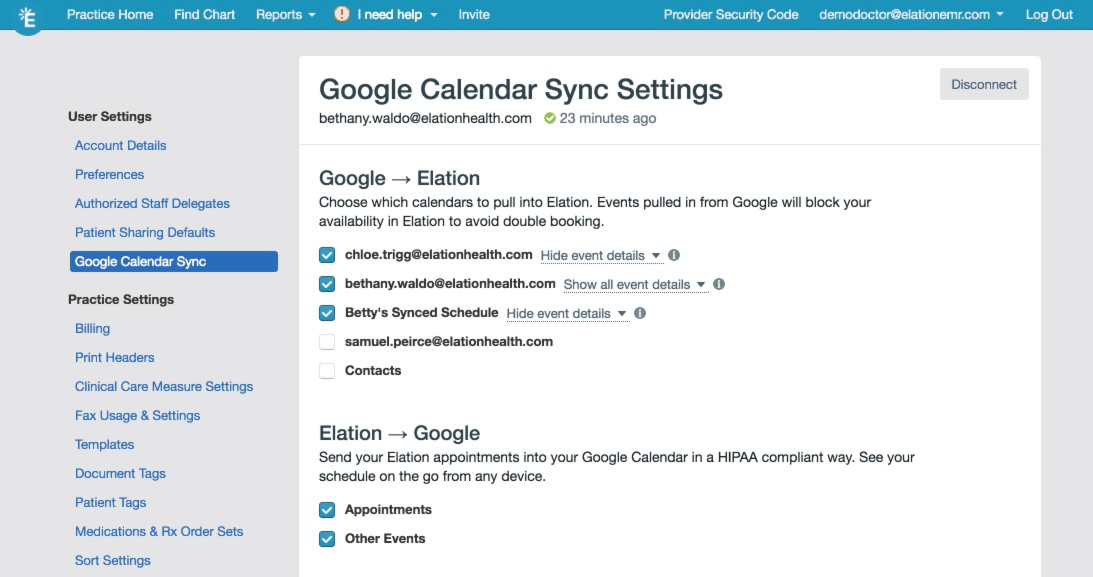
Editing Appointments/Events:
The original source of the event/appointment creation will be the source of truth for that event.- All appointments/events created in Elation can not be deleted from Elation by editing or removing them in Google - these will need to be deleted from within Elation.
- The same goes for Google events. You will not be able to edit or remove appointments which were created in Google from your Elation calendar - this needs to be done from within Google.
Resolving Connection Issues
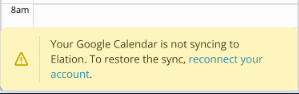
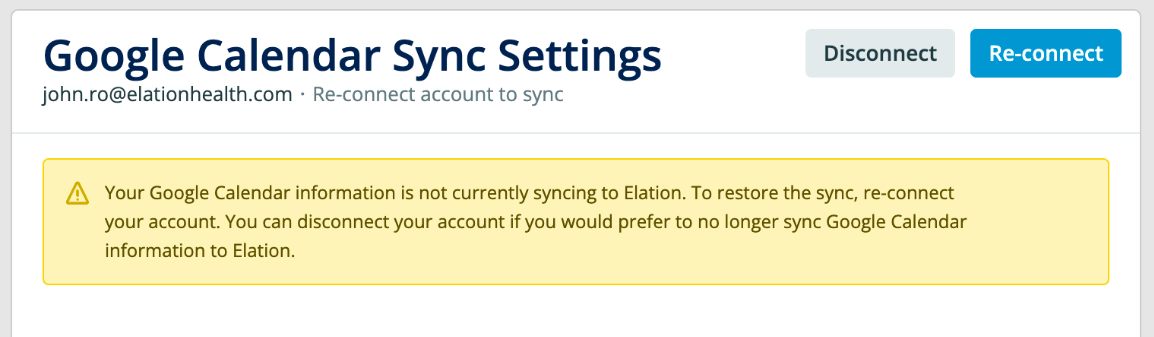
If an action severs the connection between your Google account and Elation, a notice will appear on your Elation calendar to prompt you to reconnect the account. Actions that may sever the connection include changing your Google password, deleting a linked calendar in Google, etc.