
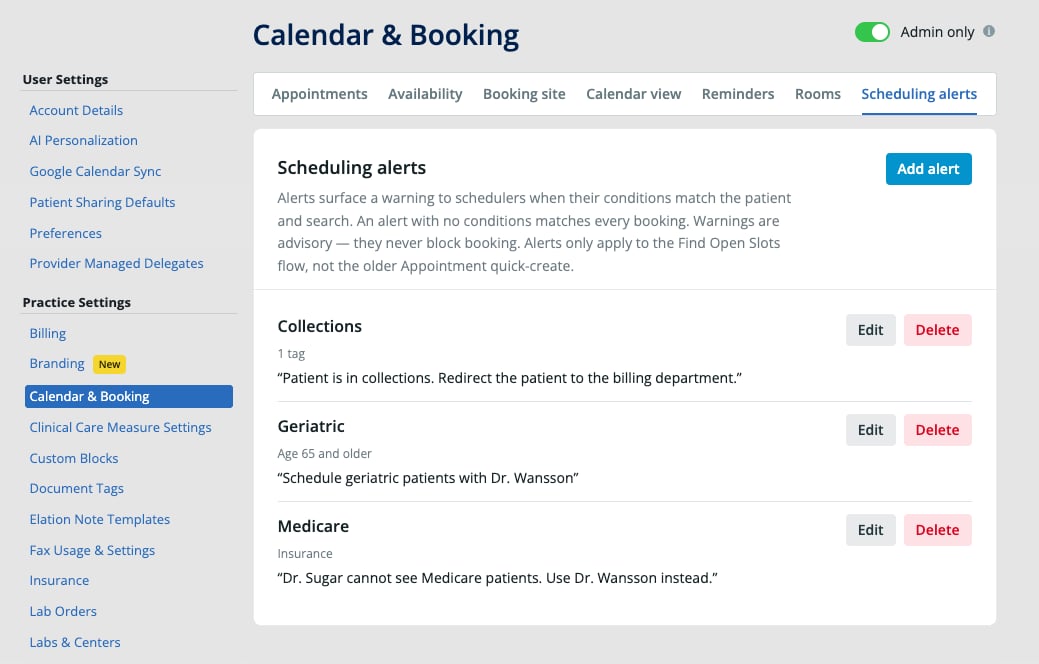
- Send a patient with the “Collections” patient tag to the billing department.
- Indicate that a specific clinician is not credentialed with a certain insurance carrier and should not be scheduled for patients with that carrier.
- Indicate which clinicians are taking new patients.
Premium Scheduling is a product for Premium EHR customers only. If you are interested in upgrading to the Premium EHR subscription to use this feature, click the I need help button to notify Elation and a member of the Elation Team will reach out to assist you. If you have Premium EHR and Scheduling alerts does not appear under Settings > Calendar & Booking, click I need help > Contact Elation Support.
Premium Scheduling is currently in early access and is only available to a select number of practices.
How scheduling alerts work
A scheduling alert has a name, a message, and optional conditions. When a scheduler searches in Find Open Slots and an alert’s conditions match, the message appears above the results. It appears again in the booking dialog after the scheduler picks a slot.- Alerts are advisory. They never block booking.
- An alert appears only when all of its conditions match. An alert with no conditions appears for every booking.
- Alerts apply to Find Open Slots only. They do not appear when staff create an appointment with + Appointment.
Create an alert
1
Open Scheduling alerts
Go to Settings > Calendar & Booking and select Scheduling alerts.
2
Add an alert
Click Add alert.
3
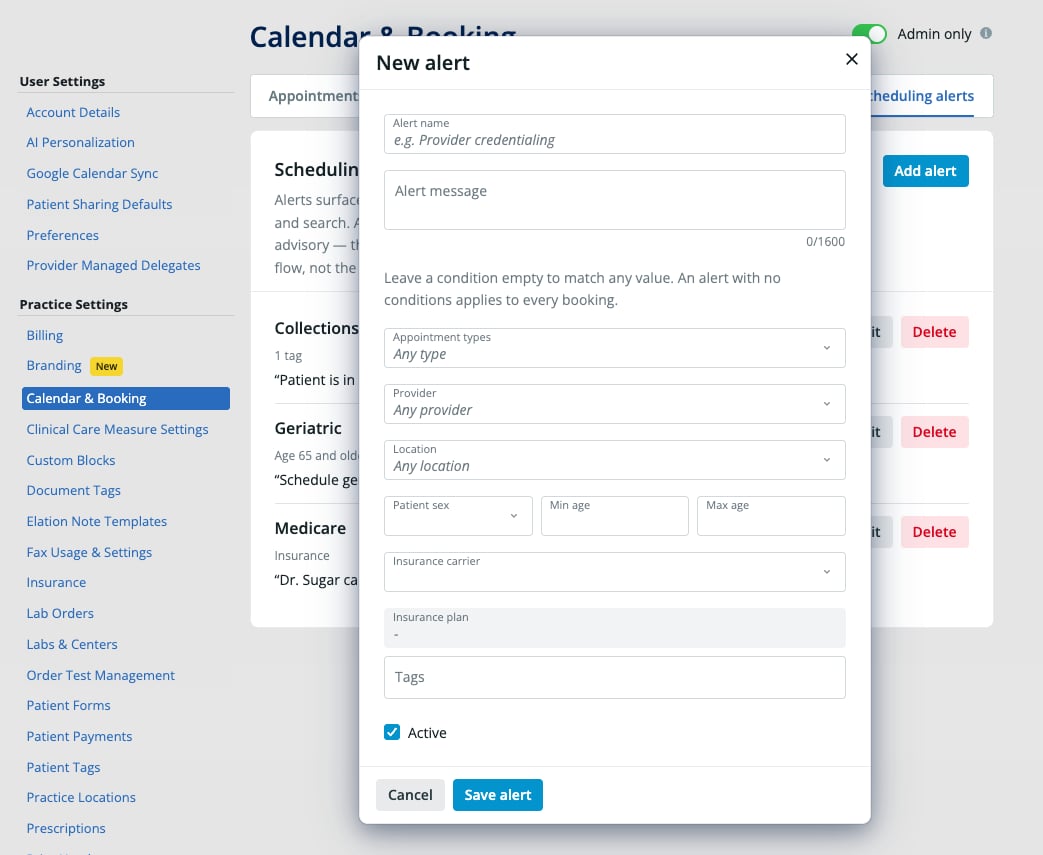
Name the alert and write the message
Enter an Alert name that helps your team find it later, such as “Provider credentialing”. In Alert message, enter the text schedulers see. Write it as an instruction they can act on.
4
Set conditions
Choose the conditions that decide when the alert appears. Leave a condition empty to match any value.
- Appointment types
- Provider
- Location
- Patient sex
- Min age and Max age: Set one or both. Elation shows a summary such as Ages 18–64 or Age 65 and older.
- Insurance carrier and Insurance plan: Choose a carrier first. Insurance plan becomes available after you do.
- Tags: Search for and add patient tags.
5
Turn the alert on and save
Make sure Active is selected, then click Save alert.
Edit, turn off, or delete an alert
- Edit: Click Edit on the alert, make changes, and click Save alert.
- Turn off: Edit the alert and clear Active. The alert is kept but no longer appears for schedulers.
- Delete: Click Delete, then confirm. Deleting an alert cannot be undone.