
Premium Scheduling is a product for Premium EHR customers only. If you are interested in upgrading to the Premium EHR subscription to use this feature, click the I need help button to notify Elation and a member of the Elation Team will reach out to assist you. If you have Premium EHR and Find Open Slots does not appear on the Calendar, click I need help > Contact Elation Support.
Premium Scheduling is currently in early access and is only available to a select number of practices.
What is Premium Scheduling?
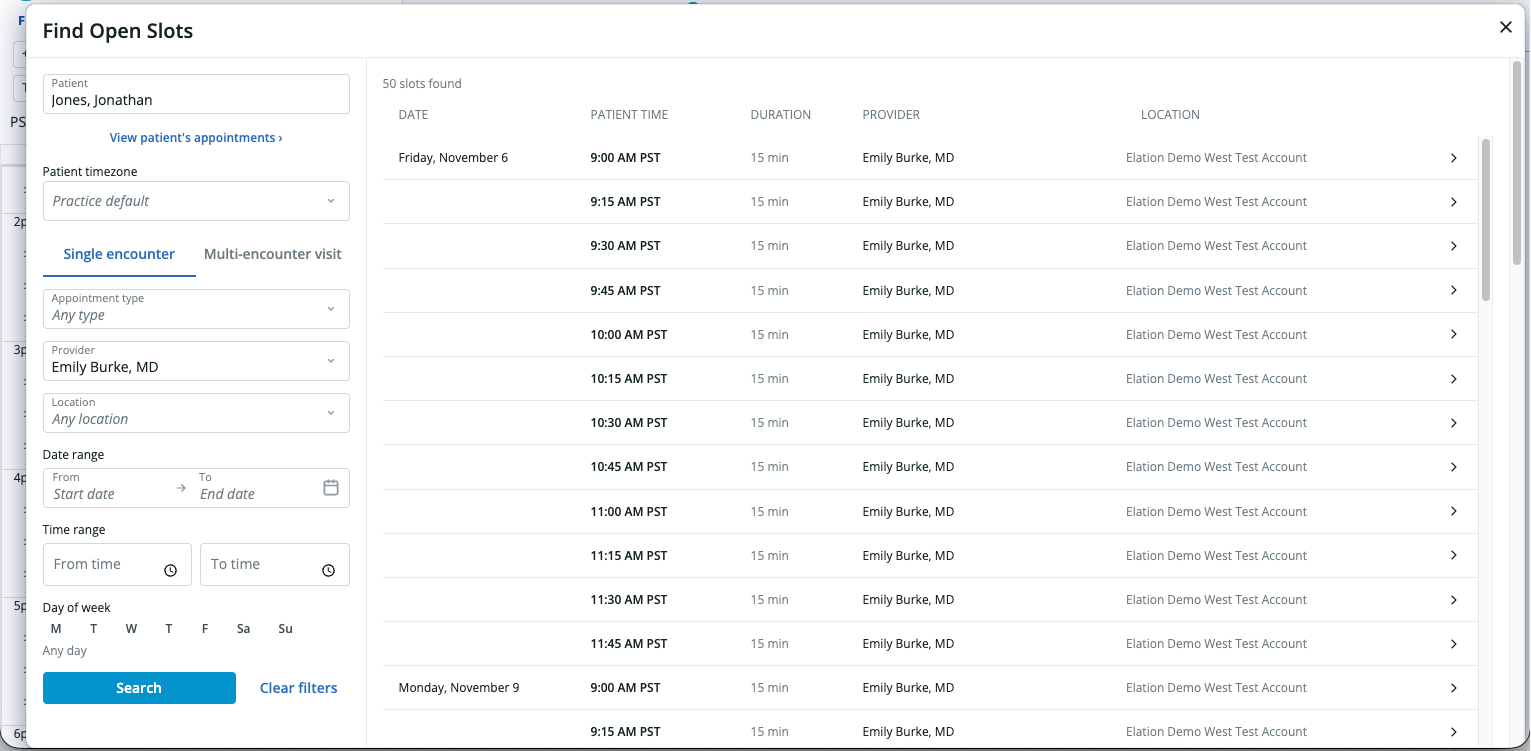
Premium Scheduling is a set of scheduling tools built for practices with many providers, locations, or Elation practices. A centralized scheduling team can answer “When is the earliest anyone can see this patient?” without opening each provider’s calendar one at a time. Premium Scheduling includes:- Find Open Slots: Search every provider’s availability at once, filter the results, and book directly from a result.
- Multi-encounter visits: Find days when a patient can complete several linked appointments back to back, then book them together.
- Scheduling alerts: Show schedulers an advisory message when a patient and search match conditions your practice defines.
- Slot capacity: Allow more than one patient in the same slot for appointment types that support it.
- Reschedule Worklist: Flag a provider’s appointments as Needs reschedule, then work through them from one list.
Why is Premium Scheduling valuable?
Searching one provider calendar at a time is slow when a patient needs the first available time with any of several providers. Find Open Slots brings those openings into one list. Scheduling alerts keep booking policy visible at the moment a scheduler books, and the Reschedule Worklist keeps track of patients who still need a new time after a provider absence.How Premium Scheduling works
Schedulers open Find Open Slots from the Calendar toolbar and search for a patient. Schedulers can then specify specific search parameters, such as provider, appointment type, and location, or just run a broad search. Elation returns the open slots that match the search and the patient’s timezone. Selecting a slot opens the standard appointment dialog with the details filled in, so booking works the same way it does everywhere else in the Calendar. Admin Level Users configure the rest in Settings > Calendar & Booking:- Appointment Types include a Slot capacity setting for how many patients a slot can hold.
- Scheduling alerts define the messages that appear while schedulers search and book.
Premium Scheduling guides
- Premium Scheduling Guide — Finding open slots
- Premium Scheduling Guide — Booking multi-encounter visits
- Premium Scheduling Guide — Creating scheduling alerts
- Premium Scheduling Guide — Setting slot capacity
- Premium Scheduling Guide — Using the Reschedule Worklist