
Overview
Elation EHR + Billing Practices will use the EHR Calendar instead of the Elation Billing Calendar. This article applies to Legacy practices only.
Workflow Instructions
Accessing Calendar Settings
- Navigate - Click on the Appointment Calendar option under the Patients drop-down menu.
-
Open Settings - Click on Calendar Settings.

- Review and Adjust - Use the bar on the left to adjust and save different calendar settings.
Make sure you save on each settings screen!
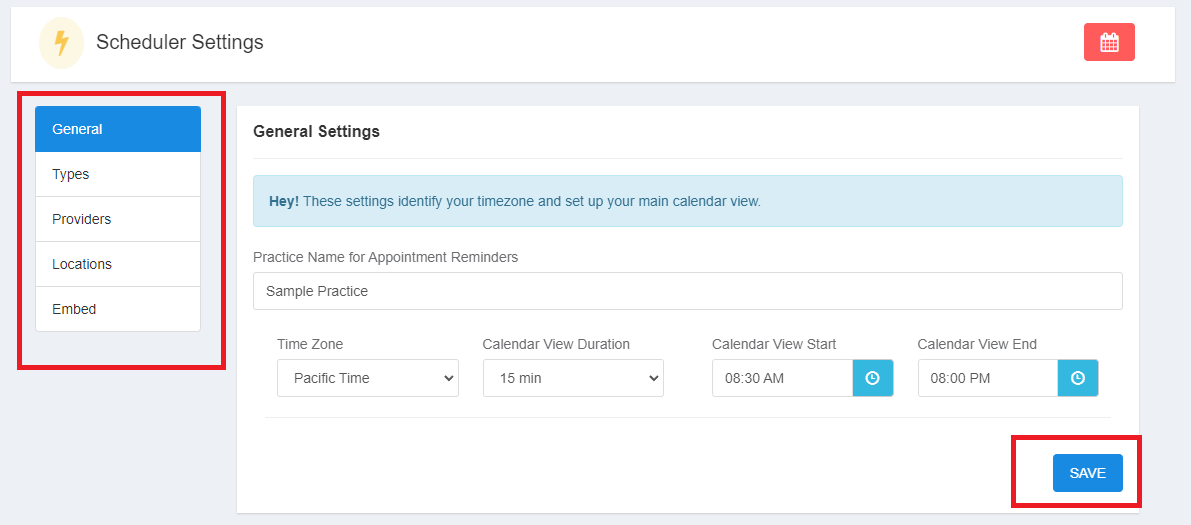
General Settings
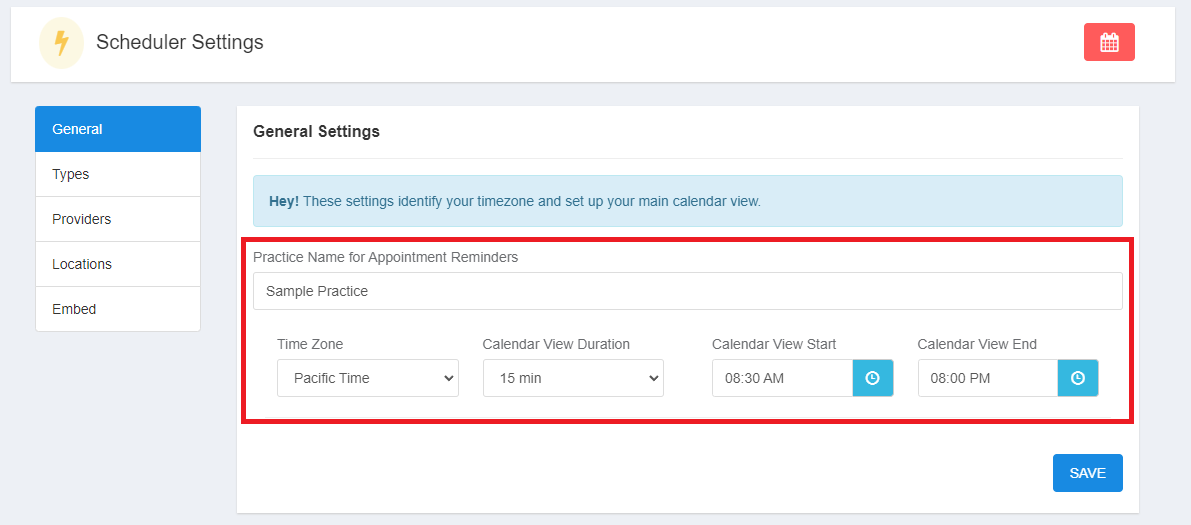
- Time Zone - Sets the time zone used by the Elation Billing calendar and its reminders.
This Time Zone setting applies to the Elation Billing (Legacy) calendar only. It does not control Elation EHR automated appointment reminders. For EHR reminder timing, see the Calendar Guide - Using automated appointment reminders.
- Calendar View Duration - How your calendar screen looks
- Calendar View Start - Start time of calendar display
- Calendar View End - End time of calendar display
Type Settings
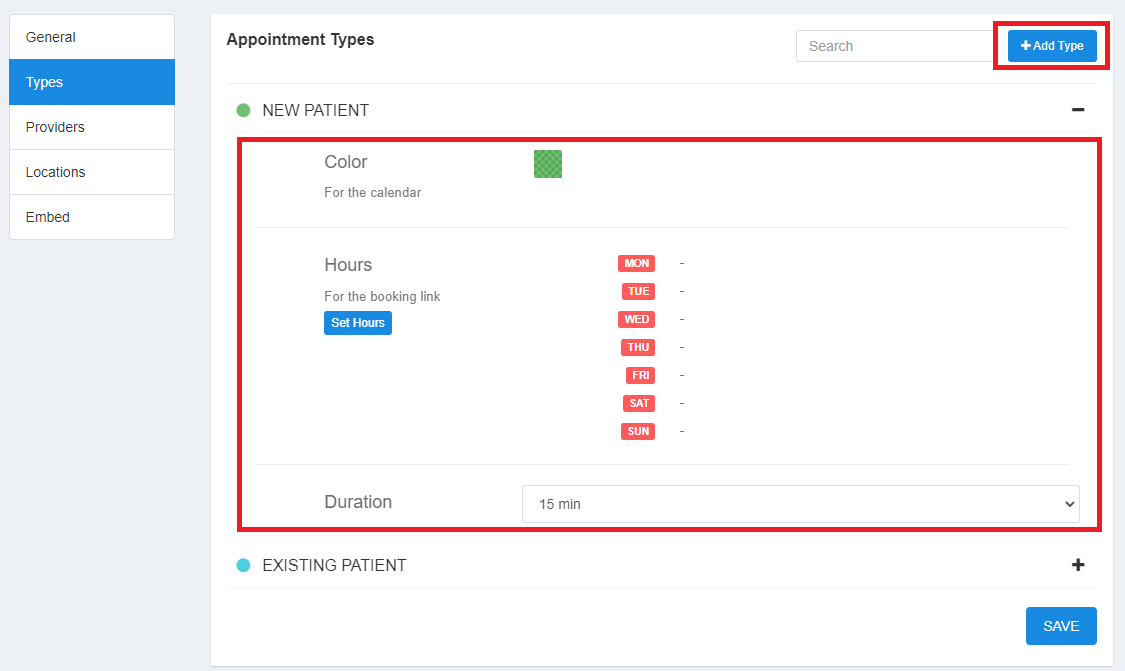
- Color - Display color in waiting room and calendar view (if color legend is by appointment type)
- Hours - Used for calendar embed widget on your website
- Duration - Default appointment duration for calendar embed widget
Provider Settings
New providers are added in your regular practice settings area.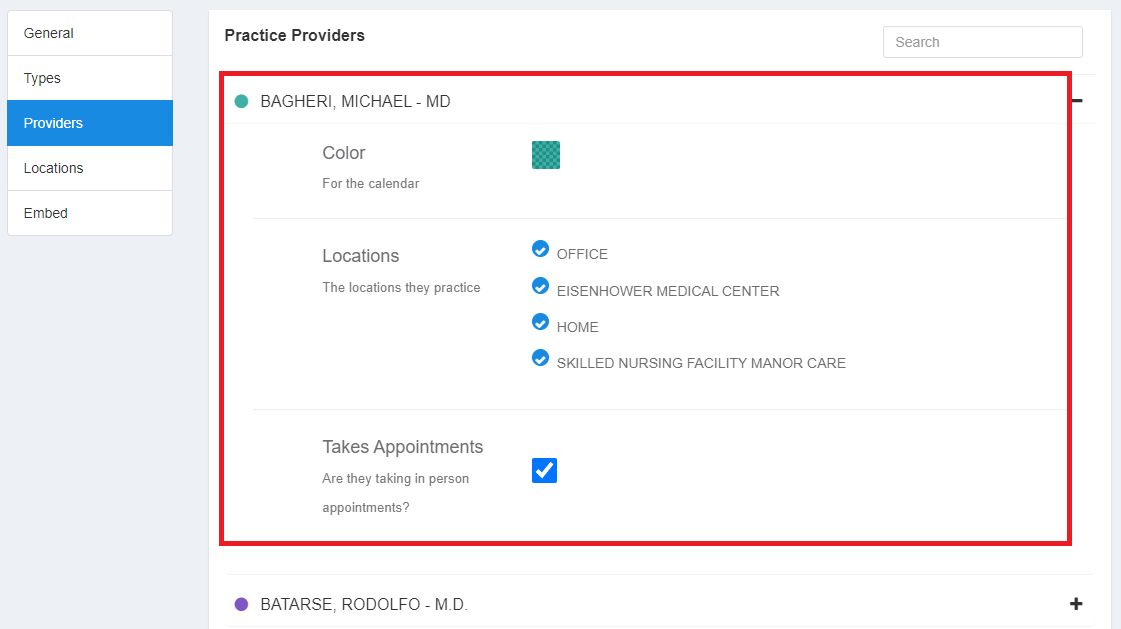
- Color - Display color in waiting room and calendar view (if color legend is by provider)
- Locations - Used for calendar embed widget restrictions
- Takes Appointments - Used for calendar embed widget restrictions
Location Settings
New locations are added in your regular practice settings area.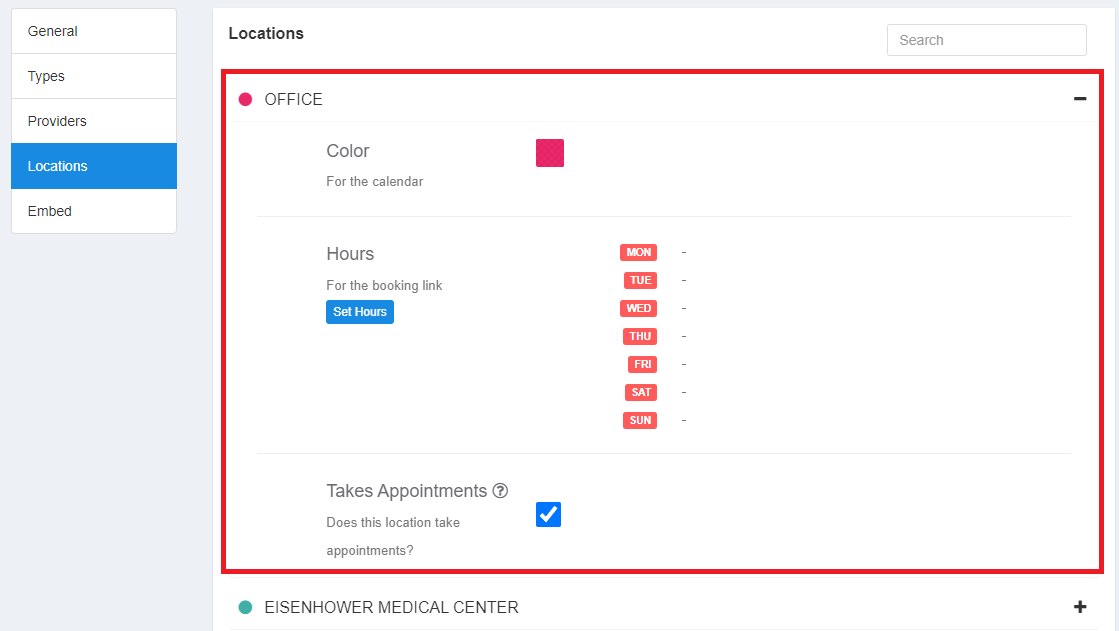
- Color - Display color in waiting room and calendar view (if color legend is by location)
- Hours - Used for calendar embed widget restrictions
- Takes Appointments - Used for calendar embed widget restrictions