
Premium Scheduling is a product for Premium EHR customers only. If you are interested in upgrading to the Premium EHR subscription to use this feature, click the I need help button to notify Elation and a member of the Elation Team will reach out to assist you. If you have Premium EHR and Slot capacity does not appear in your appointment types, click I need help > Contact Elation Support.
Premium Scheduling is currently in early access and is only available to a select number of practices.
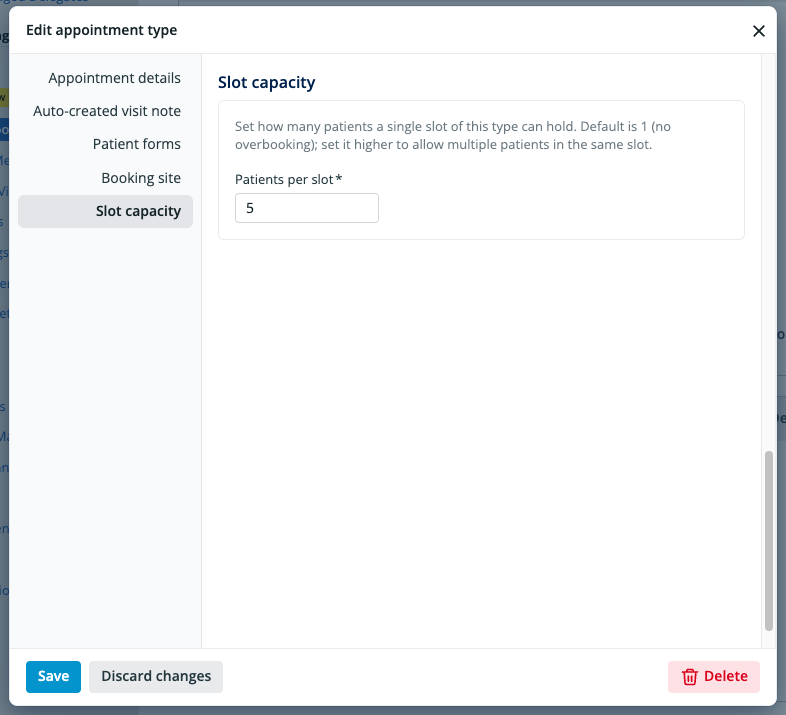
Set slot capacity
1
Open Appointment Types
Go to Settings > Calendar & Booking and select Appointment Types.
2
Open the appointment type
Select the appointment type you want to change, or create a new one.
3
Go to Slot capacity
Select Slot capacity in the left-hand navigation.
4
Enter Patients per slot
Enter the number of patients one slot can hold. The default is 1, which means no overbooking. Enter a higher whole number to allow multiple patients in the same slot.
5
Save
Save the appointment type.
How slot capacity affects scheduling
- Find Open Slots: A slot that still has room stays in the results and shows how many seats are left, such as 2 seats left. A slot that is full no longer appears. In a multi-encounter visit, seats left appear next to each encounter’s time.
- Patient Booking Site: A slot that can hold more than one patient continues to appear on the Booking Site until all of its spots are filled.
- Booking: Elation checks the limit when you save the appointment. If the slot filled while you were booking, Elation does not save the appointment, and you can pick another time.