
What are Practice Locations?
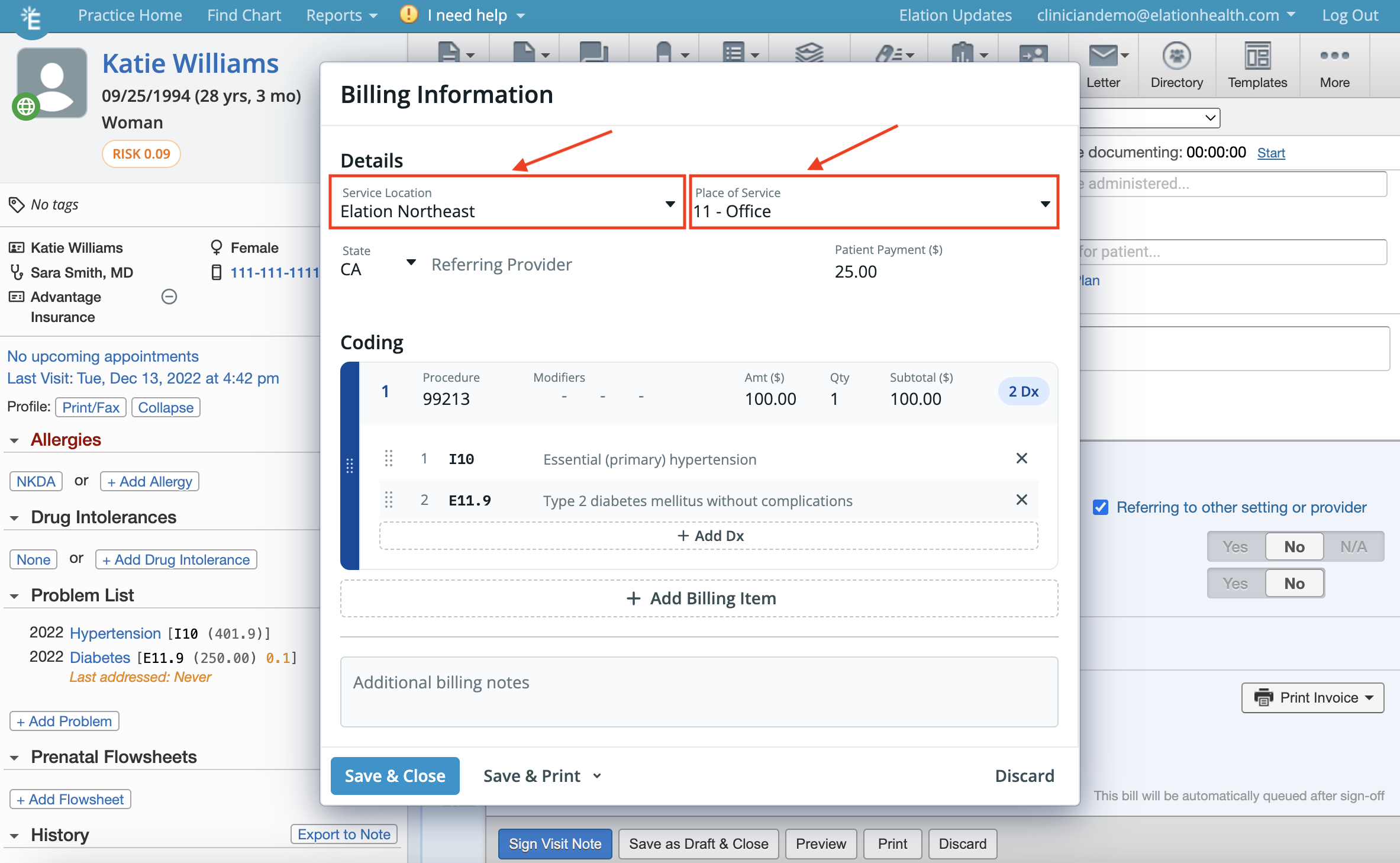
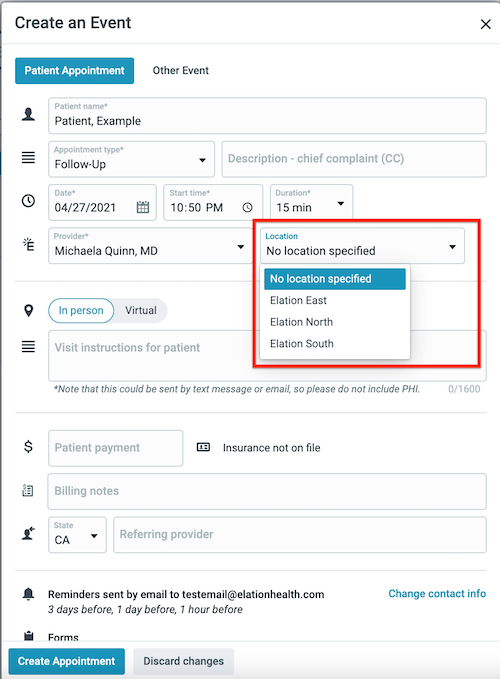
You may serve your patients from multiple clinic locations or facilities. You can add all your service locations to your Elation Settings and associate all your service locations with a Place of Service (POS) code to comply with coding requirements. Once you add a Practice Location, it will appear in your e-Presciption Summary window, in the Service Location (POS) box in the Billing Information section of your visit notes and in the appointment location section of your patient appointments for appointment reminders.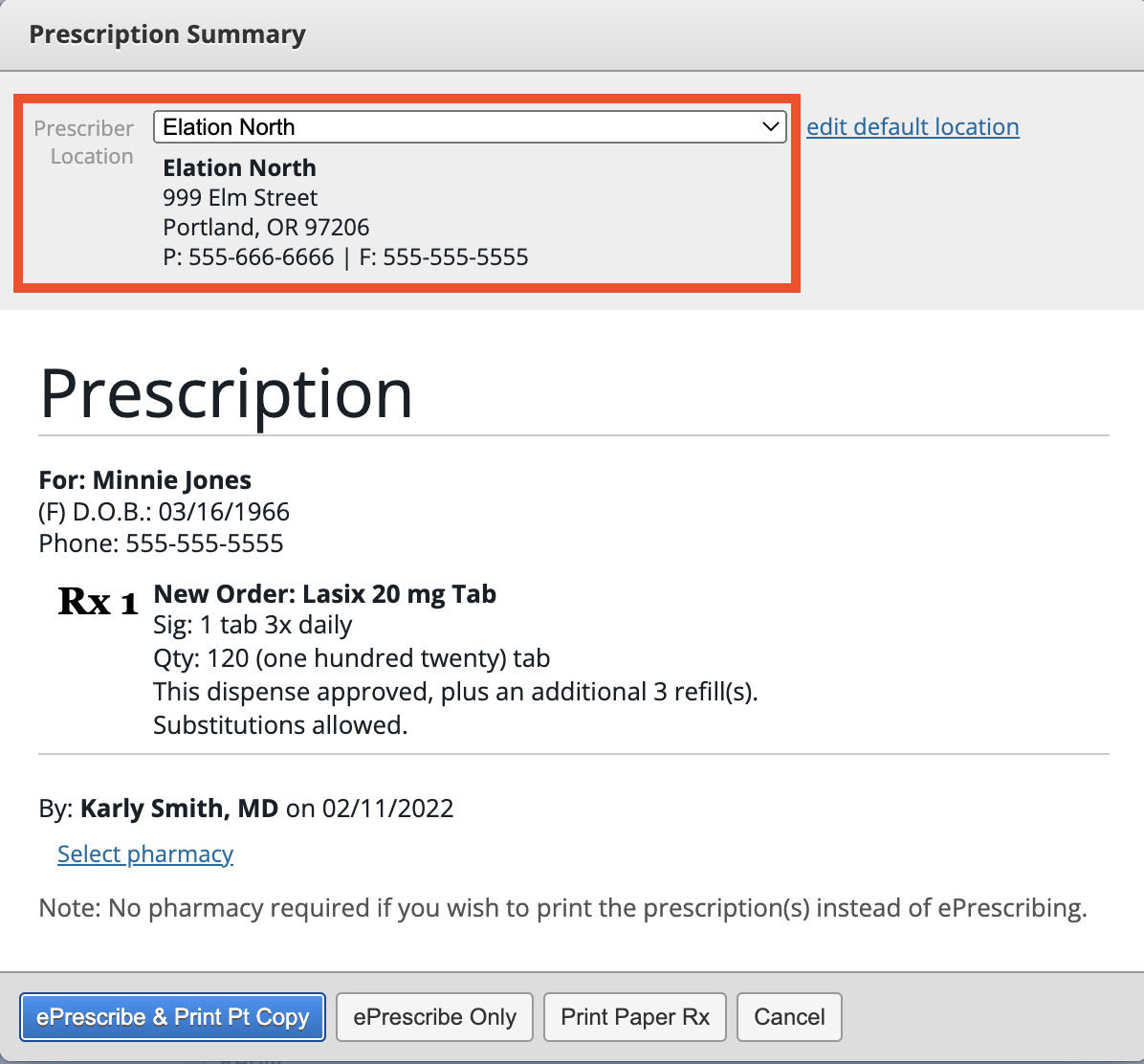
The letterhead that appears when you print or send documents from Elation uses a different feature called Print Headers. Learn more about Print Headers here.
Default Practice Location
The default location is the Primary Location at the top of your locations list. The location was created using the business details you provided us when your practice signed up with Elation. If your default location is of a different address, adjust the Primary Location details with the correct information and then create a new Practice Location for other locations. You can update the time zone for any additional Practice Location directly from its edit window. The time zone associated with your Primary Location cannot be edited directly — contact Elation Support to update it.How to add Practice Locations
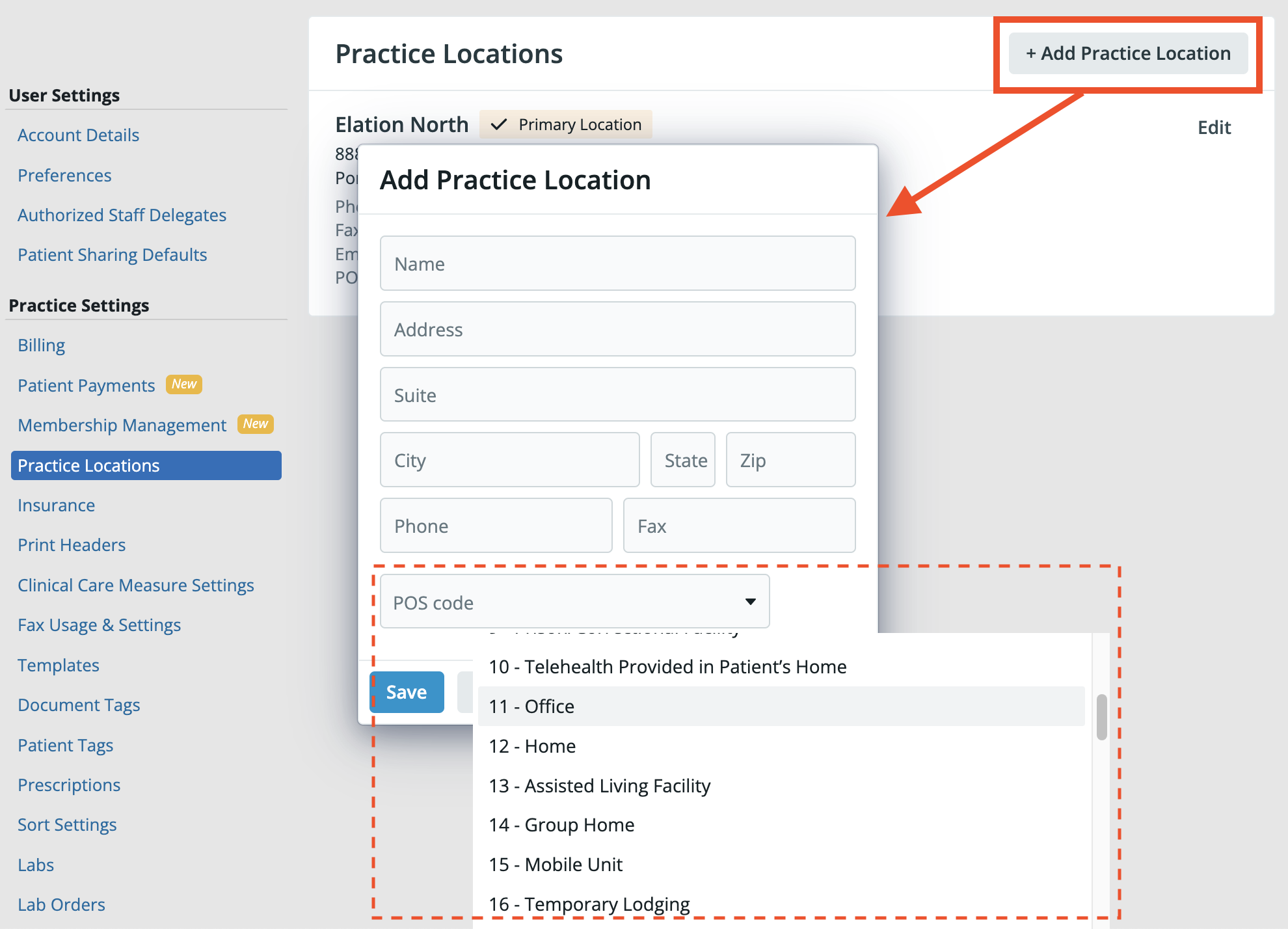
.- Go to Settings >> Practice Locations
- Click + Add Practice Location to add a new place of service or click Edit to edit an existing location
- In the edit window, click on the POS code box to select the Place of Service code that corresponds to your practice location.
- Click Save
Related Articles
- Billing Guide- Creating a Super Bill and coding for your visit
- Billing Guide- Billing Report
- Billing Guide- Setting up CPT Codes and Place of Service
- Print Headers Guide- Managing practice letterheads
- Calendar Guide- Setting practice location for appointment reminders
- Automated Appointment Reminders