Elation Billing customers: Your practice’s insurance carriers come from a canonical list maintained by Elation. You cannot rename or edit carriers in this list — contact Elation Support to request changes. You can delete carriers directly from this list. The workflows below for adding and editing carriers apply to EHR-only customers.
Content
- What is structured insurance information?
- Why is structured insurance information important?
- How to manage Carriers & Plans in Settings
- Storing patient insurance details
- Frequently Asked Questions
What is structured insurance information?
Structured insurance information allows you to create your own database of Carriers (Payers) and corresponding Carrier Plans in Elation. You can then select Carriers and Plans from your database when adding primary and secondary insurance coverage information in the patient’s demographics to use for insurance billing and claims management.Why is structured insurance information important?
By setting up and managing the insurance Carriers and Plans list for your practice, you are setting up your practice for success. Having accurate insurance information in each patient’s chart is critical to your practice’s ability to store accurate patient records, submit claims and receive payment from Payers and run reports based on patient insurance.How to manage Carriers & Plans in Settings
You can view, search for and manage your practice’s list of insurance Carriers and Plans in the Insurance section of your Elation Settings page.Setting edit privileges
By default, only users in your practice who are set as Admin will have the ability to add, edit, and delete insurance Carriers or Plans for your practice. This is designated by the green Admin Only toggle on the Insurance Settings page. This Setting is intended to prevent duplicates.Adding a new insurance Carrier or Plan
Elation Billing customers: Your practice’s insurance carriers come from a canonical list maintained by Elation. You cannot rename, edit, or delete carriers in this list — contact Elation Support to request changes. The workflows below for adding carriers apply to EHR-only customers.
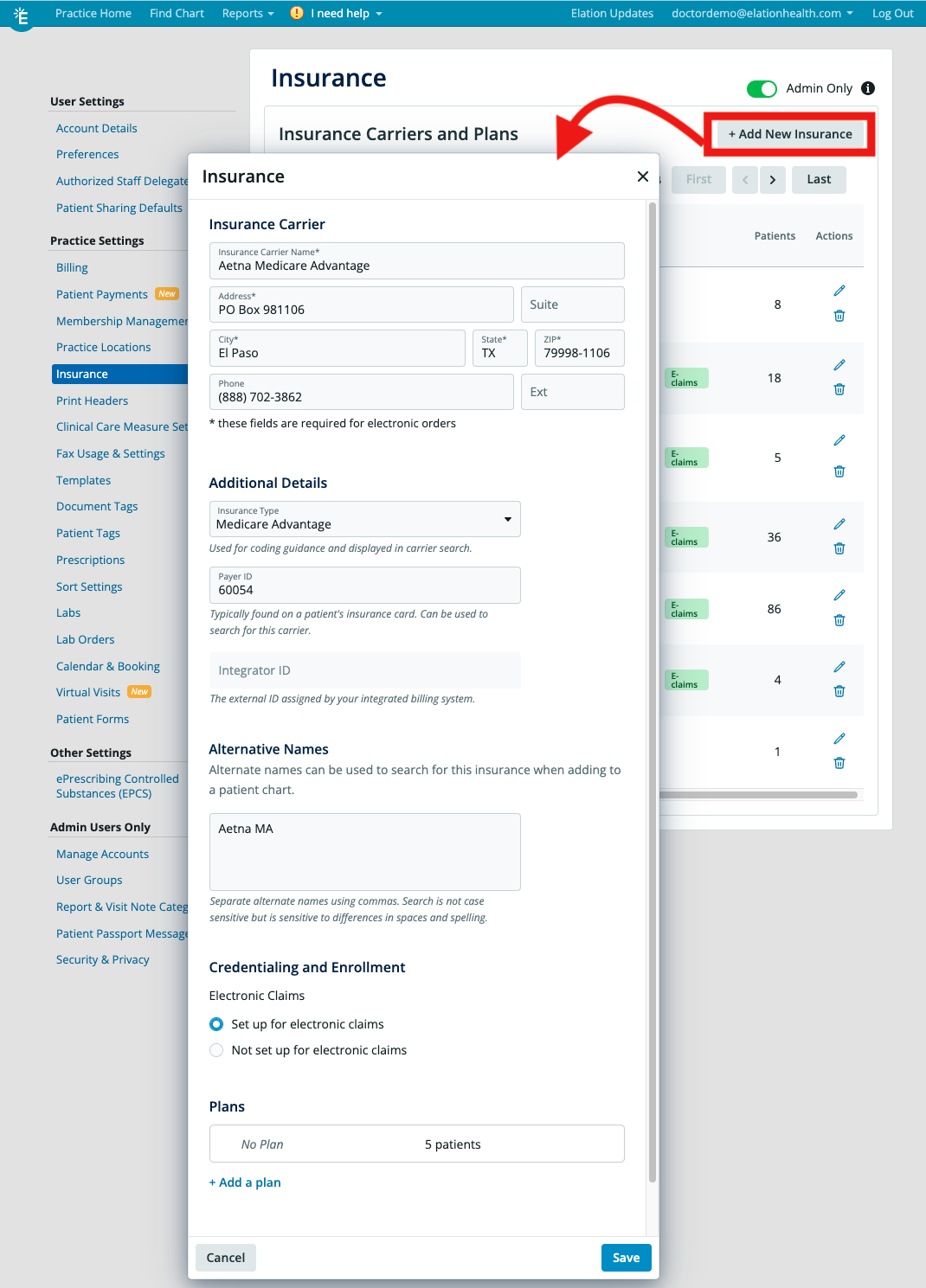
- Click on the + Add new insurance button at the top right of the Insurance Settings page
- Enter the Insurance Carrier Name(required)
- Enter the address and phone (if available)
- Select an Insurance Type, if applicable. Available options are:
- Capitated
- Commercial
- Managed Medicaid
- Medicaid
- Medicare
- Medicare Advantage
- Medicare Supplement
- Self Pay
- Workers Compensation/Third Party Liability
- Store the Payer ID in the Payer ID field
- Enter alternative search names for the Carrier if needed.
- Use commas to separate multiple names. The search is not case sensitive but is sensitive to differences in spaces and spelling.
- Store the Electronic Claims status for the Payer if needed.
- Available options are:
- Set up for electronic claims
- When selected, an E-claims label will appear the Carrier Details table of the Insurance Settings page
- Not set up for electronic claims
- Set up for electronic claims
- The Electronic Claims status section is generally used to designate whether you are approved to send claims electronically to the Carrier.
- Click + Add a plan to add a Carrier Plan to the Carrier.
- Enter the Plan name
- Click Save when done
Editing an existing insurance Carrier or Plan
- Find the insurance Carrier or Plan you want to edit
- Click the pencil icon to edit
- Make changes as needed within the window that appears
- Click Save
Deleting an existing insurance Carrier or Plan
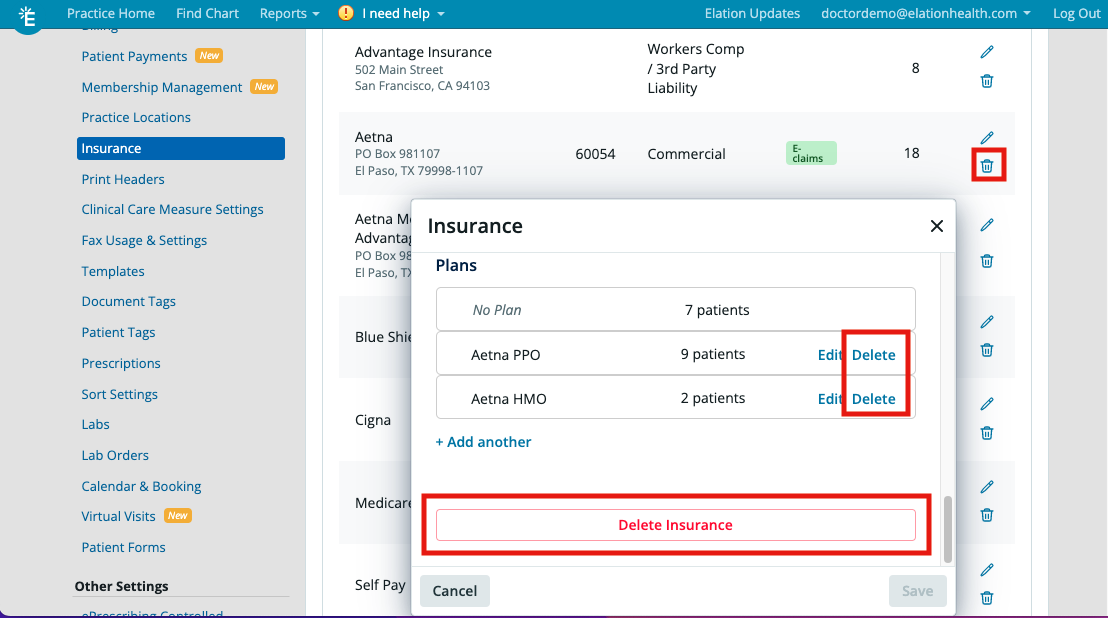
Deleting an insurance Carrier and/or Plan from the Settings page will remove it from your practice’s list of insurances AND will also delete this insurance information from any patient charts with this insurance carrier/plan. Please use this feature with discretion.
Elation Billing customers: Your practice’s insurance carriers come from a canonical list maintained by Elation. You cannot rename, edit, or delete carriers in this list — contact Elation Support to request changes. The workflows below for deleting carriers apply to EHR-only customers.
- To delete an entire Carrier and all Plans associated to that Carrier
- Click the trashcan icon next to the Carrier name from the Insurance table
- Click the Delete Insurance button at the bottom of the Carrier Details
- To delete individual Plan(s) within a specific Carrier, click the Edit button next to the Carrier name, find the Plan you want to delete, and then click the Delete button next to the Plan name