
Overview
If your practice uses Elation Billing (practice management software), payer enrollment for eligibility and ERA is handled through a separate process. See Enrolling for Claims Submission, ERA, and Real-Time Eligibility (EDI) - Elation Billing for billing-specific enrollment instructions.
What is Real-time Eligibility?
Real-time Eligibility (RTE) in Elation EHR enables you to request a patient’s primary and secondary insurance eligibility, coverage, and benefits based on the insurance details in their demographics. This article explains how to configure Carriers (Payers) in your EHR to ensure you receive insurance eligibility and benefits information. 📖 RECOMMENDED READING Click here to learn more about Elation’s Real-time Eligibility feature and how to use it .Setup
REQUIREMENT The following actions must be completed to start using the Real-time Eligibility feature. Follow the detailed instructions below for guidance. Send credentials and eligibility enrollment details to Elation after completing the following Settings configurations:Wait for approval from ClaimMD (Elations’ Clearinghouse for RTE).
Sending credentials & eligibility enrollment details to Elation
Elation must assist with completing Provider registration and eligibility enrollments before you can start using the Real-Time Eligibility feature. To begin this process:Updating Insurance Eligibility Settings
By default, the Real-time Eligibility feature uses the NPI of the Provider assigned in practice to run eligibility checks. If your practice is contracted with any payers using a Group NPI then you must add those Group NPI(s) to the Insurance Eligibility Settings to configure running eligibility checks using the Group NPI. You can add as many Group NPIs as needed.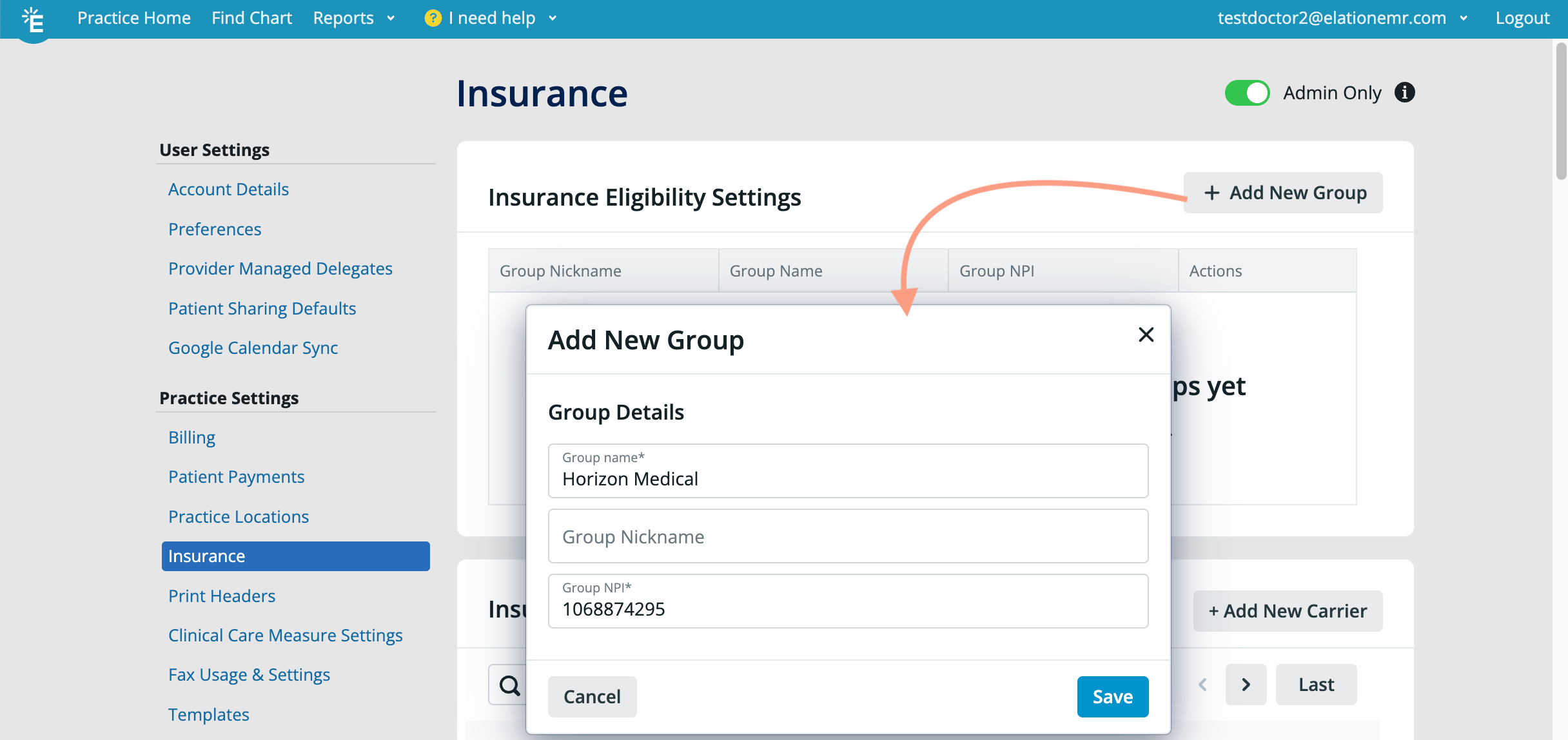
Updating Carrier Settings
Two fields in the Insurance Carrier details are required for eligibility checks: Eligibility Payer ID and Submitter Type. Please review these fields for each Carrier and make appropriate changes as needed to ensure successful eligibility responses.- Additional Details - Eligibility Payer ID
- The Eligibility Payer ID field stores the ID required (as designated by the Payer) to run eligibility checks for a specific payer. Click here to find the Eligibility Payer ID for a Payer.
- Credentialing & Enrollment**- Submitter Type**
- The Submitter Type allows you to specify whether an Individual Provider NPI will be used to run eligibility checks or whether one of the Group NPIs will be used to run eligibility checks.
- If Credentialed as a group is selected and you have multiple Groups, an additional dropdown will appear to allow you to select which Group will be submitted for eligibility checks.
- The Submitter Type allows you to specify whether an Individual Provider NPI will be used to run eligibility checks or whether one of the Group NPIs will be used to run eligibility checks.
Adding Eligibility Payer ID and setting Submitter Type for each Payer
Follow the steps outlined in the quick video below to add the Eligibility Payer ID and set the Submitter Type for each Payer. You will need to have two windows or two tabs open in your web browser- one for Elation EHR and the other for ClaimMD’s Payer List (ClaimMD is the Clearinghouse Elation uses for eligibility checks).
You can also follow the steps below, as demonstrated in the video above.
| 1 | Open the Insurance Settings page in Elation. |
|---|---|
| 2 | Open this list of Payers from ClaimMD in another tab or window of your browser: https://www.claim.md/payer-list |
| 3 | Search for the Payer you want to run eligibility checks for in the ClaimMD Payer List and see if they have Prime Eligibility listed in the Services column. If they do, this means they offer eligibility/benefits information and you can run an eligibility check for them via Elation. • If they do not then you cannot run eligibility checks for this Payer via Elation. |
| 4 | If the Payer has Prime Eligibility listed in the Services column, copy the Payer ID under the Payer ID column and then go back to Elation. 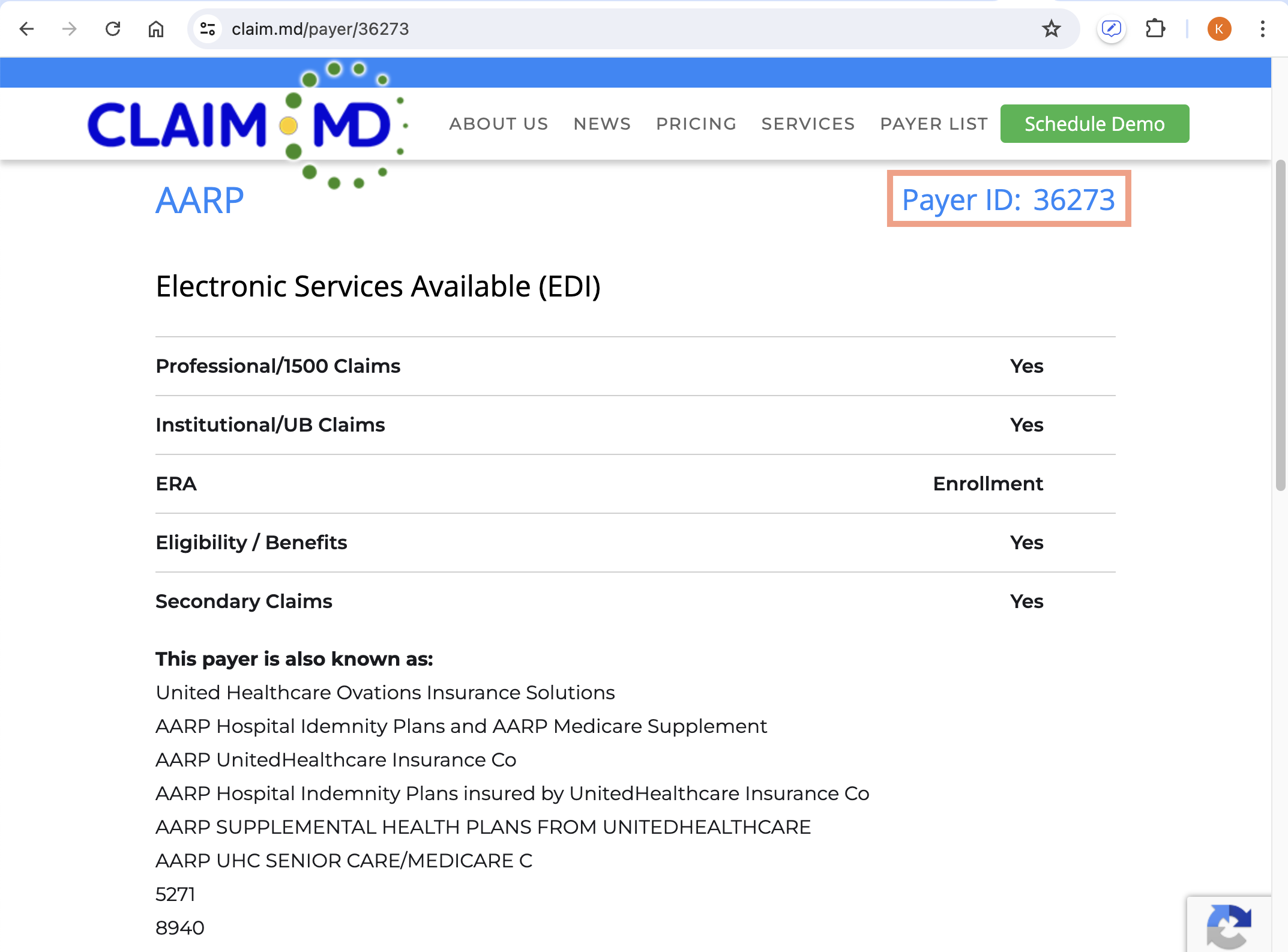 |
| 5 | Click the Edit (pencil) button next to a Payer’s name. |
| 6 | Paste the Payer ID you copied into the Eligibility Payer ID field. 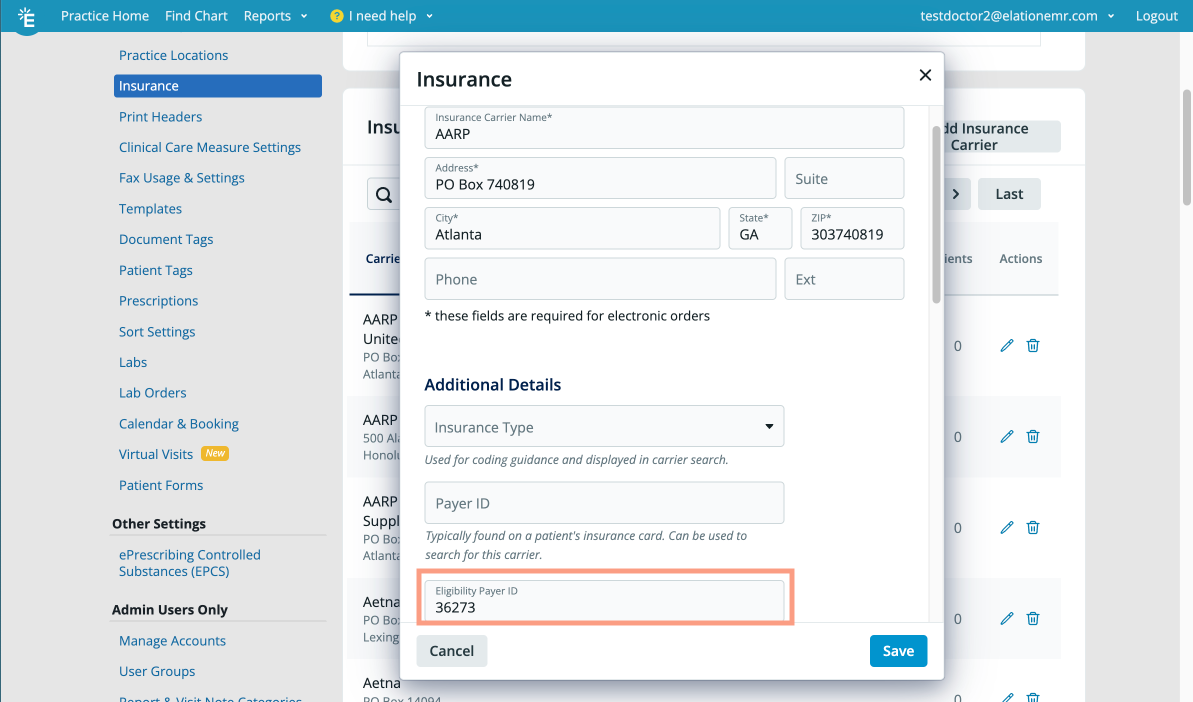 |
| 7 | Scroll down to the Credentialing and Enrollment section and specify under Submitter Type whether the Providers in your practice are Credentialed as individual providers or Credentialed as a group for this payer. This is important to guarantee a successful eligibility check. If Credentialed as a group is selected and you have multiple Groups, an additional dropdown will appear to allow you to select which Group will be submitted for eligibility checks. |
| 8 | Click Save in the Insurance details in Elation to save your edits. |
| 9 | Return to the ClaimMD tab in your browser and click View Payer . Check the Eligibility / Benefits row for the word “Enrollment.” If it appears, a special enrollment process must be completed by Elation on your behalf. Notify Elation immediately by following the steps outlined in the ‘Sending credentials & eligibility enrollment details to Elation’ section above . |
| 10 | Repeats steps 3-9 for each Payer you want to run eligibility checks for. |
Checking for eligibility enrollment requirements
Certain payers require you to complete a special enrollment process in order to obtain eligibility information.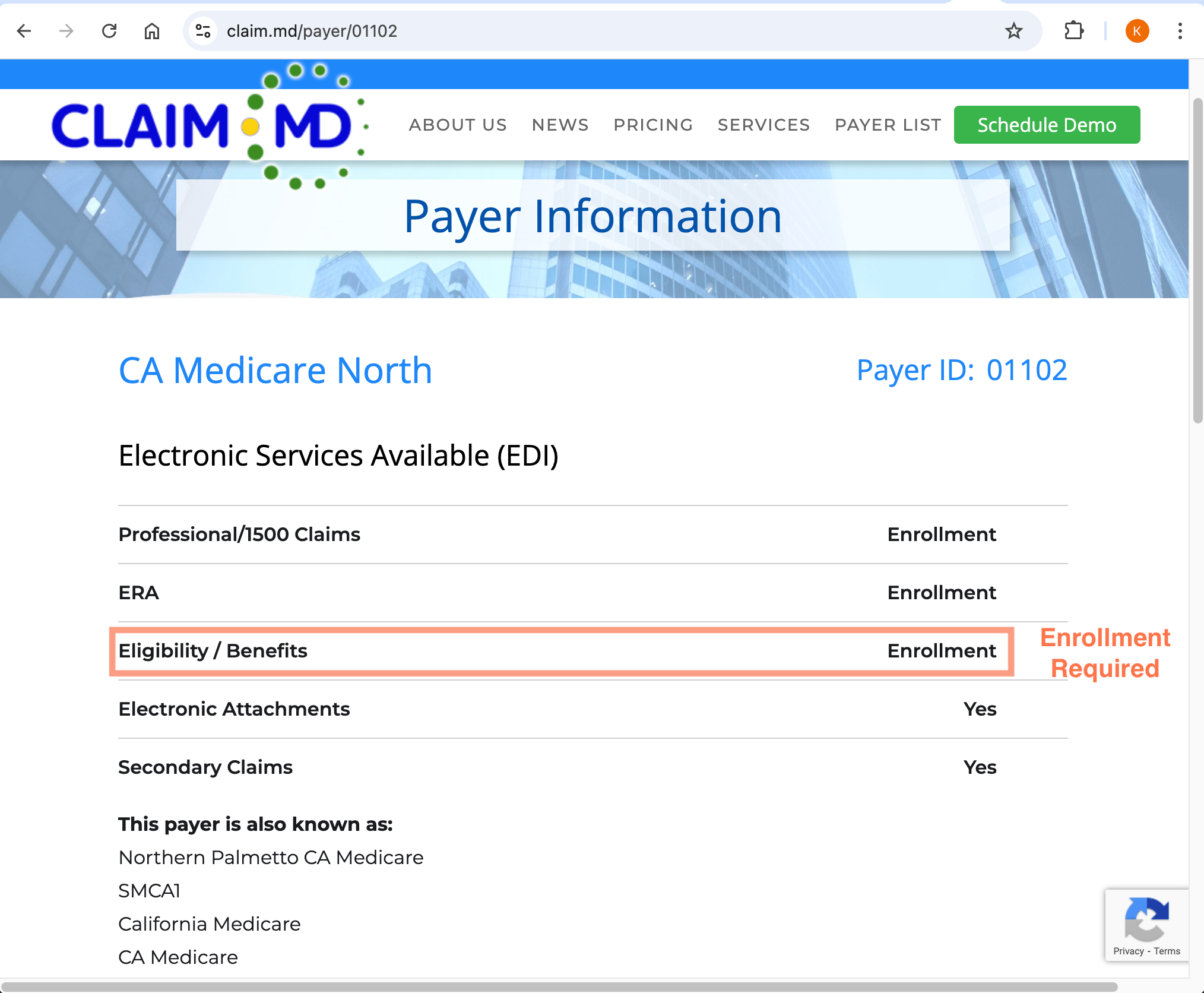
Workflow Instructions
Maintaining your Carrier list
Depending on how your organize your Carriers, you may have multiple entries for the same Carrier. Make sure the Eligibility Payer ID is populated for all entries of the same Carrier in order for eligibility checks to run properly. Here is an example of a list of Aetna Carriers and how the Eligibility ID field may look:Adding new Carriers
When you are about to add a new Carrier to your Carrier list:Adding new Providers
When adding a new Provider to your practice, you must notify Elation to complete their registration process so eligibility checks can be run for that Provider’s patients. To notify Elation:Troubleshooting Common Errors
Incorrect Payer ID selection
Selecting the wrong Eligibility Payer ID is a common cause of eligibility check failures.- Using a commercial payer ID for a Medicare product: Some payers use different Payer IDs for their commercial plans versus their Medicare Advantage products.
- For example, UnitedHealthcare’s commercial plans may have a different Eligibility Payer ID than AARP-branded Medicare Advantage plans offered through UnitedHealthcare. Always confirm the correct Payer ID for the specific product your patient is enrolled in.
- Using a generic payer ID when the payer has distinct IDs for eligibility versus claims: Some payers have separate Payer IDs for eligibility checks and claims submission. The Eligibility Payer ID stored in your Carrier record must match the ID designated for eligibility, not claims.
Patient has active coverage but the eligibility response says ‘inactive’ or ‘invalid’
If eligibility checks still fail after updating the Payer ID
If you continue to see failures after confirming and updating the Eligibility Payer ID, contact Elation Support and include the following details:- Payer name
- Payer ID currently configured in Elation
- Example Patient IDs and dates of failed eligibility checks
Provider NPI has not been enrolled for eligibility with payer
If you see the following error when performing Eligibility checks- ‘Provider NPI [] has not been enrolled for eligibility with payer []’, this could mean one of the following:
Payer ID does not support real-time eligibility. Invalid payer name…
If you see the following error when performing Eligibility checks - ‘Payer ID … does not support real-time eligibility. Invalid payer name…’, this could mean one of the following:
Frequently Asked Questions
What NPI information is used for an eligibility check? The NPI information used for an eligibility check will depend on the following:- If a patient’s insurance carrier has Credentialed as a group listed under Submitter Type, then the Group name and Group NPI configured in the Insurance Settings will be used for both manual and automatic eligibility checks.
- If a patient’s insurance carrier has Credentialed as individual providers listed under Submitter Type, then the name and NPI of the patient’s Provider assigned in practice will be used for both manual and automatic eligibility checks.