
Overview
If your practice uses Elation Billing , patient payments and invoices are managed through the Elation Billing PMS. See Posting a Payment in Elation Billing and Sending Statements in Elation Billing .
What is Patient Invoicing?
Patient invoicing is a feature that allows you to print invoices for patients to collect payment for services rendered for the patient responsibility portions of claims or any services that are not billed to insurance companies. If patients pay you directly but have insurance, you can also share the invoice with patients to send to their insurance companies for reimbursement.Patient invoicing is independent of Elation’s Patient Payment feature. Generating and sending invoices through Patient Invoicing does not incur processing fees. Elation’s percentage-based fee applies only when patients pay electronically via Patient Payments. Learn more about the Patient Payments feature and how to securely collect payments digitally from patients here .
What do the different invoices look like?
Simple Invoice
Contains Procedures, descriptions, charges, and the total balance and no diagnosis codes. Use the Simple Invoice when your patient is not submitting information to insurance and only needs a concise summary of their bill.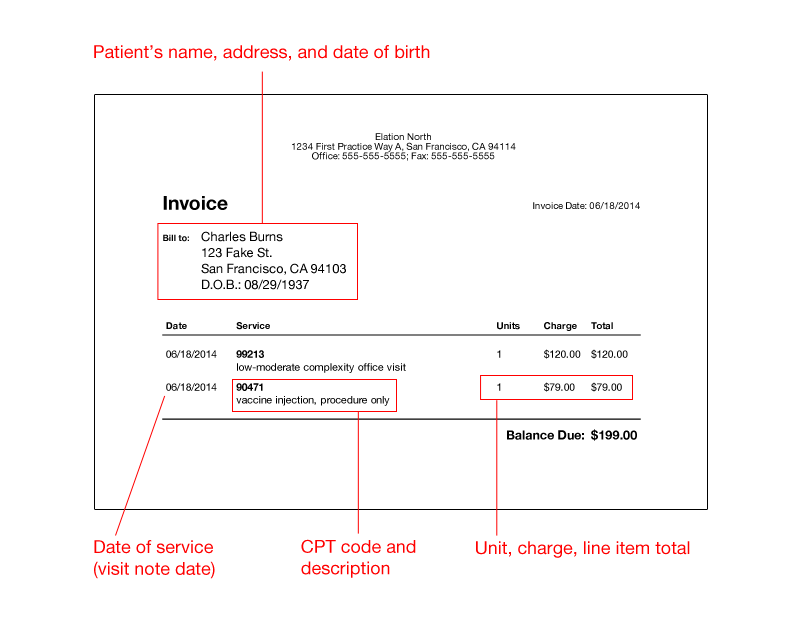
Claims Invoice (detailed information for Insurance claims)
Contains procedures, descriptions, diagnosis codes, charges, total balance, and all of the patient and provider identifying information necessary for insurance claims. Provide the detailed invoice to your patient when they need to submit a receipt to insurance for reimbursement.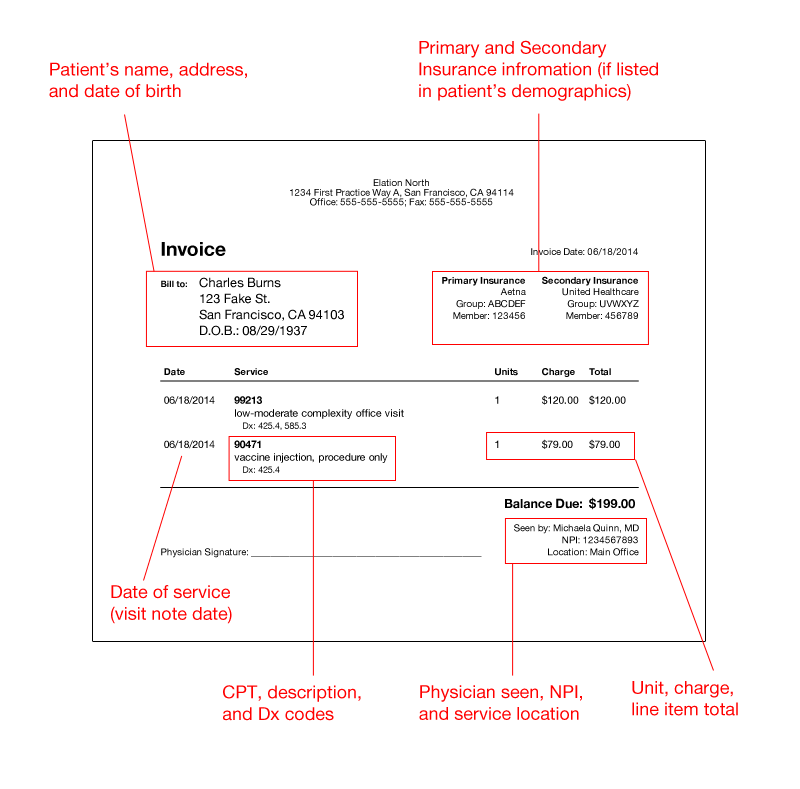
Setup
Turning on Patient Invoicing
Patient Invoicing is a practice-wide setting that can be turned on or off inside Billing Settings. Turn it on and new functions will become available for all providers and staff in your practice. To enable patient invoicing, make sure the toggle to Turn on patient invoicing is set to On: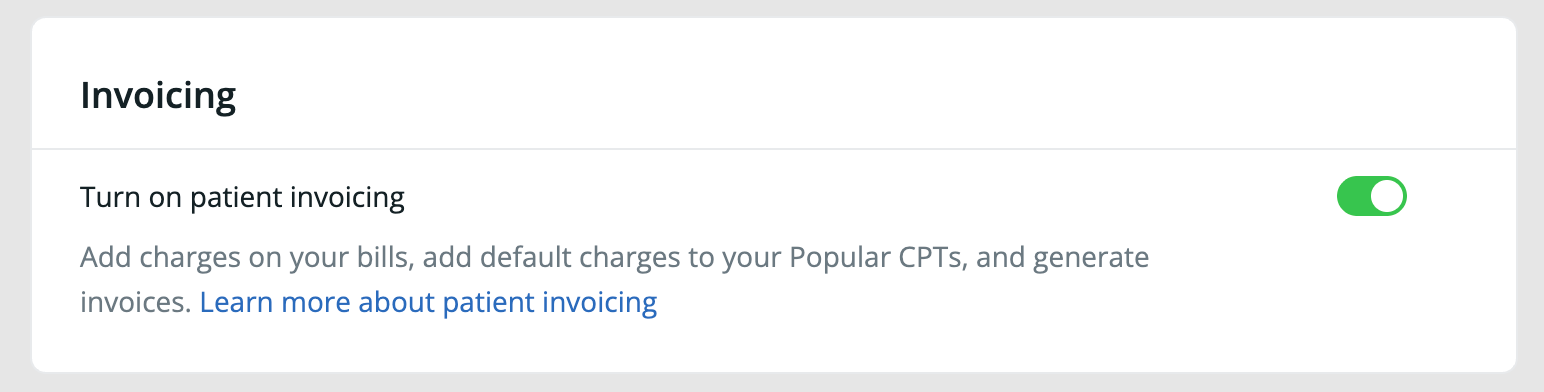
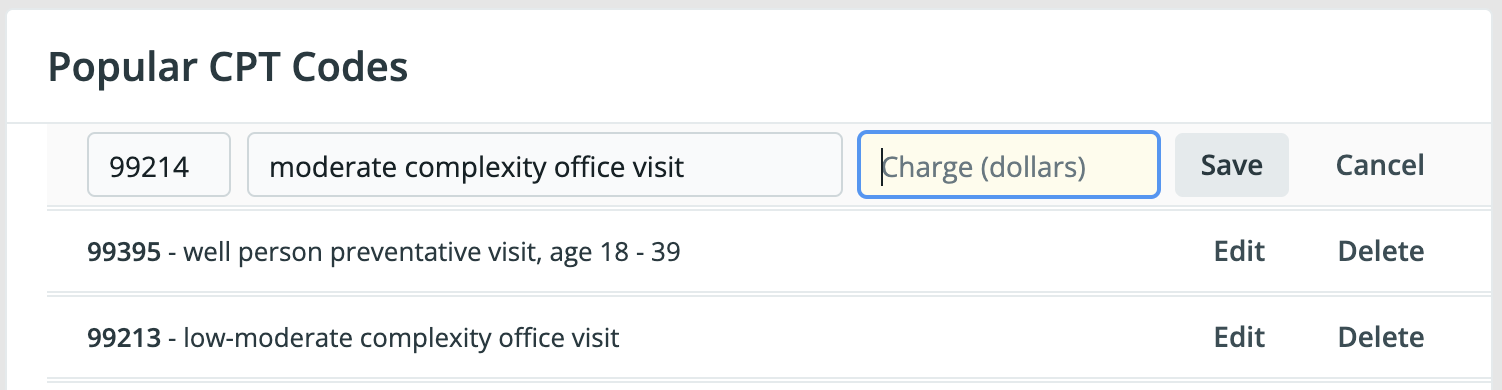
Assigning charges to Popular CPT (procedure) codes
If your Billing Settings has a Fee Schedules section, set default charges there instead. Your Popular CPT Codes and their charges appear as custom rates in your Default fee schedule. See Fee Schedules Guide — Setting charges in the EHR.
For customers using a Practice Management System (PMS) integration with Elation, the Amt () fields do not sync with any PMS. Best practice is to store claim charges in your Fee Schedule in your PMS.
Workflow Instructions
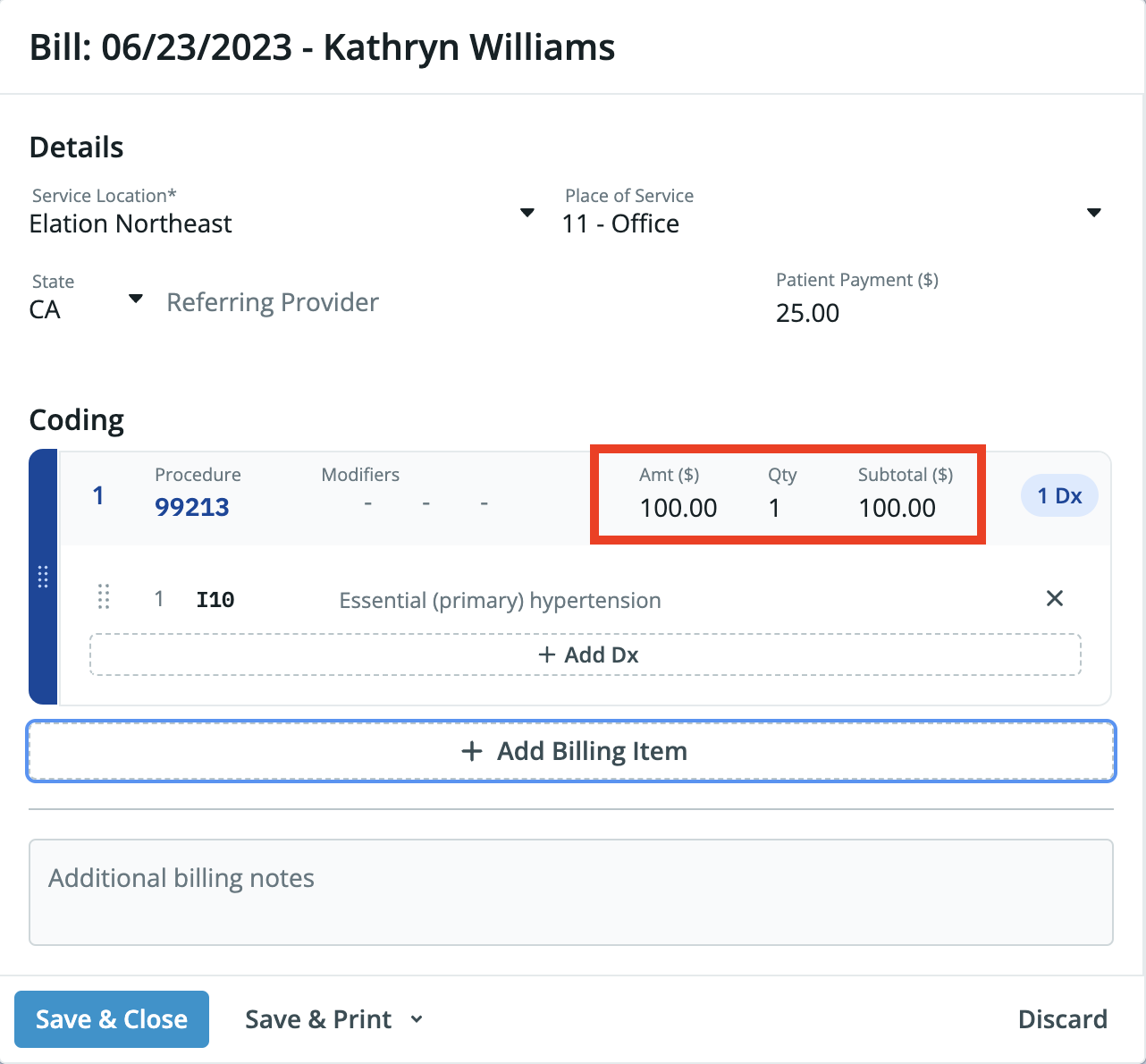
Entering charges in a visit note
Generating an invoice
There are 4 ways to print an invoices:Recording payment in invoices
The Patient Payment ($) field in the Billing Information window will allow you to record information about payments that were already collected from the patient.- E.g. The patient’s charge for today’s visit is 25 in cash prior to their visit. You can enter 25 in the **Patient Payment (25 payment will be listed so that they patient knows they only owe $75.
Collecting payments directly from your invoices
Using Elation’s patient payments solution, your practice’s personalized Payment Site will automatically be included on your patient invoices, providing your patients with an easy way to submit payments to your practice in a secure, electronic manner. Patients can simply point their phone camera at the QR code (see below) and they will be automatically directed to your practice’s Payment Site to submit payment. Alternatively, they can visit your Payment Site by typing in your Payment Site URL into their browser. Logging into Patient Passport is not required. Learn more about the Patient Payments feature here.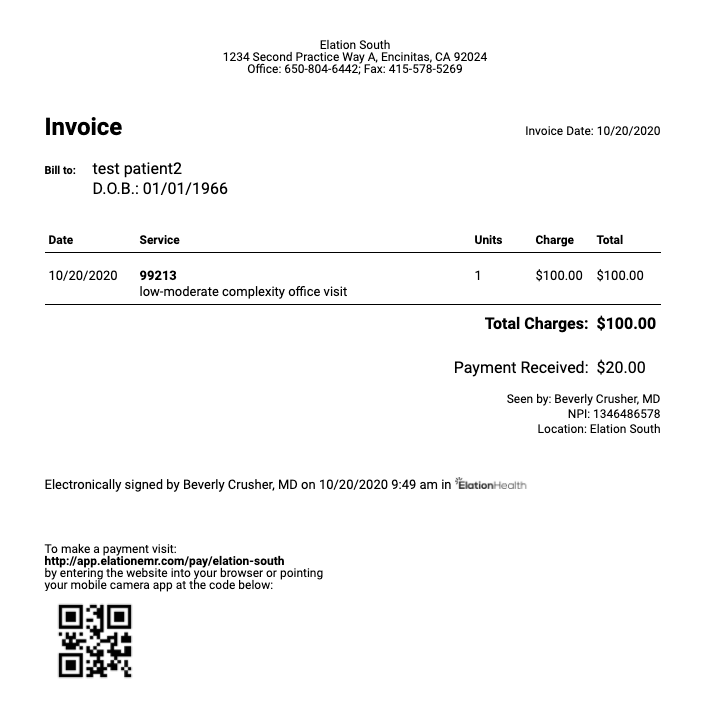
Related Articles
- Billing Guide- Navigating Billing Settings
- Billing Guide- Frequently Asked Questions
- Patient Payments Guide- Securely collect payments digitally from patients
- Billing Home Guide- A dashboard for managing your bills
- Patient Demographics Guide- Managing patient insurance
- Posting a Payment in Elation Billing
- Sending Statements in Elation Billing