
For FAQs specific to Elation Billing (PMS), see Elation Billing FAQs .
What billing features are available in Elation?
| Feature | Description | |
|---|---|---|
| Elation Billing | Elation’s all-in-one billing solution for practices that bill insurance | 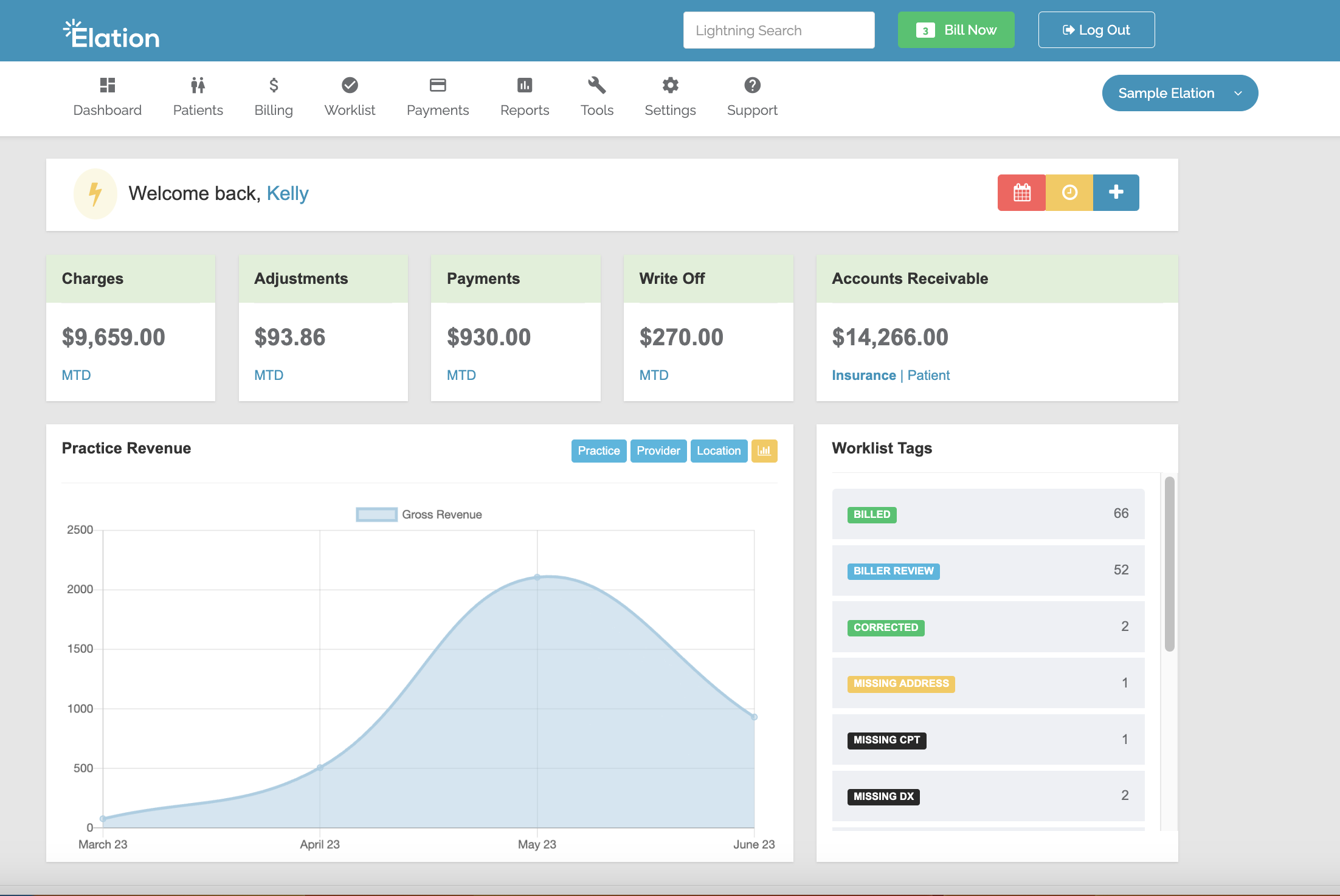 |
| Billing Form | Enter billing information for each patient encounter | 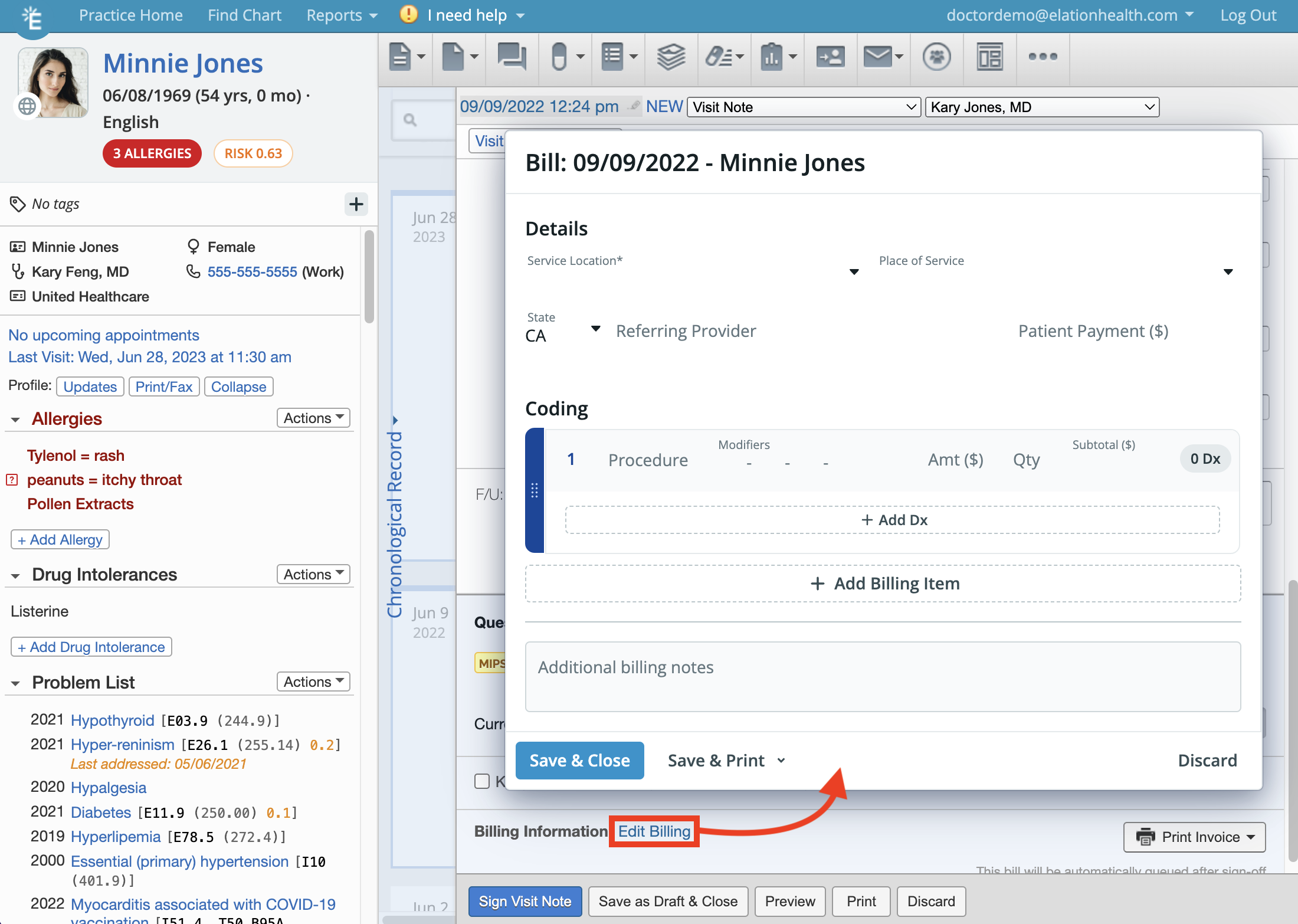 |
| Billing Home | Dashboard for managing all your bills | 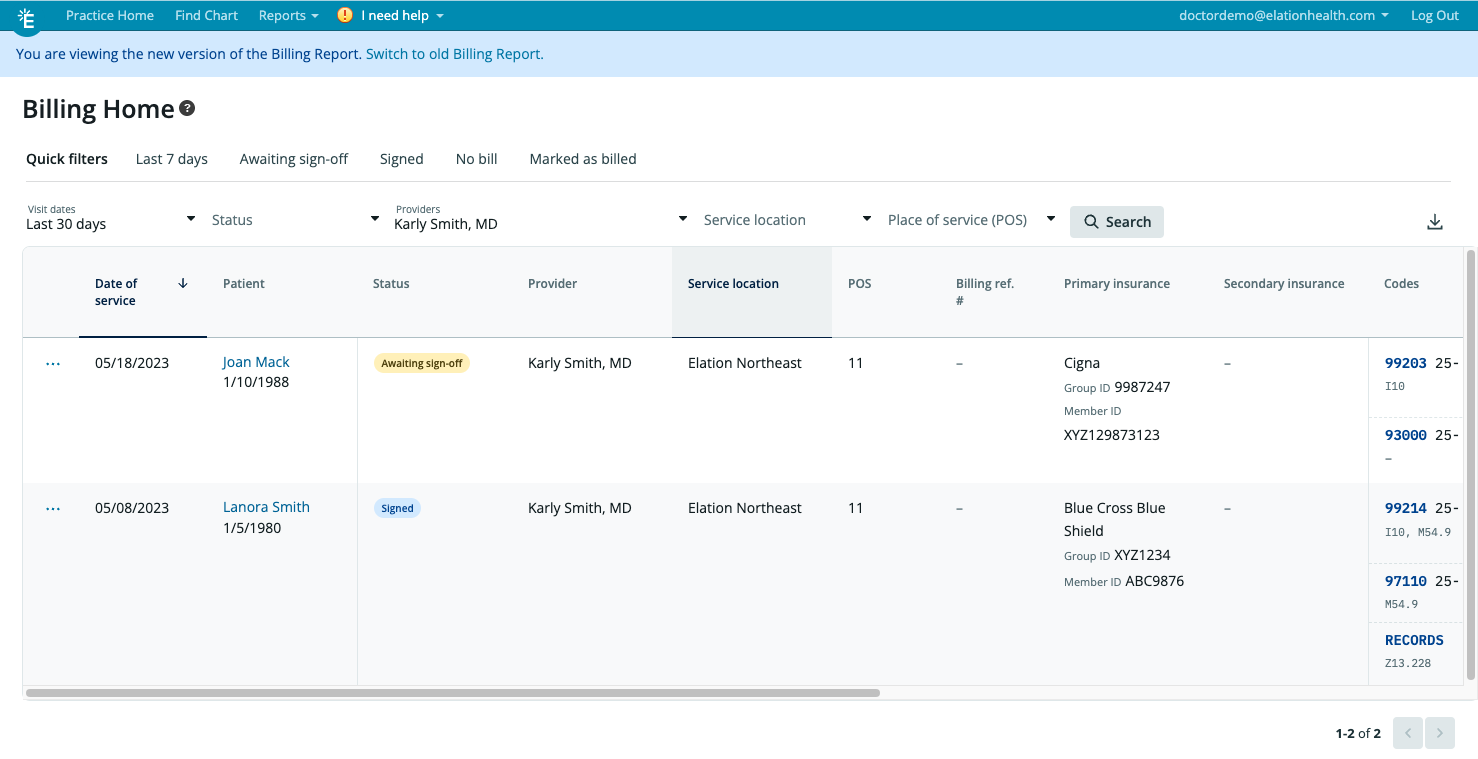 |
| Patient Invoicing | Generate invoices to bill patients | 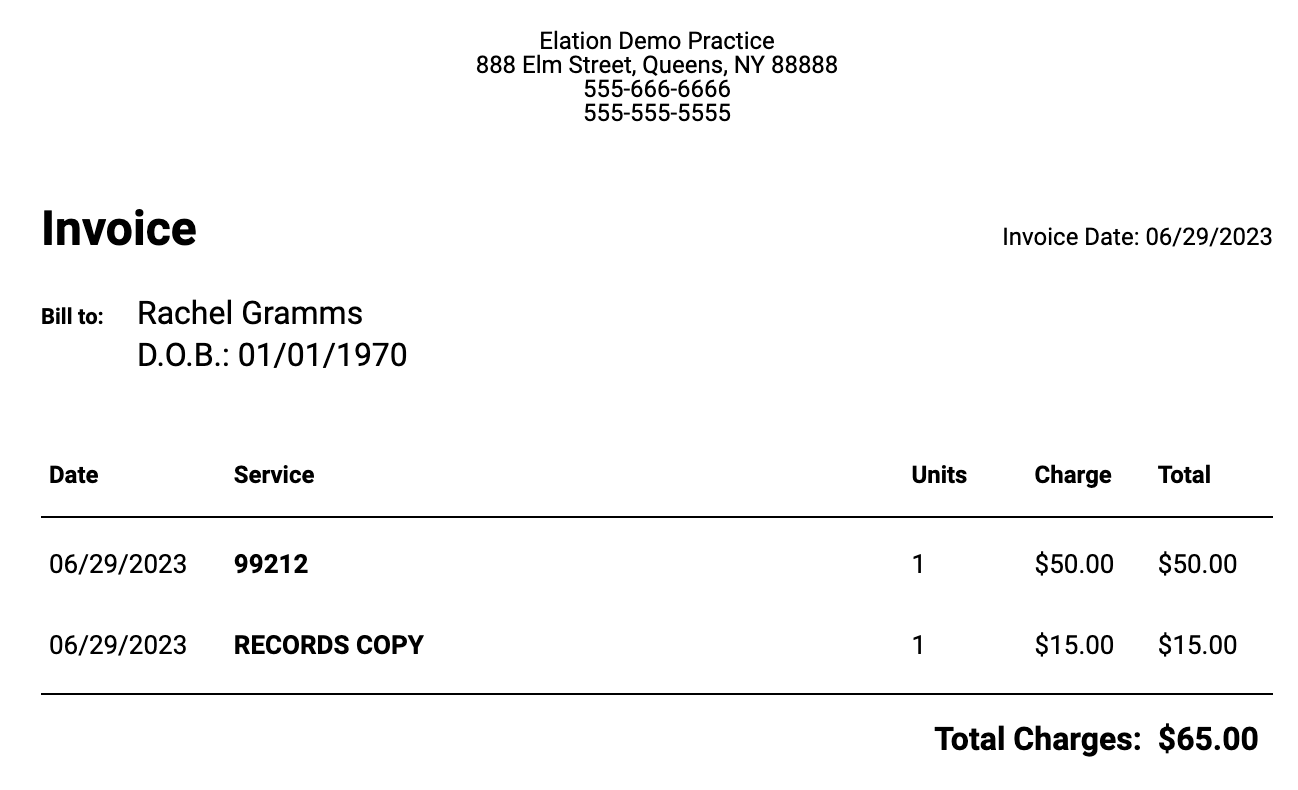 |
| Patient Payments | Securely collect credit card & debit card payments from patients | 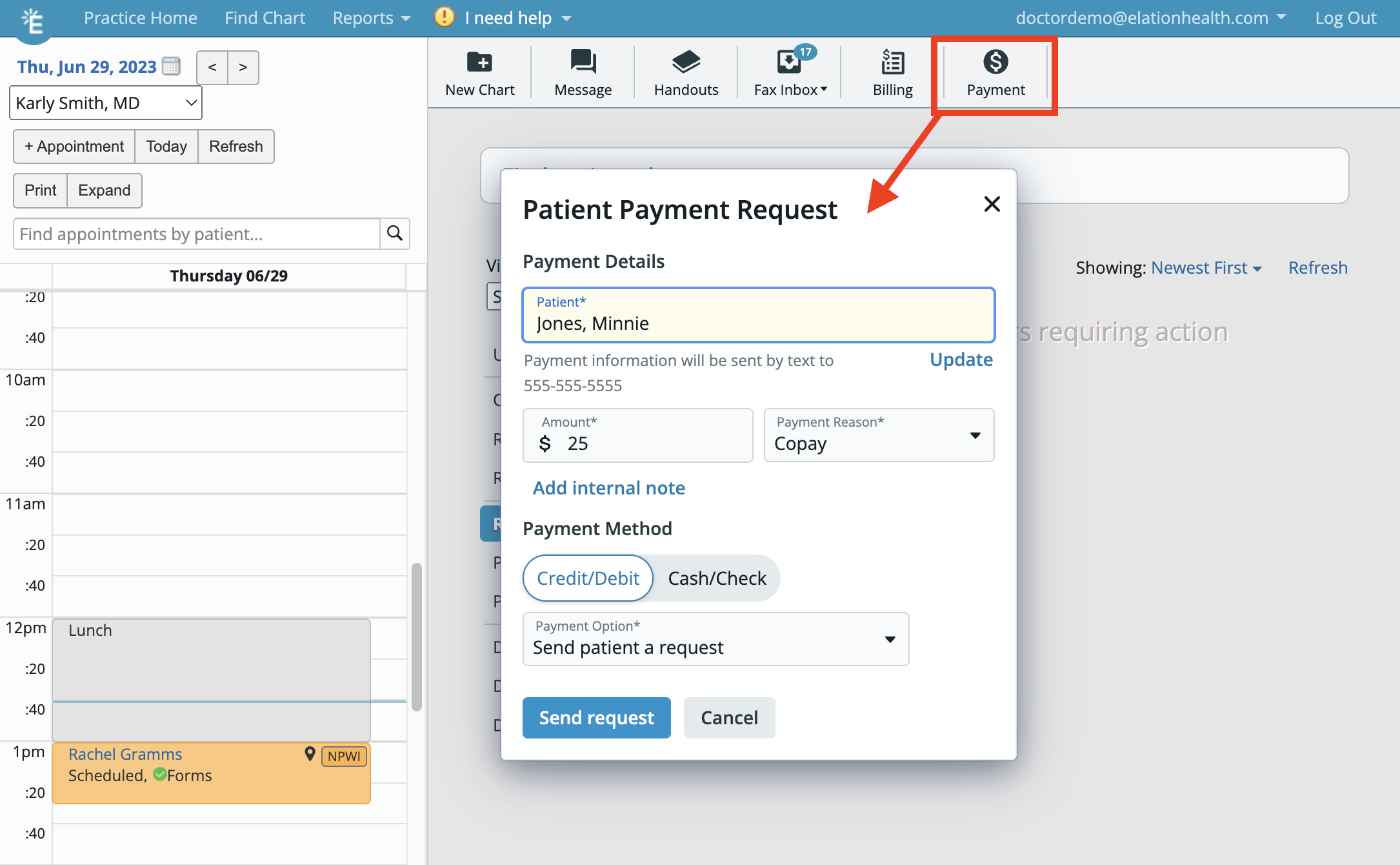 |
| Membership Management | Collect recurring membership payments from patients | 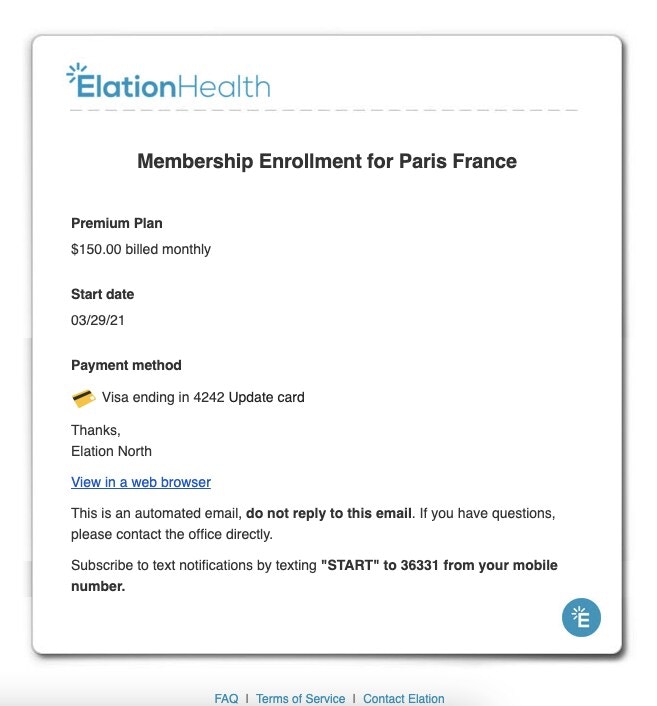 |
Generating bills
Where do I enter billing information in Elation EHR? Billing information is always tied to a visit note in the EHR. Go to the bottom of a visit note draft, click +Add Billing Information or Edit Billing to use the Billing Form to add billing information for the encounter. What billing information can I store in Elation? Elation’s Billing Form allows you to store the following billing information for each encounter:- Date of Service
- Service Location
- Place of Service Code
- State in which services were rendered
- Name of a Referring Provider
- Patient payment notes
- Procedure codes, modifiers and diagnosis codes
- Charge details (for patient invoices only)
For PMS integration users, Elation’s PMS integrations are NOT built to receive edits after billing information is sent to the PMS. You must edit the bill/claim in both Elation EHR and your PMS.
As best practice, always verify coding requirements with the Payer.
- Procedure codes
- Diagnosis codes
- Service Location
- Place of Service Code
For customers using a Practice Management System (PMS) integration with Elation, the Amt () fields do not sync with any PMS.
Coding for an encounter
How many codes can I add to a bill?For PMS integration users, certain PMS integrations may limit how many diagnosis codes they can accept. Please consult your PMS User Manual for full details about how many codes sync to your integrated PMS.
PMS Integration users must consult their PMS User Manual for full details on how to utilize Procedure codes while using an integrated PMS.
Information deleted from a bill cannot be restored. Please delete with caution.
 to the right of the billing line.
How do I enter modifiers?
Use the Modifiers field within the Billing Form to enter modifiers.
Does Elation have a modifier database for me to select from?
No, Elation does not have a modifier database for customers to select from. Customers can enter any modifier of their choice when entering billing information into the Modifiers field of a bill.
How do I delete or correct modifiers?
to the right of the billing line.
How do I enter modifiers?
Use the Modifiers field within the Billing Form to enter modifiers.
Does Elation have a modifier database for me to select from?
No, Elation does not have a modifier database for customers to select from. Customers can enter any modifier of their choice when entering billing information into the Modifiers field of a bill.
How do I delete or correct modifiers?
Information deleted from a bill cannot be restored. Please delete with caution.
Information deleted from a bill cannot be restored. Please delete with caution.
For PMS integration users, Elation’s PMS integrations are NOT built to receive edits after billing information is sent to the PMS. You must edit the bill/claim in both Elation EHR and your PMS.
- Find the drag button to the left of the procedure code you want to move
- Click and hold onto the button with your mouse cursor
- Drag it to the desired location in the bill & then let go of your mouse cursor
- Find the drag button to the left of the diagnosis code you want to move
- Click and hold onto the button with your mouse cursor
- Drag it to the desired location in the bill & then let go of your mouse cursor
 to the right of a billing line to create a copy of all the procedure and diagnosis codes from that billing line to a new billing line. This makes it easy for you to code for multiple procedures that have similar supporting diagnosis codes.
Does Elation offer any coding guidance or coding edits? (Ex. Recommending codes based on certain documentation or workflows.)
Elation does not offer any coding guidance features at this time.
Does Elation offer any automatic coding?
Yes, Elation offers a few automatic coding features:
to the right of a billing line to create a copy of all the procedure and diagnosis codes from that billing line to a new billing line. This makes it easy for you to code for multiple procedures that have similar supporting diagnosis codes.
Does Elation offer any coding guidance or coding edits? (Ex. Recommending codes based on certain documentation or workflows.)
Elation does not offer any coding guidance features at this time.
Does Elation offer any automatic coding?
Yes, Elation offers a few automatic coding features:
- When BMI is calculated after you enter the patient’s height and weight in a visit note
- When blood pressure is entered in a visit note
- When you export a PHQ-9 screening into the visit note
- CPT Codes will automatically be added to the Billing Form if any procedures with CPT codes were added to the Procedure section of the Visit Note draft
- ICD-10 codes will automatically be added to the first line of the Billing Form if any diagnoses were added to the Assessment section of the Visit Note draft
- Certain CPT codes or ICD-10 codes will automatically be added to the Billing Form when the Automatic Coding Setting is turned on for the following workflows:
Managing signed bills
Can I edit a bill after I signed my visit note?For PMS integration users, Elation’s PMS integrations are NOT built to receive edits after billing information is sent to the PMS. You must edit the bill/claim in both Elation EHR and your PMS.
For PMS integration users, Elation’s PMS integrations are NOT built to receive edits after billing information is sent to the PMS. You must edit the bill/claim in both Elation EHR and your PMS.
- Click here to learn more about Elation Billing; Elation’s all-in-one billing solution
- Click here for a list of integrated PMS
- Give the biller a Staff Level User account in the EHR and the biller can sign in to view all your bills in Billing Home.
- If you do not want or need the biller to have access to the EHR, download a report of your bills from Billing Home and share the report with your biller using HIPAA-compliant methods.
The Patient Invoicing feature does not charge the patient. To create a payment request or charge the patient, please use our Patient Payments feature, powered by Stripe.
Billing Settings
Billing Home
| What is Billing Home? | Billing Home is a dashboard of all the bills for your practice. Click here to learn more about Billing Home. |
|---|---|
| What can I see in Billing Home? | Billing Home shows you all the visit notes tied to patient encounters as well as their associated billing details including: Date of service • Patient’s name • Status of the bill • Provider tied to the bill • Service location • Place of Service (POS) code • Billing reference # • Primary insurance name, Group ID and Member ID • Secondary insurance name, Group ID and Member ID • Codes • Charges • Patient payment notes • Any other billing notes |
| How many bills can I see in the Billing Home at any given time? | You can see all bills from Billing Home. If you are a Provider Level User, the dashboard will default to only showing your bills. Use the Providers filter to see bills of other Providers in your practice if needed. • If you are a Staff Level User, the dashboard will default to showing bills for all Providers. Use the Providers filter to see bills of specific Providers only if needed. By default Billing Home will show you bills from the last 7 days and you can use the filters to adjust the date range at any time. Each page of Billing Home will show up to 25 bills. |
| What actions can I take on a bill from Billing Home? | Depending on the status of your bill, you may take one or more of the following actions when clicking on the Actions Menu button  next to any bill: Edit your bill from Billing Home • Open the Visit Note & chart tied to the bill • Mark a bill as Billed • Edit the Billing Reference # associated with a bill • View the history of status changes on a bill • Push the bill to your PMS (for PMS integration users only) Click here to learn more about the various actions you can take on a bill. next to any bill: Edit your bill from Billing Home • Open the Visit Note & chart tied to the bill • Mark a bill as Billed • Edit the Billing Reference # associated with a bill • View the history of status changes on a bill • Push the bill to your PMS (for PMS integration users only) Click here to learn more about the various actions you can take on a bill. |
| Can I edit my bill details from Billing Home without opening the chart? | Yes, click on the Actions Menu Actions next to the bill you want to edit and click Add Bill or Open Bill to edit the bill directly in Billing Home. This action is only available for bills in the No bill or Awaiting Sign Off statuses. |
| What filter options are available in Billing Home? | There are two filter options in Billing Home: Quick Filters - These buttons allow you to see the bills tied to specific statuses with the click of a button. The Quick Filters are: • Customer Filters - You can now apply your own custom filters for the following bill details. Customer filters are: Click here to learn more about the different filters in Billing Home. |
| Can I customize the quick filters available? | The available Quick filters cannot be customized at this time. We will notify you if this feature becomes available in the future. |
| Can I save frequently used filters? | The ability to save commonly used filters is not available at this time. We will notify you if this feature becomes available in the future. |
| Can I download a report of my bills? | Yes. To download a copy of the bills displayed as a .CSV file, click on the Download button  at the top of Billing Home. You can open the report using any spreadsheet software and then you can print the report from that software. at the top of Billing Home. You can open the report using any spreadsheet software and then you can print the report from that software. |
| Can I print a report of my bills? | Yes. To print a report of your bills, first download a copy of the bills displayed by clicking on the Download button  at the top of Billing Home. Afterwards, open the report using any spreadsheet software and then print the report from that software. at the top of Billing Home. Afterwards, open the report using any spreadsheet software and then print the report from that software. |
| Can I set permissions around the actions that users are permitted to take? | The ability to set permissions around which users can take which actions is not available at this time. We will notify you if this feature becomes available in the future. |
| Can I switch back to the old Billing Report view? | Yes, you can switch back to the old Billing Report view by clicking the Switch to old Billing Report button at the top of Billing Home. |
Practice Management System (PMS) Integration Users
What billing information is typically shared with my integrated PMS?Always consult your Practice Management System (PMS) user manual for the full details around what information is synchronized between Elation and your integrated PMS and how the information is synchronized.
- Date of Service
- Service Location
- Place of Service Code
- Procedure Codes and their associated modifiers and diagnosis codes
Consult your Practice Management System (PMS) user manual to see which features your integrated PMS supports, if any.
- Certain PMS integrations support a Send To PMS from Visit Note feature where you can use the Send to PMS button at the bottom of a visit note to send the billing information to your integrated PMS prior to signing the visit note.
- Certain PMS integrations support the Delayed Billing feature which allows you to hold your bills in Billing Home and manually push them over to your integrated PMS whenever you choose.
Consult your Practice Management System (PMS) user manual to see which features your integrated PMS supports, if any.
- Certain PMS will tell us they received the billing information and return a Billing Reference #, which you will see on the bill.
- Certain PMS will tell us if they failed to receive a bill. If this happens the bill will be put in the Failed to Send status in Billing Home and you can attempt to resend the bill.
Consult your PMS User Manual to see which features your integrated PMS supports, if any.
- Certain PMS integrations support a Send To PMS from Visit Note feature where you can use the Send to PMS button at the bottom of a visit note to send the billing information to your integrated PMS prior to signing the visit note.
- Certain PMS integrations support the Delayed Billing feature which allows you to hold your bills in Billing Home and manually push them over to your integrated PMS whenever you choose.
Consult your PMS User Manual to see if it supports the Delayed Billing feature.
- To send individual bills, click the Actions Menu next to the bill in Billing Home and select Send to PMS.
- To send specific bills in bulk, use the checkboxes in Billing Home to multi-select the bills you want to send, then use the bulk action bar to send them all at once. You can select bills across any status — there is no need to filter by a single status first.
- To send all bills of a specific status at once, turn on the Billing Home - Bulk Send to PMS setting and then click on the Bulk Send Bills to PMS button at the top of Billing Home.
- When toggled on, the Bulk Send Bills to PMS button allows you to bulk send ALL bills of a specific status to your integrated PMS. The following actions are available:
- Send all Signed — sends all bills in the Signed status to your integrated PMS.
- Resend all Sent to PMS — resends all bills in the Sent to PMS status to your integrated PMS.
- Resend all Failed to send — resends all bills in the Failed to Send status to your integrated PMS.
- When toggled off, the Bulk Send Bills to PMS button will not be available, but you can still multi-select bills and use the bulk action bar to send them.
next to the bill and select Send to PMS.
How do I send bills from a specific date range to my integrated PMS in bulk?
You can use the date filter to filter by the date range you want, then multi-select the bills you want to send using the checkboxes and use the bulk action bar to send them all at once. Alternatively, if you are using the Bulk Send Bills to PMS button, note that it applies to ALL bills of the selected status regardless of applied filters.
Do all CPT Codes sync to my integrated PMS?
Certain PMS Integrations might require you to enter the CPT Code in the PMS’s CPT Code database in order for it to sync from Elation. Please consult your PMS User Manual for full details on how to utilize Procedure codes while using an integrated PMS.
How many diagnosis codes can I send to my integrated PMS?
Certain PMS integrations may limit how many diagnosis codes they will accept. Please consult your PMS User Manual for full details about how many codes sync to your integrated PMS.
If I edit a bill in Elation after I send the billing information to my integrated PMS, will my integrated PMS receive the changes?
Elation’s PMS integrations are NOT built to receive edits after billing information is sent to the PMS. You must edit the bill/claim in both Elation EHR and your PMS.
If I edit a bill in my PMS, will Elation receive the changes?
No, edits made to a bill in the PMS will not update the corresponding billing details in Elation.
Non-insurance billing
Can I use the Billing Form to create bills for my patient?The Patient Invoicing feature does not charge the patient. To create a payment request or charge the patient, please use our Patient Payments feature, powered by Stripe.
-
In Elation, use the Procedure field to type in which line-items are self-pay.
- After the billing details are transmitted to your PMS, remove self-pay items before submitting your claim.