
Fee Schedules is rolling out to practices in phases. If Fee Schedules does not appear in your Billing Settings yet, your practice is still using the Popular CPT Codes list — see Billing Settings — Service Locations & Procedure Codes for managing that list. Your codes and charges carry over automatically when Fee Schedules is turned on for your practice; there is nothing to migrate.
What is a fee schedule?
A fee schedule is a set of rates Elation uses to fill the Charge field when you add a procedure code to a bill. Each fee schedule has two parts:- A Default Billing Rate — a percentage of the Medicare rate for your selected state and county.
- Custom Rates — per-procedure-code rates that override the Default Billing Rate.
Setup
Fee Schedules live in the EHR, not in Elation Billing. To open them:- Click your email address at the top of your account, then click Settings.
- Under Practice Settings, click Billing.
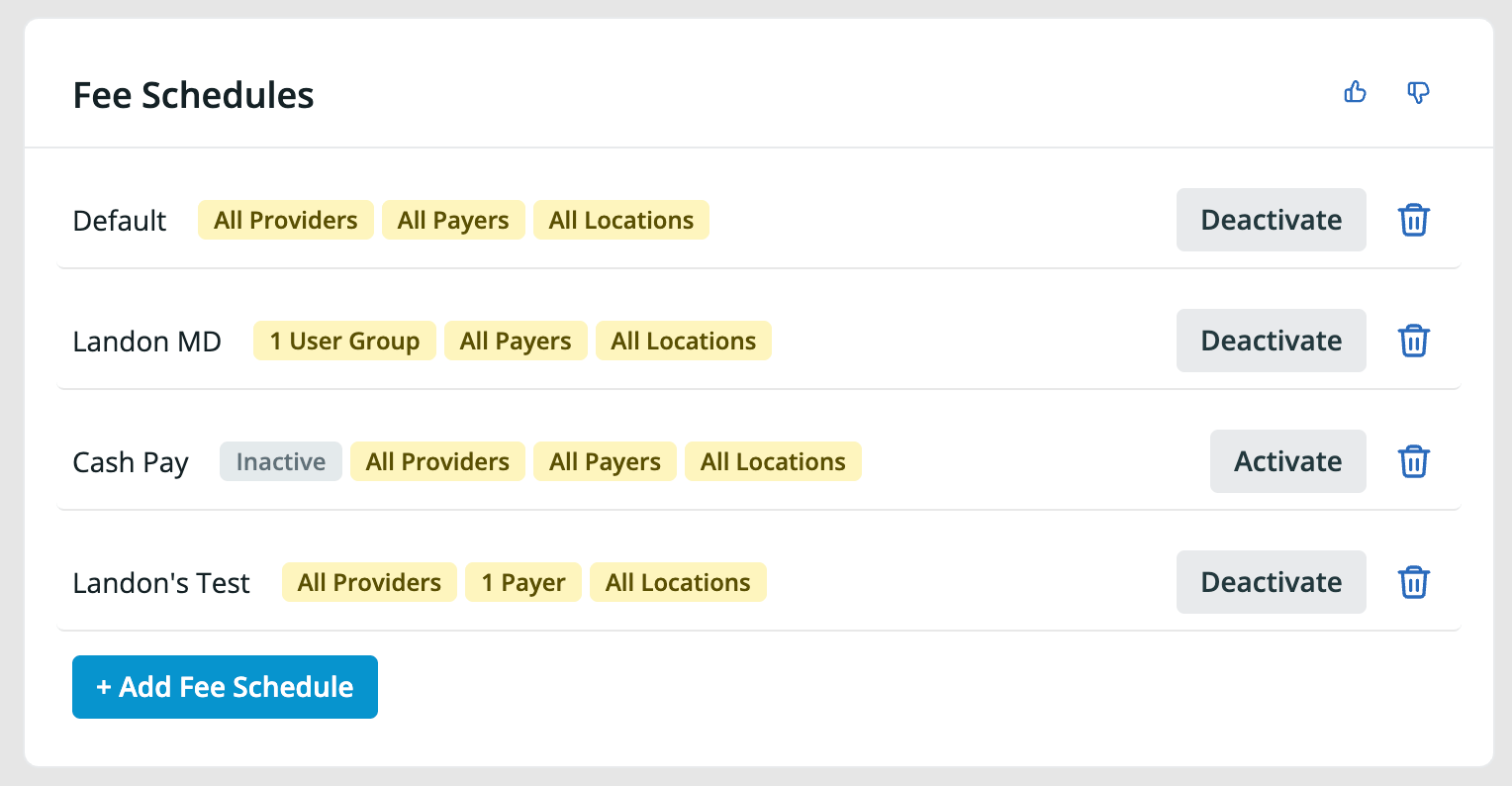
- Scroll to the Fee Schedules section.
Your existing Popular CPT Codes appear in the Custom Rates table along with their charges. On your Default fee schedule, changing one of those charges updates it in your Popular CPT Codes list too. On any other fee schedule, the rate you set applies to that schedule only.
Setting the Default Billing Rate

- In the Fee Schedules list, click on the fee schedule you want to change.
- In the Default Billing Rate section, enter a Percentage. For example, enter
150to charge 150% of the Medicare rate. - Select a Medicare state.
- Select a Medicare county. You must select a state before the county list becomes available.
- Click Save.
A fee schedule cannot be activated until both a Medicare state and county are selected. If either is missing, Elation displays Select a Medicare state and county before activating.
Medicare rates vary by state and county. Elation uses the state and county on the fee schedule — not the service location address — to look up the Medicare rate.
Managing custom rates
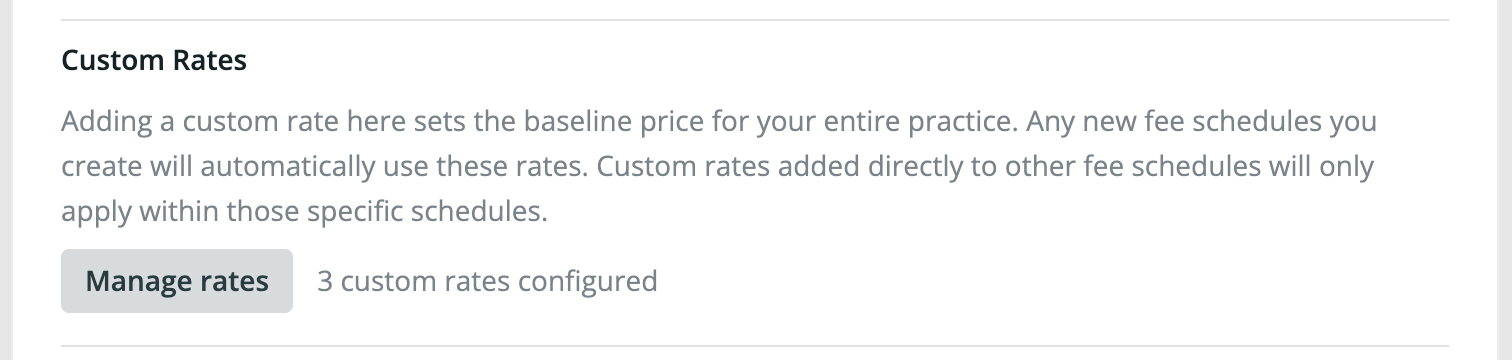
Edit a custom rate
- Click the Custom Rate ($) field on the row you want to change.
- Enter the amount.
- Click Save on the row, then Save on the fee schedule.
Add a code that is not in the list
You can add a rate for any code, including custom codes your practice created for services without a standard CPT code.- Click Add at the bottom of the Custom Rates table.
- Enter the Code — for example,
99999, or a practice-specific code such asFORMS. - Optionally enter a Modifier of up to two characters, for example
26. A code with a modifier is priced separately from the same code without one, so you can charge different amounts for each. - Enter a Description.
- Enter the Custom Rate ($).
- Click Save.
Adding a code here prices it for this fee schedule. It does not add the code to your Popular CPT Codes list, so it will not appear in the procedure code picker — type the code on the bill as usual.
Codes in the billing window
The procedure code picker in the billing window still comes from your practice’s Popular CPT Codes list. The Custom Rates table on your Default fee schedule is where you now edit and remove those entries:- Changing the charge on a code that is priced by your Popular CPT Codes list updates that charge.
- Deleting a code on the Default fee schedule removes it from your Popular CPT Codes list and from every procedure code picker.
- The order codes appear in the picker comes from your Popular CPT Codes list. Fee Schedules has no reordering control, so that order cannot be changed.
Find a code
Use Search by procedure code, modifier, or description above the table to filter the list. Four checkboxes narrow it further: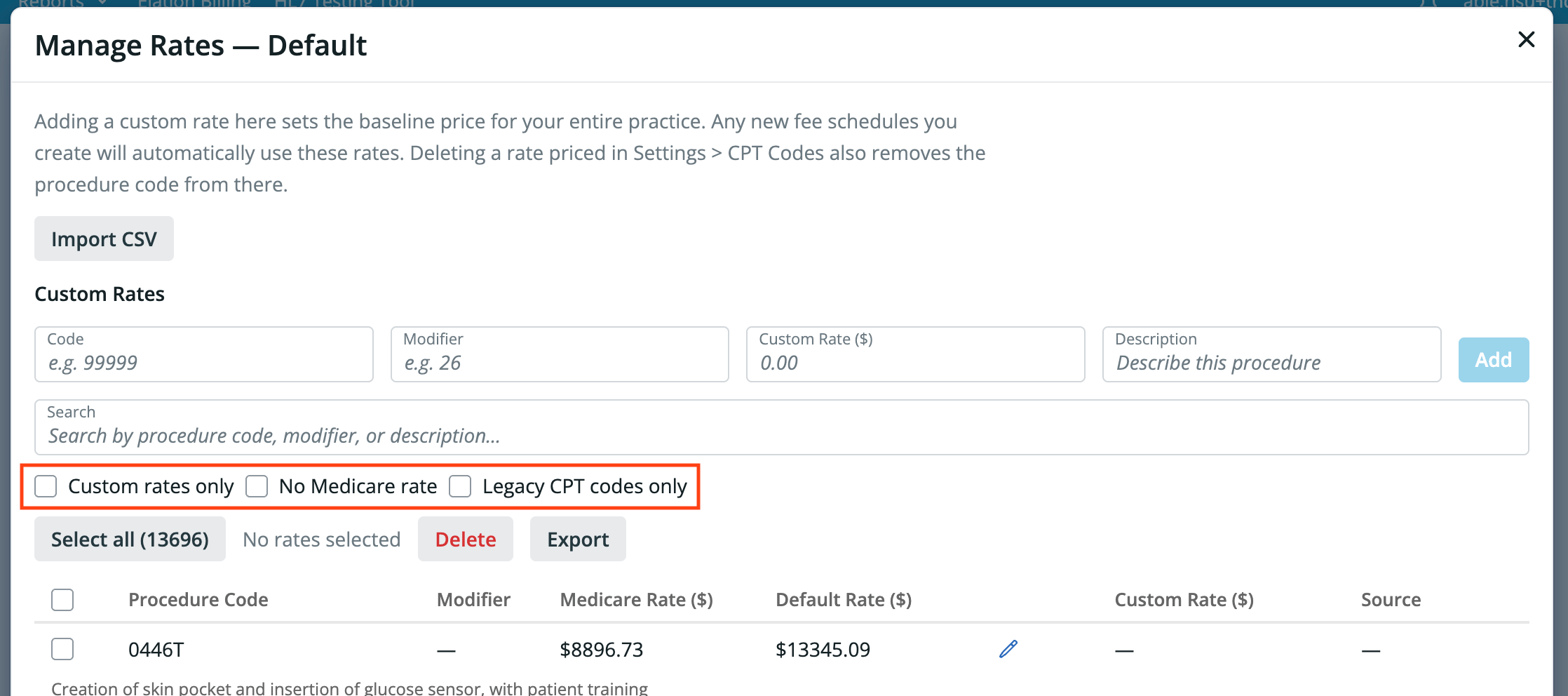
- Custom rates only — codes this fee schedule prices itself.
- No Medicare rate — codes Medicare publishes no rate for. Use this to find the codes that need a custom rate.
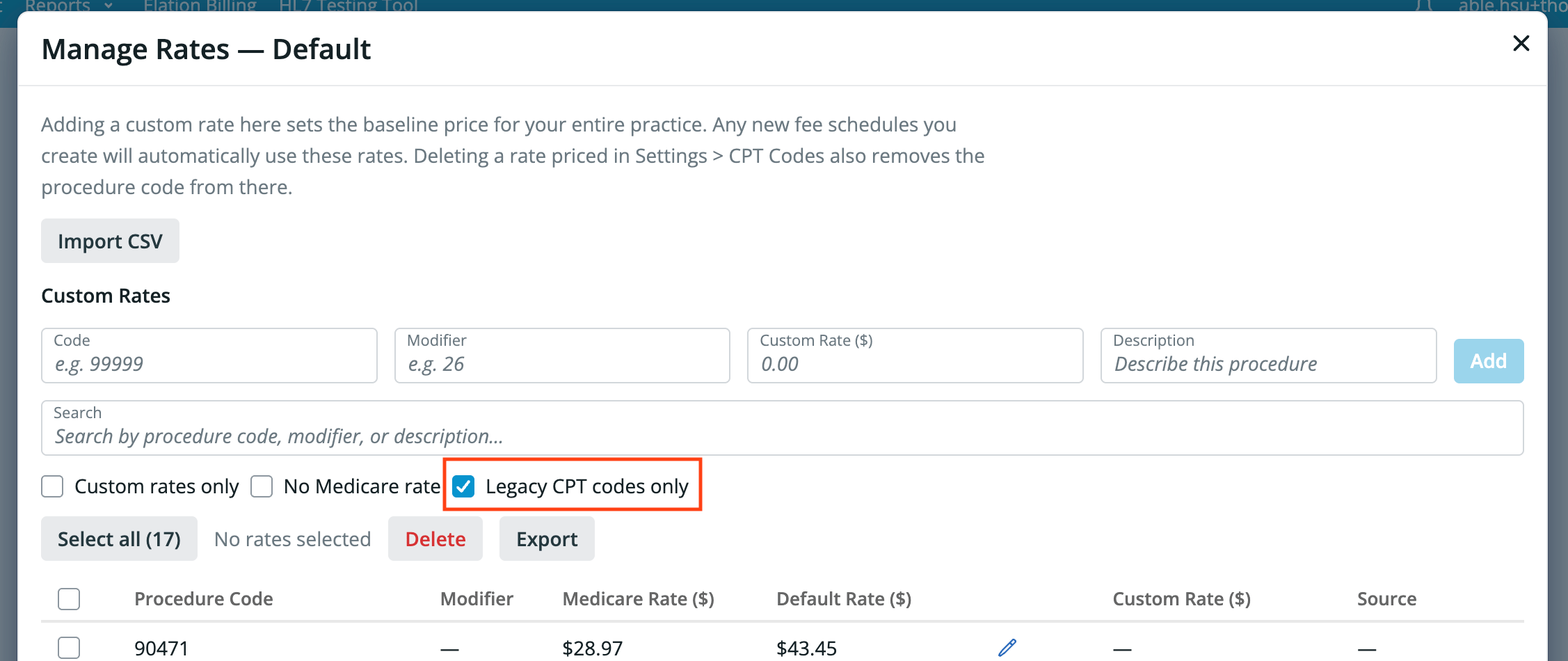
- Legacy CPT codes only — codes from your practice’s Popular CPT Codes list.
- Priced by default schedule — codes that take their rate from the Default fee schedule rather than from this one. This filter is available for fee schedules other than the Default fee schedule.
Custom rates only does not include rates inherited from the Default fee schedule. To see those, use Priced by default schedule instead.
Delete or export rates
Select rows with the checkboxes, or use Select all rates to take everything your filters currently show. The count above the table tells you how many of the selected rows can be deleted. Then:- Delete removes the selected rates.
- Export downloads the rates your filters currently show, so you can review or edit them in a spreadsheet.
- Import CSV loads codes and rates from a file. See Import rates from a spreadsheet.
Import rates from a spreadsheet
Import a CSV to set many rates at once — for example, loading a payer’s negotiated rates, or a fee schedule your practice already keeps in a spreadsheet. Your file needs one row per procedure code, with a column of codes and a column of amounts.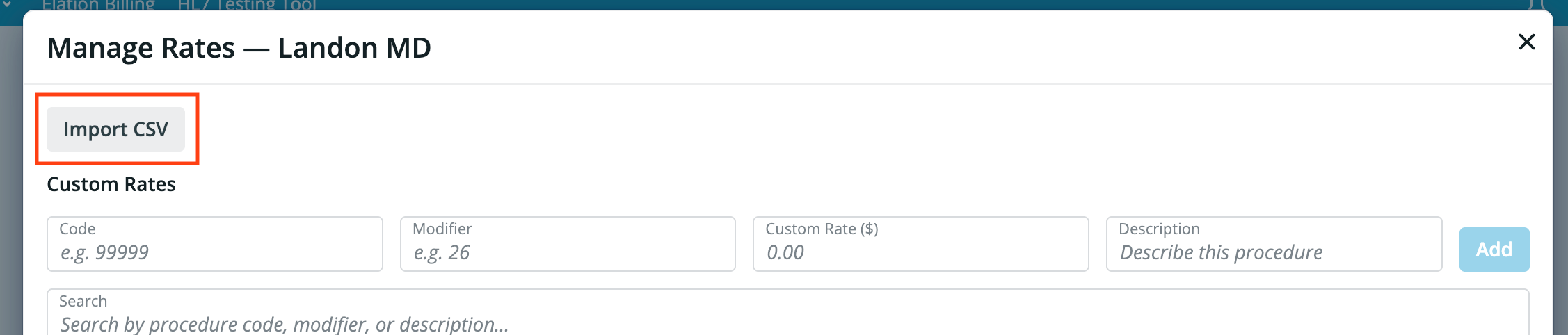
1
Open the import dialog
Click Manage rates, then click Import CSV. The Import Custom Rates dialog opens.
2
Choose your file
Click Choose file… and select your CSV. Elation reads the file and shows how many rows it found.
3
Map your columns
Tell Elation which of your columns is which: CPT Code column (required), Amount column (required), Modifier column (optional), and Description column (optional). Your column headings do not need to match Elation’s names. Click Next.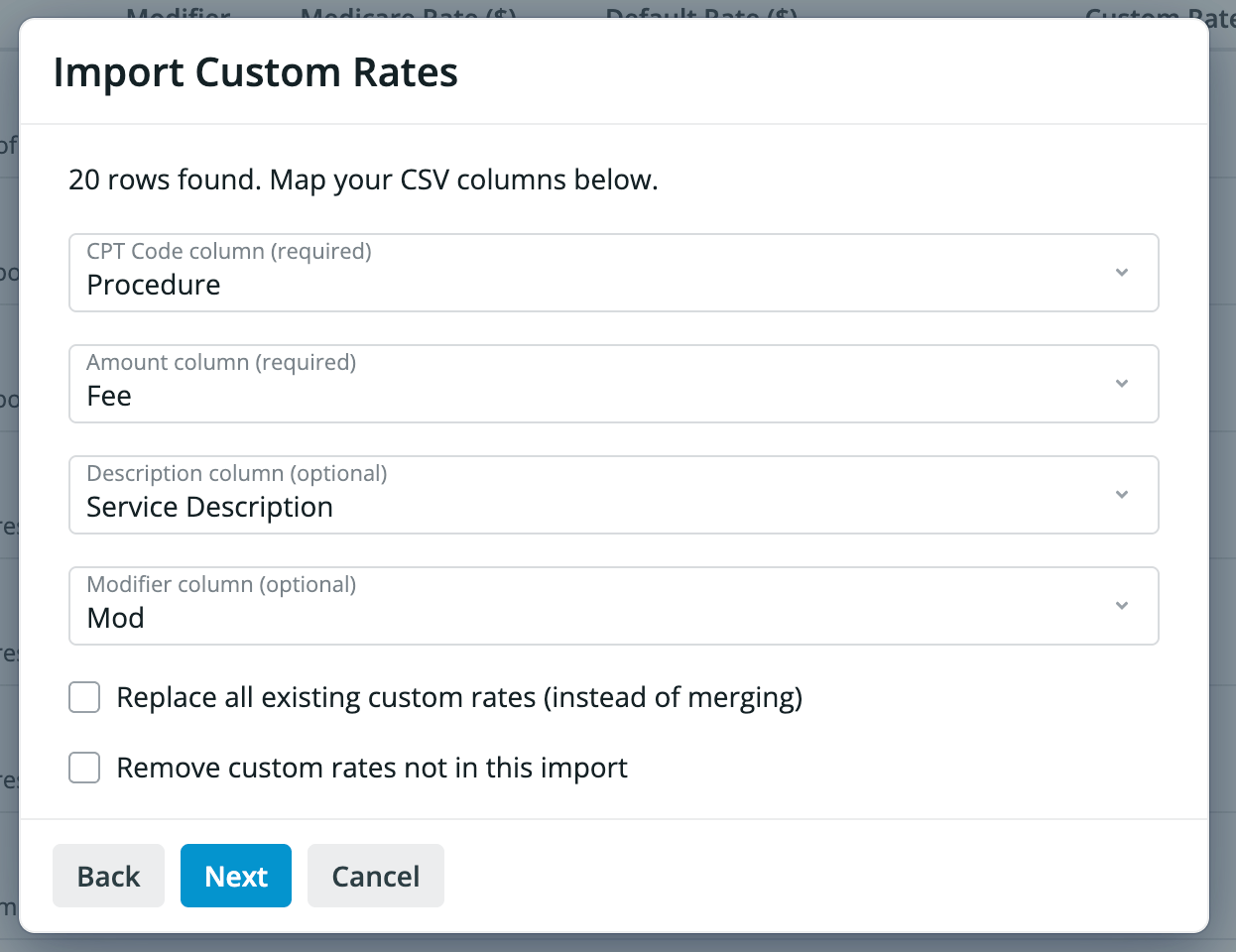
4
Choose how the import applies
Leave both checkboxes clear to merge the file into the rates you already have. Select Replace all existing custom rates (instead of merging) to clear this fee schedule’s current custom rates first, or Remove custom rates not in this import to delete the rates for any code your file does not list.
5
Import
Click Import. If you chose to remove rates, the button reads Yes, remove and import instead, and that removal cannot be undone from this screen.
A few things to know before you import:
- A file can hold up to 10,000 rows. Split a larger file into batches and import each one separately.
- Elation checks every row before it writes anything, so a file with an error imports nothing rather than importing part of the way.
- If the same code and modifier appear on more than one row, only one rate is kept.
- An empty amount means “no rate given.” It does not clear a rate the code already has. To charge nothing for a procedure, enter
0. - Importing sets rates on this fee schedule only. It does not add codes to your Popular CPT Codes list, so imported codes do not appear in the procedure code picker.
Creating additional fee schedules
Create a second fee schedule when part of your practice bills at different rates — for example, one provider with a separate contract, or a payer with negotiated rates.- In the Fee Schedules section, click + Add Fee Schedule.
- Enter a Name, then click Save.
- Set the scope for each of the three filter sections. Each section defaults to applying to everything:
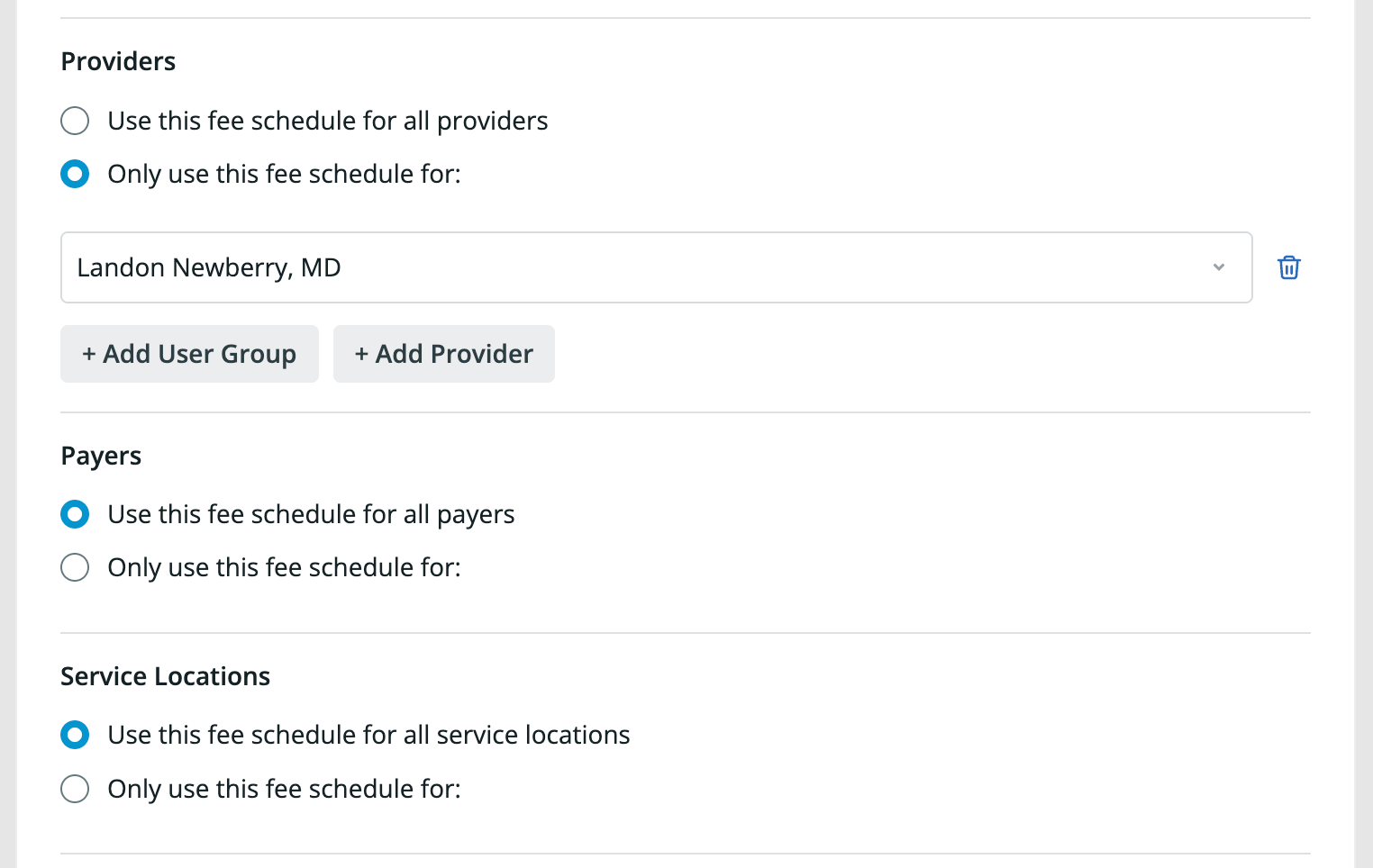
- Providers — keep Use this fee schedule for all providers, or click + Add Provider or + Add User Group to limit it.
- Payers — keep Use this fee schedule for all payers, or click + Add Payer and search for an insurance company.
- Service Locations — keep Use this fee schedule for all service locations, or click + Add Service Locations.
- Set the Default Billing Rate and any Custom Rates.
- Click Save, then click Activate.
The Default fee schedule applies to all encounters and cannot be restricted by provider, payer, or service location. Only additional fee schedules can be scoped.
Custom rates on the Default fee schedule apply to every fee schedule. Custom rates on an additional fee schedule apply only when that schedule is the one matched to the bill.
Activating and deactivating
A new fee schedule is inactive until you click Activate. An inactive schedule displays This fee schedule is inactive and won’t be used to resolve claims and is never matched to a bill. Click Deactivate to take a schedule out of use without deleting it. If two active fee schedules would match the same encounters, Elation displays: These criteria already match fee schedule “[name]”. You can save, but this schedule cannot be activated until the conflict is resolved. Narrow the filters on one of the two schedules, then activate.How Elation picks a fee schedule
When you open a bill, Elation matches a fee schedule to it using the provider, payer, and service location on that bill. An empty filter section matches any value. Filters are weighted, and the highest-weighted match wins:
If no fee schedule matches, Elation uses the Default fee schedule. Click the info icon next to a fee schedule’s name to see this explanation in the product.
A provider filter matches whether you targeted the provider directly or through a user group — both carry the same weight of 4. If a provider is later added to or removed from a user group, two active schedules can end up tied. Elation then uses the most recently created schedule. Review your schedules after changing user group membership.
Which rate is used for a procedure code
When you type a procedure code into a bill, Elation resolves the charge in this order and uses the first one it finds:- Custom rate with a Source of Manual — a rate your practice entered in the EHR.
- Elation Billing custom fee — a custom fee configured in your Elation Billing account.
- Calculated custom rate — the negotiated rate on the custom rate row, multiplied by the Default Billing Rate percentage.
- Medicare rate for the selected state and county, multiplied by the Default Billing Rate percentage.
Exception: This order applies to charges that fill in as you type a procedure code. Service lines that Elation adds for you — for example when a visit note template applies a procedure — skip step 2 and price from the calculated or Medicare rate instead. All-in-One practices that rely on Elation Billing custom fees can therefore see a different charge on an automatically added service line than on one entered by hand. Review the Charge on service lines you did not enter yourself before signing the visit note.
Fee schedules on a bill
Rates apply automatically as you enter procedure codes in the bill in the EHR:- When you add a procedure code, the Charge field fills with the resolved rate. You can overwrite it — a charge you type is always kept.
- The bill header shows a View fee schedule link that opens the fee schedule Elation matched to that bill. The link does not appear when no fee schedule matched.

Fee schedules resolve in the EHR only. The charges on the bill are what Elation Billing uses. An Elation Billing fee schedule only fills a charge on a claim line that is still empty when the claim is submitted.
Elation EHR + Billing practices (All-in-One)
For All-in-One practices, Elation pulls your existing Elation Billing configuration into the EHR fee schedule:- Your Elation Billing Medicare base rate and region settings pre-populate the Default Billing Rate.
- Your Elation Billing custom fees appear in the Custom Rates table with a Source of Elation Billing.
Frequently Asked Questions
Can I upload a fee schedule from a spreadsheet?
Yes. Your file needs a column of CPT codes and a column of amounts. Description and modifier columns are optional, and your column headings do not need to match Elation’s names. See Import rates from a spreadsheet for the steps.Can I set a separate fee schedule for cash-paying patients?
Not directly. Fee schedules match on the payer on the bill, and self-pay patients have no payer to filter on. Elation is evaluating letting users select a fee schedule manually on a bill. As a workaround, overwrite the Charge field on the bill for cash-paying patients.Why does a lab or drug code show “No Medicare rate”?
Medicare publishes lab and drug rates in separate fee schedules from physician procedure codes. Elation’s Medicare rate lookup does not currently include the full Clinical Laboratory Fee Schedule, so some lab and drug codes have no Medicare rate to calculate from. Set a custom rate for those codes.Where do I find my existing Popular CPT Codes?
Your existing Popular CPT Codes are in the Custom Rates table of your Default fee schedule. To find them:- Under Practice Settings, click Billing.
- Scroll to the Fee Schedules section.
- Click on your Default fee schedule.
- Click Manage rates to open the Custom Rates table.
- Select the Legacy CPT codes only filter above the table to show only the codes carried over from your Popular CPT Codes list.
Do I still use Popular CPT Codes?
Your Popular CPT Codes list still exists, and its charges are still used when a fee schedule has no rate of its own for a code. Fee Schedules shows those codes in the Custom Rates table, and a Custom Rate you set there is used instead. Manage rates from Fee Schedules so you also get Medicare-based rates and per-payer scoping.Does the charge apply to patient invoices?
Yes. Charges that auto-fill on the bill flow through to patient invoices when Invoicing is turned on. See Patient Invoicing.Related Articles
- Billing Settings — Service Locations & Procedure Codes
- Add/Update a Fee Schedule
- Billing Guide — Creating a superbill & coding for your visit
- Patient Invoicing
- Elation Billing — Using Elation’s all-in-one billing solution