
Overview
If your practice uses Elation Billing (practice management software), eligibility checks are handled differently in the billing system. See the following Elation Billing articles for billing-specific eligibility instructions: Running Eligibility - Elation BillingTroubleshoot Eligibility - Elation Billing
What is Real-time Eligibility?
Real-time Eligibility in Elation EHR enables you to request a patient’s primary and secondary insurance eligibility, coverage, and benefits based on the insurance details in their demographics. If the request is successful, the retrieved information will be displayed in the patient’s demographics for easy access.What are the benefits of the Real-time Eligibility feature?
Real-time Eligibility is valuable because- it allows you to request updated insurance information from patients if their coverage has lapsed, especially while they are in the office with you.
- the eligibility, coverage and benefits details will allow you to collect any patient responsibility at the point of care, if preferred.
- the eligibility, coverage and benefits details will allow you to inform the patient in advance for any additional responsibility they may have for the services rendered.
Setup
Enabling Real-time Eligibility
This Real-time Eligibility feature is a custom add-on product for EHR customers. This feature comes with additional costs. If you would like to use this feature, please reach out to Elation using the I need help -> Contact Elation Support button and a member of our team will reach out to assist you.Completing registration & configuring Settings
REQUIREMENT You must follow the instructions in this article to correctly register your practice and set up your Carriers to ensure you successfully receive eligibility information: Click here for instructions on how to set up your Payers for eligibility checks .
In the above article you will find instructions for the following: Reviewing your Insurance Eligibility Settings.Configuring the Eligibility Payer ID and Submitter Type for each carrier you want to run eligibility checks for.Sending credentials and eligibility enrollment details to Elation.
Workflow Instructions
Viewing updates to the demographics box
In each patient’s Demographics Box, you will see a section at the top of the Primary Insurance and Secondary Insurance sections for Eligibility Checks.- If insurance information is empty, you will see text that says ‘Enter insurance information to run eligibility check.’. You must enter insurance information for the patient in order to run an eligibility check.
- If you see text that says ‘Payer ID … does not support real-time eligibility. Invalid payer name…’ it means one of three things:
- The Carrier does not offer electronic eligibility checks and they do not have an Eligibility Payer ID.
- The Eligibility Payer ID is not entered in your Insurance Settings for the Carrier.
- The Eligibility Payer ID entered in your Insurance Settings for the Carrier is incorrect.
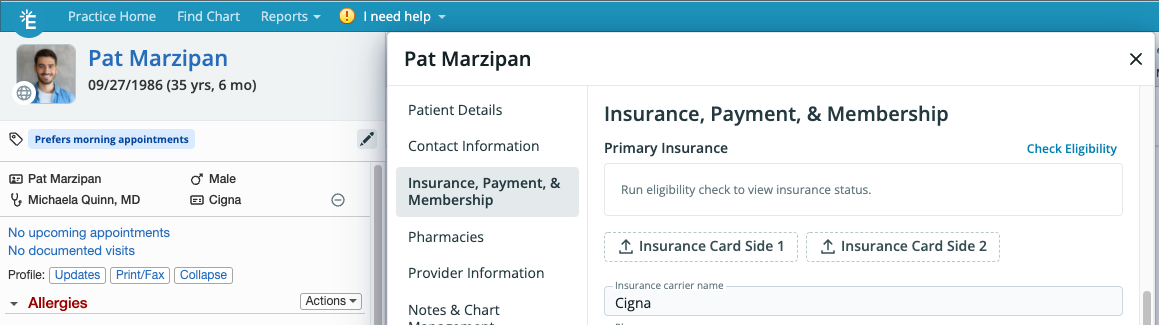
- If you see a blue Check Eligibility button and text that says ‘Run eligibility check to view insurance status’, it means eligibility check is available for the Carrier and you can click the Check Eligibility button to run an eligibility check.
Running manual eligibility checks
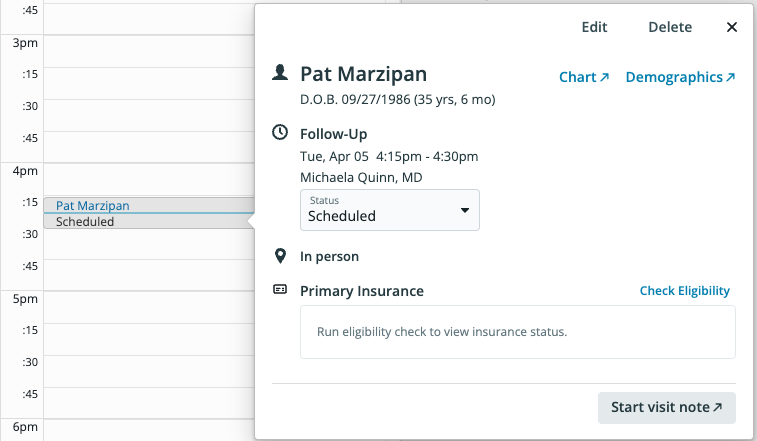
There are two ways to manually check insurance eligibility:- From Patient Demographics - Click the Check Eligibility button in the Patient Demographics to run eligibility checks for the patient’s Primary Insurance and Secondary Insurance.
- From an Appointment - Click the Check Eligibility button in the Create Event dialogue for a new appointment or in any created appointment for a patient to run an eligibility check for the patient’s Primary Insurance.
Running automated eligibility checks for patients with appointments
Each night at approximately 3:30 AM Eastern, Elation will automatically run an eligibility check for patients who- have an appointment in the Elation Calendar for the following day AND
- who have an eligibility enabled Carrier on file
Viewing eligibility status in the patient’s demographics
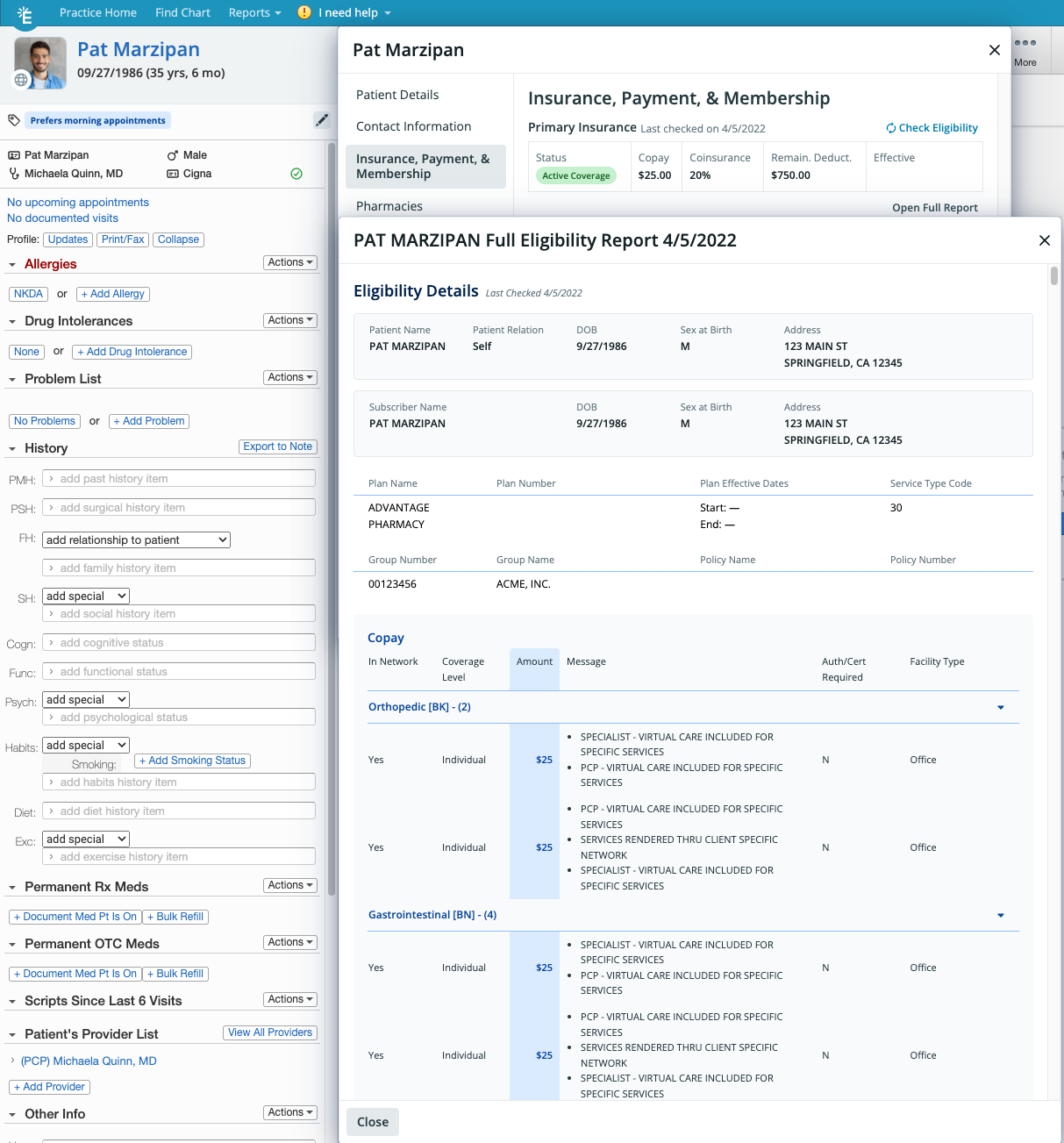
Eligibility response information will display above the Primary Insurance and Secondary Insurance information. The summarized eligibility details will display the date the insurance eligibility check was run, status of the insurance, Copay, Coinsurance, remaining Deductible and Effective Date as long as the information is made available by the Payer. This is what the Eligibility response summary information will look like: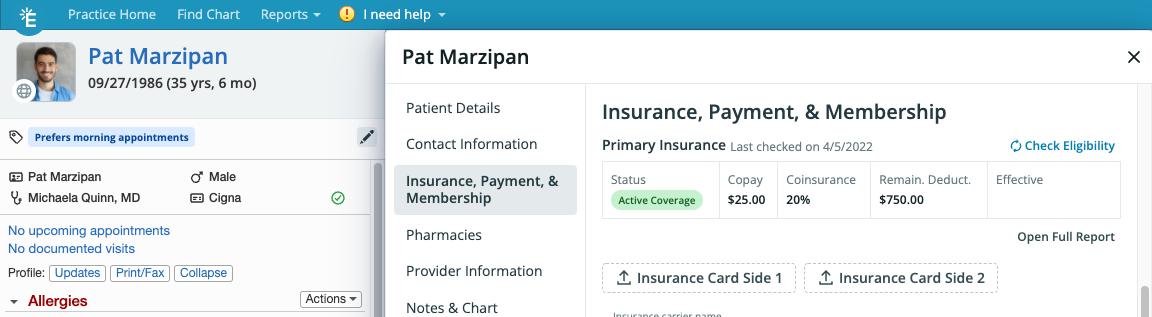
- a breakdown of various coverages & benefits
- coverage level
- prior authorization requirements
- out of pocket costs
- coverage limitations
Viewing eligibility status in the Clinical Profile
New icons have been added to the Clinical Profile next to the patient’s Primary Insurance to display the status of the Primary Insurance’s eligibility. The Clinical Profile will not display the status of the Secondary Insurance’s eligibility.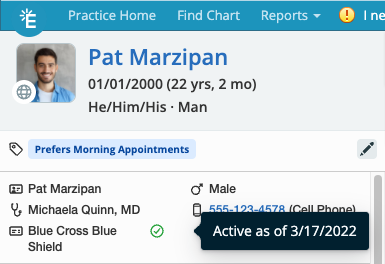
Viewing eligibility status in the Appointment
A new section has been added to the Create Event box and Appointment details to show the Eligibility status of the the patient’s Primary Insurance. The summarized eligibility details will display the date the insurance eligibility check was run, status of the insurance, Copay, Coinsurance, remaining Deductible and Effective Date as long as the information is made available by the Payer. You can click the Open Full Report button to view the details of the eligibility response.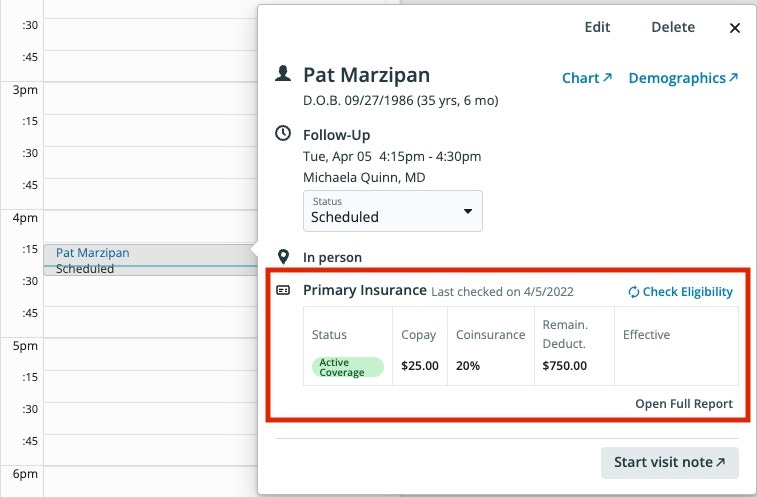
Managing mismatched demographics
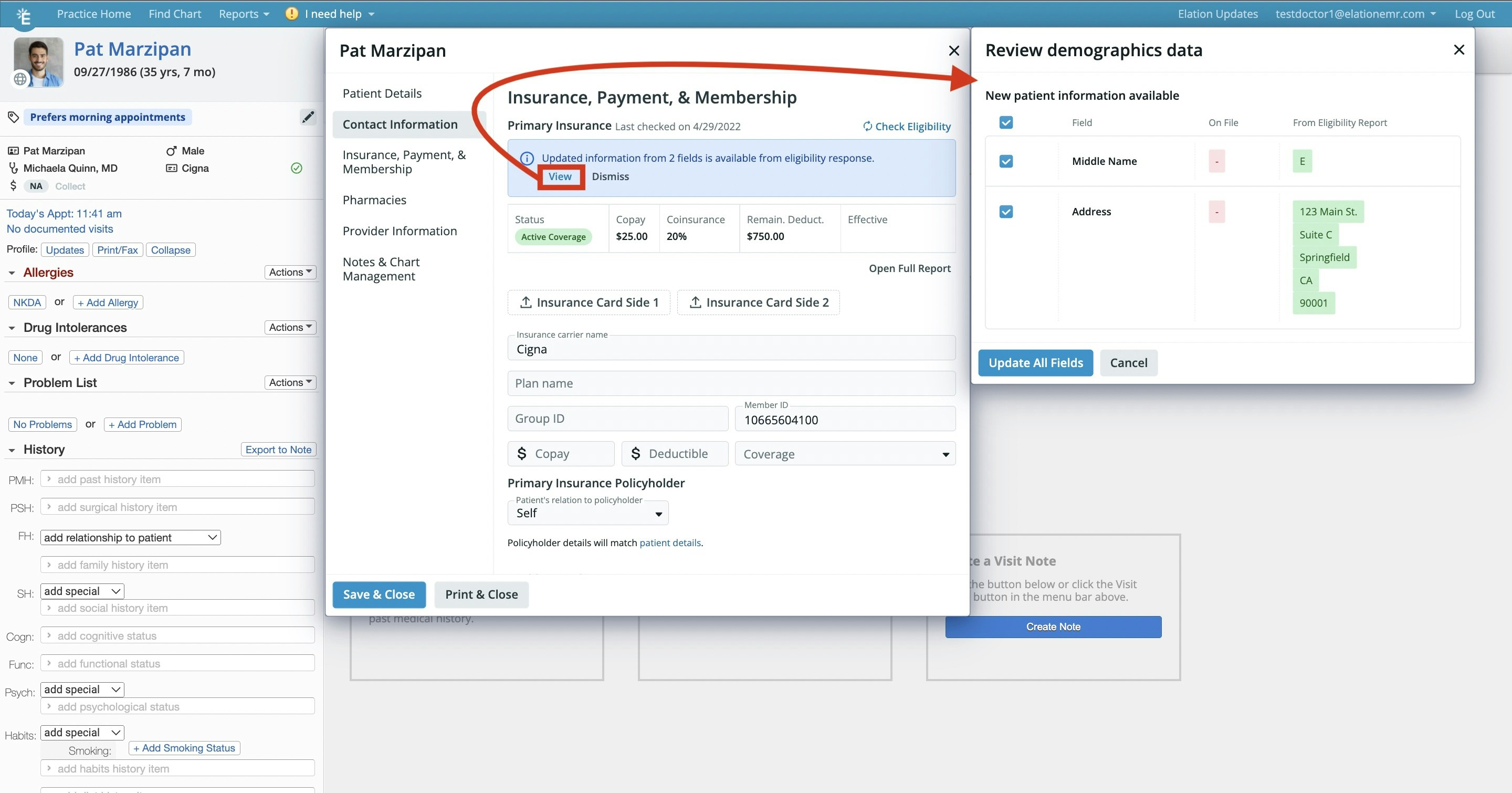
If the information returned in the Eligibility response does not match what is on file in the patient’s Demographics, a notification will appear in the Demographics or Appointment that says *‘Updated information from … fields is available from eligibility response.’*Click the View button to view the discrepancies or click the Dismiss button to dismiss the notification and view it again the next time you view the patient’s Demographics.- If you click the View button to view the discrepancies, Elation will show you the information you have on file alongside the information provided by the Eligibility Report to allow you to compare the information. You can then check off the Demographics fields you want to update using the information from the Eligibility Report and click Update All Fields to make use of the new information.
Documenting eligibility checks when real-time eligibility is unavailable
Some payers do not support real-time eligibility checks, or you may need to verify eligibility outside of Elation (for example, by calling the payer or checking their online portal). In these cases, use the Notes field in the patient’s insurance section to document your manual verification. To record a manual eligibility verification:
Example note: Verified via BlueCross portal on 1/23/2026. Active coverage confirmed. Deductible: 25 for office visit. - JSmith
Frequently Asked Questions (FAQ)
Why is the “Check Eligibility” button disabled for a patient?
The Check Eligibility button will be disabled if Elation receives a certain error when trying to run an eligibility check for a patient. If the Check Eligibility button is disabled, hover your mouse over the button to see why it is disabled and then add/correct the information needed to continue checking eligibility.How long will it take to receive results after requesting an eligibility check?
It may take 10-20 seconds to receive results after requesting an eligibility check.When will automatic eligibility checks be run? Can I configure when automatic eligibility checks will be run?
An automatic job will run nightly (around 3:30am Eastern) to perform eligibility checks for all patients with appointments scheduled for the following day. This functionality cannot be configured at this time.How are the summarized copay, coinsurance, and remaining deductible amounts in Demographics, Appointment Details, and Create an Event selected?
Elation will attempt to find values for copay, coinsurance, and remaining deductible for each combination below. If a value is not found for a combination, the next combination will be tried. If multiple matching values are returned for a given category in a combination (ex: 2 ‘In Network’ $25 copays for ‘Individual’ coverage level for service type code 98), then that value will be displayed. If multiple different values are returned for a given category in a combination (ex: 1 50 copay that are both ‘In Network’ for ‘Individual’ coverage level for service type code 98), then a See Full Report message will display. The sequence and combinations below may be refined over timeWhat should I do if the eligibility check results in an error?
Details on the cause of the error should be displayed in Elation. Please use the available information to resolve any data issues. You can then click the Check Eligibility button after updating the information to re-run the eligibility check. For example, if you see the error Payer ID … does not support real-time eligibility. Invalid payer name…, double check that the correct Eligibility Payer ID is added to the Carrier in Elation.What NPI information is used for an eligibility check?
The NPI information used for an eligibility check will depend on the following:- If a patient’s insurance carrier has Credentialed as a group listed under Submitter Type, then the Group name and Group NPI configured in the Insurance Settings will be used for both manual and automatic eligibility checks.
- If a patient’s insurance carrier has Credentialed as individual providers listed under Submitter Type, then the name and NPI of the patient’s Provider assigned in practice will be used for both manual and automatic eligibility checks.
Is there a manual “eligibility confirmed” toggle?
Elation does not currently have a dedicated toggle or button to manually mark eligibility as confirmed. The eligibility status icon in the Clinical Profile and Demographics reflects the most recent successful automated or manual real-time eligibility check run through Elation. For payers that do not support real-time eligibility, or when you verify eligibility outside of Elation (via phone or payer portal), record your verification details in the Notes field within the patient’s insurance record in Demographics. You can also use the Billing notes field in the appointment for visit-specific context.What if my payer doesn’t support real-time eligibility?
If you see the message Payer ID … does not support real-time eligibility. Invalid payer name… it means one of the following:- The Carrier does not offer electronic eligibility checks.
- The Eligibility Payer ID is not entered in your Insurance Settings for the Carrier.
- The Eligibility Payer ID entered in your Insurance Settings for the Carrier is incorrect.
I f you believe the payer should support eligibility checks:**
Verify the Eligibility Payer ID is correctly configured in your Insurance Settings. Reference the Real-time Eligibility Guide - Setting up Payers for eligibility checks for instructions on how to add or correct the Eligibility Payer ID.