
Overview
What is a Provider Level account?
Provider Level accounts are usually used by physicians, non-physician practitioners or other medical providers. Click here to learn more about Provider Level accounts. Given the different privileges available for Provider Level accounts there are various account details that Provider Level account users should be mindful of and preferences that Provider Level account users can utilize. The User Settings are unique and specific to each Provider Level account user and include the following:- Account Details
- Preferences
- Authorized Staff Delegates
- Patient Sharing Defaults
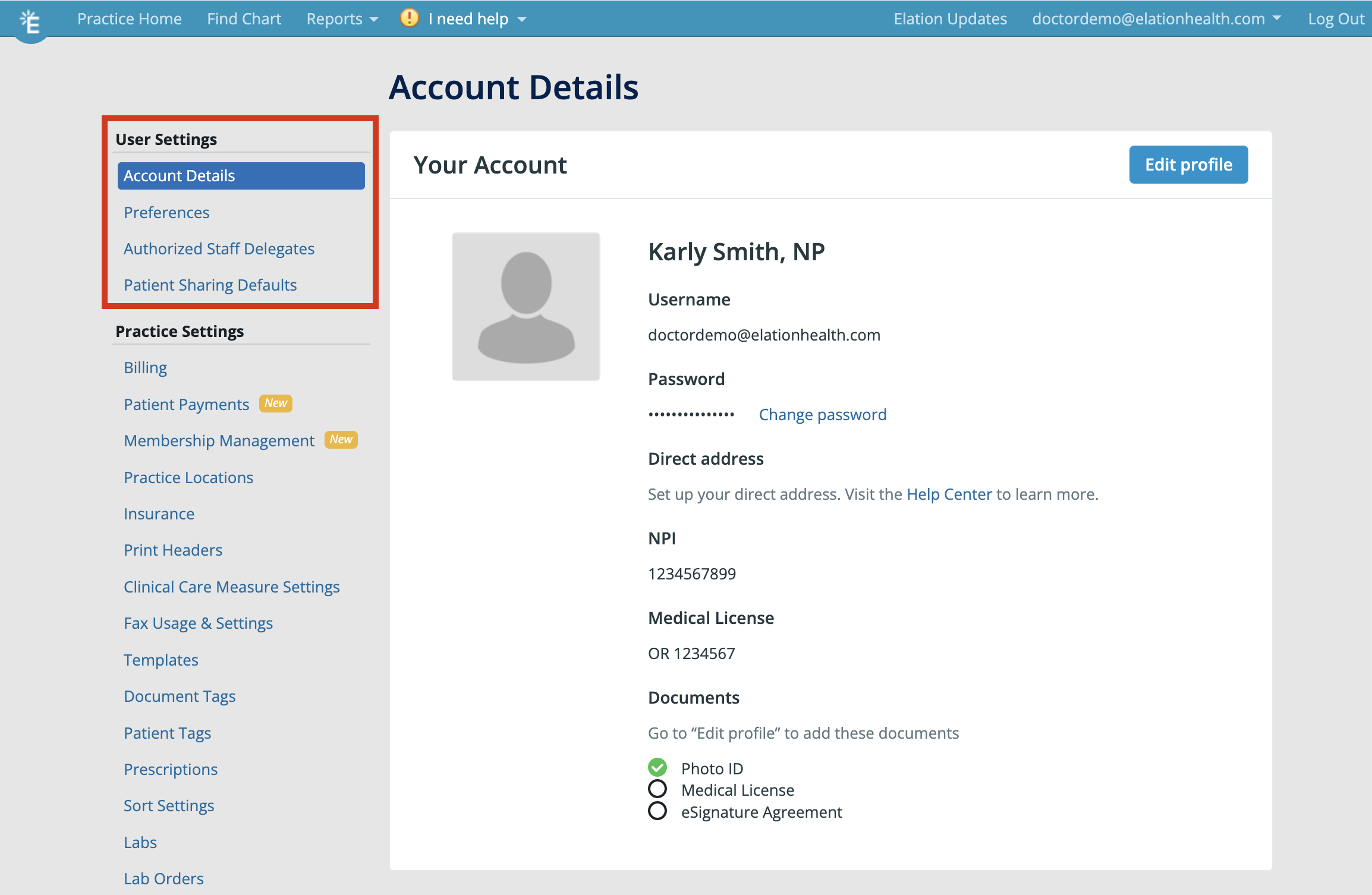
Provider User Settings
Provider Level account details
As a Provider level account user, you can access your Provider level account details by going to Settings → Account Details . Customizations include:- Account Details
- Full Name
- Elation login email
- Credentials
- TIN (Tax ID Number)
- NPI (National Provider Identification Number)
- Credentials
- Medical License State
- Medical License Number
- DEA Number
- Supervising Provider’s name (if applicable)
- Rx Authorization (Prescription Authorization Number for Supervising Provider, if applicable)
- XDEA/NADEAN number (for Narcotic Addiction DEA numbers)
- Authentication Documents & Electronic Signature
- See the Provider Account Authentication Guide for more information on how to manage your Authentication Documents and Electronic Signature.
- Lab Identifiers
- Quest ID & LabCorp ID fields for your lab vendor account numbers (if applicable)
- Quest ID & LabCorp ID fields for your lab vendor account numbers (if applicable)
- Billing
- Supervising Provider
- Billing Provider
Provider Level account preferences
As a Provider Level User, you will have the following customizations available for you under Settings → Preferences :- Setting a default Visit Note Format for each encounter (appointment) type
- Setting a default Practice Location for e-Prescribing
- Turning on notifications for messages tied to Letters and Referrals and setting default notification timeframes
- Setting Drug-to-Drug alert levels and turning on or off Drug-to-Allergy alerts to monitor for drug interactions
- Specifying which Clinical Reminders you want to appear at the top of your Visit Note drafts
- Specifying whether or not you want ICD-9 codes to display alongside ICD-10 codes
- Specifying whether or not you want CPT Codes to display when you enter Assessments in your Visit Notes.
Authorized Staff Delegates
In Elation, each Provider Level User can authorize individual Staff Level Users to sign orders, prescriptions, referrals and edit billing information on their behalf; we call these authorized staff delegates. Click here to learn more about configuring authorized staff delegates .Patient Sharing Defaults
If you are using the Elation Patient Passport feature to communicate with your patients securely through your EHR, you can set a default for what information is automatically shared with a patient upon inviting them to register for an account and connect with your practice. Click here to learn more about the various sharing options. These defaults are applied to all new patients assigned to you, and they impact patients who have not yet received a Passport invitation. Elation does not currently offer a separate per-patient Passport access level setting within this Settings section—however, you can override the default sharing settings for individual patients directly from their chart under Passport Sharing Options. For a detailed explanation of what information patients can see by default in Passport—including messaging, demographics, Clinical Profile details, visit summaries, and appointment information—see the “What patients can see by default in Passport” section of the Elation Patient Passport Guide.Google Calendar Sync
The Google Calendar Sync feature allows you to easily keep track of patient appointments and personal events in the same place. When turned on, you will be able to see the calendar events from your Google Calendar in Elation, and you will be able to see Elation patient appointments in your Google Calendar. Utilizing this feature will allow you to see patient appointments on your mobile device, reduce double bookings, and manage your time more effectively. Click here to learn more about connecting your Google Calendar to Elation .Frequently Asked Questions (FAQ)
Do I need to store my NADEAN in my Elation account?
When Providers save their XDEA/NADEAN number in their account details, Elation will automatically send the XDEA/NADEAN number to pharmacies, when applicable, when you are e-Prescribing Controlled Substance Narcotic Addiction medications.Can other users in my practice see my account preferences?
Other users in your practice cannot see your account preferences. The settings under User Settings are unique and specific to each Provider Level User account. Next Step Review your account details and set your preferences to ensure a smooth experience when using Elation EHR.Related Articles
- User Accounts Guide- Provider vs. staff level account privileges
- Provider Account Authentication Guide
- Drug Decision Support Guide- Monitoring drug interactions
- User Accounts Guide- Utilizing authorized staff delegates
- Elation Patient Passport Guide
- Calendar Guide- Synchronizing your Google Calendar with Elation