
Roles & Permissions is a product for Premium EHR customers only. If you are interested in upgrading to the Premium EHR subscription to use this feature, click the I need help button to notify Elation and a member of the Elation Team will reach out to assist you. If you have Premium EHR and Roles & Permissions does not appear under Settings, click I need help > Contact Elation Support.
What are Roles & Permissions?
A role is a named set of permissions — for example, “Front Desk” or “Clinical Support.” Each permission covers one action, and the role sets the level it grants. Most permissions are simply on or off: None blocks the action, Full allows it. Every delete, sign, and merge permission works this way. Some permissions add a middle level — None, View, or Full — so a role can let someone read confidential records without letting them change them. The permission table lists the levels each permission offers. You do not assign a role to one person at a time. You assign it to one or more of your user groups, and everyone in those groups receives that role’s permissions. User groups can be created and managed in Settings > User Groups. No access restrictions are applied until you enable Enforce permissions for your practice. Until then you can build and revise roles freely, and every user keeps the access they have today.Why are Roles & Permissions valuable?
Roles & Permissions let you limit destructive and sensitive actions to the people who should have them, without limiting anyone’s ability to do their own job. Practices commonly use it to keep chart deletions with clinicians and administrators, and to keep confidential documents and Clinical Profile items visible only to the staff who need them.How Roles & Permissions work
Roles
You build roles under Settings > Roles & Permissions. Each role has a name, the user group(s) it applies to, and a level for every permission. The role list shows each role with a summary of how far it reaches — how many user groups it applies to and how many permissions it grants.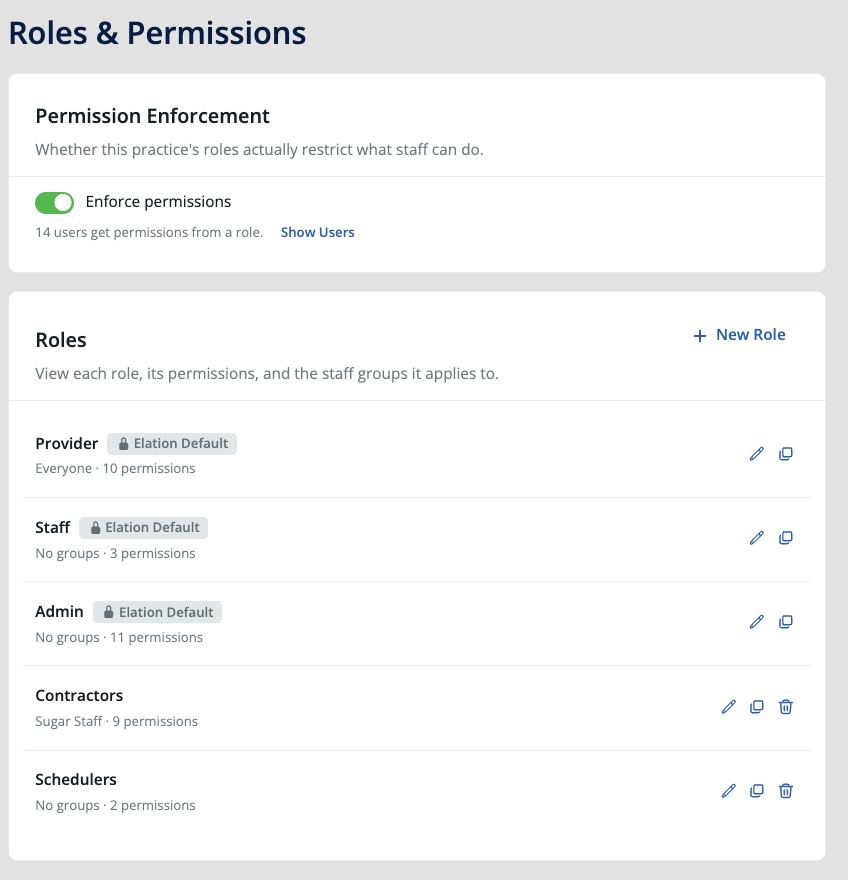
Permission levels
Every permission offers None plus at least one level above it:- None — the action is blocked.
- View — read-only access. Only some permissions offer this level.
- Full — complete access to the action.
Permissions combine, they never subtract
A user who belongs to several groups can be assigned several roles. Elation combines them and keeps the highest level granted for each permission. A role can therefore only add access, never remove it. To take an action away from someone, remove them from every group that grants it, or lower the level in the role itself.Users with no role
A user who is not in any user groups, or who is in a user group that has not been assigned to any roles, will not have any permissions. Once Enforce permissions is on, that user will be blocked from every action in the permission table below. Give every active user a role before you turn on Enforce permissions — the confirmation dialog names anyone you have missed.Seeing what each user ends up with
Because permissions combine across every role a user is assigned, a single role does not show everything that user can do. On the Permission Enforcement card, click Show Users to open Permissions by User, which lists the combined result for every active user in the practice, each row labeled with how many permissions that person has. Expand a row and Elation lists each of those permissions, the level the user has it at, and the role and group it came from, such as “Front Desk Role — Front Desk Staff”. Where two roles grant the same winning level, both are listed, so you can see every place a permission originates before you change one. A user who is in no group with a role reads 0 permissions. Those are the people who will be blocked once Enforce permissions is on. Search by first or last name to find someone in a large practice. The list is available whether or not enforcement is on, so you can check coverage before you switch it on.Enforcement
The Enforce permissions switch at the top of the page decides whether your roles actually restrict anything. Off means the roles exist but change nothing. On means each user’s combined permissions govern what they can do. Elation disables the switch until at least one role is assigned to a user group with members. This ensures you cannot enable enforcement into a practice-wide lockout.What staff see
With Enforce permissions on, Elation hides controls a user cannot use — the button or chart section simply does not appear. If they reach a blocked action another way, Elation stops it and shows this message:You do not have permission to perform this action. Contact your practice administrator.Users cannot request access from that message. They will need to contact a practice administrator to request the appropriate permission.
Elation Defaults
Elation supplies a set of ready-made roles. They appear in the role list with an Elation Default tag. Elation manages their names and permissions, so you cannot edit or delete them. You can determine which of your user groups (if any) should be assigned to the Elation default roles. If you need a version of the Elation default roles with different permissions, you can use the Clone option to duplicate the role and modify it as you see fit.Permissions you can control
Permissions appear on the role form grouped under Clinical, listed alphabetically. Some permissions apply only to provider accounts. In the role form, these are marked with a Provider users only badge next to the permission name. A permission can only restrict an action that a user’s account level already allows. It never adds an ability the account level does not include, so granting a provider-only permission to a staff user has no effect. Sign Visit Notes is an example: only provider-level users can sign visit notes, so the permission controls which providers can sign. See Provider vs staff level account privileges. The same applies to delete permission controls, a separate Premium EHR feature that limits document deletion by account level. If your practice has standard or strict delete permissions enabled, both controls apply: a user can delete a document only when their delete permission tier allows it and a role grants the matching Delete permission at Full. The one exception is an unsigned report that arrived from a lab interface, such as an incoming lab result: Delete Reports and Orders at Full lets a user delete it even if they did not create it. Reports created through the Elation API are not included.
Anything not in this table is unaffected by Roles & Permissions. Letters, referrals, orders that are not reports, appointments, and practice settings continue to follow the access rules they already follow.
Frequently Asked Questions
Does turning on enforcement change anyone’s account level?
No. Account levels, administrative privileges, and delegate settings are unchanged. Roles & Permissions is an additional layer.What does the Provider users only badge mean?
The badge marks a permission that only has an effect for provider-level users. Staff-level users cannot perform the action, even if a role grants the permission at Full, because a permission cannot grant an action that a user’s account level does not allow. Use these permissions to control which of your providers can perform the action. See Provider vs staff level account privileges. Sign Visit Notes is an example. Only provider-level users can sign visit notes, so granting it to a staff user has no effect and a provider still signs the note. The permission applies to signing a visit note for the first time; signing an amendment is not controlled by this permission. Common reasons to restrict signing:- Trainees and supervised clinicians. Residents, NPs/PAs working under a collaborating physician, or locum providers draft notes that a supervising physician reviews and signs.
- Documentation-only providers. Providers who document but are not the billing or attesting clinician.
- Credentialing or compliance holds. An administrator can revoke signing for a provider whose credentialing has lapsed or who is under chart review, without deactivating the account.
- Separation of duties. Only a defined group, such as attending physicians, finalizes clinical documentation; everyone else drafts.
- Billing integrity. Signing a visit note typically releases its bill, so restricting signing adds a control point before claims go out.
Can I assign a role to one person?
Roles are assigned to user groups. If you need to assign a role to one person, create a group containing that one user under Settings > User Groups, then assign the role to that group.Who can see the Roles & Permissions page?
Practice administrators only. Other users see a message explaining that only administrators can manage roles.How do I check what one person can do?
Open Settings > Roles & Permissions, click Show Users, and search for them. Their row lists every permission they have, at what level, and which role and group granted it. See Seeing what each user ends up with.What happens if I delete a user group?
The role stops reaching its former members. Anyone who was getting permissions only through that group loses them, so check their coverage before deleting a group.Does this apply to the Elation API?
Yes. Requests made using theX-On-Behalf-Of impersonation header honor that user’s permissions in addition to any OAuth scopes applied to the API token. Requests from an application’s own service account are governed by the application’s scopes instead.