
Overview
What happens when an Elation user account is disabled?
When an Elation user account is disabled, the user will no longer have access to the account and its data. This guide walks practices through recommended action items that should be taken before provider/physician or staff level users leave your practice and before their Elation account is disabled.Why is this guide important?
Following these best practices ensures a smooth transition when team members leave your practice. This will ensure:- No action items are misfiled or overlooked
- Patients are properly reassigned and notified
- Pending prescriptions and messages are handled appropriately
- Administrative reports are preserved before account deactivation
Workflow Instructions
- Provider account
- Staff account
- Retiring provider → Admin
Checklist: Disabling a provider account
- Notify Elation of the departure Share the date and whether a replacement is joining.
- Clear Practice Home Queue items Signed reports, Rx requests, office messages.
- Notify labs, imaging, and hospital facilities Ask them to reroute results to another provider.
- Set a cutoff date for refill requests Tell Support when to turn off e-prescribing for this provider.
- Download the CSV reports from the Disable dialog Post-dated messages and future appointments.
- Reassign patients to a new provider So Passport messages route correctly.
- Reassign future appointments So visits route correctly.
- Confirm another EPCS Access Control Manager is in place Required if this provider holds that role.
- Save reports you’ll need later Patient List, Billing, and Appointment reports tied to this provider are hard to reconstruct after the account is disabled.
Notifying Elation
Before disabling any Provider Level User, reach out to our Support Team via the I need help button to let us know that these changes will occur. Include the following information:- Which provider level user is leaving your practice
- The date that this provider level user will no longer need their account active
- Is a new provider/physician taking their place?
- If so, how many hours will the new provider work per week and will they need an account with prescribing privileges?
- New provider/physician’s start date
Provider retiring but staying as Administrator
If a provider is retiring from clinical practice but wants to remain involved in practice administration, you can disable their Provider Level account and create a free Staff Level account with Admin privileges. This approach removes the provider seat from your subscription while preserving their ability to manage the practice.Why consider this approach?
- Reduce subscription costs – Disabled Provider Level Users are not counted toward your provider license summary, so you will no longer be charged for that provider seat.
- Maintain administrative access – Staff Level accounts can be granted Admin privileges, allowing the retiring provider to continue managing user accounts, configuring settings, and overseeing practice operations.
- No additional cost – Staff Level User accounts can be added for free.
Steps to transition a retiring provider to an Admin-only Staff account
1
Complete all provider account action items
Before disabling the provider account, follow all steps in the Action items for Provider/Physician Accounts section below (Practice Home queues, patient reassignment, appointments, EPCS, reports, etc.).
2
Notify Elation
Reach out to the Support Team via the I need help button or submit a request to let Elation know the provider is retiring and the date their account should be deactivated. Include whether a replacement provider is joining.
3
Create a new Staff Level account
Go to Settings → Manage Accounts and click Invite Staff . Use the retiring provider’s preferred email address (this can be the same email if the provider account is disabled first, or a different email).
4
Grant Admin privileges
After the staff account is active, click Make Admin next to the new Staff Level account in Manage Accounts .
5
Disable the Provider Level account
Once the Staff Level account is set up and the provider has completed all clinical handoff tasks, disable the Provider Level account by clicking Disable next to the provider’s name in Manage Accounts .
Impact on subscription and invoices
- Disabled Provider Level Users are not counted in the provider license summary on the Manage Accounts page.
- Notify Elation before the provider’s last active date so billing can be updated appropriately. Include the date the provider will no longer need their account active.
- For questions about how this change affects your specific invoice or contract, reach out to Elation using I need help → Contact Elation Support.
What the retiring provider can do with a Staff Level Admin account
With Admin privileges on a Staff Level account, the retiring provider can do the following administrative tasks:- Manage user accounts (invite, disable, re-enable, unlock)
- Configure practice settings (billing, templates, labs, calendar, etc.)
- Enable features such as MFA, Patient Booking, Patient Forms, and Patient Payments
- Manage User Groups and Report/Visit Note Categories
What the retiring provider cannot do with a Staff Level account
Staff Level accounts do not have Provider Level privileges, so the retiring provider will not be able to:- Sign visit notes, prescriptions, orders, or referrals
- Have a calendar in Elation
- Be listed as the rendering or billing provider on claims
- Have patients assigned to them
- Access EPCS (electronic prescribing of controlled substances)
If the retiring provider is an Access Control Manager for EPCS, assign those permissions to another eligible user before disabling the provider account. Each practice needs at least two Access Control Managers, one of which is a provider. Also, ensure that all lab vendors are notified. Some vendors may be able to reroute lab results to a different provider within the practice.
Action items for Provider/Physician Accounts
The following changes will occur immediately once provider/physician level accounts are disabled:- The provider will not be able to log in to Elation
- Your practice will no longer be able to view their schedule on the calendar
- The provider’s Practice Home queue will be hidden
- Any office messages that are left in their queue will need to be acknowledged by another provider/physician in the practice
- Any other open items in their queue will need to be signed or completed by another provider/physician in the practice
- Patients who are assigned to the disabled provider/physician will need to be re-assigned to another provider/physician in the practice
- The provider/physician will be removed from all administrative reports
Please read through each section below to make sure the proper actions are taken to ensure a smooth transition.
Practice Home Queues
Please have the departing provider address and/or complete all items in their Practice Home Queues (e.g., Reports, Rx Request, Office Messages, etc.) before they leave your practice. If there are any open items remaining after their departure, make sure another provider in the practice addresses the open items before disabling the departing provider/physician’s account.Exception: Elation does not currently offer a bulk or admin-level tool to reassign or clear all outstanding Requiring Action items from a provider’s queue at once after their account has already been disabled. Each item — such as a pending prescription refill request or lab order awaiting sign-off — needs manual, per-patient review by an active provider. For a pending refill request, the item stays tied to the original prescriber; an active provider needs to send a new prescription to the pharmacy going forward, which does not retroactively clear the original request.
Lab/Imaging/Hospital Reports
Please notify the different facilities from which you receive electronic results and let them know of the provider’s departure from your practice. Specifically, we recommend sharing the provider’s last day and asking them to forward any of the reports they ordered to a different provider at your practice (provide the new provider’s NPI number) after that date if possible. If the facilities are unable to forward the electronic results to a different provider at your practice, the results will not automatically arrive in Elation. Your practice will need to retrieve these reports directly from the facilities via their own websites or have the reports sent to your practice via fax or paper mail.Refill Requests
Please reach out to our Support team through this form, or through the I need help → Contact Elation Support option within Elation, to notify us of the date to turn off the Refill Request feature for the provider who is leaving. After this date, pharmacies will see that the provider’s electronic prescribing functionalities are disabled and will send refill requests to your office via fax instead. The new attending provider at the practice should respond to these faxed refill requests via Elation by sending a prescription electronically back to the pharmacy so that the next time the same patient needs a refill, the refill request will come directly to the new attending provider through an electronic request in Elation.Downloading reports before disabling
When you disable a provider account, the Disable confirmation dialog lists the data that will be lost and gives you a way to download it as a CSV before the account is disabled — no support ticket required. For provider accounts, the dialog covers two data sets:- Post-dated Office Messages — any post-dated messages the departing provider sent to themselves or other members of the practice. These are automatically signed off and stored in the patient’s chart once the account is disabled.
- All future scheduled appointments — every upcoming appointment on the departing provider’s calendar.
For non-provider (staff) accounts, the disable dialog only covers Post-dated Office Messages, and the primary button is labeled Disable & Download CSV (singular). See the staff section further down for details.
How to download the reports
1
Open Manage Accounts
Go to Settings > Manage Accounts and locate the provider’s account.
2
Click Disable
Click Disable next to the provider’s name. A confirmation dialog will appear listing the affected data.
3
Download the reports
Click an individual Download report (CSV) link next to a bullet to download just that report without disabling the account yet, or click Disable & Download CSVs to download both reports and disable the account in one step.
The inline Download report (CSV) links let you review the data before committing to the disable action. Once you’re ready, use Disable & Download CSVs or click the standard Disable button.
What’s in the Post-dated Office Messages report
The CSV includes one row per pending post-dated message and contains the following columns:
Only messages with a future delivery date that have not yet been addressed are included in the report.
What’s in the Future Scheduled Appointments report
The CSV includes one row per upcoming appointment on the departing provider’s calendar and contains the following columns:Reassigning Patients (Patient Passport Messages)
Before disabling the departing provider’s account, we recommend you pull a Patient List Report of all the patients assigned to the leaving provider using the Reports → Patient List report tool, select all the patients in the results, and choose Change Provider from the Edit Patients dropdown to reassign them to a different provider at the practice in one action — see the Change Provider Guide for full steps. To reassign a single patient instead, you can update the Provider assigned in practice field on the patient’s Demographics Provider Information tab — see Patient Demographics Guide- Provider Information for details. This way, after the departing provider’s account is disabled, all new patient Passport messages will be routed to the new provider instead of the departing provider.Exception: VIP-marked patients are only included in the bulk Change Provider action if the person running it is already that patient’s assigned provider — see VIP patients in the Change Provider Guide. If the departing provider runs the bulk reassignment themselves before their account is disabled, their VIP patients are reassigned along with everyone else. If an Admin or another staff member runs it on the departing provider’s behalf, VIP patients are skipped and need to be reassigned individually — either have the departing provider reassign them first, or un-mark the VIP designation (only the Provider assigned in practice can do this) before disabling the account.
Appointments with the departing Provider
Any appointments scheduled on the departing provider’s calendar for any date after they have left will need to be manually transferred to a different provider’s calendar because the departing provider’s calendar will be hidden from the practice once their account is disabled. You can move appointments by editing each appointment and changing the provider it is assigned to, as shown in the image below.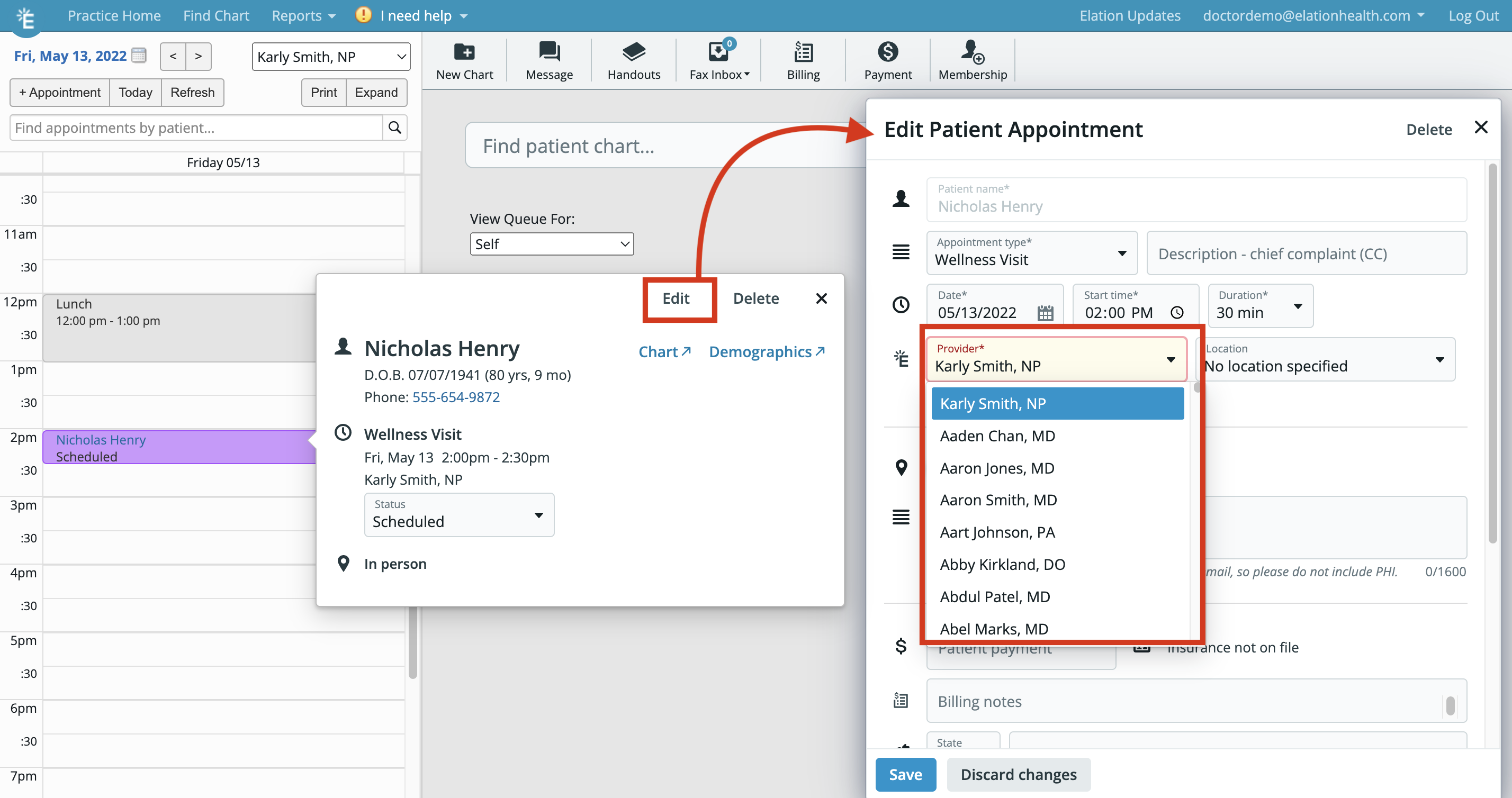
Access Controls for EPCS
If the departing provider is an Access Control Manager for EPCS set up and configuration, please ensure there is another Access Control Manager at your practice before the provider leaves. Reference the EPCS Access Controls Guide to update access control settings if needed.Administrative Reports
If you need to retain a copy of any administrative reports for the departing provider, you must download the reports prior to disabling the departing provider’s account. Please reference the following articles for each administrative report you might need: If the account is already disabled and you did not download these reports beforehand, see I already disabled a provider’s account. How do I see which patients they saw or get their past appointment history? below.Recommended: Notify Patients Using Bulk Letters
When a provider is leaving your practice, follow these steps to notify affected patients via a Bulk Letter:1
Run a Patient List
Go to Reports → Patient List and filter by the departing provider to identify their patient panel.
2
Send a Bulk Letter
Select all patients from the list and click Send Bulk Letter to notify them about: The provider’s departure date • Who will be taking over their care • How to request copies of their medical records if needed
3
Reassign patients
Select the patients in the list and choose Change Provider from the Edit Patients dropdown to bulk-reassign them to the new provider — see the Change Provider Guide — so Passport messages route to the correct provider going forward.
After a departing provider’s account is disabled, if a patient sends the departing provider a message from an existing Patient Letter, those messages will not appear in the newly assigned provider’s inbox. We recommend that the Everyone Practice Home queue is checked periodically to check for these kinds of Passport messages.
Action items for Staff Accounts
While it is not necessary to alert our Teams when staff level accounts are disabled, we still recommend the following workflows occur before disabling a staff level account.Practice Home Queues
Please have the departing staff address all items in their Practice Home Queues (e.g., Office Messages, Patient Letters, etc.) before they leave your practice. If there are any open items remaining after their departure, make sure another member in the practice addresses the open items before disabling the departing staff’s account.Post-dated Office Messages
If the departing staff sent post-dated messages to themselves or other members of the practice, those messages will be automatically signed off and stored in the patient’s chart once the staff account is disabled. Before disabling the account, you can download a CSV report of all pending post-dated messages directly from the disable confirmation dialog — no support ticket required.How to download the report
1
Open Manage Accounts
Go to Settings > Manage Accounts and locate the staff account.
2
Click Disable
Click Disable next to the staff member’s name. A confirmation dialog will appear.
3
Download the report
In the confirmation dialog, click Download report (CSV) to download the report without disabling the account yet, or click Disable & Download CSV to download the report and disable the account in one step.
The Download report (CSV) link lets you review the report before committing to the disable action. Once you’re ready, use Disable & Download CSV or click the standard Disable button.
What’s in the report
The CSV includes one row per pending post-dated message and contains the following columns:
Only messages with a future delivery date that have not yet been addressed are included in the report.
Access Controls for EPCS
If the departing staff is an Access Control Manager for EPCS set up and configuration, please ensure there is another Access Control Manager at your practice before the staff leaves. Reference the EPCS Access Controls Guide to update access control settings if needed.How to disable an Elation Account
To disable Elation accounts, you must have administrator (Admin) level privileges. If you do not see Manage Accounts in your Settings page, then you are not an Admin. To become an Admin, you must ask an existing Admin level user in your practice (most likely a primary provider level account holder) to grant you privileges via the Manage Accounts settings page.
1
Select your email address from the blue bar at the top right of your Elation page and select Settings from the drop down.
2
Scroll to the bottom and click into the Manage Accounts settings section under Admin Users Only .
3
Select the down arrow to the left of Active Users to expand the list of active Provider or Staff users at your practice.
4
Click the Disable button next to the name of the user that you want to disable.
5
Read through the confirmation prompt and then click Disable Account to disable the user’s account.
Frequently Asked Questions
I already disabled a provider’s account and an appointment was left on their calendar. How do I fix it?
If an appointment is still scheduled with a provider after their account is disabled, go to Settings → Manage Accounts, find the provider under Inactive Users, and click Enable. This restores their calendar so you can open the appointment and reassign it to another provider (or delete it, if it’s no longer needed). See Managing Elation accounts for providers and staff for more on re-enabling accounts. Once the appointment is reassigned or removed, you can disable the provider’s account again.I already disabled a provider’s account. How do I see which patients they saw or get their past appointment history?
You don’t need to re-enable the account for this. Run the Appointment Report with All Physicians selected for the relevant date range — a disabled provider’s appointments still appear in the results, including which patients they saw. Re-enabling is only necessary if you want to filter the report specifically by that provider’s name, or open their calendar directly:1
Re-enable the account
Go to Settings → Manage Accounts, find the provider under Inactive Users, and click Enable.
2
Pull the appointment data
Use the Appointment Report filtered to that provider, or open their calendar directly.
3
Disable the account again
Once you have the data you need, go back to Manage Accounts and click Disable next to the provider’s name.
- Offboarding Guide – Data Export & Patient Communication Checklist
- User Accounts Guide- Managing Elation accounts for providers and staff
- Practice Home Guide- Checking for requiring action items
- Post Date a Message Guide- Reminders & Task Follow Up
- Patient List Report Guide- Searching your patient panel
- Billing Guide- Billing Report
- Calendar Guide- Searching for appointments using the Appointment Report
- Bulk Letter Guide- Mass communication with Patients
- Change Provider Guide- Bulk reassigning patients to a new provider
- Elation Patient Passport Guide
- EPCS Access Controls Guide