
What is EHR Account Setup?
All users must set up a password for their Elation EHR account in order to gain access to their EHR account. In addition to creating a password, Provider Level Users must also complete account authentication, verify their credentials and set up their electronic signature.How to complete EHR Account Setup
A small subset of customers may still be seeing the legacy EHR Account Setup workflow. Both workflows will allow you to register for an Elation Account. If you have any questions about the experience you are seeing, click here to contact Elation Support .
- Go to your email inbox and look for an email from ‘sysadmin@elationemr.com’ with the Subject Line Welcome to Elation! Quickly complete your account setup.

- Click the Get Started button in the body of the email.
- Choose a password for your account and enter it in the Password field. The requirements for your password are as follows:
- At least 12 characters long
- At least 1 capital letter (uppercase letter)
- At least 1 number
- At least of the following special characters @ # * ( ) + = / ? ~ ; , . - _
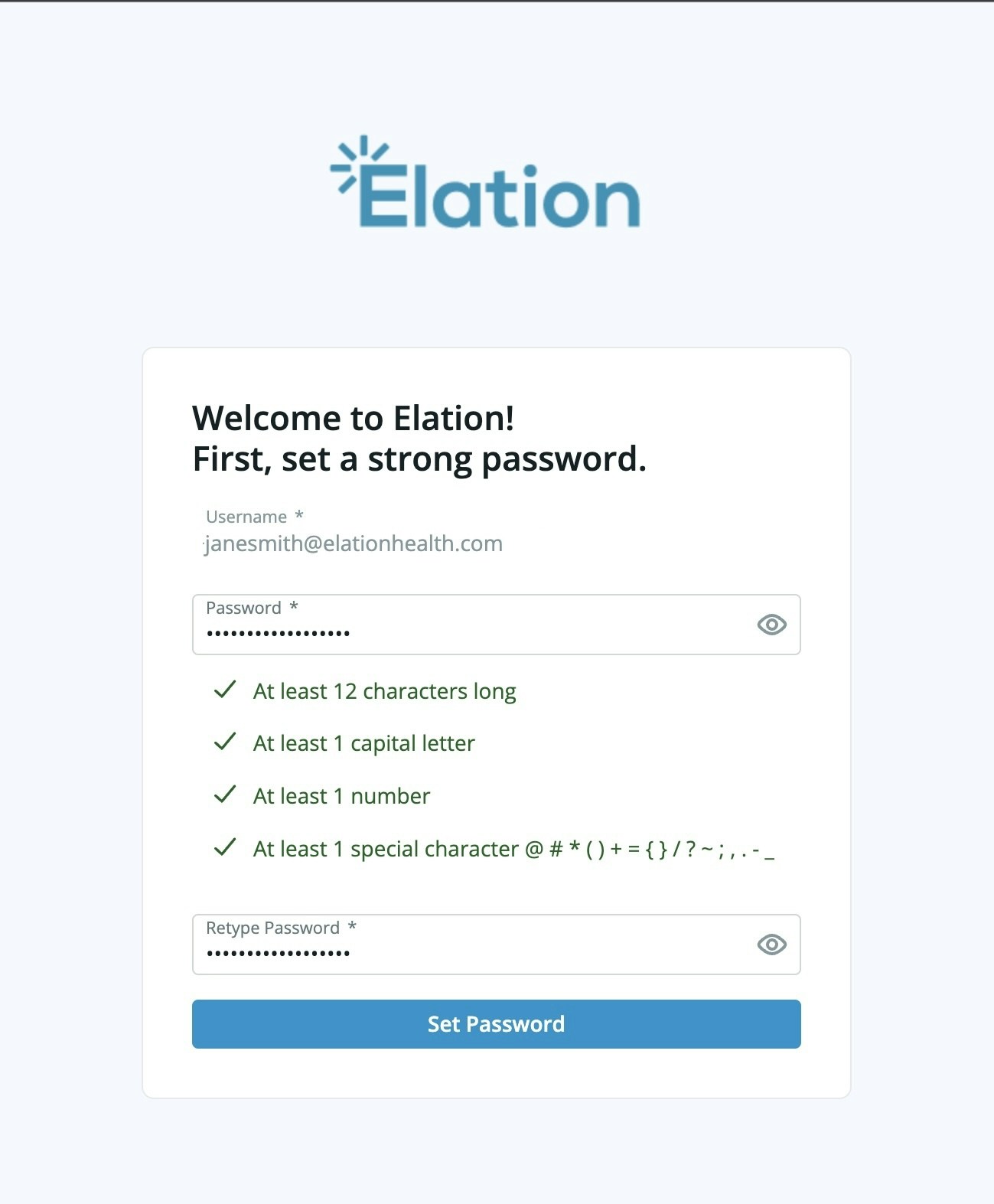
- Re-enter the same password in the Retype Password field.
- Click Set Password to complete account set up.
- **[PROVIDER LEVEL USERS ONLY]** Go to the ‘How Provider Level Users complete Account Authentication’ section of this article to proceed with the next step, Account Authentication. Staff Level Users have complete EHR account setup and have no additional steps.
What is Provider Level User Account Authentication?
Account Authentication is the process Elation takes to verify a Provider Level User’s identity and credentials before we give Provider Level Users full access to tools that grant them access to all Protected Health Information (PHI) features; especially e-Prescribing.Why is Account Authentication required for Provider Level Users?
Account Authentication is required for Provider Level Users because Elation must make sure the correct person is granted access to Protected Health Information (PHI) and related features and interfaces. It is a shared responsibility to make sure your patients’ PHI is accessed by the correct individuals. Account Authentication is also required for each Provider Level User before Elation can grant them prescribing privileges.Exception: A Provider Level User account is permanently tied to the identity that completed Account Authentication and can’t be edited or re-verified to represent a different person. If a new provider joins your practice, invite them to set up their own account rather than updating an existing provider’s profile with the new provider’s information. Doing so can leave the account improperly provisioned, associating the new provider with the wrong provider identification — such as an SPI number — for prescribing and other regulated activity. If your practice has already updated an existing account with a different provider’s details, contact Elation Support to get the account properly re-provisioned.
How Provider Level Users complete Account Authentication
A small subset of customers may still be seeing the legacy Provider Account Authentication workflow . Both workflows will allow you to complete Account Authentication. If you have any questions about the experience you are seeing, click here to contact Elation Support .
- After you, the Provider Level User, set up your password, you will be brought to the Identify Verification page. Click the **Verify Identity ** button to verify your identity with our identity verification service provider, Stripe. Click here for step by step instructions on the identity verification process.
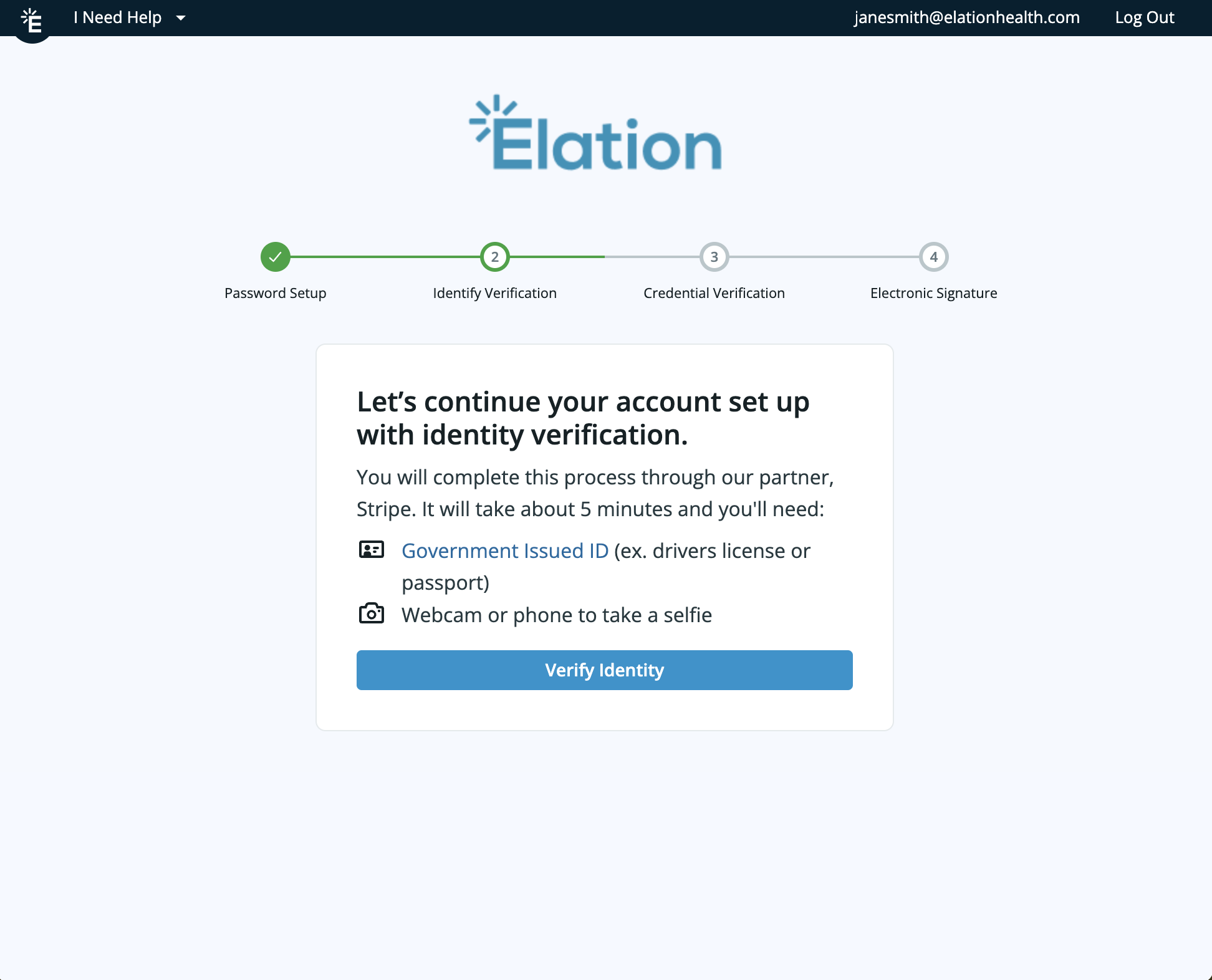
- Click the Continue Set Up button after you complete identity verification.
- Review your account information in the Credential Verification page & select your timezone in the Timezone field.
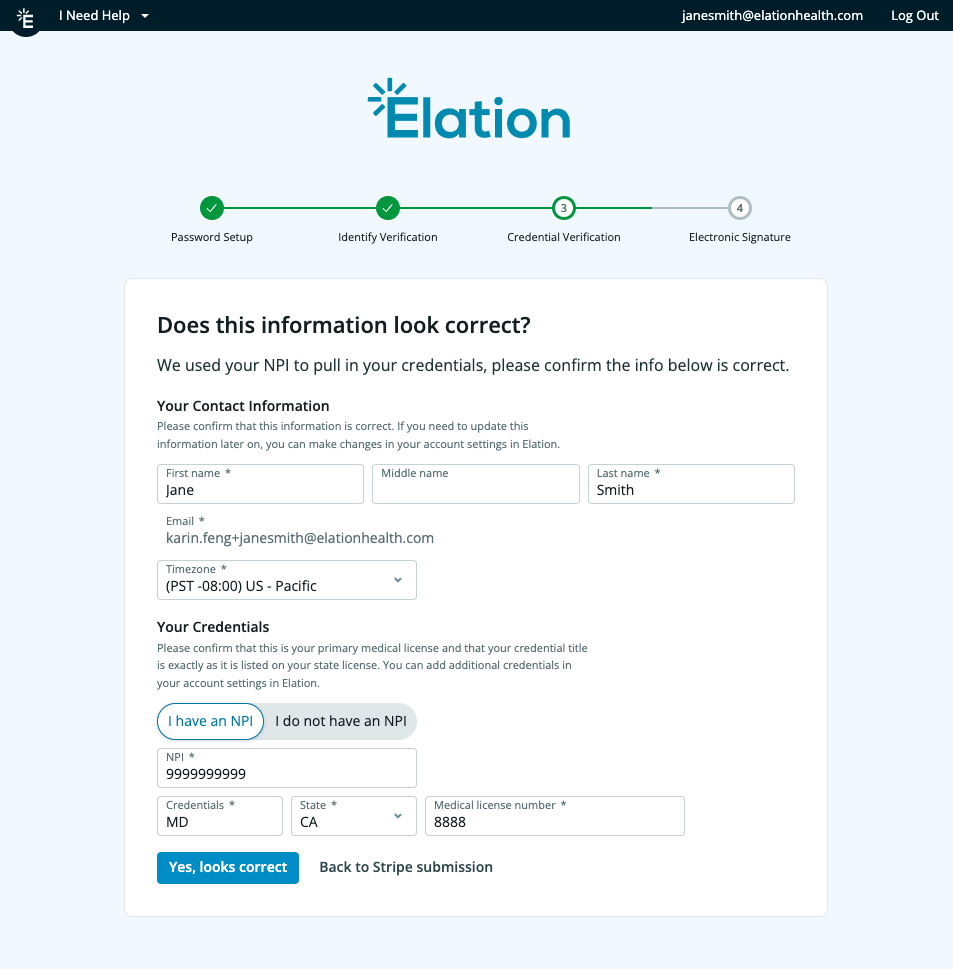
- Important Note: If you do not have an NPI, select the I do not have an NPI option to proceed with credential verification.
Exception: The Timezone field is not editable from Settings once you complete Account Authentication. If you need to change your timezone afterward, contact Elation Support.
- Click Yes, looks correct once all the information on the Credential Verification page is accurate.
- Lastly, you will set your electronic signature for your EHR account. To set your signature:
- Use your mouse or touchpad to draw your signature in the signature box OR
- Click the Use a separate device button to scan a QR code with a mobile device to draw your signature using the mobile device.
- Click Save & Complete to save your electronic signature.
- You will now have access to your EHR account and should see a ‘Congratulations….” box. This means you have successfully completed Provider Account Authentication.
- Next, go to the ‘Provider Level User Profile Fields’ section below to see if you need to store any additional, optional identifiers in your EHR Profile. You can also edit your profile information in this section of your account at any time.
Email confirmation
After your account is authenticated and credential verification is complete, Elation sends a confirmation email to the email address associated with your account. Depending on whether you had a valid DEA number on file prior to authentication, the email may include additional information on how to sign up for ePrescribing Controlled Substances (EPCS).If you do not receive this email within several business days, check your spam or junk folder. The email is sent from support@elationhealth.com.
Profile Level User Profile Fields
To view your account profile:- Click on your email address (username) at the time right corner of your EHR account
- Click Settings
- Click Edit profile in the Account Details page
Account Details
- Profile picture
- Your profile picture appears in the Elation Provider Directory.
- First nameand Last name
- This is how your name will display on all Elation records.
- Email*
- This is the email address that you will use to log in to Elation and Elation will use this email to contact you.
- Credentials*
- Your credentials will appear after your name on all Elation records.
- Tax ID Number (TIN)
- NPI*
Credentials
- Medical License State*
- Medical License Number***** (Next to the State* field)
-
DEA Number
- Enter your Drug Enforcement Administration (DEA) registration number. Your DEA number is a unique identifier assigned by the DEA that authorizes you to prescribe controlled substances.
Your DEA number is necessary for ePrescribing controlled substances through Elation. If you do not have a DEA number or do not prescribe controlled substances, you may leave this field blank.Account authentication and your DEA number:- If your DEA number is not entered prior to being authenticated, your authentication email will only provide instructions for prescribing non-controlled substances.
- If your DEA number is entered prior to being authenticated, your authentication email will also include instructions on how to sign up for ePrescribing Controlled Substances (EPCS).
-
Supervising Provider
- Your Supervising Provider must have their own Elation Provider Level User account. Afterwards you can select their name of this dropdown.
-
Rx Authorization Number
- Rx Authorization number is an optional field for NPs who have additional license numbers for ePrescribing.
-
If you have a supervising provider, invite them to create their own Provider Level User account in Elation. Afterwards, you only need to select their name in the Supervising Provider field. This will ensure their prescribing information (DEA number, etc.) is included on the prescriptions you prescribe.
-
XDEA/NADEAN
- XDEA/NADEAN is an optional field for Providers who have additional license numbers for prescribing controlled substance medications.
Authentication Documents
- Identity Verification
- You may need to click Verify identity through Stripe ID Proofing again if you did not pass identity proofing the first time. Click here for detailed information about the identity proofing process.
- Medical License
- Click the Upload photo buttons under Medical License to store a copy of your medical license if preferred.
- You can remove and re-upload it yourself until Elation Support reviews and marks it complete. After that, contact Elation Support to make changes.
Electronic Signature
Click on your wet signature to update your wet signature on your account. *- Click Save & Close after drawing your signature to save it.
- Elation will attach an image of the wet signature for providers whenever provider-signed records are printed or shared from their Elation account.
- If you prefer to use an alternative device to draw your signature, such as a tablet or phone, click the Use a separate device for my signature button to scan a QR code with the alternative device.
Lab Identifiers
Enter your lab identification numbers for Quest or Labcorp if applicable.Staff Level User Profile Fields
To view your account profile:- Click on your email address (username) at the time right corner of your EHR account
- Click Settings
- Click Edit profile in the Account Details page
- Profile picture
- First name
- Last name
- Email (username)
- Default physician