
Overview
What are EPCS Access Controls?
EPCS Access Controls are DEA-required security settings that determine which providers in your practice can electronically prescribe controlled substances. These controls ensure that only authorized, properly credentialed providers can e-prescribe Schedule II-V medications.Why are Access Controls important?
The DEA requires a two-person verification system for enabling EPCS within any EHR system. This “checks and balances” approach ensures:- Only providers legally authorized to prescribe controlled substances can do so.
- A second authorized user verifies each provider’s EPCS permissions.
- Your practice maintains proper compliance with DEA regulations.
Prerequisites
Review the EPCS Sign Up Process Guide first before proceeding with this article. You must complete the initial EPCS sign-up steps before you can configure Access Control Permissions.The DEA requires that two users—the Provider Level User needing to prescribe controlled substances, and a second Provider Level User or an Admin Level Staff User—are present to enable EPCS within Elation. Multi-provider practices and single provider practices have different workflows, detailed below.
Workflow Instructions
Finding Access Control settings
Access Control settings appear on the Access Control tab of the EPCS Settings page in Elation. The MDToolbox EPCS Permissions- Logical Access Control Setup page loads within the tab, so you don’t need to switch browser tabs.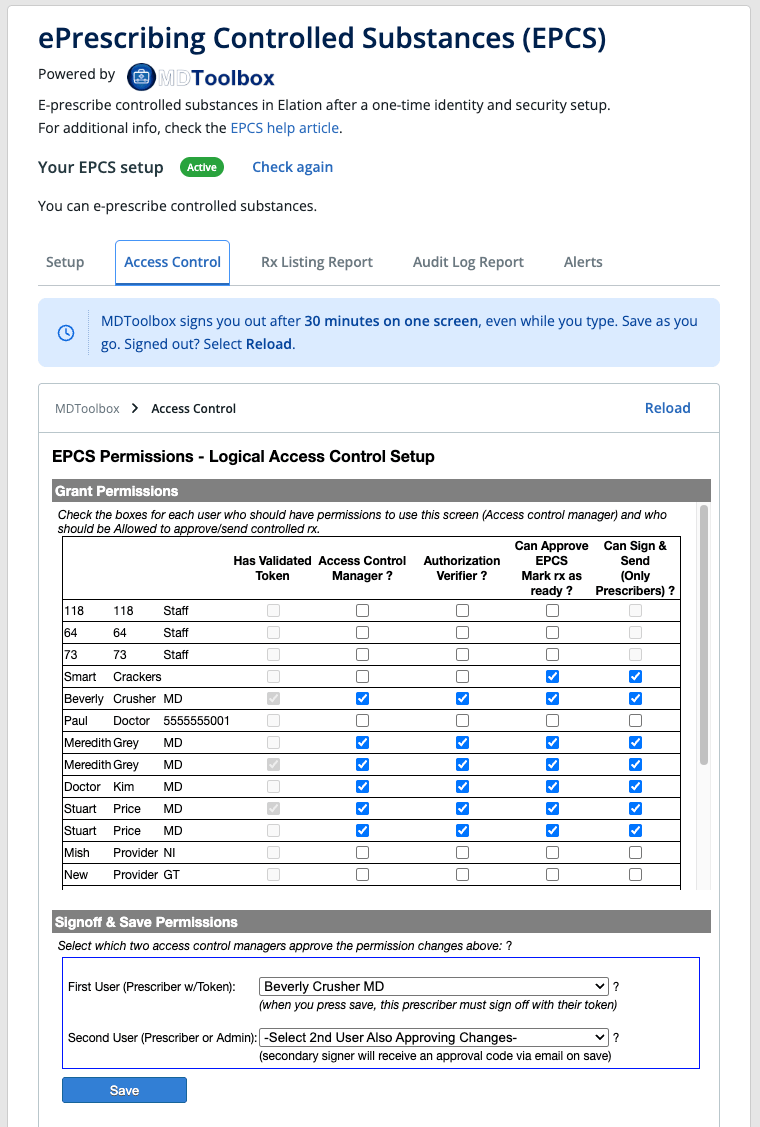
Setting up Access Control permissions for the first time as the first provider
The DEA requires that two users, a Provider Level User and a second Provider Level User or an Admin Level Staff User, are present in order to enable EPCS within Elation. This is a checks and balances system to ensure that any provider who is given EPCS permissions can legally prescribe controlled substance medications.
Multi-Provider Practice
Please note the user definitions for the workflow detailed in this section. First user = Provider signing up for EPCSSecond user = Provider Level User who is assisting with sign up
Congratulations on completing EPCS Sign Up! On the EPCS Settings page, click Check again to confirm your EPCS setup status shows Active.
Click here to view our how to e-Prescribe controlled substance guide.
Single Provider Practice
Congratulations on completing EPCS Sign Up! On the EPCS Settings page, click Check again to confirm your EPCS setup status shows Active.
Click here to view our how to e-Prescribe controlled substance guide.
Setting up Access Control permissions for additional providers
The steps in this section apply to you (the provider) if another Provider Lever User in the practice has already completed EPCS Sign Up. Each provider should always complete steps 1 to 3 in theEPCS Sign Up Process Guide first before setting up their Access Control Permissions. There are three options available for necessary users present when setting up Access Controls when there are already two established Access Control Managers at a practice (one being a Provider Level User):
Congratulations on completing EPCS Sign Up! On the EPCS Settings page, click Check again to confirm your EPCS setup status shows Active.
Click here to view our how to e-Prescribe controlled substance guide.
Adjusting Access Control permissions
The steps in this section are outlined for anyone who needs their existing Access Control Permissions updated. Each person needs to have two established Access Control Managers available to assist with updating their permissions. There are two options available for necessary users present for Access Controls adjustment:EPCS and account deactivation
When a provider with EPCS permissions leaves your practice or their account is disabled, their EPCS access is automatically revoked. Before disabling a provider account:For a complete checklist of actions to take before disabling any user account (including Requiring Action queue, post-dated messages, and appointments), see Best practices for disabling accounts .
Related Articles
- EPCS Guide - ePrescribing controlled substance medications & troubleshooting
- EPCS (Electronic Prescribing of Controlled Substances) Introduction
- EPCS Guide - Signing up for EPCS
- EPCS Guide - Updating your EPCS Token or password
- EPCS Guide - Frequently Asked Questions
- How to Complete Identity Proofing with Elation