Documentation Index

Fetch the complete documentation index at: https://help.elationhealth.com/llms.txt

Use this file to discover all available pages before exploring further.

Accessing Worksheets To Write Queries

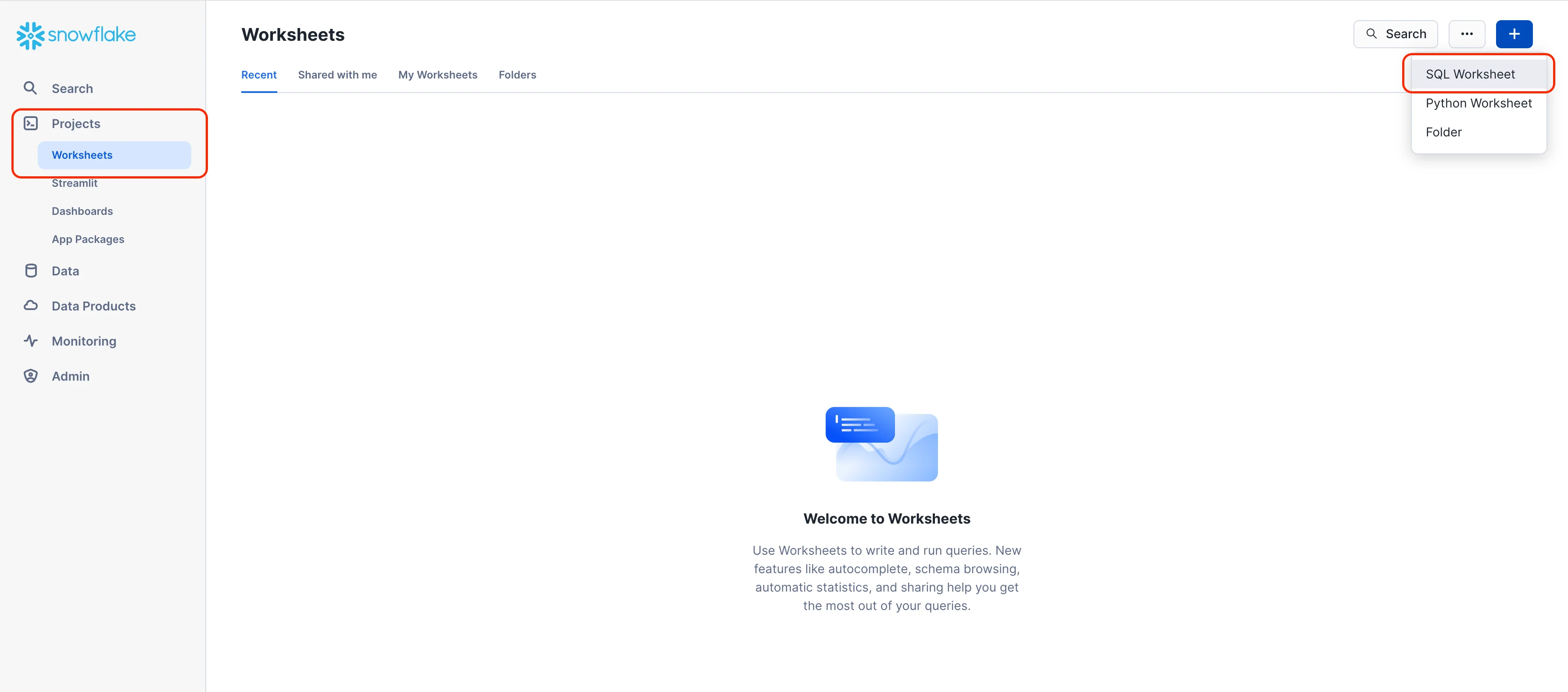
Worksheet lets you write your SQL statements allowing you to pull your data. This is also where you can download, save, and organize your queries for future reference. Step 1: Start a New Worksheet
  1. On the left hand navigation bar click on Projects > Worksheets
  2. Click on the blue + button on the right hand corner of the page
  3. Select SQL Worksheet
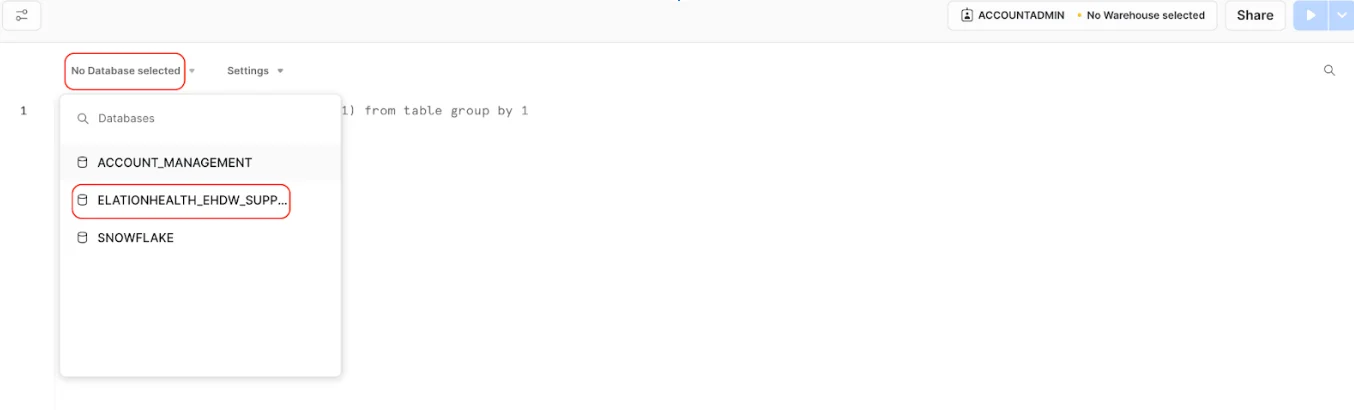
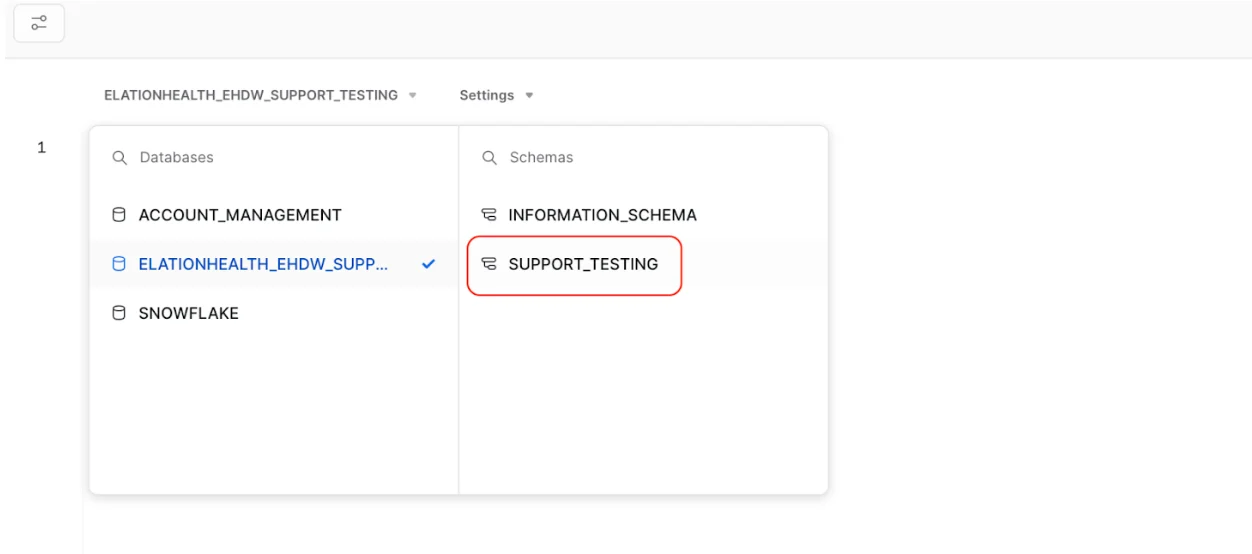
Step 2: Pick your Role and Warehouse On the top right hand side of the worksheet click on the link located left of the Share button Select the USERADMIN role and choose the warehouse named after your practice. Step 4: Select your database and warehouse On the top left hand corner of your Worksheet click on No Database selected and choose your Database name. Your Database name will start with ELATIONHEALTH_EHDW Now choose your Schema which will be your practice name Pro tip: You can run the below commands in a worksheet to choose your database, schema, role, and warehouse
USE DATABASE ELATIONHEALTH_EHDW_YOUR_PRACTICE_NAME
USE SCHEMA YOUR_PRACTICE_NAME;
USE ROLE USERADMIN;  
USE WAREHOUSE YOUR_PRACTICE_NAME_WH;

select * from appointments; 
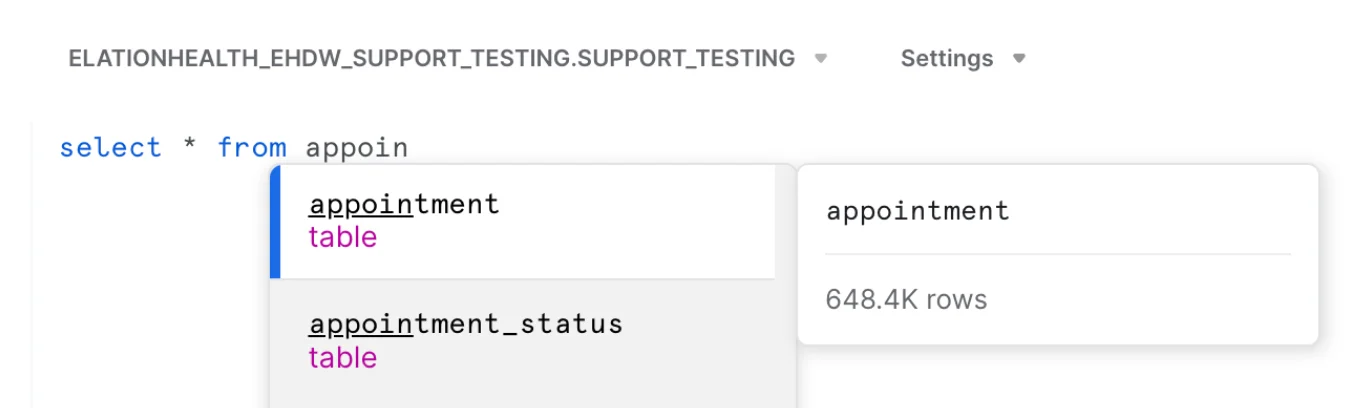
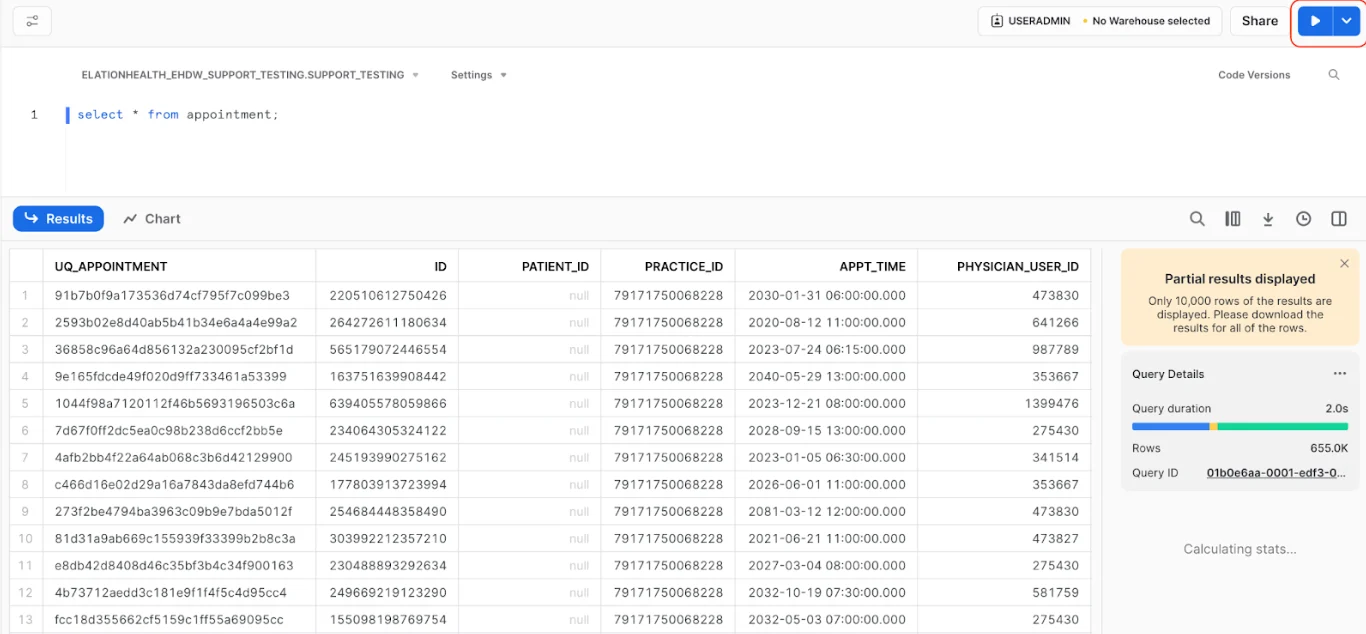
You are now all set to run your first query! Test this out by typing the below query into your worksheet.
SELECT * FROM APPOINTMENT;
Press the blue play button on the top right hand corner of your worksheet to get your results
Submit a request through the Elation Support Portal with the subject line HDB - unable to run queries and include the error message you are receiving.

Accessing your hosted database Managing your users