
Overview
What are the various ways to document vaccinations in Elation?
You can document vaccinations using one of the following methods:- From a visit note or note: click Vaccination.
- From the Clinical Profile Other Info section: click + Add Vaccination.
- From the Immunization Table: click Actions -> Add Details.
- From an Immunization Registry Integration: import immunization records.
Why is vaccination documentation important?
Vaccines provide patients with active acquired immunity to a particular infectious disease to help reduce the risk of health complications, or even death, when a patient is exposed to the real causative agent of the disease. It is important to document vaccination information, or lack of, in the patient’s chart to enable you to make the best healthcare decisions for the patient.Workflow instructions
Documenting vaccinations
Opening the Document Vaccination form
Open the Document Vaccination form using one of the following methods:- From a visit note or note: click Vaccination.
- From the Clinical Profile Other Info section: click + Add Vaccination.
- From the Immunization Table: click Actions -> Add Details.
Documenting vaccinations in the chart
1
Select the vaccine record type
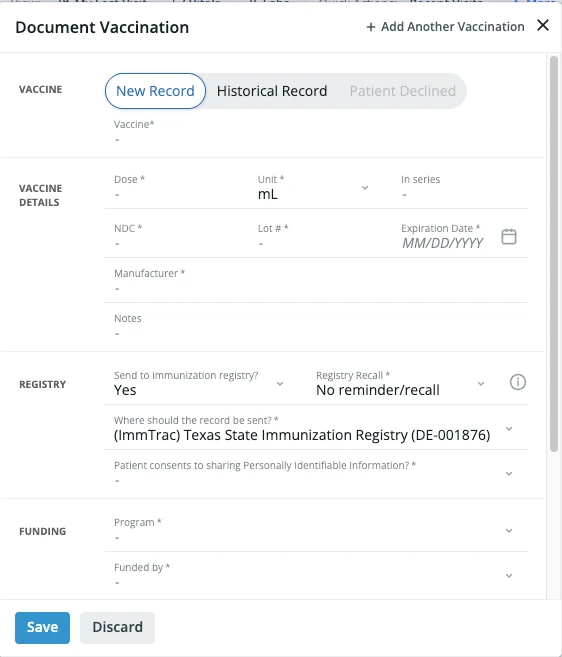
At the top of the Document Vaccination form, select the record type:
- New record — The vaccination was administered by you or another user in your practice.
- Historical record — The vaccination was previously administered to the patient, potentially by another practice.
- Declined by the patient — The patient declined the vaccination. This option is only available for CDC scheduled immunizations (e.g., polio).
2
Select the vaccine
In the Vaccine field, enter the name of the vaccine that was administered or declined. Vaccines are pulled from the Medi-Span database. If you are not submitting to a registry, you can also select from user-created vaccines.
Vaccines without CVX codes are not eligible for submission to the immunization registry but can be used if not submitting to a registry.
3
Fill in administration details
Complete the following fields:
- Dose — The quantity of the vaccine administered. If the vaccine has been previously documented in the practice, the dose auto-populates with the previous value.
- Unit — The unit of the vaccine administered. Defaults to mL. Available units include dL, g, kg, kL, L, mg, mL, ug, uL, and tab.
- In series — The number in a vaccine series (e.g., the second HPV vaccination). This is not transmitted to the registry.
- NDC — The National Drug Code. If a known vaccine is selected, the NDC auto-populates from the Medi-Span database.
- Lot # — The lot number of the vaccine. Auto-populates from previous documentation if available.
- Expiration Date — The expiration date of the vaccine. Auto-populates from previous documentation if available.
- Manufacturer — The vaccine manufacturer. Select from the manufacturer list, or choose Other manufacturer or Unknown manufacturer if needed.
- Ordered By — The provider who ordered the vaccination. Select from provider search or free-text a name.
- Administered By — The person who administered the vaccine. Select from provider search or free-text a name.
- Date — The date the vaccination was administered.
- Time — The time the vaccination was administered.
- Method — How the vaccine was administered.
- Site — The specific body site where the vaccine was administered. This field only appears if the selected method has more than one possible site.
- VIS — The Vaccine Information Sheet (VIS) shared with the patient.
- VIS Given Date — The date the Vaccine Information Sheet (VIS) was provided to the patient (or their guardian). Defaults to the administered date, but you can select a different date if appropriate.
- Notes — Additional notes about the vaccination. This field is not submitted to the registry.
- Program — The VFC or other program used to purchase the vaccine lot.
- Funded by — Whether the vaccine was privately or publicly funded.
4
Save or queue additional vaccinations
Click Save to save the vaccination to the patient’s chart.To document multiple vaccinations at once, click + Add Another Vaccination to open the vaccination queue. You can add multiple vaccinations and save them all together.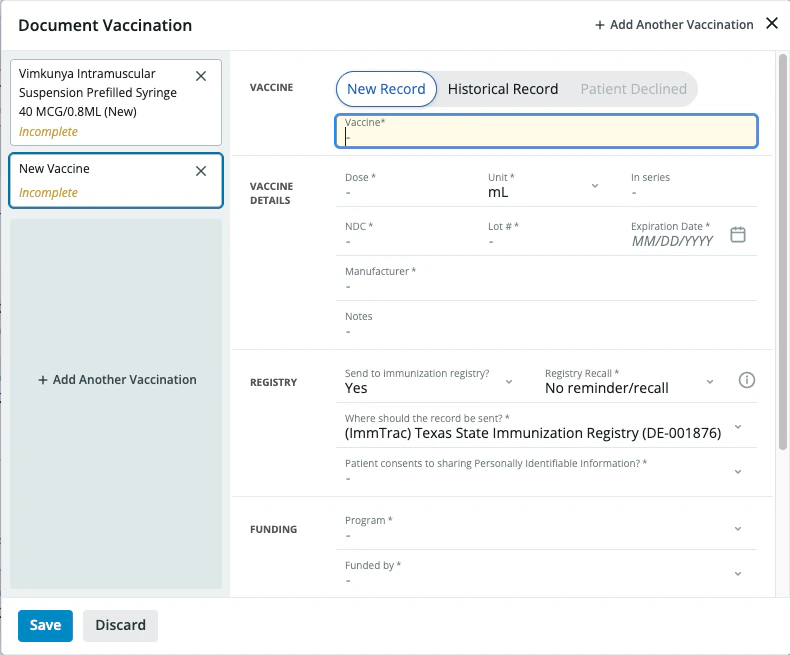
For pediatric patients, the vaccination queue automatically opens when the Document Vaccination form is launched.
PREMIUM EHR ONLY Premium EHR Users can enable a feature for prior Manufacturer, Lot #, and Expiration to populate based on the Service Location selected. This ensures the correct vaccination details are entered when different Service Locations have different supplies of the same vaccine. A required Service Location field will appear in the form when this feature is enabled.
Documenting vaccinations and sending the data to your connected Immunization Registry
When you are connected to an Immunization Registry, the Document Vaccination form includes additional fields to support registry reporting.1
Select the vaccine record type and vaccine
Follow the same steps as documenting vaccinations in the chart to select the record type and vaccine.
2
Configure registry submission
Complete the following registry-specific fields:
- Send to an Immunization Registry? — Select Yes. to send the vaccination record to a connected registry interface.
- If your practice does not have a submission interface, this field is automatically set to No.
- Registry Recall — Indicate when the patient needs to be recalled or reminded, if applicable. The immunization registry will contact the patient with updates regarding this vaccination record (this communication is not through Elation).
- Where should the record be sent? — Select the destination registry.
- Patient consents to sharing Personally Identifiable Information? — Indicate whether the patient consented to sharing vaccination information with the registry.
3
Fill in administration details
Complete the same administration detail fields as described in documenting vaccinations in the chart.
4
Check for demographics warnings
If patient demographics are incomplete, a warning will appear before submission. Make sure the patient’s demographic information is complete before submitting to the registry.
5
Save or queue additional vaccinations
Click Save to save the vaccination and submit it to the selected registry.To document multiple vaccinations, click + Add Another Vaccination to open the vaccination queue.
PREMIUM EHR ONLY Premium EHR Users can enable a feature for prior Manufacturer, Lot #, and Expiration to populate based on the Service Location selected. This ensures the correct vaccination details are entered when different Service Locations have different supplies of the same vaccine. A required Service Location field will appear in the form when this feature is enabled.
Using a barcode scanner to fill in vaccine fields
The Document Vaccination form supports barcode scanning to speed up documentation and reduce data entry errors. When you scan a 2D vaccine barcode while the form is open, Elation reads the barcode and automatically populates the following fields:- Vaccine (NDC)
- Lot #
- Expiration Date
What your scanner needs to send
Most vaccine vials use a GS1 DataMatrix barcode that packs several values (NDC, lot number, expiration date) into a single code. To separate those values, the barcode uses a hidden Group Separator (GS) character between fields. For Elation to read the barcode correctly, your handheld scanner must be programmed to:- Transmit the Group Separator (GS) between fields, and
- End each scan with a terminator (Enter or Tab).
Any 2D barcode scanner will work with this feature as long as it is programmed to transmit the Group Separator and a terminator. Elation does not recommend a specific brand.
Scanning a vaccine barcode
1
Open the Document Vaccination form
Open the form using any of the methods described in Opening the Document Vaccination form.
2
Scan the vaccine barcode
With the form open, scan the 2D barcode on the vaccine packaging. Elation listens for the scan and automatically fills in the corresponding fields.
3
Review and complete remaining fields
Verify the auto-populated values and complete any remaining fields (such as Dose, Administered By, Date, and VIS Given Date) before saving.
Confirming your scanner is set up correctly
Before relying on scanning in a live patient encounter, you can verify your scanner is programmed correctly using the standalone Barcode Scanner Calibration tool. It requires no login, stores no patient data, and tells you immediately whether your scanner is sending the Group Separator and a terminator. This is the fastest way for front-desk and IT staff to troubleshoot scanner setup.Editing a vaccination
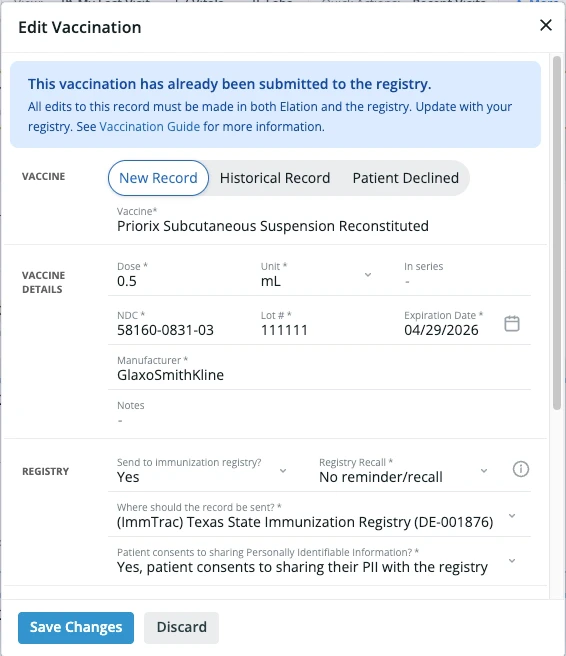
- You cannot add vaccinations to the queue — only the selected vaccination can be edited.
- If the vaccination was already submitted to the registry, a warning is displayed indicating that the submission was a one-time event.
Using the Immunization Table
Go to Clinical Profile → Other Info → Vacc → Immunization Table to open the Immunization Table. The Immunization Table gives you a visual representation of the patient’s vaccine history based off the CDC Schedule. Some additional features of the Immunization Table are:- Click Immunization Hx to print the patient’s immunization table and vaccine history.
- Click on the AAP Schedule: 0-18, CDC Schedule: 0-18, CDC Schedule: Adult buttons to see the vaccine schedule recommendations from the American Academy of Pediatrics or Center for Disease Control and Prevention.
- Click Actions -> Add Details in any Dose box to open the Document Vaccination form.
How the patient’s name appears on the printed immunization recordThe patient’s preferred name (documented in Patient Demographics → Patient Details → Full Name (if different from legal)) is shown as the primary name at the top of the printout, with the legal name in smaller text just beneath it. If the patient has no preferred name on file or their preferred name matches their legal name, only the legal name is shown — no separate “Legal Name” line is included.The legal name is always retained on the printout so the record remains valid for schools, employers, travel, insurance, and other official uses. The same behavior applies to the immunization history a patient downloads from Patient Passport.
Minimal documentation options:
- To store a basic, non-detailed vaccination record for the patient for that vaccine, enter a date in the corresponding Dose boxes for the vaccine.
- To record that a patient declined a specific vaccine, click Actions -> Patient Declined.
- To record that patient is immune to a specific infectious disease, click Actions -> Patient has immunity.
Querying for vaccination history and/or forecast using a connected Immunization Registry Interface
Demographic requirements
To ensure successful queries for vaccination history, please make sure the following demographics information is stored in the patient’s chart.- Legal First Name
- Legal Last Name
- Date of birth
- Sex at Birth
- Address
- Phone Number (first number)
- Mother’s Maiden Name
- The Mother’s Maiden Name field is next to the SSN field and can be found by clicking + add additional details in the Patient Details section of their demographic.
Querying for vaccination history
There are two options for querying for vaccination history for a given patient:- Click on the Check Registry button in the Vaccination section of the Clinical Profile.
- Click Actions -> Check Registry next to the Other Info section header in the Clinical Profile.
- Elation only allows querying for vaccination history every 15 minutes. If you click Check Registry and successfully retrieve Vaccination History for the patient, you will not be able to query again for another 15 minutes.
Viewing vaccine history results
Once the request is successful, you will see the patient’s vaccination history as available within the connected Immunization Registry. The most recent vaccination records will be at the top of the list and you can click on the header of any column to filter by specific details of the record. Vaccination History records include the following details:- A View Registry button will be available for registries that allow you to directly log in to the registry.
- Vaccine Group
- The Vaccine Group is designated by the registry. NOS stands for ‘Not Otherwise Specified”.
- Vaccine Name
- Date Administered
- Declined vaccines may also be available and will have the word Declined next to the date.
Importing vaccination history into a patient’s chart
The last column “Chart Status” of the Vaccine History will tell you whether or not the vaccination record exists in the Vaccination section of the patient’s chart. Elation will also automatically pre-select the records that are not in the patient’s chart to allow you to easily import those records if desired. Click Sign Off & Import at the bottom of the Vaccine History to sign off on the Vaccination History and import any selected records into the patients Clinical Profile.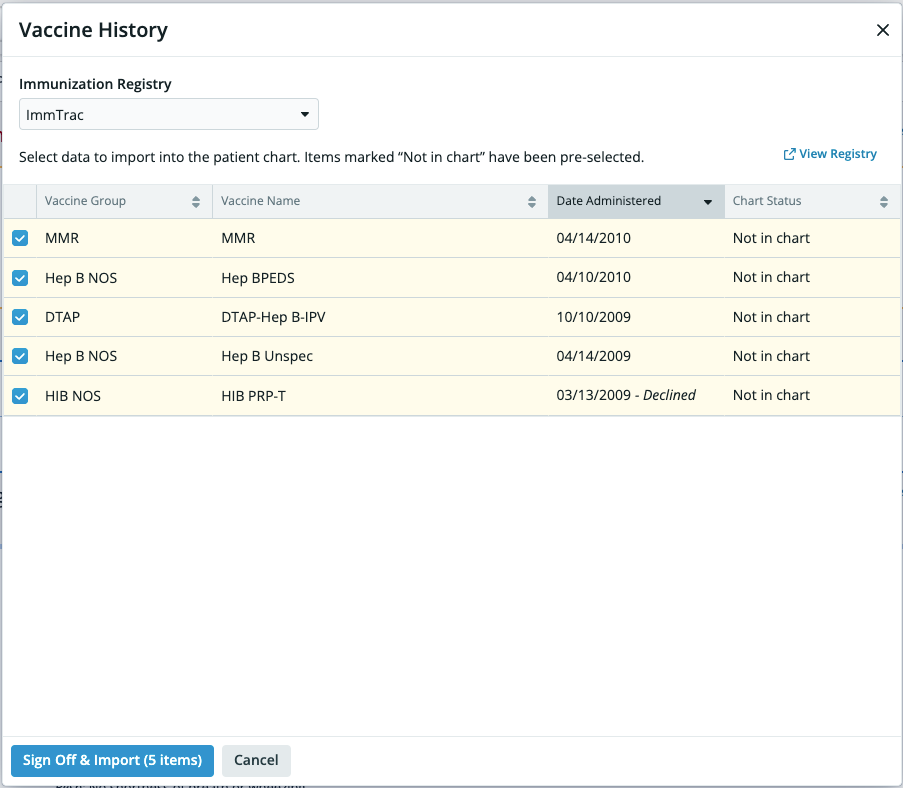
Querying for vaccine forecast
There are two options for checking the vaccination forecast using a connected Immunization Registry for a given patient:- Click Actions -> Check Forecast next to the Other Info section header in the Clinical Profile.
- Click Immunization Table and then Check Forecast in the Immunization Table view.
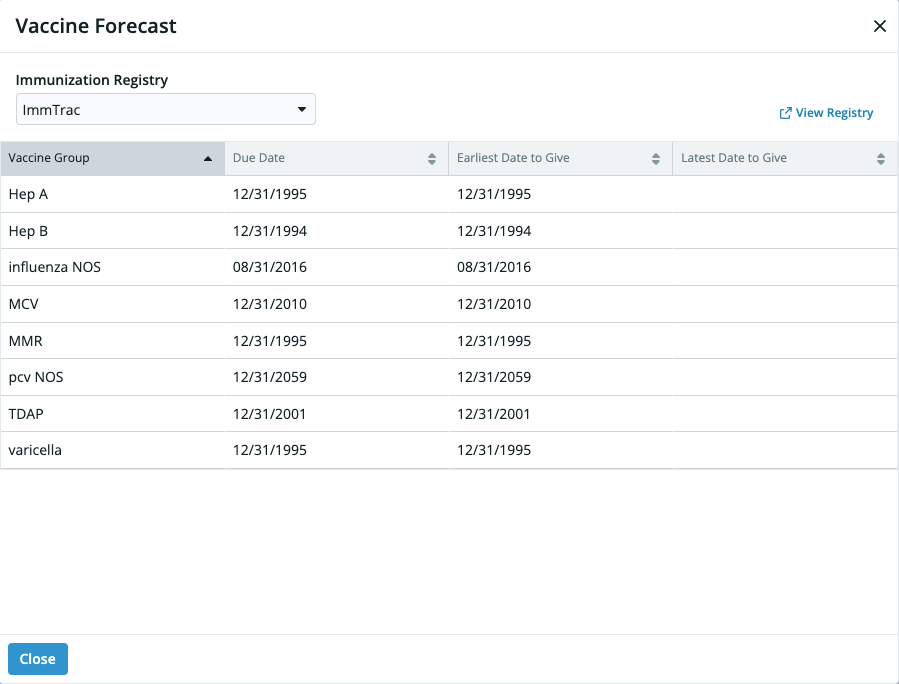
Viewing forecast results
Once the request is successful, you will see the vaccination forecast for the patient in the Vaccine Forecast dialog. The vaccines forecasted will be listed in alphabetical order and you will see the following:- Due Date
- Earliest Date to Give
- Latest Date to Give
Managing querying errors
If the request does not return a vaccination history you will see one of the following reasons noted in the Vaccine History dialog:- Immunization registry setup is incomplete
- Additional actions are required to connect you to the Immunization Registry. Contact Support for assistance with this issue.
- Unable to connect to immunization registry
- The registry is not responding during this time. Please try again in 30 minutes or Contact Support if the issue persists.
- No matching patient
- The registry was unable to find any matching patients based on the demographics information in their chart. Double check the Demographic Requirements for the patient and then try again.
- Too many patient matches
- The registry found too many matching patients based on the demographics information in their chart. Double check the Demographic Requirements to see if more information (such as Mother’s Maiden Name) can be supplied to narrow down the search and then try again.
- Missing patient information
- You must fill out all Demographic Requirements for the patient and then try again.
Troubleshooting the Check Registry button
If the Check Registry button is missing from the patient’s Clinical Profile or not working as expected, follow these troubleshooting steps:1
Confirm the registry connection is active
Verify that your practice’s Immunization Registry Interface is enabled and properly configured. If you are unsure whether your practice is connected to a registry, please reach out to the Support team via the I need help button in the blue navigation bar.
2
Verify patient demographics
Successful registry queries require specific patient information. Confirm the following demographics are complete and accurate in the patient’s chart: If any required information is missing or incorrect, update the patient’s demographics and try again.
- Legal First Name
- Legal Last Name
- Date of birth
- Sex at Birth
- Address (including state)
- Phone Number (first number in the demographics)
- Mother’s Maiden Name (for certain registries)
3
Contact Support if the issue persists
If errors persist after clicking the Check Registry button, even after confirming the patient demographics, please contact Elation Support for assistance. When reaching out, include the following details:
- The name of the Immunization Registry you are trying to use
- A description of the issue (for example, Running into [insert error] when checking the registry)
- The approximate time the option last worked (if applicable)
- Patient ID example
Frequently asked questions
I cannot find the vaccine I am looking for. How do I document this vaccine?
All currently available vaccines are available for selection. Please try searching for the vaccine using other commonly known names. If you cannot find the vaccine you are looking for, you can enter any text in the Vaccine field and store that as a vaccine in your own custom vaccine database. Once you save a vaccine record with the Vaccine you created, you will be able to select that same vaccine again in the future.Can I send vaccination data to my state or regional immunization registry from Elation?
Elation is interfaced with state and local registries in the United States. Learn more registry interfaces here.Why are certain vaccines missing from the Immunization Table?
The Immunization Table only displays CDC Schedule vaccinations. Vaccines that are not on the CDC Schedule can be recorded using the Document Vaccination form, will be visible in the Clinical Profile and will display under Other Vaccines Documented when printed. Only vaccines with known specified formulations will appear in the Immunization Table. Without formulation we will not be able to accurately tie a vaccine to the correct immunization in the Immunization Table. Recorded vaccines with unspecified formulations will be visible in the Clinical Profile and will display under Other Vaccines Documented when printed.Why does the Immunization Table show a different lot number, expiration date, or manufacturer than what I just entered?
Elation automatically saves and auto-fills the Lot #, Expiration Date, and Dose fields in the Document Vaccination form based on the last time that vaccine was documented at your practice. If your practice administers multiple lots of the same vaccine at once (for example, during flu season), the auto-filled values may reflect a previous lot rather than the one just given. Always review the Lot #, Expiration Date, and Manufacturer fields before saving to confirm they match the vial actually administered. If you entered a vaccine directly in the Immunization Table by adding a date in the Dose box (rather than through the full Document Vaccination form), only the date is stored. Lot number, expiration date, and manufacturer are not captured for that entry, so there is nothing further to reconcile for vaccines documented this way.Can I change the vaccines that display in the Immunization Table?
Elation’s Immunization Table is designed to match the Center for Disease Control and Prevention’s recommendations for vaccinations based off of the patient’s age. You cannot change the vaccines that display in the Immunization Table. Vaccines that are not on the CDC Schedule can be recorded using the Document Vaccination form, will be visible in the Clinical Profile and will display under Other Vaccines Documented when printed.Can I see more than 6 doses of a given vaccine in the Immunization Table?
The Immunization Table can only display up to 6 (six) doses of a given vaccine. Any additional vaccines will not be displayed in the Immunization Table but it will be visible in the Clinical Profile and will display under Other Vaccines Documented when printed.Can I document multiple vaccinations at once?
Yes. Click + Add Another Vaccination in the Document Vaccination form to open the vaccination queue. You can add multiple vaccinations and save them together. For pediatric patients, the queue automatically opens when the form is launched.Next Step: Open the Document Vaccination form in your patient’s chart to start recording immunization history.