What does it mean to administer injectables?
Injectables are medications that must be administered through a syringe and require qualified medical personnel to administer the medication. Some common examples of injectables are vitamins, antibiotics, and hormones.Vaccines are not considered an injectable medication. For more information on documenting vaccines in Elation, please reference the Vaccination Documentation Guide- Managing vaccination information .
Why is it useful to document administered injectables in Elation?
Documenting administered injectables in Elation is useful because it enables your practice to have a comprehensive and accurate medical record for the patient.How to document administered injectables in Elation
Elation recommends two workflows for administering injectables:- Documenting injectables through the vaccine form
- Documenting injectables in visit notes
- Documenting injectables through the Prescription Form
Documenting injectables through the vaccine form
We recommend documenting injectables using the vaccine form in Elation because there are structured fields where you can enter necessary information such as manufacturer, lot number, expiration date, and more. Below are instructions for how you can enter injectable information through the vaccine form.- Start in a patient’s chart and scroll down the Clinical Profile (left hand column of the chart) to the Other Info vaccine section
- Click + Add Vaccination to open the Document Vaccination window
- Type the name of the injectable into the Vaccine field. You can free text the name of the injectable into the Vaccine field and click into the free space in the Document Vaccination window to save the text you have written.
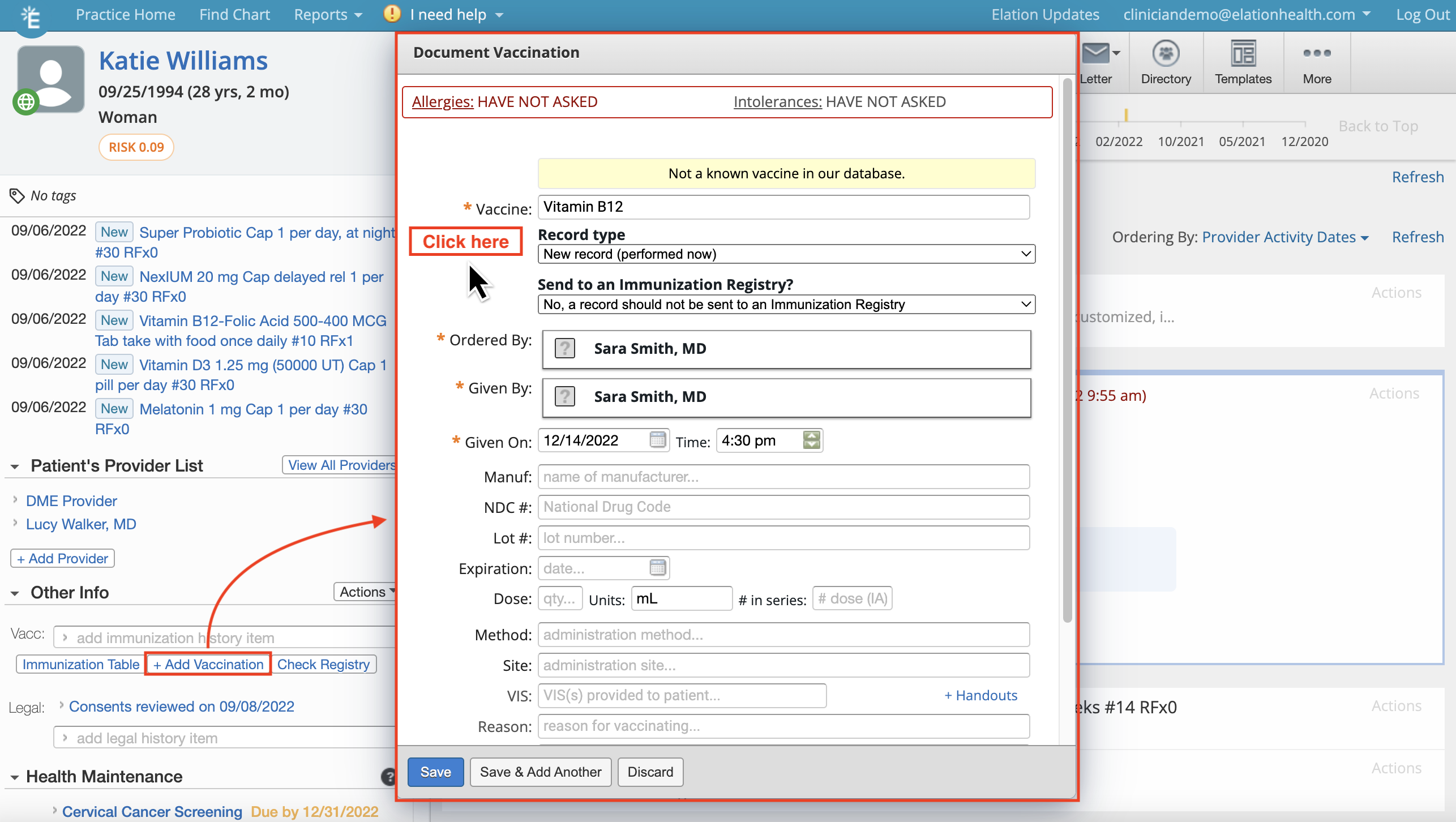
- Enter additional necessary information such as manufacturer, lot number, expiration date, and more
- Once the injectable information is completely documented in the form, click one of the Save options. The injectable will be documented in the Clinical Profile in the vaccine section.
If your practice is connected to any state immunization registries, you must choose the option to not send the record of the injectable to an immunization registry.  If you have a visit note open as you are documenting the injectable in the vaccination form, the injectable will be added automatically to the visit note.You can export a documented injectable from the Clinical Profile at any time to a visit note by clicking Actions >> Export to Note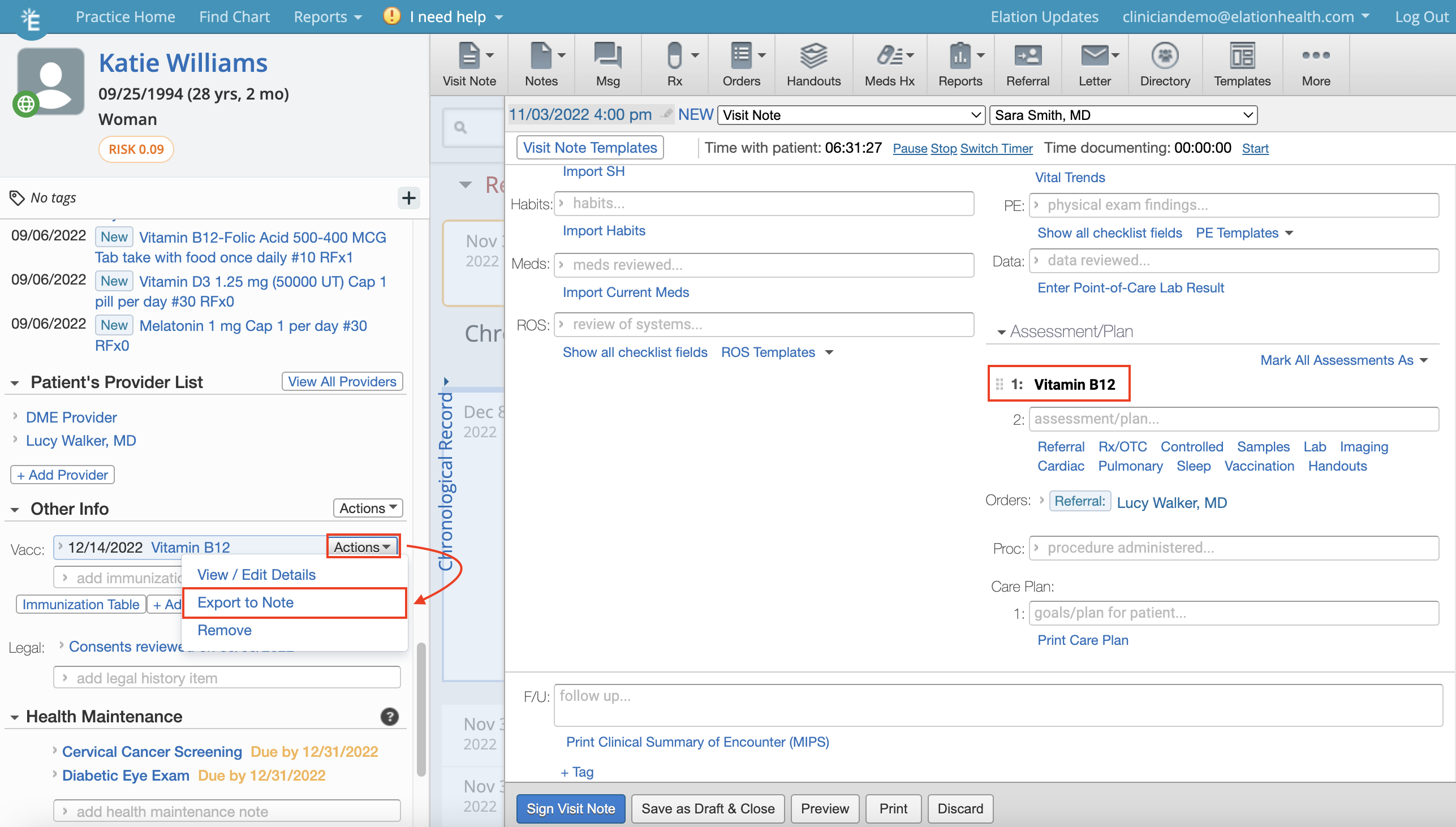
If you have a visit note open as you are documenting the injectable in the vaccination form, the injectable will be added automatically to the visit note.You can export a documented injectable from the Clinical Profile at any time to a visit note by clicking Actions >> Export to Note Documenting injectables in visit notes
Documenting injectables in visit notes is a great option for practices who prefer to keep vaccines and injectables documentation separate.- Start in a patient’s chart with an open visit note
- Document the injectable information into the body of the note
- Complete the visit note with any additional information pertaining to the visit and sign the note
We recommend using Document Tags to track injections with specific identifiers in case of a recall or other situation where you need a list of patients who received the injection. When the visit notes are tagged with Document Tags, it enables your practice to search in a Patient List for patients with the specific Document Tag.
Documenting injectables through the Prescription Form
Click here for instructions on how to document injectables through the Prescription Form .Frequently Asked Questions
What if the injectable I am administering is not available in the vaccine form?
You can free text information into the vaccine form, such as the name of the injectable. Type the name of the injectable into the Vaccine field and click into the free space in the Document Vaccination window to save the text you have written.How can I search for patients who have received a specific injectable?
You can tag patient records, such as visit notes, with Document Tags that enable your practice to search in a Patient List for patients with the specific Document Tag. We recommend including the name of the injectable and the lot number in the tag so that you can pull a list of patients that received that injectable in case of a recall or other similar situations.What information is recommended to be included in a visit note template for injectables?
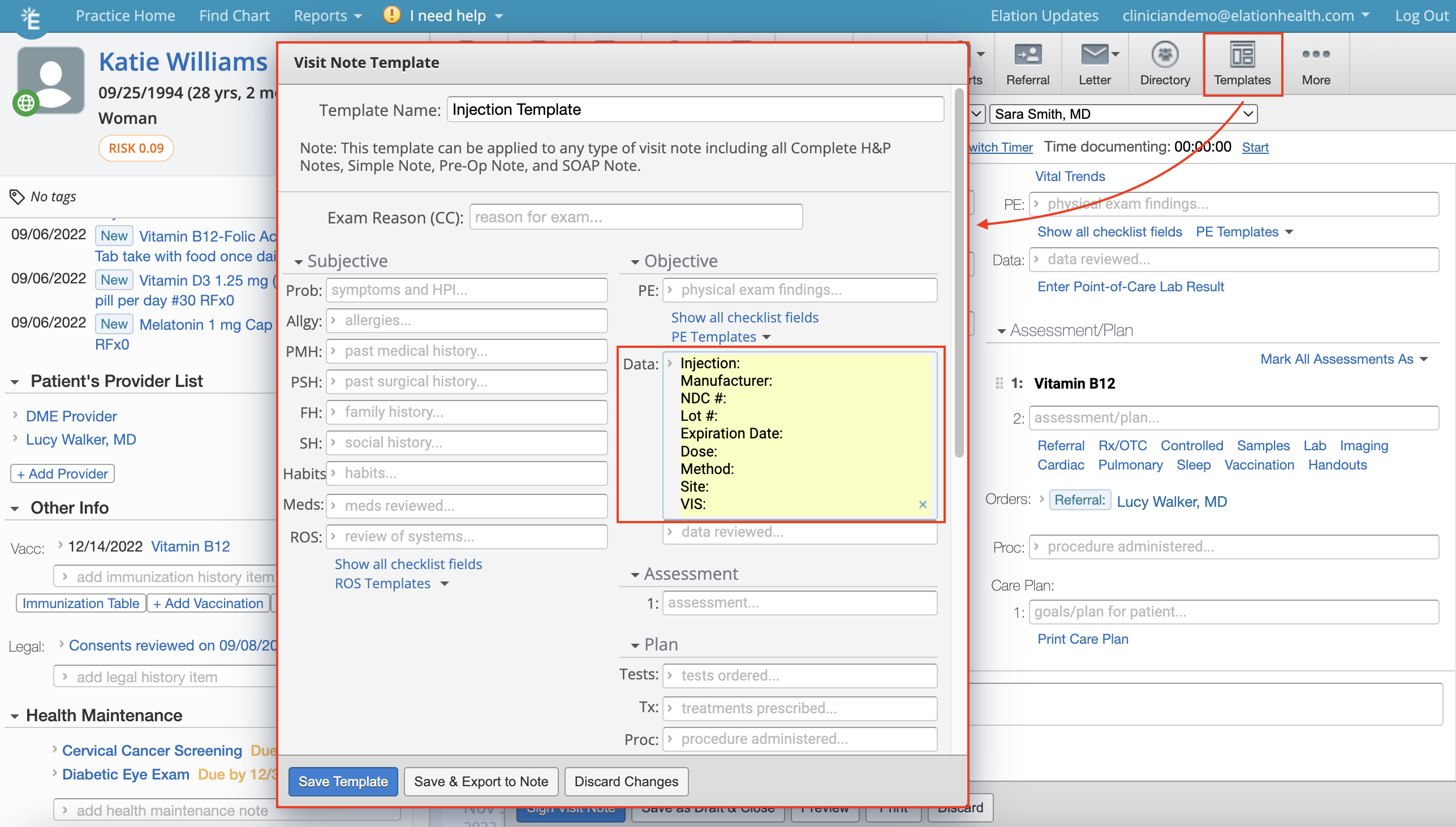
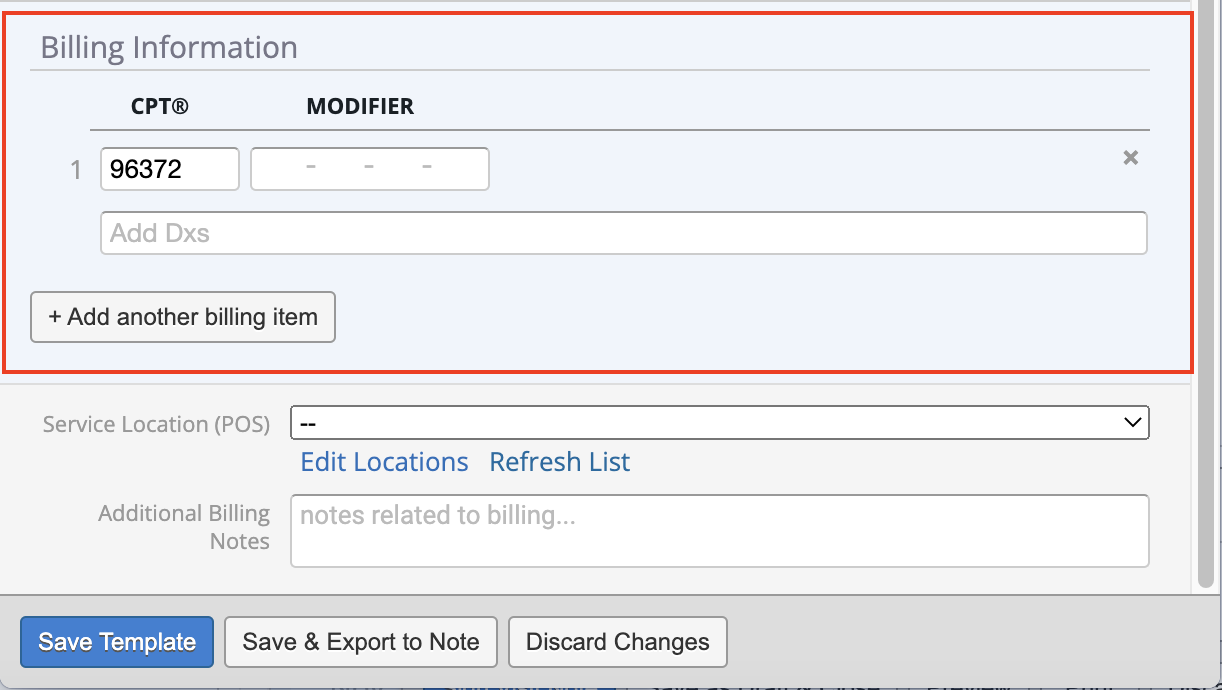
We recommend saving standard injection documentation fields and common CPT codes for billing in visit note templates. The information you can save in a visit note template is very customizable and can save your practice time documenting the information. The CPT Code, 96372 : Injection of drug or substance under skin or into muscle, is commonly used for coding patient encounters that involve injectables. Feel free to save this CPT Code to your practice settings . Clinical Information for templates: