
What does it mean to record payments from patients?
Practices collect payment from patients for services rendered during different points in the patient visit lifecycle. Elation offers different features for recording payment collected:- Using Elation’s Patient Payments feature
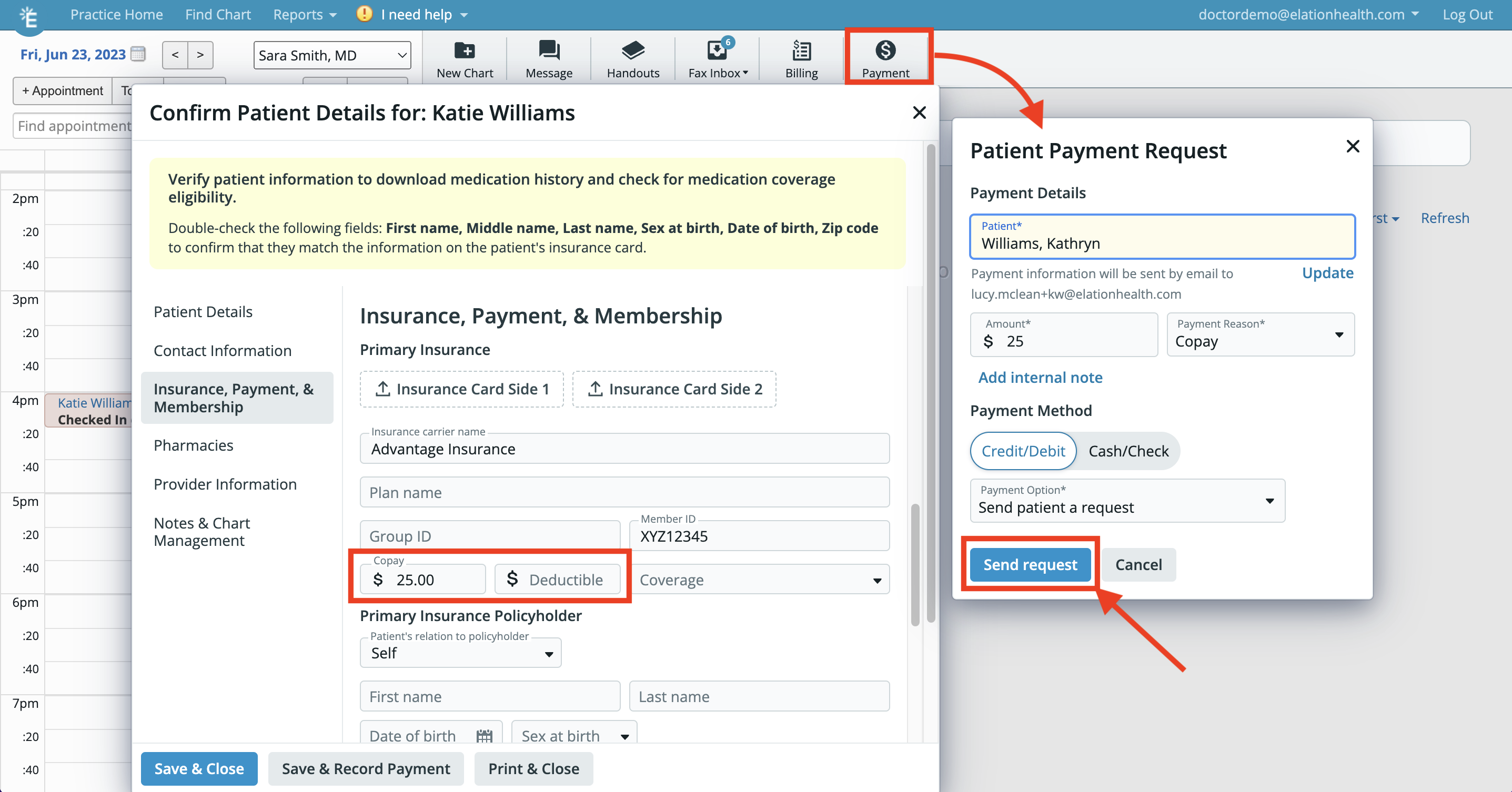
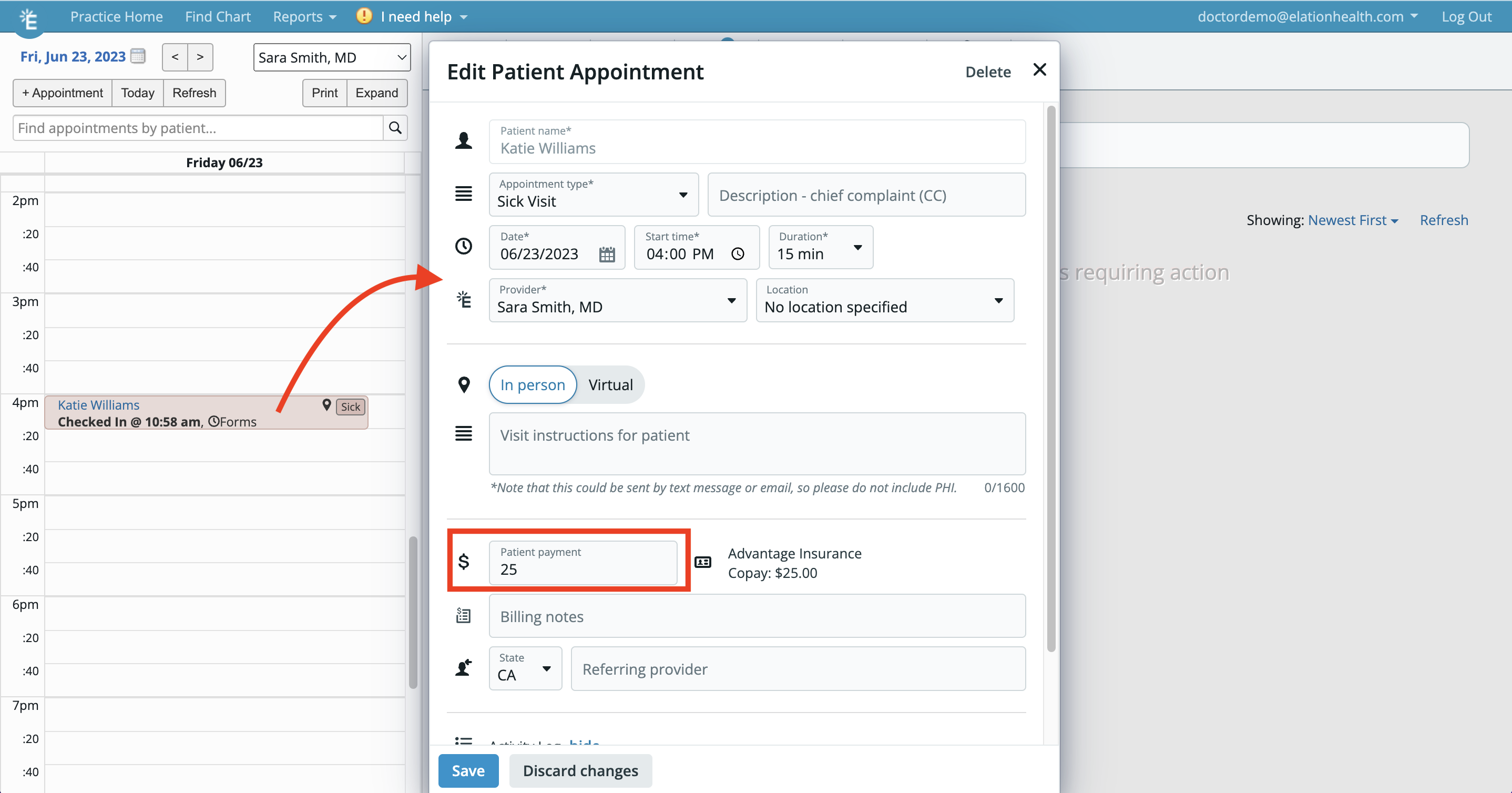
- During patient check in
- After the encounter
How can Elation’s features make recording payments efficient?
Collecting and recording payments from patients is an essential part of running a practice. Payment and billing features in Elation are designed to ensure your practice has multiple options for collecting and tracking these payments. You can use Elation to store patient payment information collected via an integrated solution like the Patient Payments feature as well as payments collected via other external solutions/methods, and have a designated source of truth for your payment collection workflows.- The Patient Payments feature is an integrated solution that will increase your collection rate, provide an easier way for your patients to pay your practice, and save your practice time.
- If you collect payments during check in, you can utilize the Patient Payments feature to record payments or tie the payment to the appointment for reporting for an external system.
- Recording payments directly in the visit note after the patient encounter enables your practice to generate detailed invoices and/or receipts for your patients.
If your practice uses Elation Billing , patient payment workflows are managed through the Elation Billing PMS. See the Elation Billing payment articles linked in Related Articles below.
What payment recording features does Elation offer?
Elation offers multiple payment recording features, which can be used in combination with each other, or separately, depending on your practice’s needs. These include Elation’s Patient Payment feature, the ability to record payments directly in the check-in window, and the ability to document billing information directly in a visit note and generate patient invoices.Elation’s Patient Payment feature
It is easy to request a payment from a patient using Elation’s Patient Payment feature with just a few simple steps detailed in our Patient Payments Guide- Securely collect payments digitally from patients . Once a payment is completed, the payment is automatically recorded and stored in the Patient Payment Report for records. You can also reprint receipts for patients from the Patient Payment Report. Elation partnered with Stripe, a secure, Payment Card Industry (PCI) compliant, digital, payment processing platform, to provide you with the ability to collect payments from your patients directly within Elation. Using Elation’s Patient Payments feature, your practice can collect payments for any services you offer, at any time during the day, and manage your full transaction history directly within Elation.Record payment during check in
Note: If you are utilizing the Patient Payment feature, please reference the section above for steps on how you can send a request to the patient upon check in, or charge their card on file.
Patient invoicing and visit note documentation
You can document payment information and generate an invoice and/or receipt directly within a visit note in the Billing Information window. Here you can add detailed payment information such as CPT codes with their associated charges and quantities as well as the related Dx codes. With information documented here, your billing team can determine how much to charge the patient for the visit.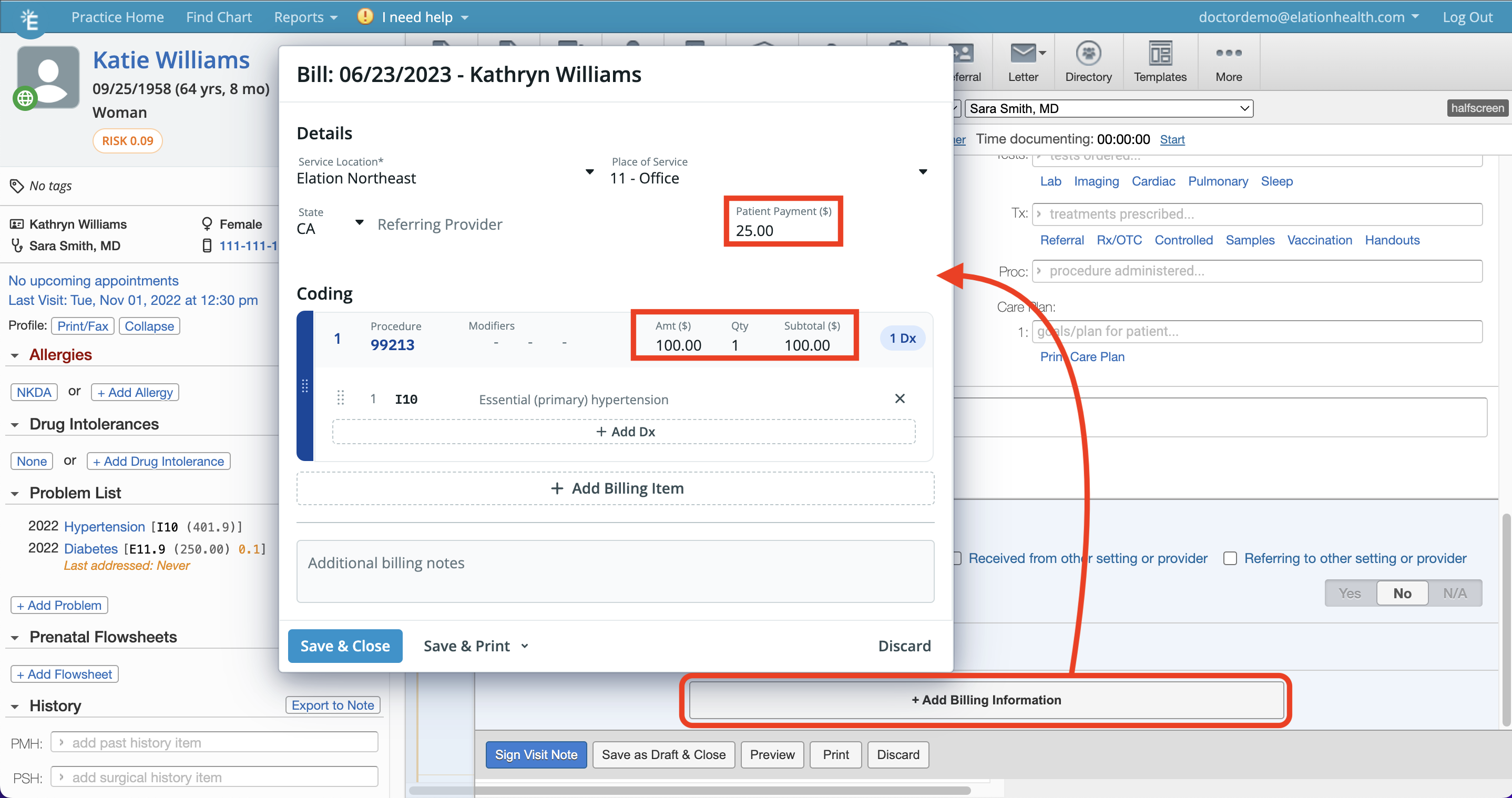
![Visit note Billing Information section showing a red arrow pointing to the "Print Invoice" dropdown button, with billing code 99213 [I10] at 100.00 and patient payment of 25.00 recorded.](https://mintcdn.com/elationhealth/xa05uxiba_C1082F/images/0EM6O000007WeEU.png?fit=max&auto=format&n=xa05uxiba_C1082F&q=85&s=776480d09720e918b704599395cfc0b8)
Benefits of utilizing Billing Home
Practices that use the Patient Payments feature can most effectively track payments in the Patient Payment Report .
Related Articles
- Patient Payments Guide- Securely collect payments digitally from patients
- Billing Home Guide- A dashboard for managing your bills
- Billing Guide- Frequently Asked Questions
- User Accounts Guide- Utilizing authorized staff delegates
- Patient Payments Guide- Securely collect payments digitally from patients
- Billing Guide- Delayed Billing
- Collecting a Patient Payment in Elation Billing
- Manually Record Patient Payment in Elation Billing
- Integrated Refunds (Elation Billing)
- Self Pay Patients (Elation Billing)
- Posting a Payment in Elation Billing