
Overview
What is the medication history?
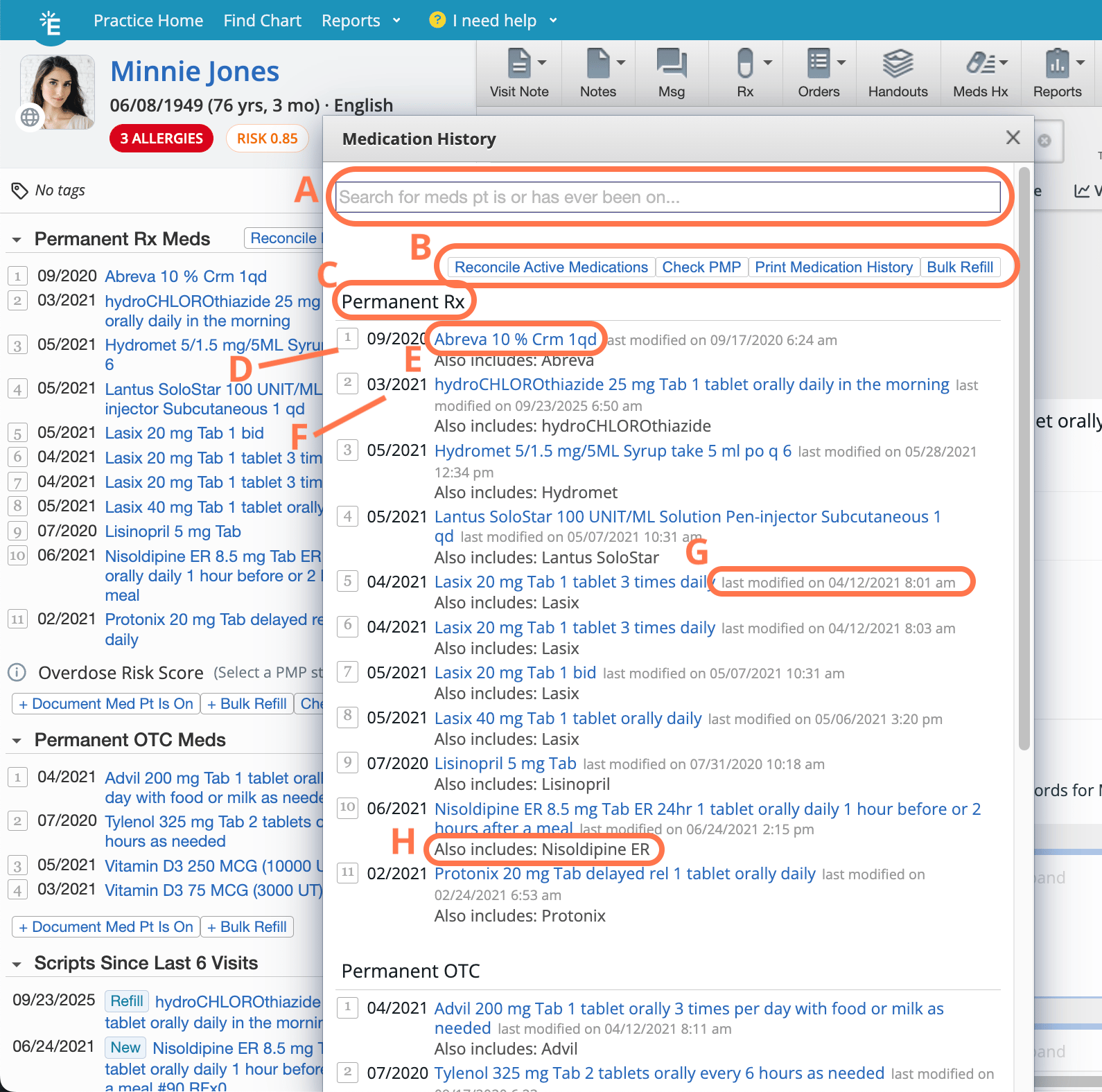
The medication history contains a list of all medications ever prescribed or documented for a patient. Medications are organized in alphabetical order by medication name and divided into the following statuses:- Permanent Rx
- Permanent OTC
- Temporary
- Discontinued
- Script(s) Canceled
Anatomy of the Medication History list
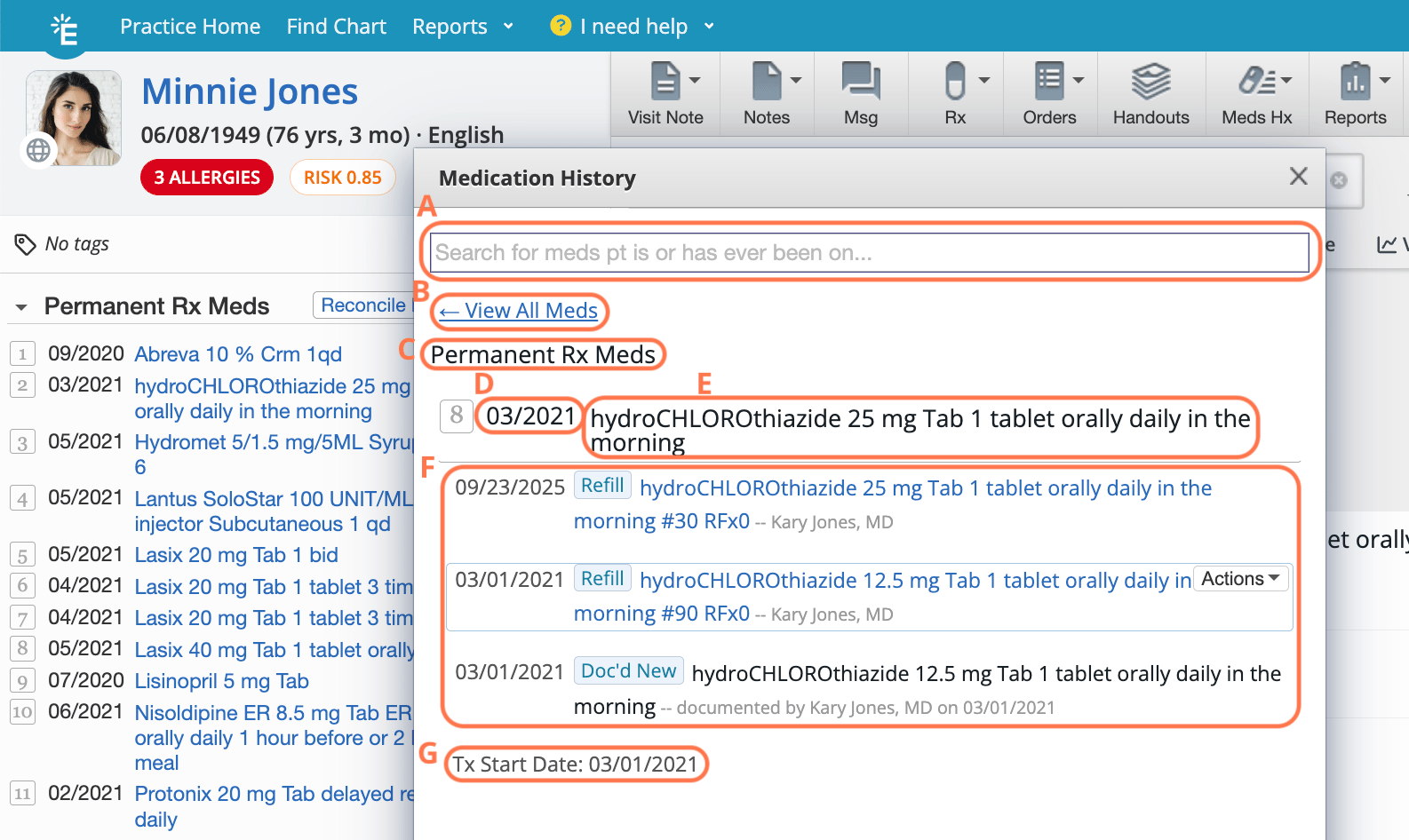
Anatomy of a medication thread
Workflows
Viewing active, permanent medications in the Clinical Profile
A quick view of a patient’s permanent, active medications can be found in the Clinical Profile (left column of the patient chart), grouped into two separate drug classifications:- Permanent Rx Meds
- Permanent OTC Meds
Viewing the full medication history
There are two ways to pull up the full medication history which includes permanent, temporary and discontinued medications:- Go to any of the permanent, active medication list headers in the Clinical Profile and click Actions -> View All Meds.
- Click Meds Hx -> Medication History at the top of the patient’s chart.
Adding medications to the medication history
Medications are automatically added to the Medication List when the medication is prescribed or documented in the patient’s chart. Reference the workflows below for more details.Prescribing medications
Click here for instructions on how to prescribe medications.Documenting medications a patient is already taking
New patients joining your practice may already be taking medications prescribed by other providers. To document a medication that a patient is actively taking (not prescribe new medications):Managing the Permanent vs. Temporary classification of medications
When you prescribe or document medications, they’re automatically classified as ‘Permanent’ unless you change the classification to ‘Temporary’ in the form. For downloaded medications, Elation automatically classifies each medication as ‘Permanent’ or ‘Temporary’ based on whether the medication is typically used to treat chronic or acute conditions.- You can find temporary medications in the full medication history.
Merging and un-merging medication threads
Merging medication threads
To consolidate multiple medication threads for the same medication:Do not click the Actions button next to a specific prescription because you can only merge medications from the medication thread.When you merge two medication threads, the new thread will be named after the most recent prescription’s or record’s name, dosage, and Sig.
Unmerging medication threads
To unmerge medication threads:
Reconciling medications
Use the Medication Reconciliation feature to review and update a patient’s active medication list. When you complete medication reconciliation, all changes—including sig edits, additions, and discontinuations—are saved immediately.
Discontinued medications move to the Discontinued section of the Medication History with the reason you selected, and the Last Reconciled date updates at the top of the Medication History section.
 Click here for step by step instructions on how to use the Medication Reconciliation feature.
Discontinuing medications
Click here for step by step instructions on how to discontinue medications.Deleting a medication
Best practice is to only delete medications if they were inaccurately documented. To discontinue a medication the patient is no longer taking, follow the discontinue medication instructions instead. To delete a medication:
Related Articles