Overview
Quickly find what you’re looking for in a patient’s chart using the search box or filters at the top of the Chronological Record. You can also use AI-powered Elation AI to get a summarized view of relevant information, or enter special search terms to pull up corresponding data tables. Combine the search tool with Document Tags to build stronger searches.
Documents in Requiring Action or Outstanding Items are excluded.
What is Elation AI?
Elation AI is an AI-powered tool built into the patient chart that helps you explore a patient’s record, surface relevant clinical information, and think through questions during or after a visit. It works alongside your clinical judgment — surfacing and summarizing information from the chart, then displaying results with citations at the top of the Chronological Record.
Elation AI works well for tasks like:
- Synthesizing information across a patient’s chart
- Identifying patterns over time
- Summarizing visit histories
- Surfacing relevant details you might not have time to search for manually
- Searching for conditions, medications, symptoms, preventive screenings, vaccination history, and health maintenance
You can view multiple Elation AI searches at once to keep each clinical question distinct, compare findings, preserve your search history, and share results.
Elation AI works with a defined subset of your patient’s Elation record. It can reason across demographics, the problem list, medications, allergies, clinical history, vitals, preventive care, labs and forms, visit notes, non-visit notes, appointments, and external reports. It cannot access unsigned or draft notes, confidential notes, insurance or billing information, images, or data from outside Elation.
For a detailed breakdown of what Elation AI can and cannot see, how the AI works, safeguards, and tips for improving your results, see the Elation AI FAQ.
Elation AI is designed to support your clinical practice, not direct it. You are the clinician. The AI is a tool in your toolkit, useful when used thoughtfully and most powerful when paired with the judgment you’ve spent your career developing. What Elation AI surfaces is a starting point for your review. Always verify the information against the patient’s full medical record and apply your own expertise before making any clinical decisions.
Setup
Configuring Elation AI display settings
By default, Elation AI can only be accessed on demand when you search the Chronological Record. You can enable a setting to generate insights automatically when you search by following these steps:
| 1 | Click on your email address in the upper right corner of Elation. |
|---|
| 2 | Click Settings . |
| 3 | In the left-hand menu, click AI Personalization . |
| 4 | Under the Elation AI section, go to Display Settings and select Automatic (recommended) . |
Configuring the Elation AI Search Bar Quick Action
You can launch preset Elation AI searches from the search bar at the top of the patient’s chart. The default search is “Summarize the patient’s most recent visits, highlighting any care plan items that need follow up.”
To define and edit preset searches:
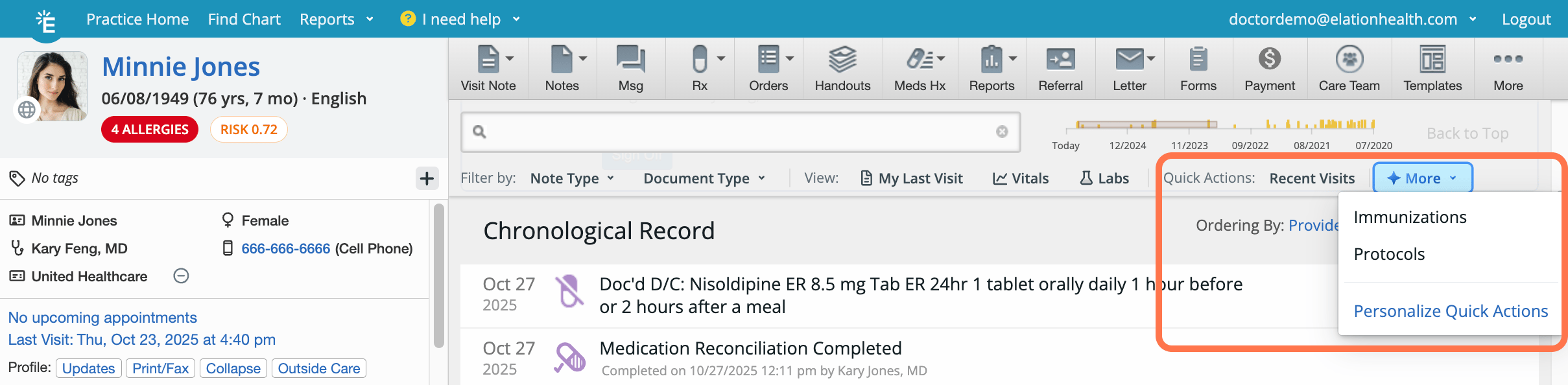
| 1 | Access your AI Personalization Settings using one of these two workflows: Click on your email address in the upper right corner of Elation -> Settings -> AI Personalization. • In any patient’s chart, click on the Quick Action dropdown and click Personalize Quick Actions. |
|---|
| 2 | Under the Elation AI section, go to Search Bar Quick Action and click + Add Quick Action. |
| 3 | Update the following data for the preset search: Search Title - The name of the button in the chronological record search bar and title of the search that will appear at the top of the search results. • Search Query - The query that will automatically be triggered when you click the Button Label. |
| 4 | Data entered will be automatically saved. |
| 5 | Use the grid menu button to drag and drop the quick action into the desired order as needed. We will fit as many quick action buttons below the Chronological Record Search bar as the screen allows. Quick action buttons that don’t fit will be available under the More button. 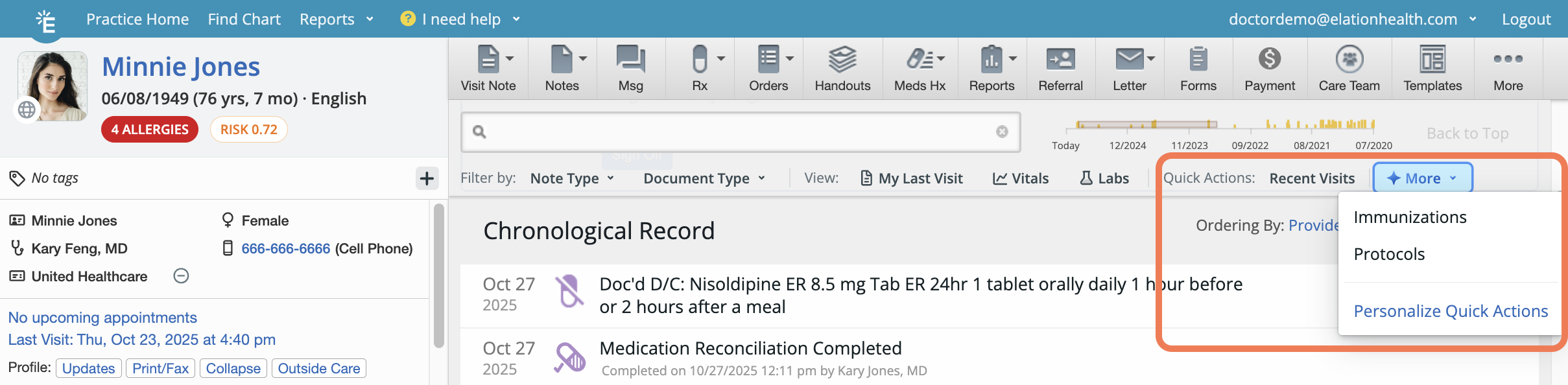 |
Configuring custom instructions for Elation AI
While using Elation AI doesn’t require personalization, you have the option to tailor the responses to better match your preferences. Each user must set their own custom instructions.
| 1 | Click on your email address in the upper right corner of Elation. |
|---|
| 2 | Click Settings . |
| 3 | In the left-hand menu, click AI Personalization . |
| 4 | Under the Elation AI section, go to Custom Instructions and click + Add New Instruction to type a custom rule (e.g. “List lab results as a bulleted list”) or select one of our sample instructions from the provided list. Click the trash can icon if you’d like to delete a rule. |
| 5 | Changes are automatically saved. |
Workflow Instructions
Searching for documents using keywords
To look for all documents related to a specific topic, type a related search word or phrase into the search box (e.g. diabetes or accident). After you search, the chart will display related information and documents at the top of the chart. You’ll see any matching text in the documents highlighted in yellow. To search for multiple topics, type the additional search term in the search box after the results for the first search term is generated.
Keyword search matches against document titles, document tags, and structured text in the chart (including notes, reports, and other chart content). It does not search the contents of uploaded files such as PDFs or faxes. To find uploaded documents, search by their title or assigned tags. Viewing Elation AI insights
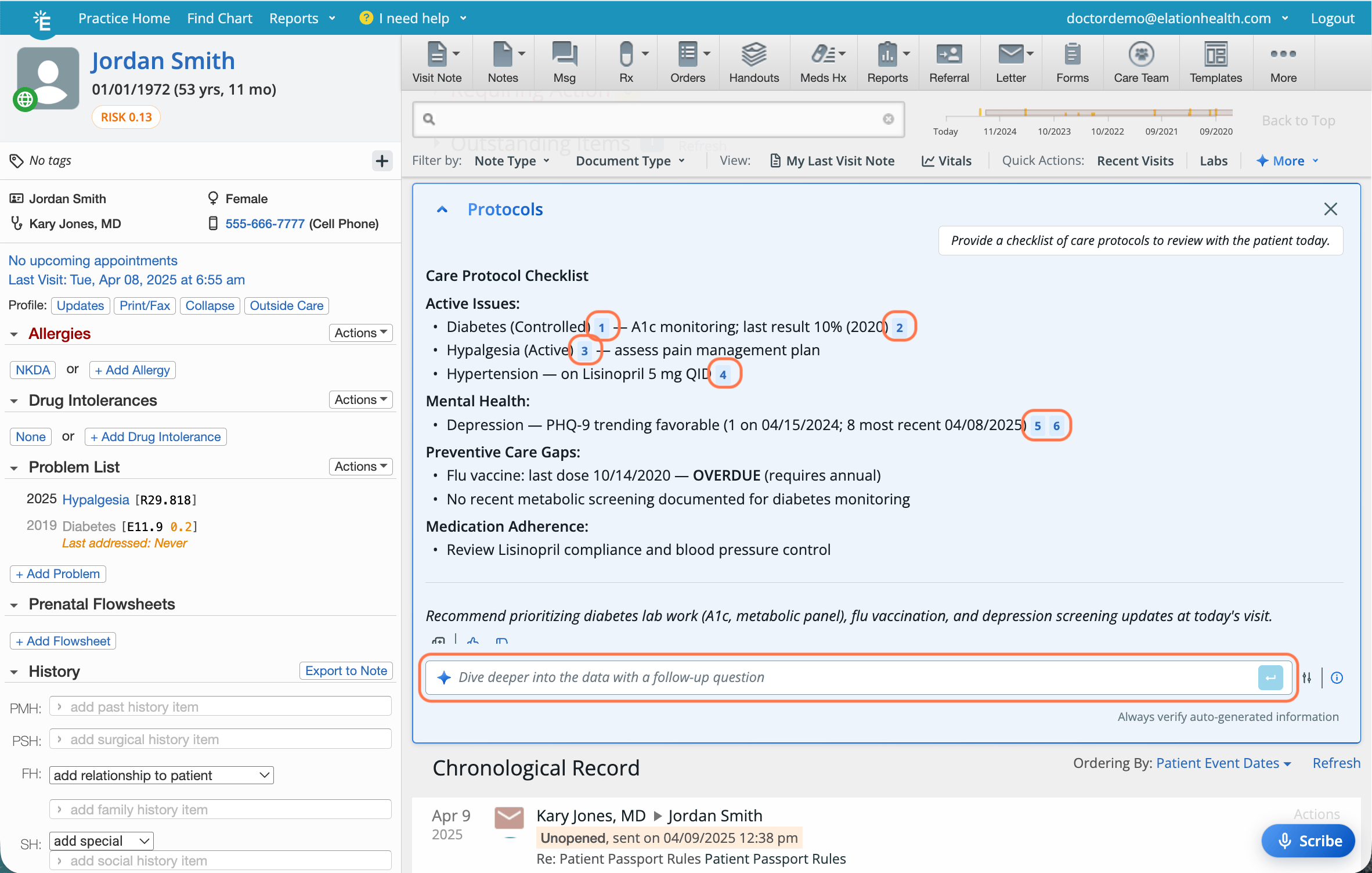
Search for conditions, medications, symptoms or preventative screening information using Elation AI.
- You will see one of two behaviors depending on which display setting you have enabled for Elation AI:
- Automatic: After you type a search term, AI automatically finds relevant insights and displays them in the Elation AI section.
- Manual: After you type a search term, click Generate Elation AI insights for… to surface insights related to your search.
- All insights include citations, so you can easily see where it came from. Click on the citation numbers to open the referenced chart record.
- If you’d like to ask follow up questions for any of the insights, simply type your follow up question into the Dive deeper into the data with a follow-up question box.
Using Elation AI Search Bar Quick Action
The Elation AI Search Bar Quick Action buttons are located right below the chronological record search bar at the top of the chart. We will fit as many quick action buttons below the Chronological Record Search bar as the screen allows. Quick action buttons that don’t fit will be available under the More button. Click any of the buttons to run a preset search as specified in your AI Personalization Settings.
Using search filters
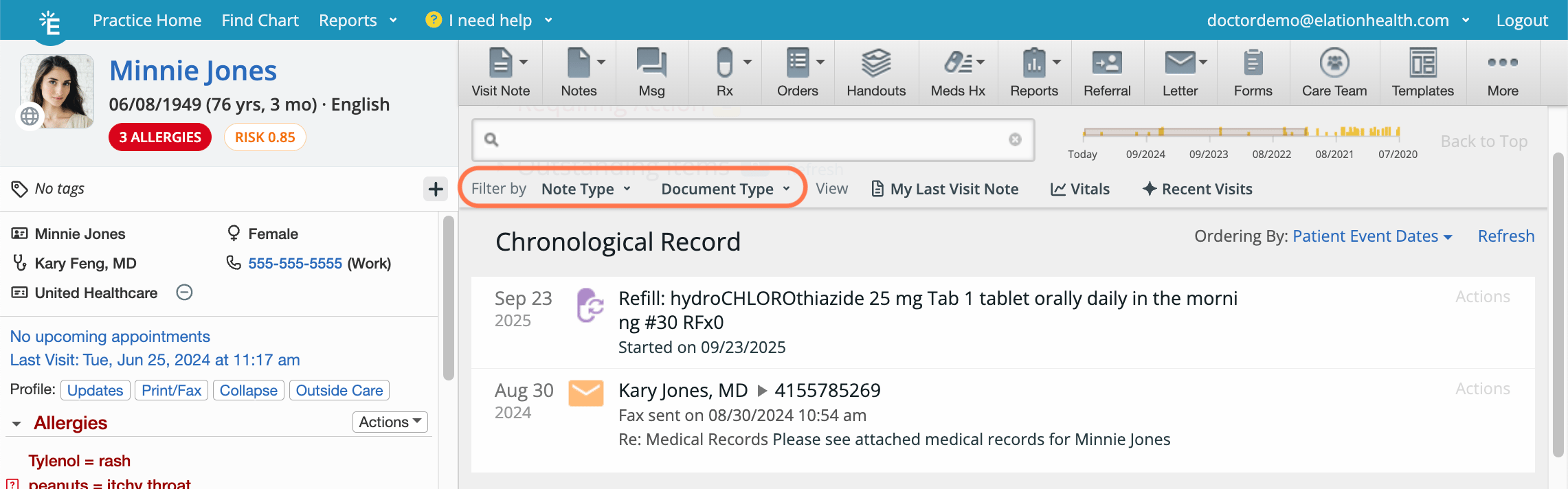
The following built-in filters let you quickly search for specific types of documents:
- Note Type - Surface all visit notes with a specific visit note category.
- Document Type - Surface all documents that match one of the following document types:
- Letters & Referrals
- Medications
- Messages
- Non-Visit Notes
- Order
- Pt Summaries (CCD/CCDA)
- Reports
- Visit Notes
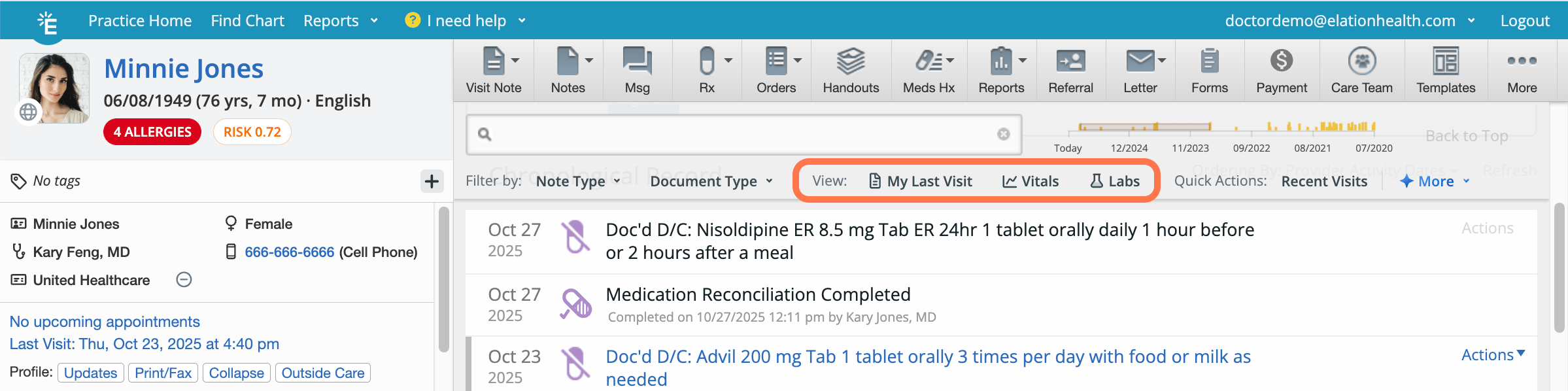
 The following quick view buttons under the chronological record search lets you pull up the following data with the click of a button.
- My Last Visit Note - Jump to the last signed visit note.
- Vitals - Opens the vitals trend table.
- Labs - Opens a table that shows all of the patient’s structured lab results.
Using special search terms
Vitals
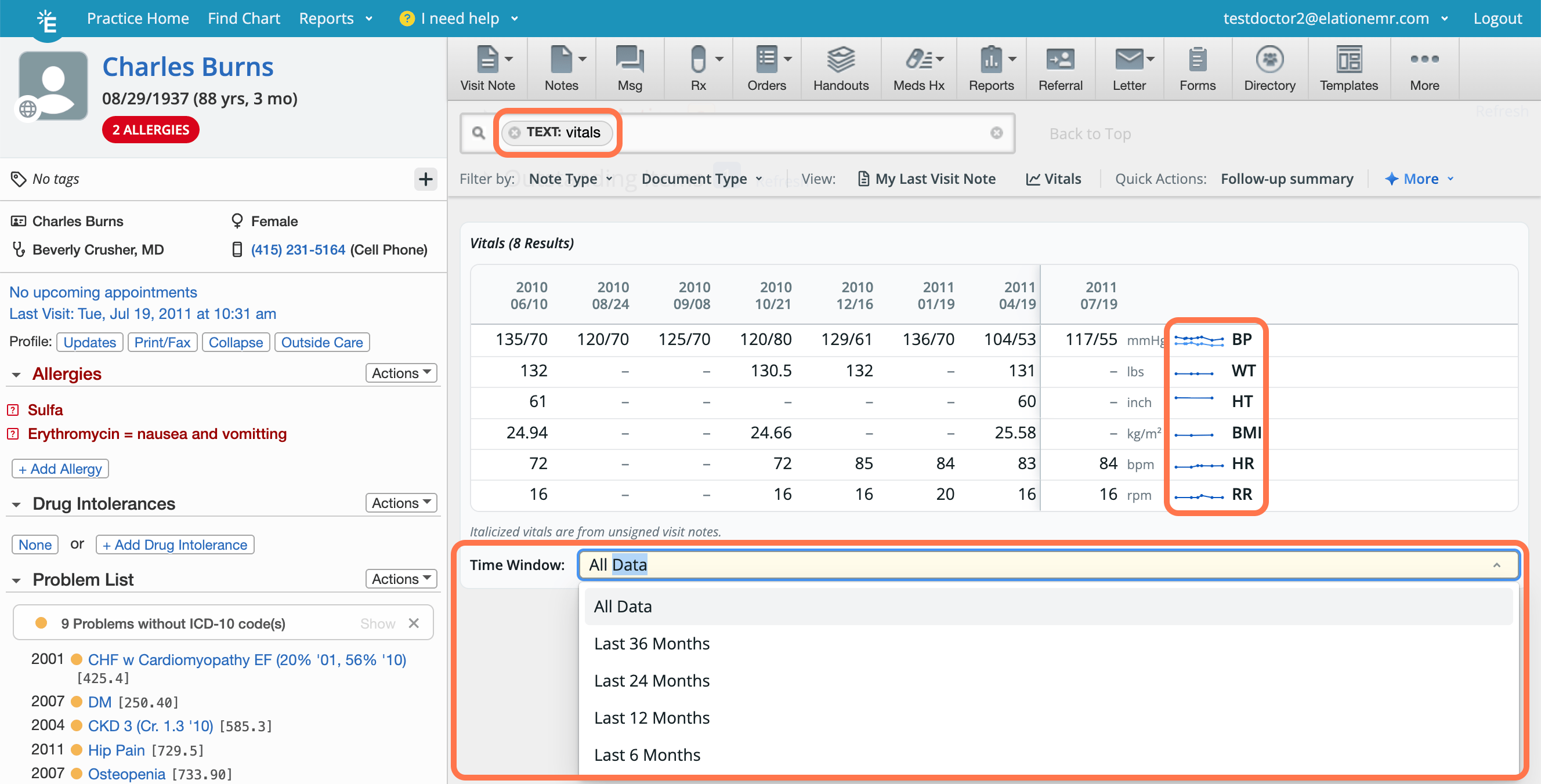
To see a patient’s vitals trend table and visualizations, click the Vitals filter under the chronological record search box.
- To search for a specific vital, type in the vital name (e.g. BMI or BP).
- To adjust the time window, click the Time Window dropdown and select the desired timeframe.
Lab Results
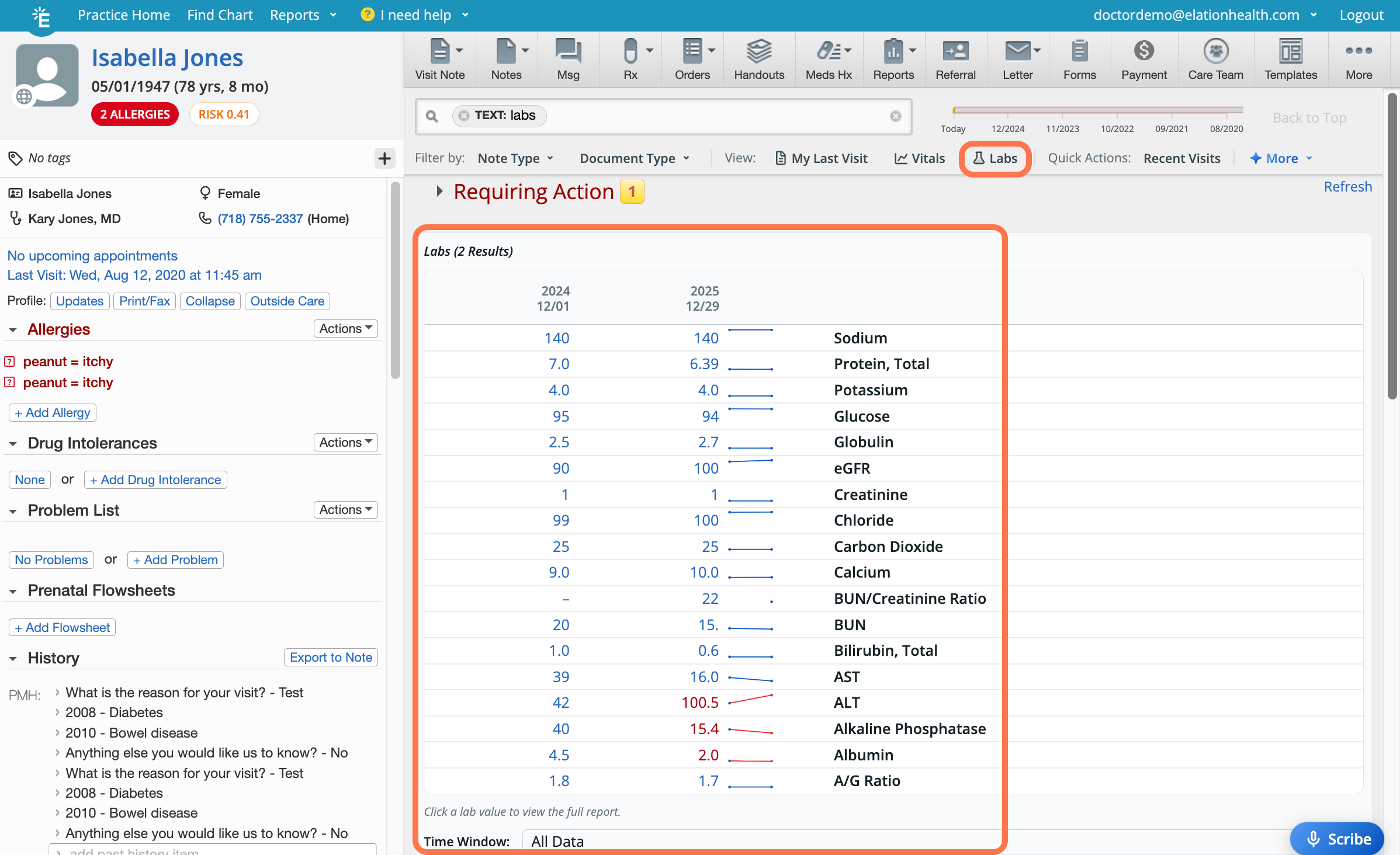
To see a table of all of the patient’s structured lab results, click the Labs quick view button.
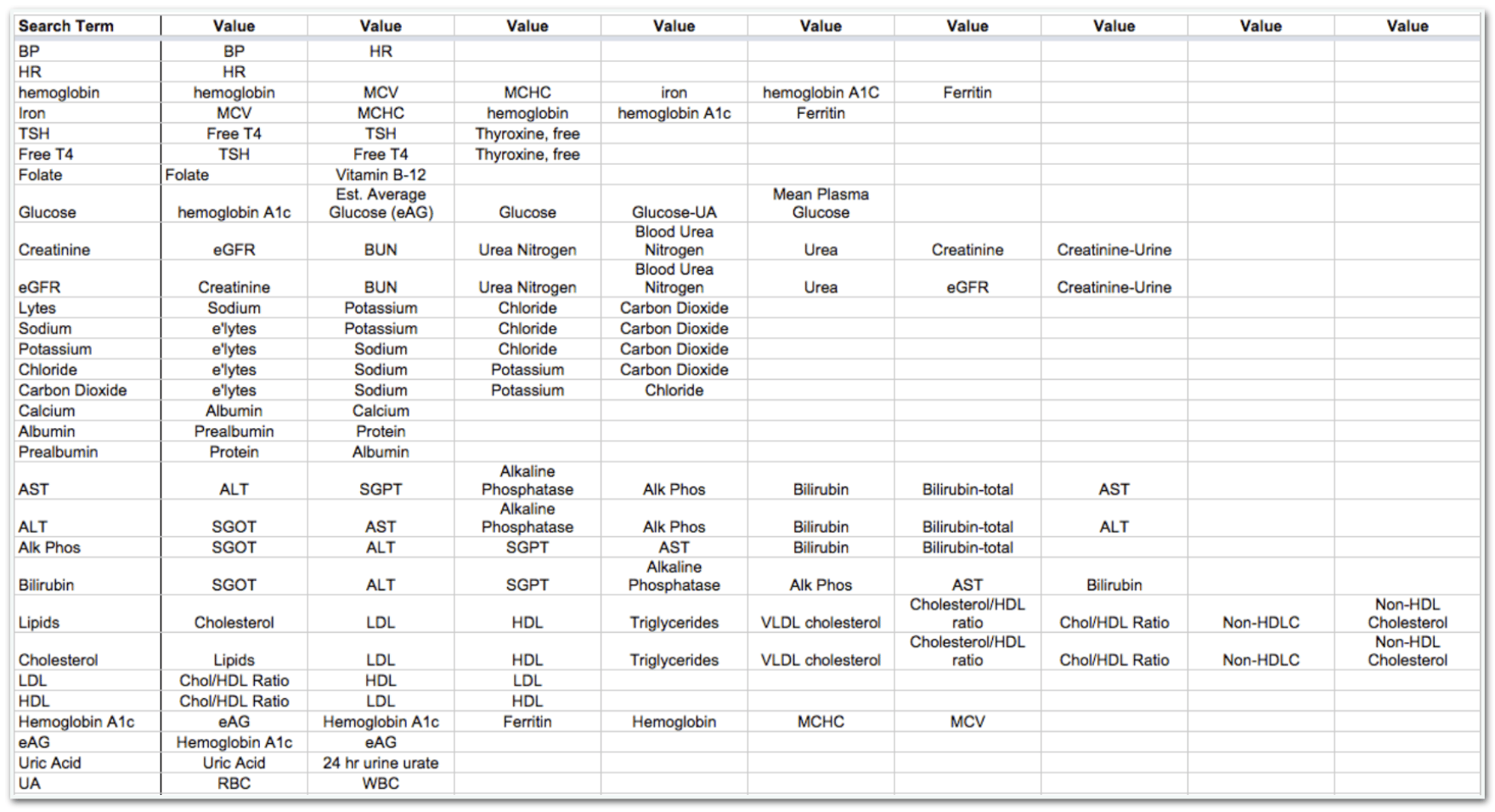
 To see tables and visualizations related to electronic lab results, manually entered lab values or lab results recorded using the Point-of-Care Labs feature, type in related search terms.
- Lab values in blue = within normal reference range
- Lab values in red = outside of normal reference range
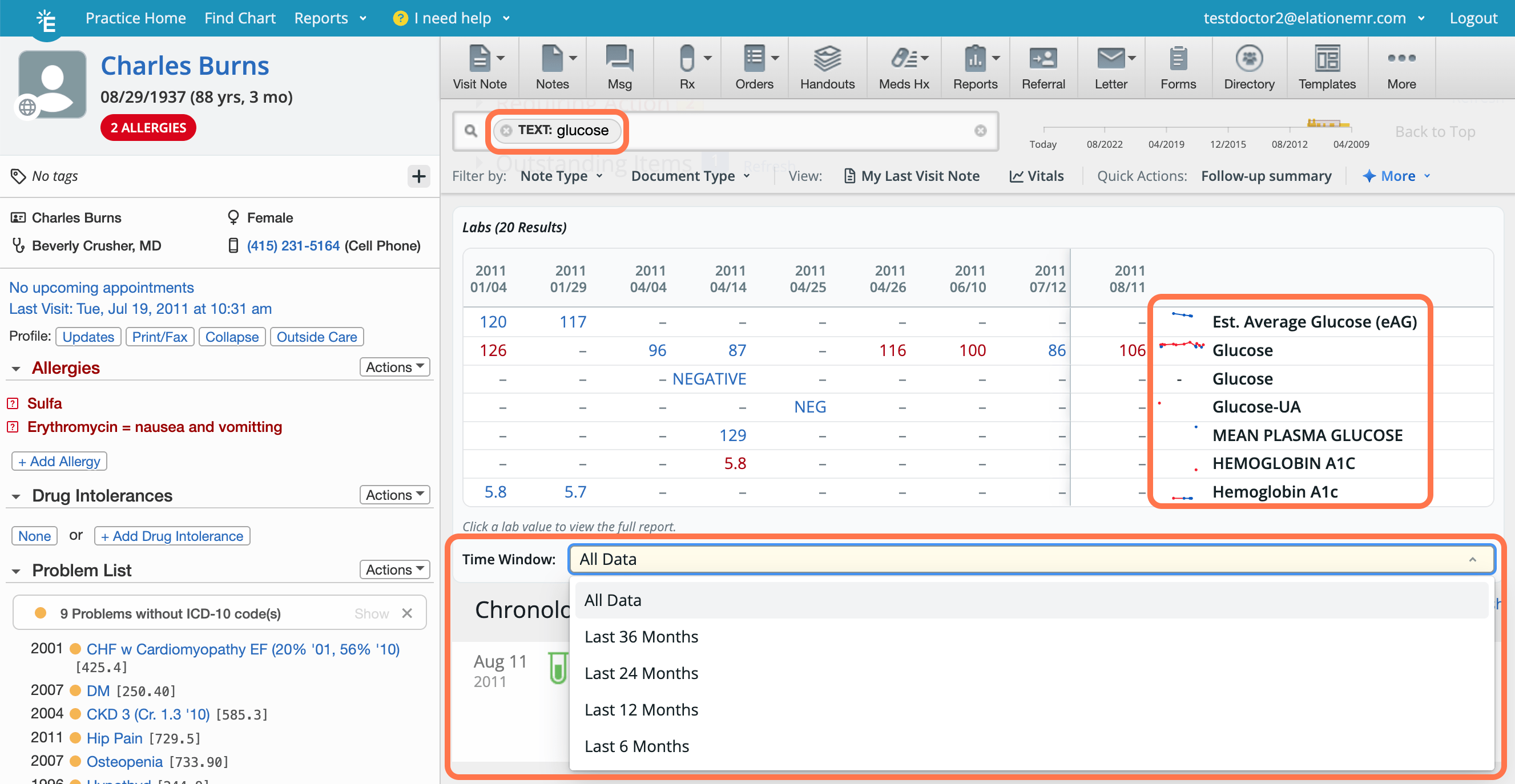 Reference the table below for search terms you can use and the results they will yield:
Glossary
Example Elation AI searches
| Provide a checklist of care protocols to review with the patient today. |
|---|
| Summarize relevant lab trends, monitoring recommendations, and protocol-driven actions for today. |
| Summarize [insert chronic condition] management plan, including medications, labs, and monitoring protocols. |
Example Elation AI searches for Pediatrics
| Summarize key trends from the last 3 well-child visits: growth trajectory, developmental milestones achieved, outstanding screening gaps and parental concerns that were deferred or remain unresolved. |
|---|
| Show me what vaccines this patient is due for based on their age. Highlight any they are overdue for based on AAP guidelines. |
| Draft a parent-friendly handout about any medications prescribed, discussing expected course, worrisome signs or symptoms to contact me about and when to contact me. |
| Draft a parent-friendly after-visit summary of [insert diagnosis] , reading level 6th grade, emphasizing which red flags are reasons for returning to see me. |
Related Articles
