
Overview
What is Health Maintenance?
Health Maintenance serves as a central location for tracking and documenting current and outstanding health measures, such as exams and screenings. The following structured Health Maintenance are also tracked here:- Breast Cancer Screening
- Colorectal Cancer Screening
- Cervical Cancer Screening (MIPS)
- Diabetes Eye Exam (MIPS)
- Advanced Care Plan
Why should I use the Health Maintenance feature?
Health Maintenance can help you make sure your patients receive the right care at time. Stay on top of needed screenings and plan ahead for future visits. You can also use Health Maintenance to add historical or patient-reported data to the patient’s clinical record, to make sure you get credit for quality programs such as MIPS or CPC+.Workflow Instructions
Checking the status of Health Maintenance measures
In order for structured Health Maintenance items to appear in the Clinical Profile, the patient must be an active patient during the measurement period- in Elation, this means the patient must have a visit note dated within the current calendar year. 1 Verify the patient has a visit note for the current year - either a signed or unsigned visit note will count. 2A patient’s eligibility will be based on various data that is recorded structurally in the chart. This can include the patient’s age, Sex at birth, problems in the Problem List and existing documentation of health maintenance items.
- The Health Maintenance section of the Clinical Profile.
- If no record is present, or if the patient is due for a screening, the due date will appear in orange alongside the measure. Elation calculates due dates based on standard timelines for each item, calculated from the item’s last documented date, using the CMS CQM definitions for timelines.
- The Clinical Reminders section of the visit note draft.
- Clinical Reminders for unaddressed Health Maintenance items appear for both providers and staff when enabled.
- Providers configure their own reminder preferences under Settings > Preferences.
- Staff reminders—including those for nurses, medical assistants, and care coordinators—are controlled centrally under Settings > Clinical Care Measure Settings.
- For more details on how to enable or disable reminders by role, see the Clinical Reminders for Clinical Quality Measures article.
- Clinical Reminders for unaddressed Health Maintenance items appear for both providers and staff when enabled.
Addressing Health Maintenance items from the Clinical Profile
1 Go to the Health Maintenance section of the Clinical Profile and click on the name of the Health Maintenance item you wish to document. 2a
Select Add New Item, and then record relevant details including:
2a
Select Add New Item, and then record relevant details including: 
- Date of the event.
- Type of screening/exception/exclusion.
- Notes
- Referring provider

- Select the appropriate report from the Report Chooser.
Addressing Clinical Reminders from the visit note
If an item has already been met for the patient, based on records in the chart, there will be text indication in gray to the right of the measure to tell you when the measure has been satisfied. We search the entire patient chart for codes, such as HCPCS, LOINC, SNOMED, or ICD-10 that are recorded via lab results, bills, problem list diagnoses, and document tags on reports and/or visit notes.
Monitoring your Clinical Quality Measure performance
| 1 | Log into your Elation Account, and select Reports from the top of the Elation Practice Home page. |
|---|---|
| 2 | Select Clinical Quality Measures. 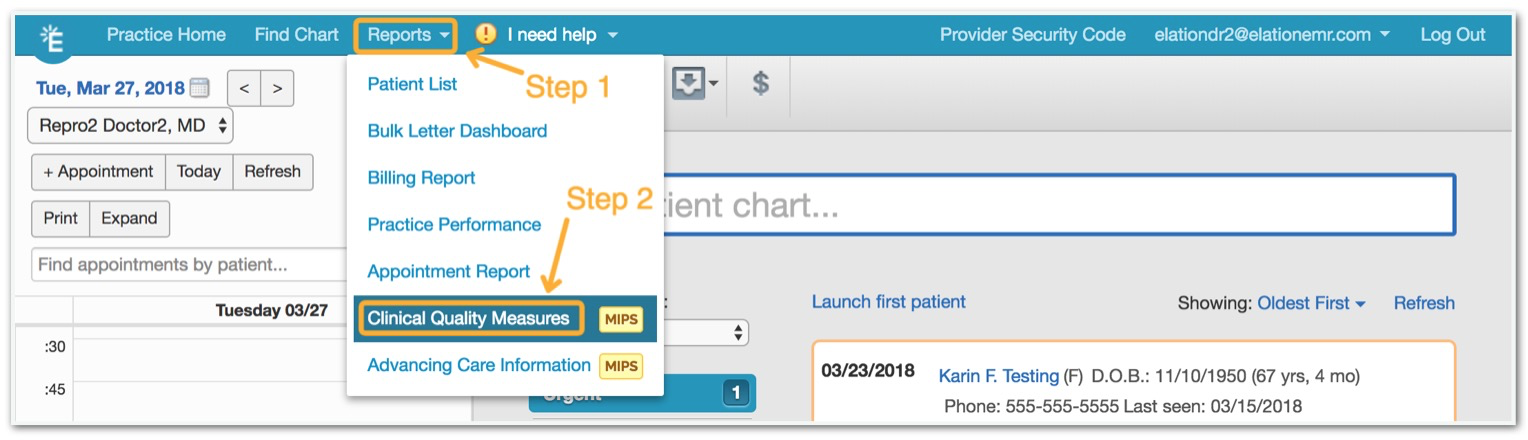 |
| 3 | Set the parameters on which you want to report. You can edit the provider, measure set, date ranges, and reporting year. Once ready, click Update Report. This will provide you with a performance score for each Health Maintenance measure, as seen below:  Click View List to see a list of patients that are currently associated with the measure Click View List to see a list of patients that are currently associated with the measure |
Frequently Asked Questions
I am not seeing any Health Maintenance items for my patient even though I should. Why?
In order for structured Health Maintenance items to appear in the Clinical Profile, all of the following criteria must be met:- The patient must be an active patient during the measurement period- in Elation, this means the patient must have a visit note dated within the current calendar year.
- The patient must qualify for the Health Maintenance item based on the rules set by each associated Clinical Quality Measure. These rules look at all of the following:
- Problems (with qualifying ICD-10 codes) listed in their Problem List.
- The patient’s age (as calculated by the Date of birth in their demographics).
- The patient’s Sex at birth.
Can I adjust the timeline for when certain Health Maintenance items appear?
Elation calculates due dates of Health Maintenance items based on standard timelines for each item, calculated from the item’s last documented date, using the CMS definitions for timelines. Please reference Elation’s Clinical Quality Measure Help Center Articles to learn more about the specific timelines for each Health Maintenance Item. These timelines cannot be adjusted.Can I add my own Health Maintenance items to this list?
The structured Health Maintenance items with due dates are built by Elation. Customers currently cannot add their own structured health maintenance items. You can always free-text your own Health Maintenance notes in the **add health maintenance note ** section.