
Recommended Reading
Read the Risk Assessment Introduction article to learn more about the importance of evaluating health risks for your patients.Turning on the Risk Assessment feature
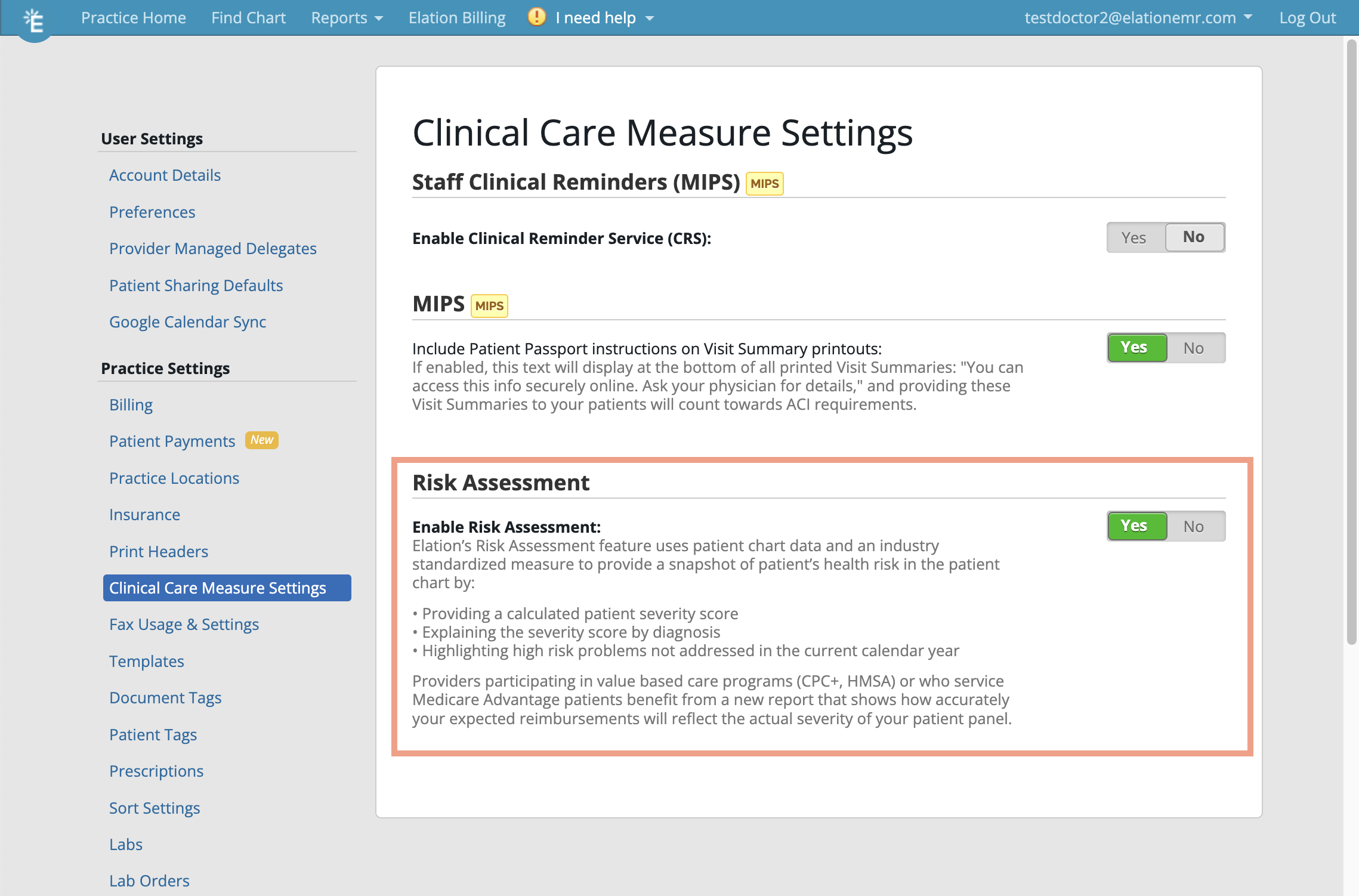
- Go to Settings >> Clinical Care Measures Settings
- At the bottom of the page set the Risk Assessment toggle to Yes to turn on the Risk Assessment feature.
Viewing the Risk Score in the patient’s Clinical Profile
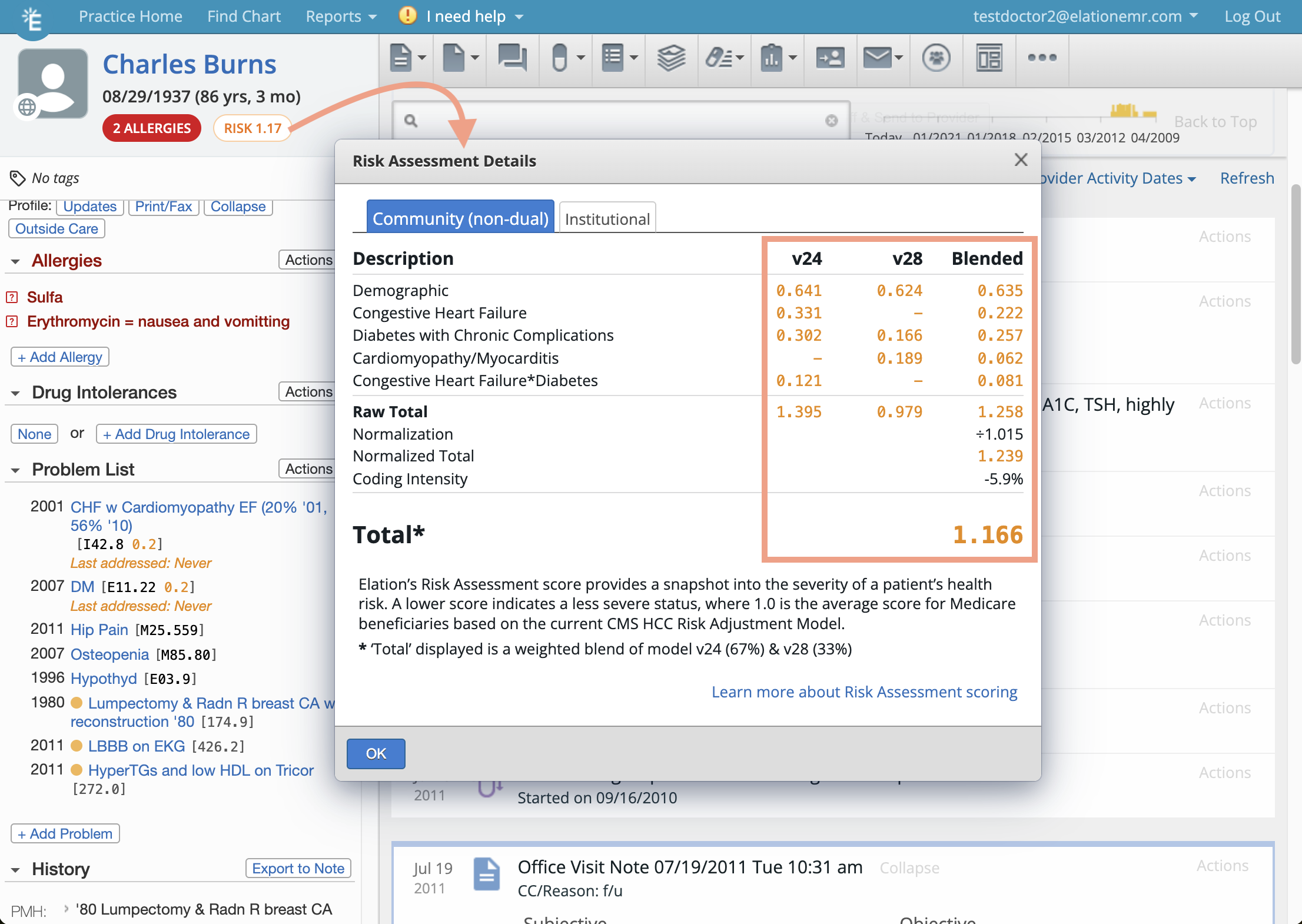
The aggregated Risk Score is at the top left corner of the patient’s chart under the patient’s Date of Birth. The average Medicare patient has a score of 1.0, so this estimated score in Elation will give you insight into how sick your patient is. The lowest possible risk score is 0 (lowest risk).The Risk Score you see at the top of the patient’s chart is the 2025 CMS HCC Risk Model calculation which is a blend of version 24 (33%) and version 28 (67%). To see a detailed breakdown of the Risk Score, click on the Risk Score.
Reviewing risk-adjusted conditions in the Problem List
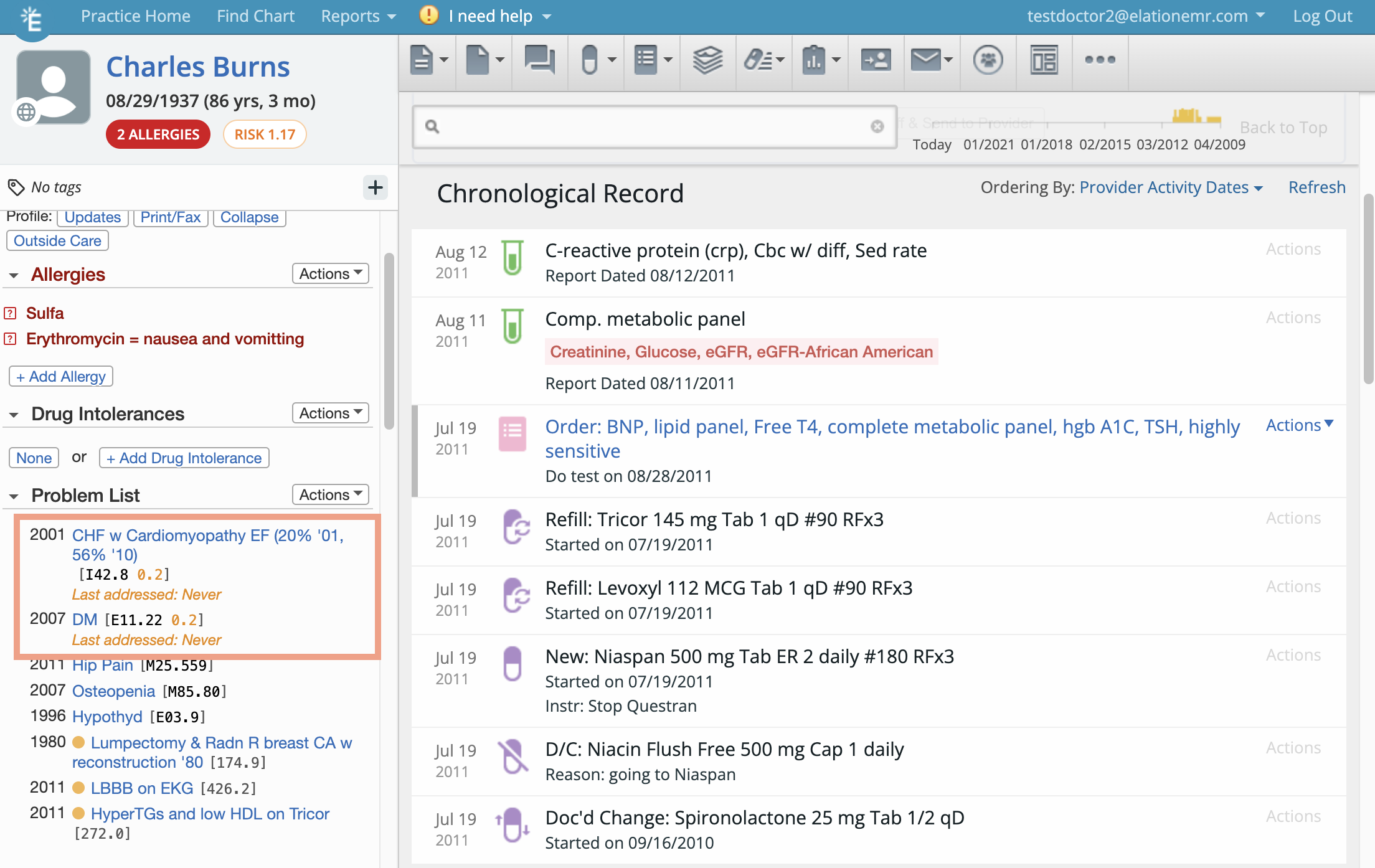
In the problem list, any problems associated with a chronic condition will show the relative weight (risk factor) of the condition and how it contributes to the overall risk score (in orange).The risk factor you see next to each diagnosis code in the Problem List is based on CMS Risk Model version 28.
Addressing risk-adjusted conditions during a patient encounter
To address a risk-adjusted condition, you must reference the ICD-10 code of the condition into the assessment and billing information sections of visit note and sign the visit note. This will update the Last Addressed… date for the condition and help you track the progress of your patient’s risk conditions. To complete this workflow- Go to condition you are addressing in the Problem List
- Click Actions >> Export to Note (A, Billing)
- Complete your visit note documentation and coding and then click Sign Visit Note.
Viewing the Risk Score in the billing details
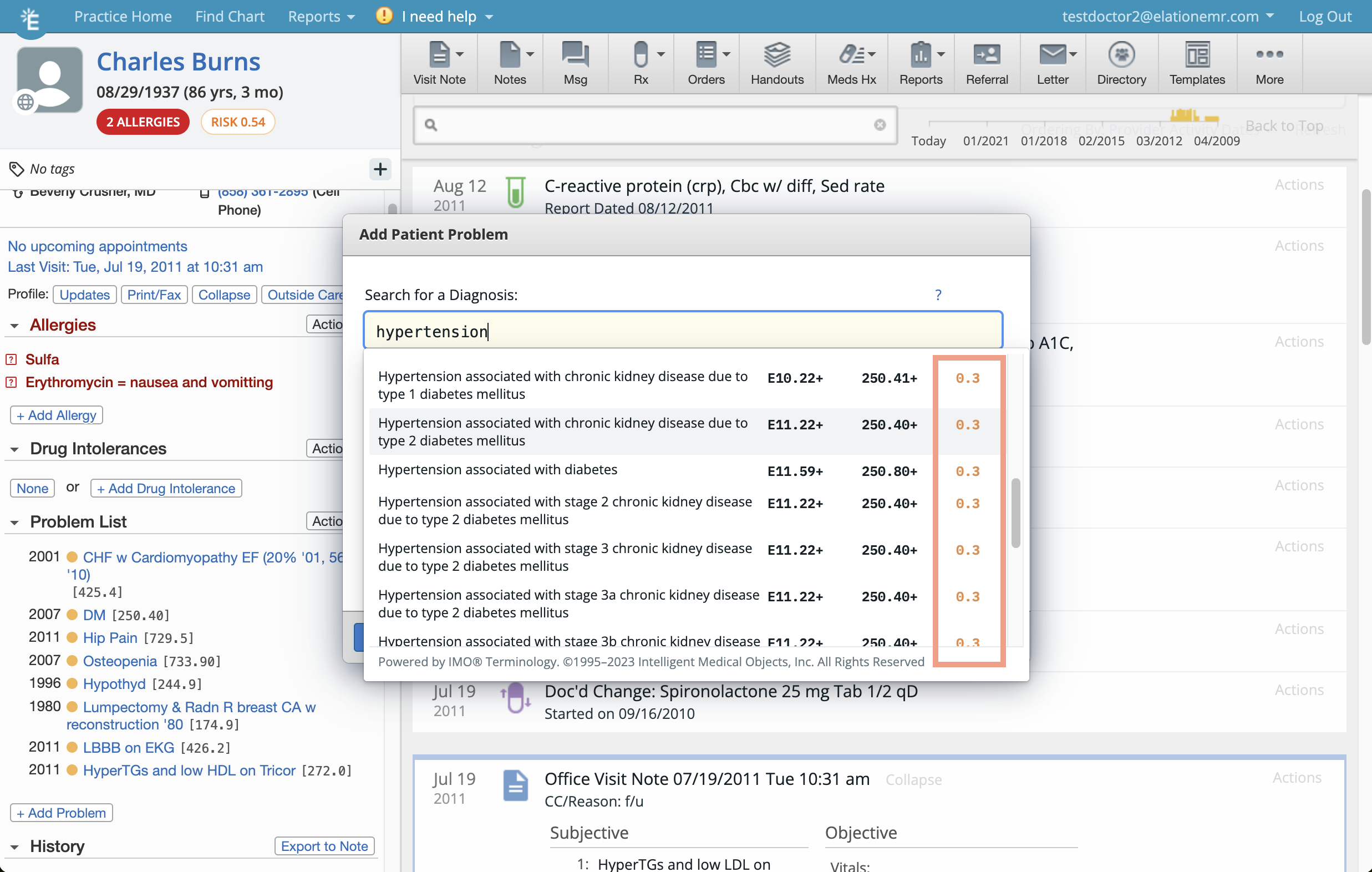
For extra visibility into risk-adjusted conditions, the risk score for risk-adjusted conditions will be visible in the billing information section of the visit note as well as in the Codes column of Billing Home.Reporting and filtering by Risk Score
Risk Scores can be used at the practice-wide level to help provide an overview of patient scores and identify patients over a range of risk scores. This can aid with identifying the highest risk patients at the practice, or be used to stratify patients into broad risk categories. To report on patients by Risk Score:- Select Reports >> Patient List Report in the blue navigation bar at the top of your Elation account
- Check off the HCC Risk Score filter and choose whether you want to look for scores above, below or between certain numbers
-
The Risk Score you will search for is the blended score of the 2025 CMS Risk Model version 24 (33%) and Risk Model version 28 (67%).
- Click Generate List once you are ready to see a list of applicable patients
- The resulting report will include all relevant patients, and will have a column that displays their risk score. Any of the columns, including risk score, can be sorted by ascending or descending by clicking on the name of the column at the top of the list.
-
The Risk Score you will search for is the blended score of the 2025 CMS Risk Model version 24 (33%) and Risk Model version 28 (67%). To see the Risk Score details, open the patient’s chart and click on the Risk Score.
Related Articles
- Risk Assessment Introduction- Risk Assessment Factors (RAF) and Hierarchical Condition Categories (HCC)
- Problem List Guide
- Visit Note Documentation Guide- Using Clinical Profile documentation to facilitate charting
- Patient Demographics Guide
- Billing Guide- Creating a Super Bill and coding for your visit