
Overview
What is user account management?
User account management in Elation allows practice administrators to control who has access to the EHR system. From the Manage Accounts settings page, Admin Level Users can invite new providers and staff, disable accounts when team members leave, re-enable or unlock accounts when needed, and manage administrative privileges.Why is user account management important?
Proper user account management ensures:- Security – Only authorized personnel can access patient data
- Compliance – Account access is properly documented and auditable
- Efficiency – New team members can be onboarded quickly with the right permissions
- Cost control – Provider licenses are assigned appropriately based on role and usage
Who controls user access?
PRACTICE ADMINS ONLY Practice admins manage invites, deactivation, reactivation, and login unlocks; Elation Support only steps in when no active admin can perform these actions.
- Invite new providers and staff
- Disable accounts when someone leaves or no longer needs access
- Re-enable accounts when someone returns
- Unlock accounts after failed login attempts
- Reset MFA for users who lose access to their authentication device(s)
- No active Admin Level User exists in the practice
- An Admin is locked out and no other Admin can help
- Technical issues prevent admins from performing these actions
Account lifecycle
User accounts in Elation follow a simple lifecycle:Before disabling a provider account, review Best practices for disabling accounts to ensure Requiring Action items, post-dated messages, appointments, and EPCS permissions are handled appropriately.
User account types
Elation offers you the ability to manage the user accounts in your practice straight from your Elation Settings. You can:- Invite new physician/provider and staff users.
- Disable physician/provider and staff accounts.
- View the number of licenses assigned to Provider Level Users.
- Change users’ Administrator privileges.
- Edit account details (name, email address, etc.) of existing physician and staff users.
User descriptions
The table below summarizes the differ types of user accounts offered by Elation.Workflow Instructions
Accessing the Manage Accounts page
The Manage Accounts page in Elation Settings is under the Admin Users Only section. Provider Level and Staff Level accounts are kept separate on the page, and within each section, you can see separate lists of active and inactive users. When you disable a provider or staff account, the name of the user will move from the Active Users list to the Inactive Users list.ADMIN USERS ONLY To view the Manage Accounts settings page, you must have administrator (Admin) level privileges. If you do not see Manage Accounts in your Settings page, then you are not an Admin. To become an Admin, you must ask an existing Admin level user in your practice (most likely a primary provider level account holder) to grant you privileges via the Manage Accounts settings page highlighted below.
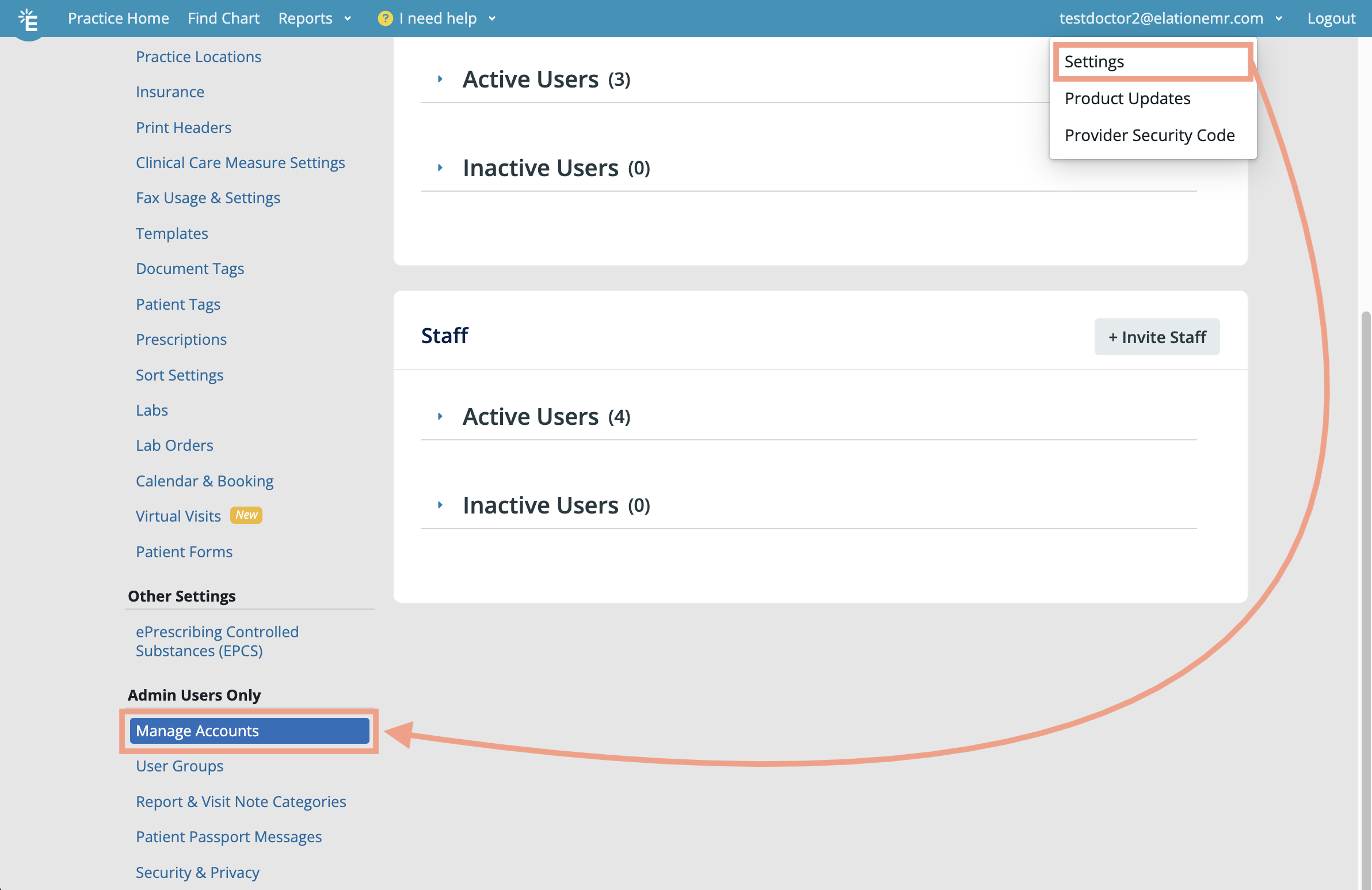
Managing user accounts in my practice
Here is a breakdown of the different options on the Manage Accounts settings page: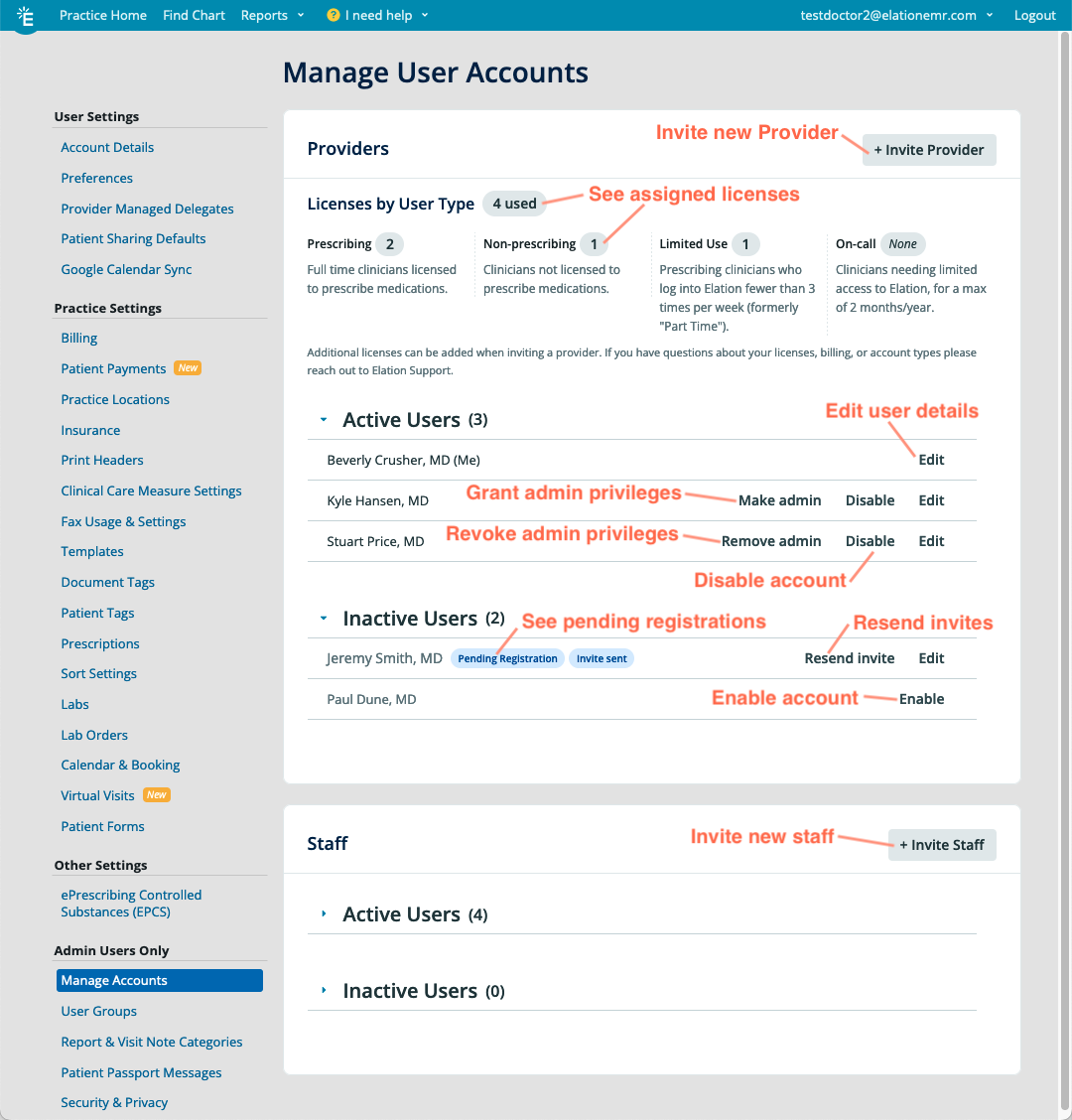
Inviting new physicians or providers
Provider Level User permissions
For more details on functionality that’s available to different Provider Level Users, please reference this article.For information on pricing for Provider Level Accounts, please reach out to Elation using I need help -> Contact Elation Support and then select Something else and a member of the Elation Team will reach out to assist you.
Inviting new Provider Level Users
You are not required to complete the non-required fields to send the invitation to the new Provider, but these steps must be completed before the new Provider’s account can be fully activated. The provider will be prompted to upload necessary documents and forms to complete their account authentication as well as complete identity proofing. Read more about this process in the Provider Account Authentication Guide.Before you can send the invitation, you must agree and authorize Elation to charge an additional monthly subscription fee for the new Provider account, as outlined in your service agreement.
Exception: Don’t reuse an existing Provider Level User’s account for a different provider. Editing their profile with the new provider’s information doesn’t change who the account belongs to — it’s permanently tied to the identity that completed Account Authentication. Doing so can leave the account improperly provisioned, associating the new provider with the wrong provider identification — such as an SPI number — for prescribing and other regulated activity. If a new provider joins your practice, invite them to set up their own account instead. If your practice has already updated an existing account with a different provider’s details, contact Elation Support to get the account properly re-provisioned.
Noting prescriptive authority for providers with supervising physicians
After this is set up, printed prescriptions and e-prescriptions written by the Provider with Prescriptive Authority will contain two sets of identifiers: those of the prescribing Provider and those of his or her supervisor.
- The prescribing Provider and supervisor’s information will also be indicated on the medication order record that appears in the patient’s chart in Elation.
Viewing a summary of the assigned Provider licenses by User Type
You will see a summary of the assigned Provider licenses by User Type at the top of the Providers section of the Manage Accounts Settings page. The summary will list:- The total number of licenses used
- The number of licenses assigned for each Provider User Type:
- Prescribing (Regular)
- Non-prescribing
- Limited Use
- On-call
‘Limited Use’ will not appear in the summary if no Provider Level Users have been assigned the Limited Use User Type.Only enabled and pending registration Provider Level Users are counted in the summary. Disabled Provider Level Users are not counted in the summary.After updating a Provider Level User’s User Type, refresh the Manage Accounts Settings page to see the updated summary.
Inviting new staff members
Staff Level User accounts can be added for free.
Viewing invite status
Resending invites to providers and staff
Receiving an Elation account invitation
The Provider or staff member that you invited will receive an email from Elation with instructions explaining how to activate their new account and sign in to Elation. The invitation will come from support@elationemr.com and will have the subject Welcome to Elation! Quickly complete your account setup. Users will click on the Get Started button to complete registration and access their new Elation account.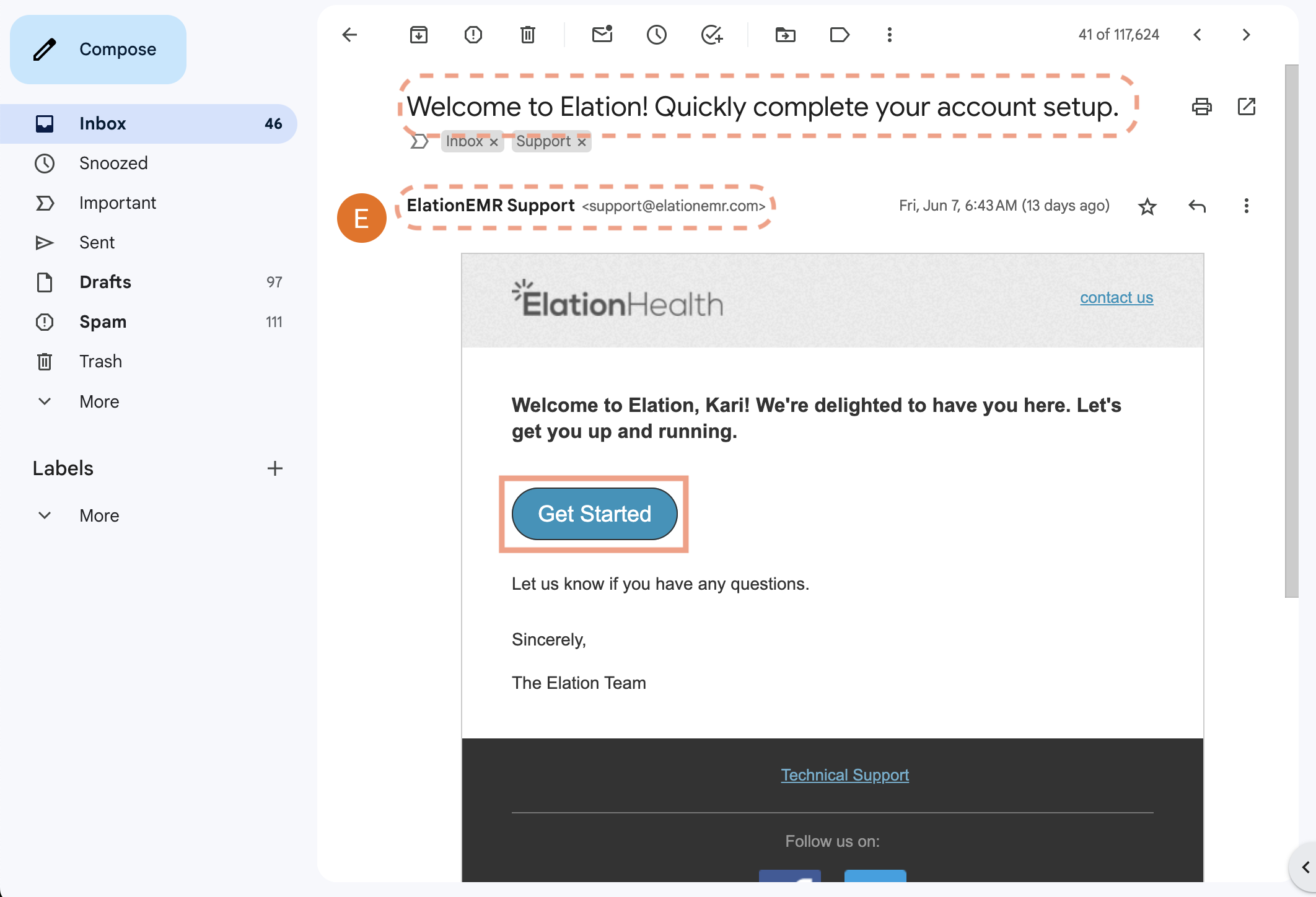
Disabling user accounts
Disabled accounts will appear in the Inactive Users section under Providers or Staff (depending on who the account belonged to). When an account is disabled, that user will not be able to log in to Elation.Read through User Accounts Guide- Best practices for disabling accounts for detailed information on actions you should take to ensure a smooth transition prior to disabling any user’s account in Elation.
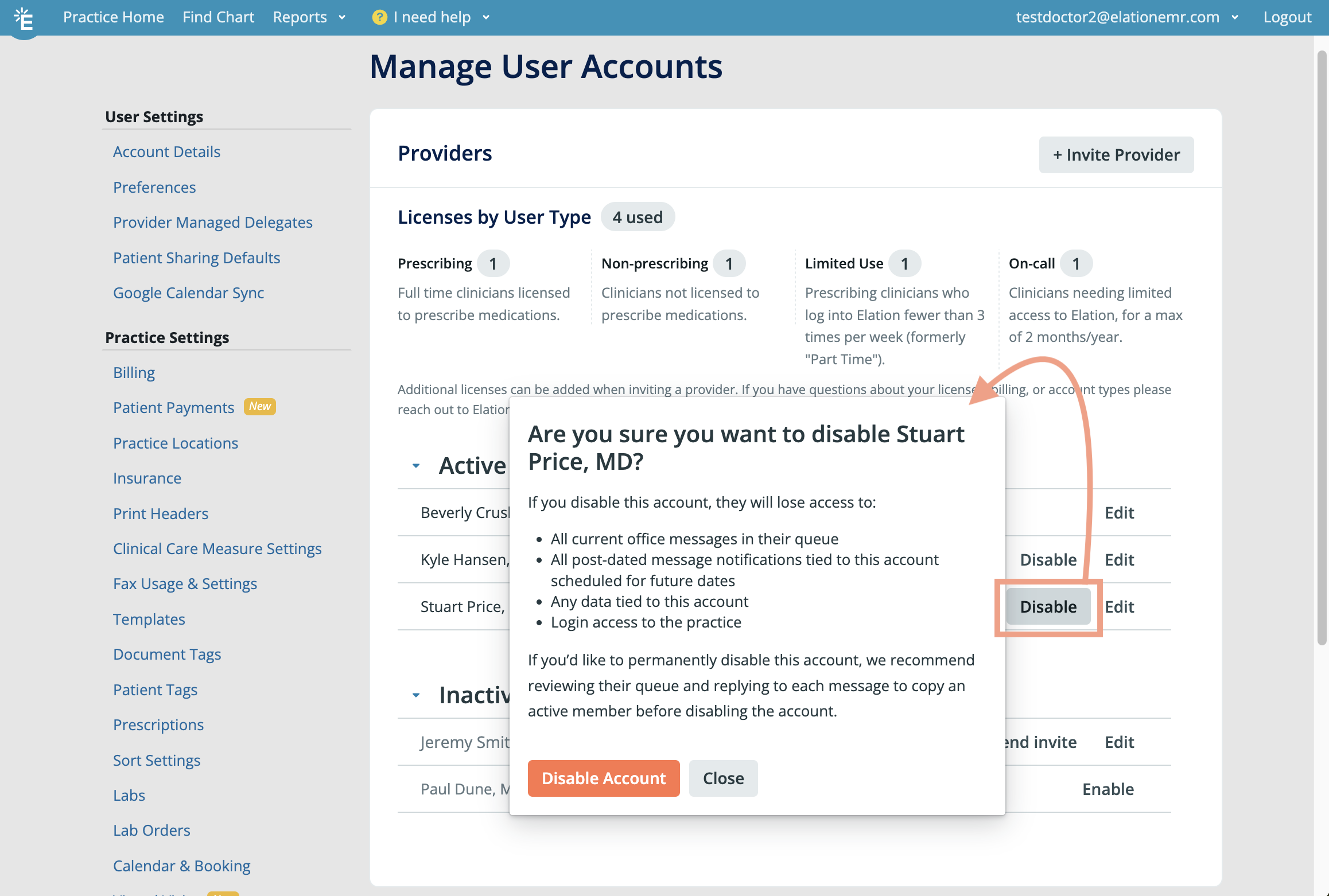
Disabling an On Call Provider account when coverage ends
On Call Provider accounts are meant for limited, time-bound coverage. When the coverage period ends, disable the account — leaving it enabled is not automatic clean-up, and the account keeps consuming your On Call allowance and provider license slot until an admin disables it.When to disable
Disable the On Call Provider account as soon as the temporary coverage period ends. Do not leave it enabled “in case” the same provider is needed again later — invite them again the next time coverage is needed.Why disabling matters
- Provider license summary — Enabled On Call Provider accounts are counted in the provider license summary at the top of the Manage Accounts page, alongside your other Provider Level Users. Disabled Provider Level Users are not counted. See Viewing a summary of the assigned Provider licenses by User Type.
- Annual cap — Under the Elation Payment Policy, the On Call Provider user type is allowed for up to two calendar months per year, measured by login activity. An account that stays enabled past the coverage period continues to count against that annual cap.
- Billing implications — Billing and usage rules for On Call Provider accounts are defined in the Elation Payment Policy. If your practice has questions about how a specific account affects your invoice, use I need help → Contact Elation Support.
How to disable
Follow the standard disable flow described in Disabling user accounts, and review the pre-disable checklist in Best practices for disabling accounts so any items in the departing On Call provider’s queue, calendar, and EPCS access are handled first.Unlocking User Accounts
Each Elation EHR Account has a fail-safe in case anyone maliciously tries to access the Elation account; an Elation account will be locked for 1 hour if there were 10 or more unsuccessful login attempts in a row. To unlock a user account, Admin Level Users can:Viewing billing and subscription information
If your practice has a Recurly billing account on file, Admin Level Users can access it directly from the Manage Accounts settings page.1
Open Manage Accounts
Go to Settings → Manage Accounts.
2
Open your Recurly billing account
Click the link to your Recurly billing account.
3
Manage your billing details
From your Recurly account, you can view invoices, update your payment method, and update billing contacts.
This link only appears when a Recurly account is on file for your practice. If you don’t see it, use I need help → Contact Elation Support to update your payment method or billing details instead.
Premium EHR features
The features listed are part of Elation’s Premium EHR offering. If you are already a Premium EHR user and you are interested in using any of these features, click I need help -> Contact Elation Support to notify Elation and a member of the Elation Team will activate the feature for you.If you are interested in upgrading to Premium EHR to use any of these features, click I need help -> Contact Elation Support and a member of the Elation team will assist you.
- Blocking Chart Access- prevent specific users from accessing any patient charts.
- Viewing Permission Audit Logs- track and audit changes to each user’s
- account access
- ‘Admin’ permissions
Block Chart Access
Premium EHR Users can prevent specific users from accessing any patient charts. Click here to learn more about this feature.Viewing Permission Audit Logs
Premium EHR Users who are Admin Level Users can view a log of each user’s account access and Admin permission changes. To view a user’s permission logs: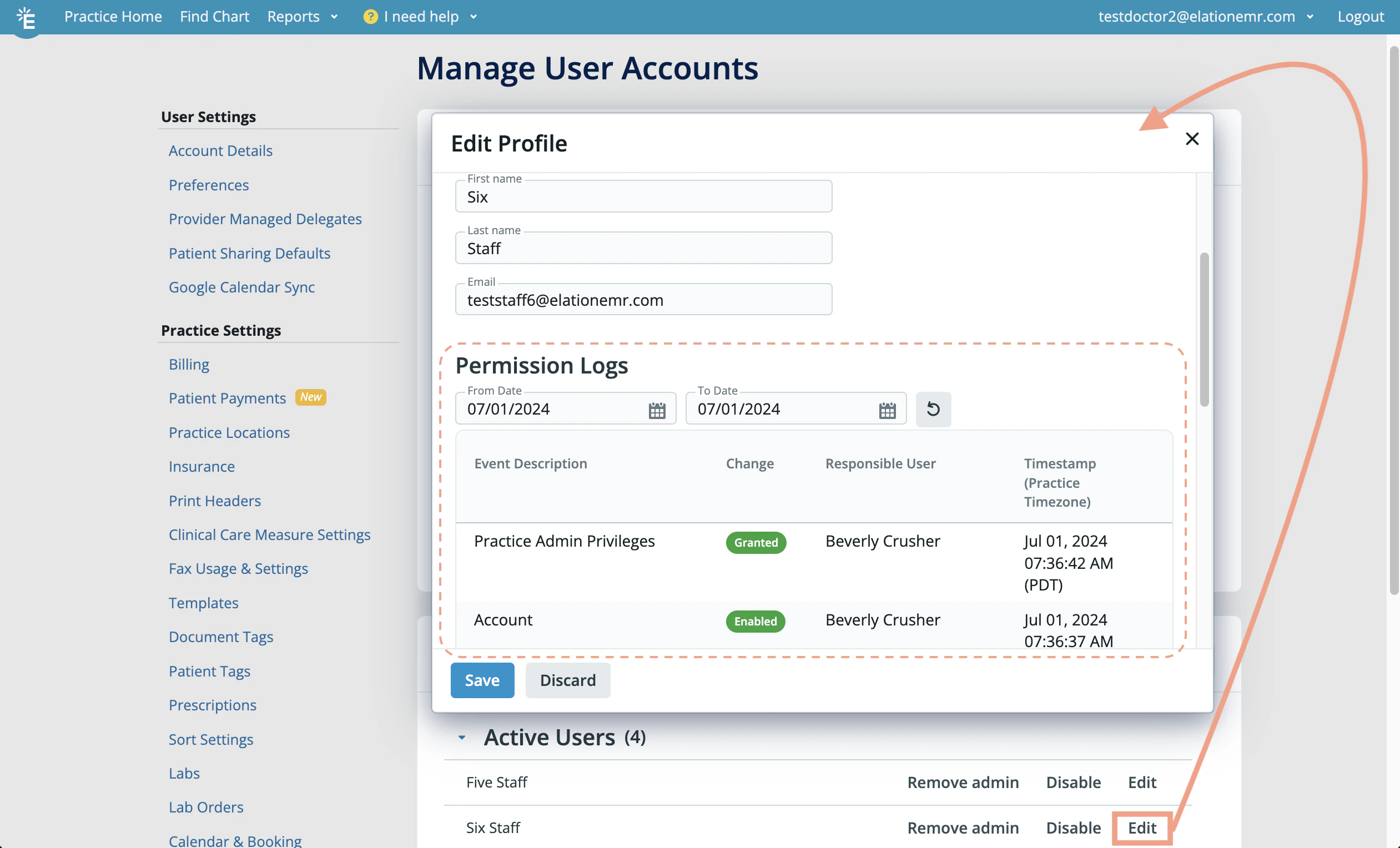
Downloading a user’s login history
Admin Level Users can download a CSV of a user’s login history for the last 90 days directly from the Edit Profile dialog in Manage Accounts. This is available for both Provider Level and Staff Level accounts.The Download Login History (CSV) — Last 90 Days button is only shown for active users. It does not appear on the Edit Pending Invite dialog for pending invites, because pending users have no login history.
1
Open Manage Accounts
Go to Settings → Manage Accounts and locate the active provider or staff account.
2
Open Edit Profile
Click Edit next to the user’s name to open the Edit Profile dialog.
3
Download the CSV
Click Download Login History (CSV) — Last 90 Days. The CSV downloads immediately and contains the last 90 days of login history for that user.
What’s in the report
The CSV contains one row per session and includes the following columns:
Next StepReview the accounts listed under your Manage Accounts settings page and make sure the correct administrative privileges are assigned!
Viewing past invoices and payment method
Admin Level Users can view past invoices and manage the payment method for your practice’s Elation subscription directly from the Manage Accounts page, via a direct link to your practice’s Recurly billing portal.Frequently Asked Questions
Can a new team member take over an existing staff account instead of getting their own invite?
No. Don’t try to reuse or hand off an existing Staff Level account to a different person, even when the account was originally created for someone who no longer works at the practice. Changing the password or account details doesn’t change who the account is tied to for audit and activity-log purposes. Instead:1
Disable the former team member's account
Ask a practice admin to disable the account from Settings → Manage Accounts. See Best practices for disabling accounts for the full checklist to complete first.
2
Invite the new team member
Invite them as a new Staff Level User via Invite Staff, using an email address they control.
The invite fails with “email already in use,” but that email isn’t in Active Users, Inactive Users, or pending invitations
An email address can only be tied to one Elation account across the entire platform, not just within your practice. If Manage Accounts rejects an invite with an “email already in use” error but the email doesn’t match anyone in your practice’s Active Users, Inactive Users, or pending invitations, the email is already associated with a different Elation account — for example, a provider or staff account at another practice, or a Patient Passport account. To resolve this:Can I permanently remove a pending or disabled user from Manage Accounts?
Elation does not currently support permanently deleting a user account record from Manage Accounts. A pending invite that’s never activated, or an account you’ve disabled, stays listed under Inactive Users rather than being removed from the page.Related Articles
- Provider Account Authentication Guide
- Provider Account Authentication Guide- Identity Proofing via Stripe
- User Accounts Guide- Provider Level Account vs. Staff Level Account Privileges
- User Accounts Guide- Best practices for disabling accounts
- User Accounts Guide- Chart access permission control options (Premium)
- Elation Payment Policy