
How does chart duplication occur?
Chart duplication can occur for a few reasons:- a duplicate chart was accidentally created by a member of your practice
- a duplicate chart was created due to an integration
- a duplicate chart was created from a Letter from another Elation EHR provider via the Letters & Referrals feature
Why should I merge duplicate charts?
The patient’s chart is the source of truth for patient information. Having multiple patient charts means the patient’s information is dispersed amongst more than one source of data which may affect your ability to make accurate healthcare recommendations. Duplicate charts should always be merged so that each patient only has one chart in your EHR.Identifying duplicate charts
Most duplicate charts will have a pink banner at the top of the patient’s chart to signify the chart might be a duplicate. Any chart that is created by an integration or Elation feature will automatically have this pink banner.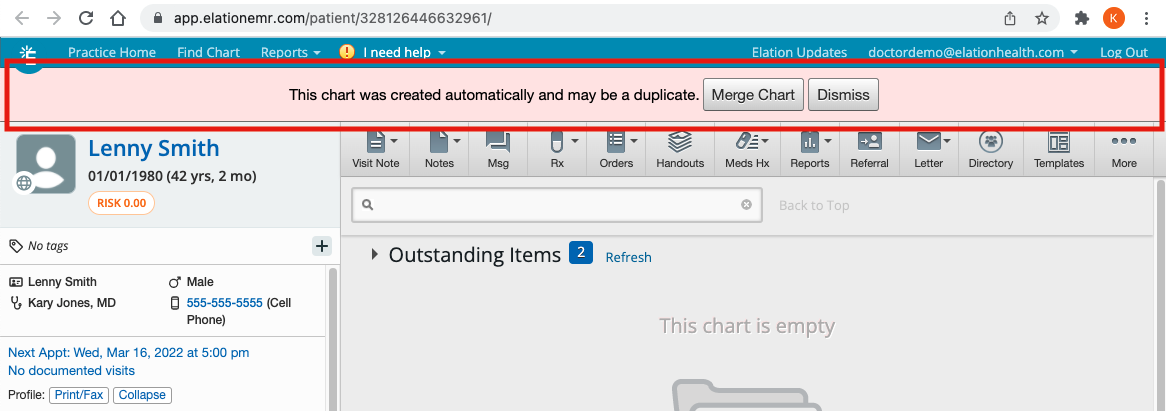
- Click Merge Chart to merge the duplicate version of the chart into the original chart
- Click Dismiss if the chart is not a duplicate chart to dismiss the banner.
Before you merge
Before you click Merge Chart, confirm the following:- The two charts belong to the same patient. Check that the patient’s name, date of birth, and sex match on both charts.
- You’ve decided which chart to keep as the Winning Chart and which to remove as the Losing Chart.
- Any demographics information you want to keep is already entered in the Winning Chart. Demographic information, insurance policies, and credit cards on file in the Losing Chart are deleted during the merge and do not transfer to the Winning Chart. Re-enter any insurance information on the Winning Chart after the merge.
- If the duplicate chart was created by an integration, keep the chart connected to that integration as the Winning Chart. Check the integration’s guide for how to identify the connected chart.
Merging duplicate charts
To merge duplicate patient charts, take the following steps:- Go to the duplicate patient chart you would like removed (we will call this the Losing Chart), click on the patient’s name to access the patient’s demographics and click on the Merge Chart button under Notes & Chart Management(OR click the Merge Chart button in the pink banner)

- Enter in the name of the original patient chart you want the duplicate chart to merge into (we will call this the Winning Chart), and click Merge Chart.

- Review the confirmation screen, which shows the data in both charts, then click Yes, merge charts to complete the merge, or No to cancel and make changes first.
Frequently Asked Questions (FAQ)
Does insurance information transfer when I merge charts?
No. Insurance policies on file in the Losing Chart are not migrated to the Winning Chart during a merge. After the merge is complete, manually re-add the patient’s insurance information on the Winning Chart so it is available for future visits and claims.I see a duplicate chart but I do not see the pink banner. What happened?
Any chart that is created by an integration or Elation feature will automatically have a pink banner. If you do not see a pink banner at the top of the duplicate chart, it means:- someone in your practice dismissed the pink banner
- the duplicate chart was not created by an integration or Elation feature
I do not see the “Merge Chart” banner. How do I merge charts?
Follow the merge instructions t o merge the duplicate charts from the patient demographics window.What happens to the Losing Chart’s Patient Passport account after a merge?
Whether you need to resend an invitation depends on whether the patient already has Passport access to the Winning Chart:- They already have Passport access to the Winning Chart: Nothing to do. That access is unaffected by the merge and now covers the merged-in data too.
- They don’t have Passport access to the Winning Chart (their only Passport access was through the Losing Chart, or they had a pending invitation for it): The merge ends that access and cancels the pending invitation. Send them a new Passport invitation from the Winning Chart to restore portal access.
What happens if I choose the wrong chart as the Winning Chart?
If you keep the wrong chart from the same patient, undo the merge using the same options described below. Demographic information and credit cards on file in the Losing Chart are deleted during the merge, so review the confirmation screen and confirm the correct Winning Chart before you complete the merge — see Before you merge.I accidentally merged two charts that belong to two different patients. What should I do?
If your practice has the Restore a deleted chart option, you can undo the merge yourself:- Click I need help → Restore a deleted chart
- Find the patient in the list and click Undo Merge
- Go to Reports > User Activity Log
- Filter by the patient or by the “Merge” action to find the merge event
- Click the Restore button next to the merge action to unmerge the charts
The User Activity Log only contains data from January 1, 2023 to present. If the merge occurred before this date, or if extensive changes have been made to the Winning Chart since the merge, contact Elation Support instead of using either self-service option above.