How does Elation help me report on Clinical Quality Measures for MIPS?
Elation has built-in workflows and reporting for 13 Clinical Quality Measures, all of which can be found in the Clinical Quality Measures section of the practice Reports for MIPS customers. You can also learn more measures captured in the EHR in the Help Center.When would I use a registry to report on Clinical Quality Measures?
If your practice would like to report on Clinical Quality Measures not captured in Elation, you can use a Qualified Registry to do so. The steps listed in this article will describe how you can build your own workflows in Elation to capture reporting requirements for the measures you wish to report on.Choosing a registry to report with
Customers usually research and choose a Qualified Registry (ex. MDInteractive) the want to work with. Different registries offer different options for capturing performance data and have different pricing for using their application. Elation recommends choosing a registry that can consume data in spreadsheet form. Elation currently does not partner with any specific Qualified Registry for additional CQM reporting.Setting up Elation to track performance
Please complete all 3 setup requirements before you proceed with recording measure requirements at the point-of-care:- Pick 6 measures to report on
- Create Document Tags in Elation to track criteria
- Create Visit Note Templates in Elation to easily record performance
Step 1: Pick 6 measures to report on
After you have signed up with a Qualified Registry of your choice, review its quality measure resources to choose 6 measures you will be reporting on throughout the year.-
You must pick at least one outcome measure. If no outcome measures are applicable to your patient population, then you must select at least one high-priority measure.
- Having a visit in the measurement year
- Being a certain age or gender
- Having a particular diagnosis
- the denominator is any Female patient between the ages 16 and 24 during the performance year
- the numerator criteria and code for meeting performance documentation is a ''minimum of one chlamydia test complete’ (code= 87491)
Step 2a: Create Document Tags in Elation for each Numerator criteria
In Elation, Document Tags will be used to add your patient to the numerator - in other words Document Tags are used to designate that a patient has met performance and close the measure. For each of your selected measures, create a Document Tag for every action that “meets performance” for the measure. For example for the measure “CMS 153: Chlamydia Screening for Sexually Active Women Aged 16-24”, the numerator criteria and code for meeting performance is ‘minimum of one chlamydia test completed’ (code= 87491). In Elation, we’ll create a document tag that represents this action.- Click on your email address in the upper-righthand corner, then click Settings.
- Click on Document Tags on the left side menu.
- Click Add Document Tag:
- We recommend typing the label in the following format= “CQM [Measure Code]: [Measure Action Description] [Measurement Year]”.
- For example your Tag for CQM 153 will be called CQM 153: Chlamydia Test Completed 2022.
- In the Code field, enter the corresponding code 87491. Then select CPT® for the Code Type.
- You can leave the description field blank.
- Click Save to save your new numerator Document Tag for CMS 153
Step 2b: Create Document Tags in Elation for Denominator criteria (and Denominator Exclusions if necessary)
If you have selected a measure that considers more than age or diagnosis to include the patient in the denominator (ex. requires that a certain procedure is performed(biopsy) or event occurred (referral)), you will need to create a Document Tag to track each of these events. If your measure also has Denominator Exclusions, create a Document Tag to track these exclusions. Using the same steps as Part 2a, navigate to Settings >> Document Tags. When you’re creating the Document Tag, format the Label as CQM [Measure Code]: [Denominator Requirement] [Measurement Year] and add the corresponding code. For example, CMS 50 is a measure that also requires the patient to have a referral. You can create a Document Tag called CQM 50: Referral 2022 with code G9968 to use for CMS 50.Step 3: Create Visit Note Templates to record performance
For each Document Tag that you created in Step 2a and 2b, create a corresponding Visit Note Template. Setting up visit note templates will allow you to quickly scan the 6 measures that might apply to your patient and add the Document Tags to the patient’s visit note.- Open any patient chart.
- Click on the Templates button at the top of the chart, then Visit Note Templates.
- Click the + New Template button.
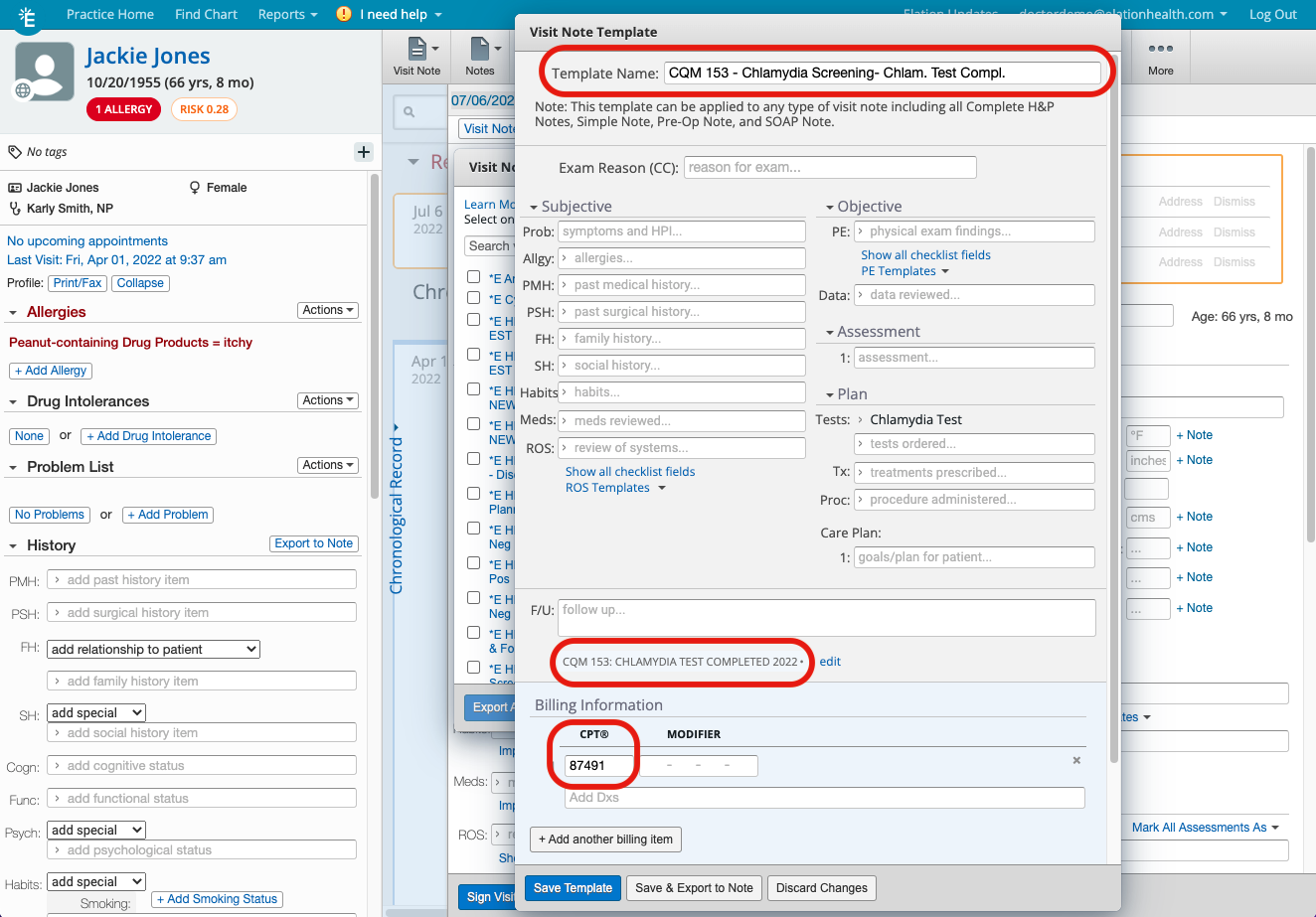
- Fill in the Template Name field. We recommend using the following naming convention:
- CQM [measure code number] - [Abbreviated Measure Name] - [Numerator/Denominator Criteria]
- Ex: CQM 153 - Chlamydia Screening- Chlam. Test Compl.
- Scroll to the bottom of the template to the + Tag link. Search and add the Document Tag that matches the numerator criteria for this visit note template.
- Ex. For the CMS 153 Visit Note Template you would add the Document Tag called CQM 153: Chlamydia Test Completed 2022 created in Step 2a.
- Lastly, click Save Template to save your Visit Note Template for that measure
- Proceed with steps 2 through 6 for all 6 measures you plan to report on
Recording measure requirements at the point-of-care
Assessing and documenting eligibility
Use the denominator criteria for your 6 measures to determine which measures apply to the patient. You can have staff/providers reference a measures cheat sheet that you can create on your own. This step can be done before or during a patient visit.Addressing a measure
- When you would like to address a measure(s) for the patient, click on the Visit Note Templates button in your visit note.
- Search for CQM in the search bar to pull up all of your Clinical Quality Measure templates.
- To close any measures for your patient, check the check-box for the corresponding numerator criteria that apply.
- Click Export All Selected to Note.
- This will import all of the necessary Document Tags and codes to your visit note.
Tracking performance
Searching for all eligible patients for a measure
Use the Patient List report to find patients who are in your measure’s denominator.- At the top of Elation in the blue bar, click Reports >> Patient List.
- In the filters on the left, apply the filter for Last Seen. Select On or After and input January 1 of the measurement year.
- If the measure calls for age, gender, or diagnosis criteria, check off these filters and fill in the necessary details.
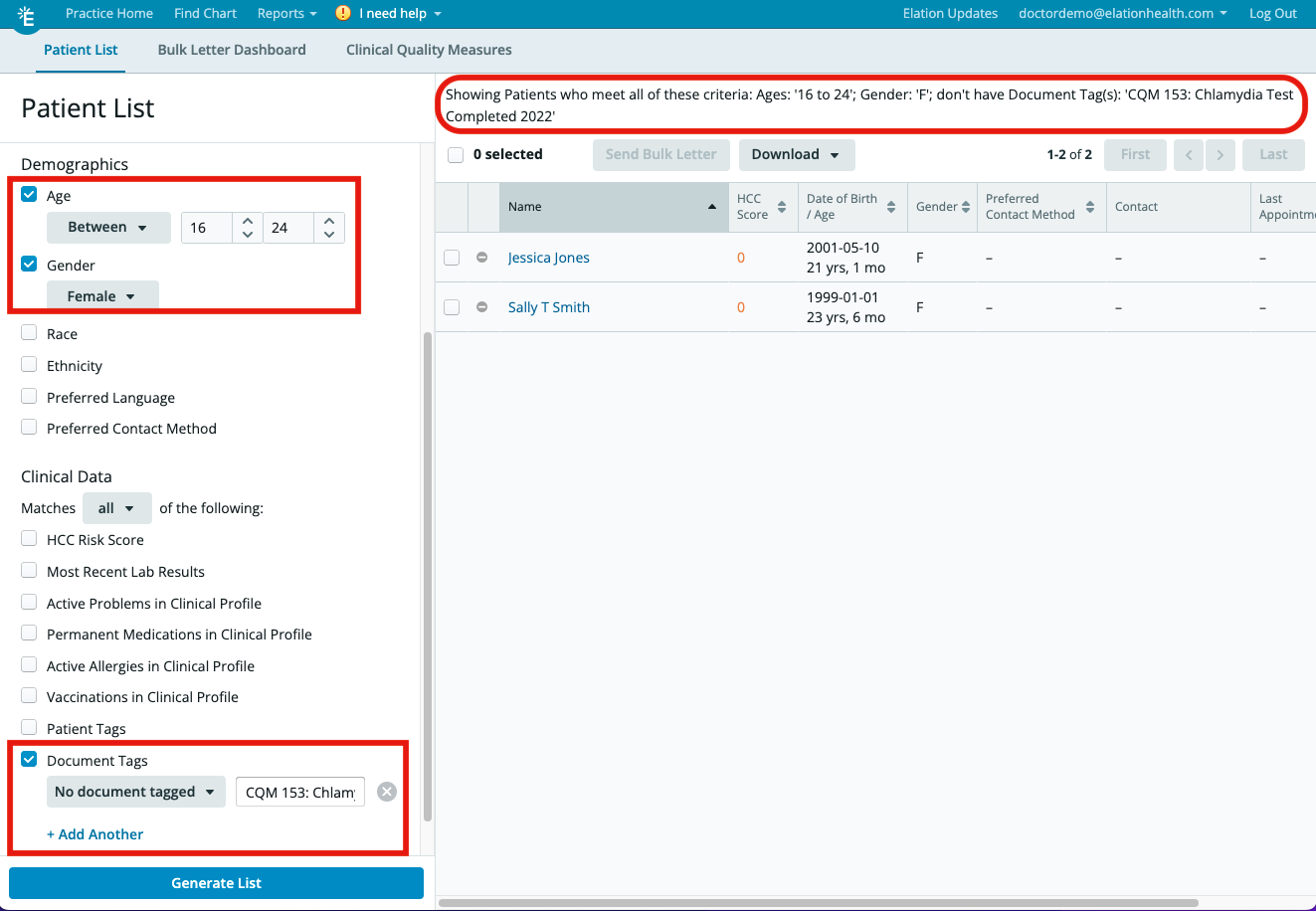
- Ex. For CMS 153 you would apply the Age filter to look for patients between 16 and 24 and the Gender filter to look for only Female patients.
- If the measure calls for additional qualifying events, add the Document Tag that you created in Step 2b as a filter.
- Click Generate List and the report will return all patients who meet these filter specifications. You have the option to click Download CSV if you would like to download the results in spreadsheet form.
- You and your staff can use this list to make sure each eligible patient has an appointment scheduled for the performance year.
Searching for eligible patients who are not meeting criteria
This report will help you identify who is eligible for a measure, but not yet meeting criteria to close the measure.- At the top of Elation in the blue bar, click Reports >> Patient List.
- In the filters on the left, apply the same filters as the report in the above section to search for all eligible patients for a measure.
- Check off Document Tags and change the dropdown to No Document Tagged. Search for the numerator criteria Document Tag that you created for the measure in Step 2a. If there are multiple numerator criteria, click + Add Another to add each additional criteria.
- Click Generate List The report will return all patients who are eligible for this measure, but have not met requirements to close it yet. You have the option to click Download CSV if you’d like to download the results in spreadsheet form.
- You and your staff can use this list to follow up with patients and take the necessary actions needed to close the measure.