MDX Post-Hospitalization Discharge Follow-up
MDX Hawai‘i is pleased to announce an incentive program for post-hospitalization discharge follow-up activities. As part of the MDX Hawai’i-Elation Health program, you are eligible to receive a$150incentive if your practice schedules and sees patients that are discharged from the hospital within 30 days of the discharge date and completes medication reconciliation during the visit. You will be notified through Elation Health when one of your MDX patients has been discharged from the hospital so that you can take action in a timely manner! Please note that, in order to receive credit for these actions, the CPT® code 1111F must be billed as a part of your followup visit.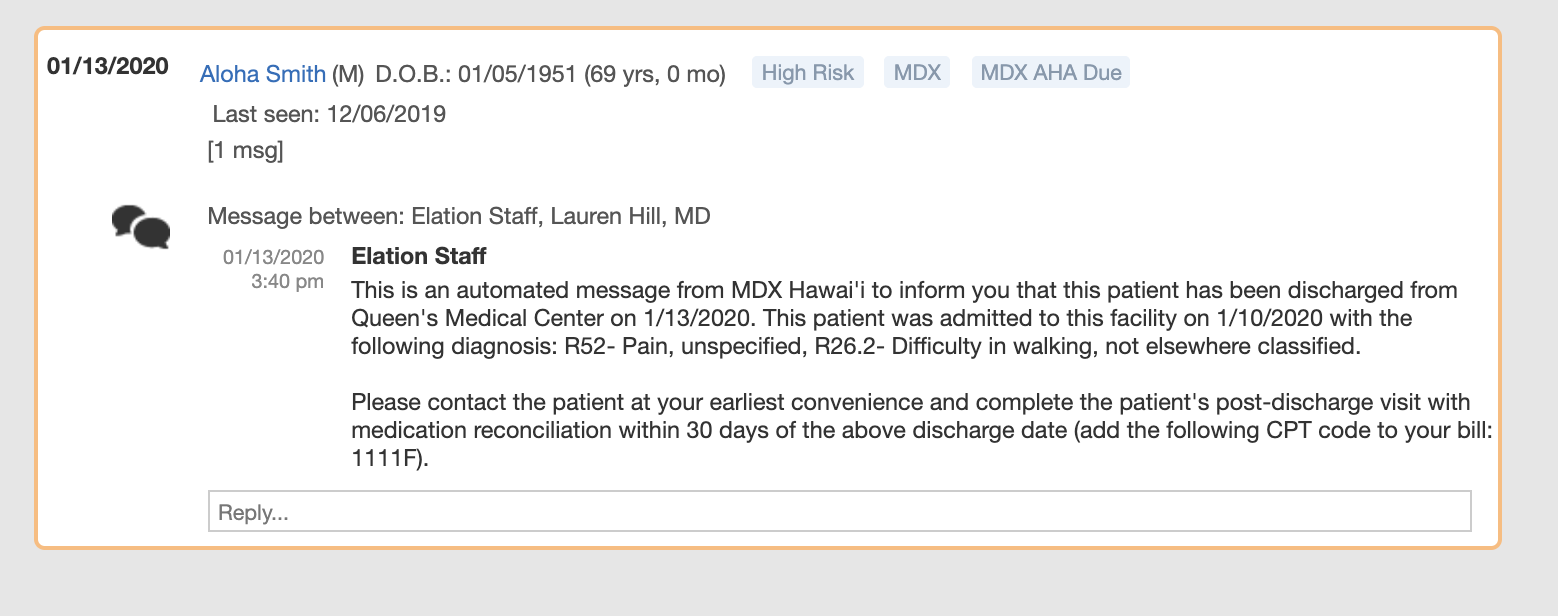
Where will the post-discharge notifications appear?
Discharge alerts will appear in the Practice Home’s Urgent queue. The alerts will be sent by “Elation Staff” as urgent messages to the assigned PCP and an admin staff member so that your practice can schedule the patient’s follow-up visit within 30 days of discharge. The message will include the patient’s discharge facility, discharge date, admit date and the Dx and Dx description.
Quick Tips!- While these alerts will appear in the assigned PCP’s queue, any user in the practice can view these messages by changing the View Queue For dropdown on the Practice Home toEveryoneor the PCP’s name until they are signed off on. Alerts will also appear at the top of the patient’s chart.
- If you have many outstanding Urgent messages, please make sure you change the Showing: filter to NewestFirst.

How do I complete post-discharge medication reconciliation?
To complete a post-discharge medication reconciliation, follow the steps outlined below. You can access and apply thePost-discharge med review (MDX)template that was created on your behalf in collaboration with the MDX Hawai’i team to automate documentation and coding, and help you get credit for the med reconciliation services you provide.- Open a visit note
- ClickVisit Note Templatesin the top-left hand corner of the visit note
- FindPost-discharge med review (MDX)template in the visit note template window that opens, and clickExport to Noteto apply the template to the visit note.
- For a 2 column visit note, the text will be automatically populated into theSubjectiveandMedssections of the visit note. Note that the sections that the text are placed in may differ based on the visit note type used.
- The CPT code 1111F will be automatically applied to the billing section of the visit note
- Fill out template in your visit note to document the facility, discharge date/time and method of reconciliation.

-
Scroll to the Medication section of the visit note. Click Import Current Meds to bring a copy of the patient’s medications from Clinical Profile into the note.
- Review medications in the visit note. A record of the changes you’ve made will be added automatically to the visit note.

- If a medication needs to be updated or discontinued, hover over the medication name in the visit note and click on “View”. A new window showing the medication’s history will appear. Hover over the latest version of the medication, and click Actions >> Document Change or Actions >> Document Discontinue.
- If new medications need to be documented, click on “+ Document Med Pt Is On” from the Clinical Profile. Complete fields in the respective window for a new, changed, or discontinued medication. Then click Save and Close.
- If a medication needs to be removed from the visit note,hover over the old instance of the medication and click the X button to delete it.
- Click Sign on the discharge alert message to acknowledge that medication reconciliation has been completed and to incorporate the message into the patient’s Chronological Record.
Integration of an MDX-approved Annual Health Assessment Template
MDX and Elation Health have collaborated on an AHA Visit Note template that will allow you to streamline documentation at the point of care, utilizing Elation’s existing tools, while ensuring you receive credit for your work. To access and apply the AHA Visit Note template:- Open a visit note
- ClickVisit Note Templatesin the top-left hand corner of the visit note

- Search for the MDX Annual Health Assessment (AHA) template.
- Click Export to Note next to template name to apply the template to the visit note.
- Once applied, the template will help guide you through the requirements to complete the MDX Annual Health Assessment. You can add notes, select from Yes/No options and more directly on top of the applied template within the visit note. Please ensure that you fill out the template completely to ensure you get credit for your actions.
- Billing codes for 65+ Annual Wellness Visit (CPT: 99397), General Medical Adult Examination without abnormal findings (ICD-10: Z00.00) and Medication Review (CPT: 1160F) will be auto-applied to your visit note when the template is applied. If you need to add or remove codes, please click Edit Billing in the billing section to do so.
- To complete documentation portions of the Subjective section (i.e. History), you can utilize the in-app [add or import] buttons under each field of the Subjective to take advantage of Elation’s auto-complete.
In-app identification of MDX patients
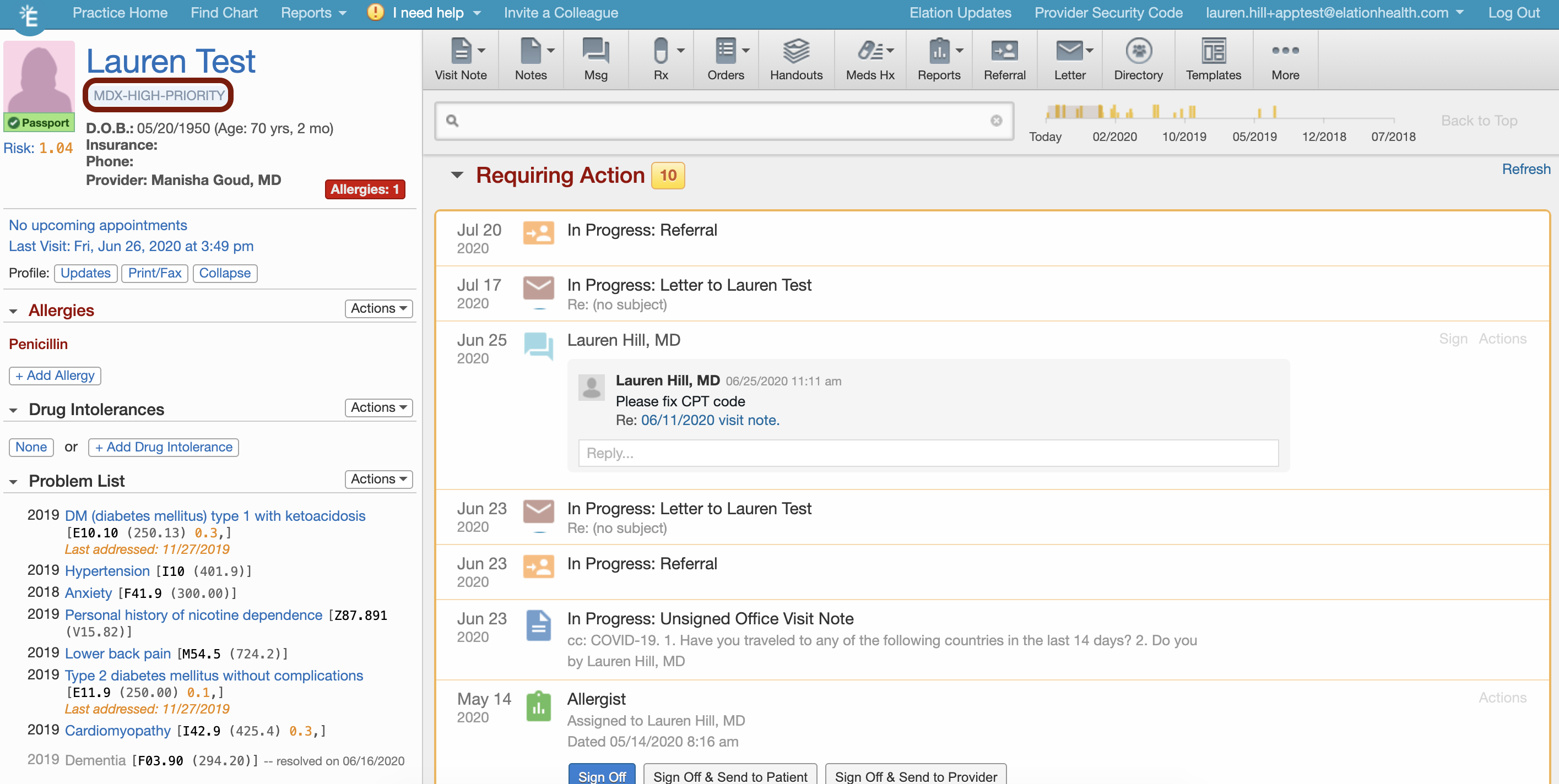
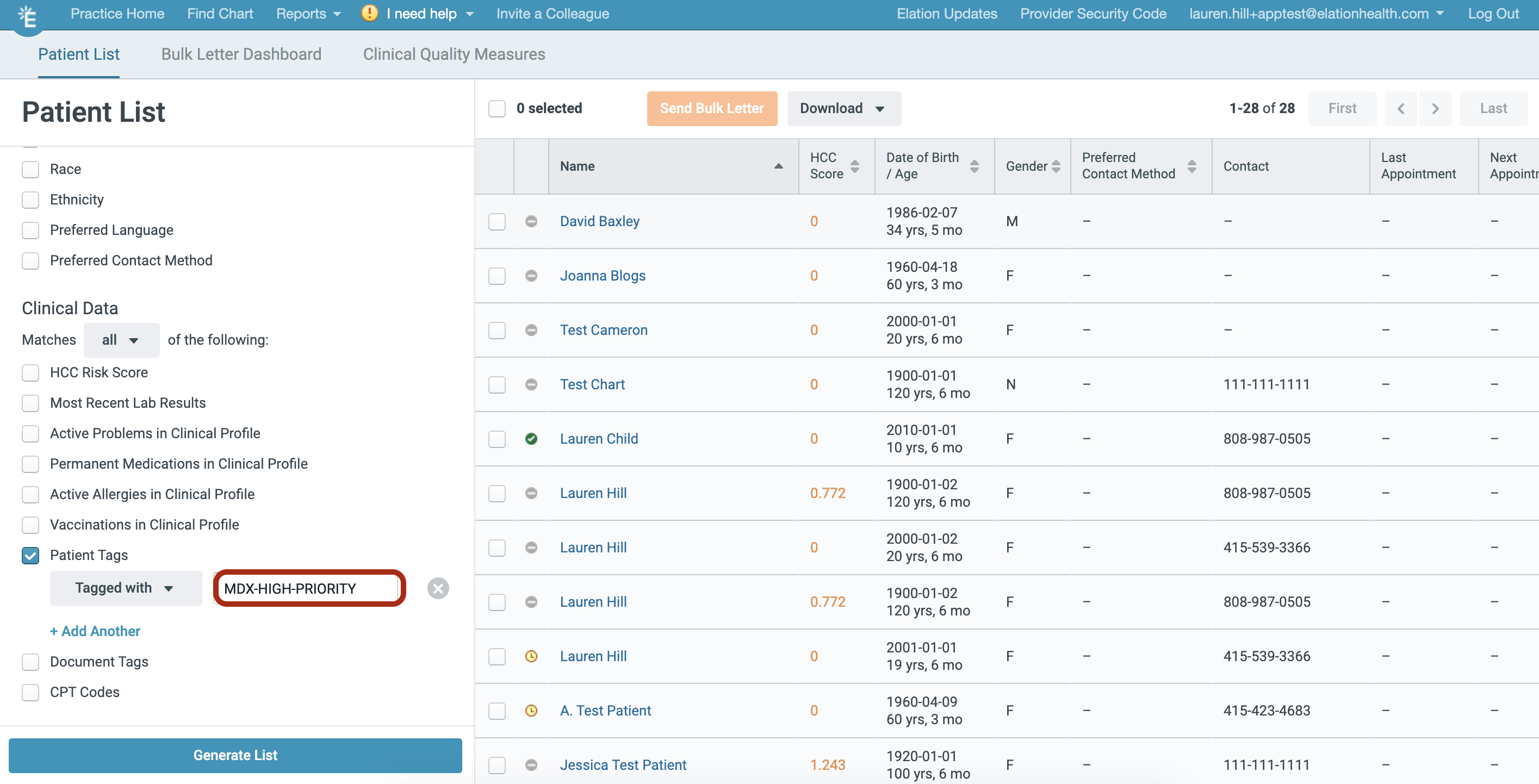
Within each of the patient charts belonging to your MDX panel, you’ll now see an MDX patient tag next to their name. This will allow for improved identification of these patients pre, during, and post-visit activities: With the patient tag, you can run patient lists on this cohort to identify patients within your MDX panel that:- Need appointments scheduled in 2019
- Need AHAs scheduled in 2019
- Need pro-active care management based on risk score
 NOTE: In support of the MDX 2020 Office Staff Incentive Program, Elation has added ‘MDX-High-Priority’ patients tags to your patients who are eligible for this program.
1/ Use these tags to help identify patients for your office staff to prioritize for scheduling
NOTE: In support of the MDX 2020 Office Staff Incentive Program, Elation has added ‘MDX-High-Priority’ patients tags to your patients who are eligible for this program.
1/ Use these tags to help identify patients for your office staff to prioritize for scheduling