
What is the Elation-HintOS Patient-Sync Integration?
If you are an Elation EHR customer who also uses HintOS© then this integration is ideal for you. The Elation-HintOS Patient-Sync Integration allows you to synchronize patient demographic information, and keep changes up to date, in either system. Any chart that is created in HintOS will automatically be created in Elation EHR and vice versa. If a chart already exists in the other system, the system will try to match the charts using the patient’s first name, last name, date of birth, sex and other demographics information before creating a new chart.Why is this integration valuable?
The interface between Elation and HintOS allows you to use Elation for clinical documentation while still being able to efficiently manage your patients’ memberships using HintOS. The bi-directional synchronization capabilities amongst the demographics fields allows for streamlined workflows in both systems. You can continue to view which memberships your patients are subscribed to in HintOS directly in their Elation chart.How can I start using this integration?
To begin using this integration, click here to tell the Elation you are interested . Elation’s Implementation Team will work with you to get you connected and link the providers between Elation and HintOS.What information is shared between Elation & HintOS?
New Charts
There are two ways to create patient charts. If you create a chart in HintOS, make sure you assign the patient to an Elation linked provider in HintOS to push the new chart to Elation.- Patients can be registered in HintOS and the new patient will be matched to an existing patient or created as a new patient in Elation.
- Patients can be registered in Elation and the new patient will be matched to an existing patient or created as a new patient in HintOS

Demographics
The chart below describes how demographics fields map to each other between Elation and Hint.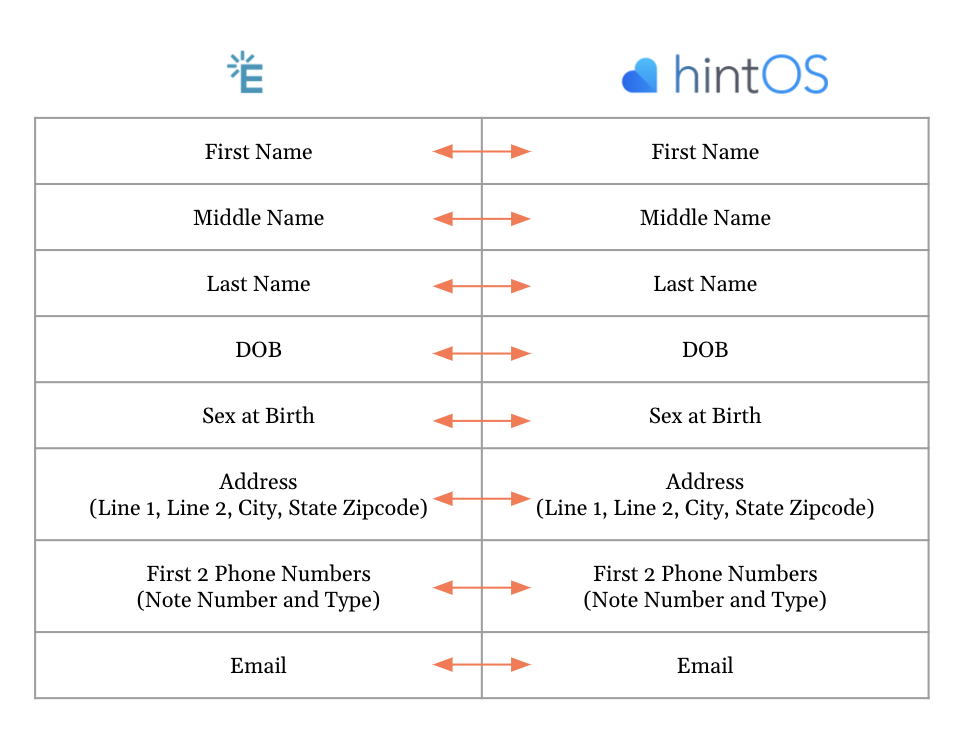
Insurance
Insurance synchronization will only occur when HintOS creates a chart in Elation for a new patient. Once a patient has a chart in Elation, updates to insurance information must be made in both systems . We recommend keeping insurance information up-to-date in Elation because insurance information is used for other features. Only the following fields sync from HintOS to Elation when charts are created in HintOS: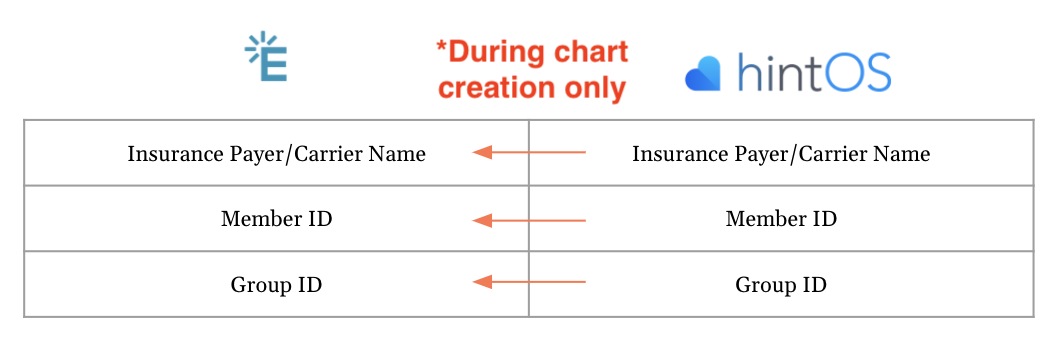
Memberships
Maintain the patient membership information in HintOS. Membership details will appear as Patient Tags in the Elation patient chart. Any edits made to the below patient membership information in HintOS will update Patient Tags in Elation. The Patient Tags in Elation should be considered as read-only and any modifications made in Elation will not appear in or sync to HintOS.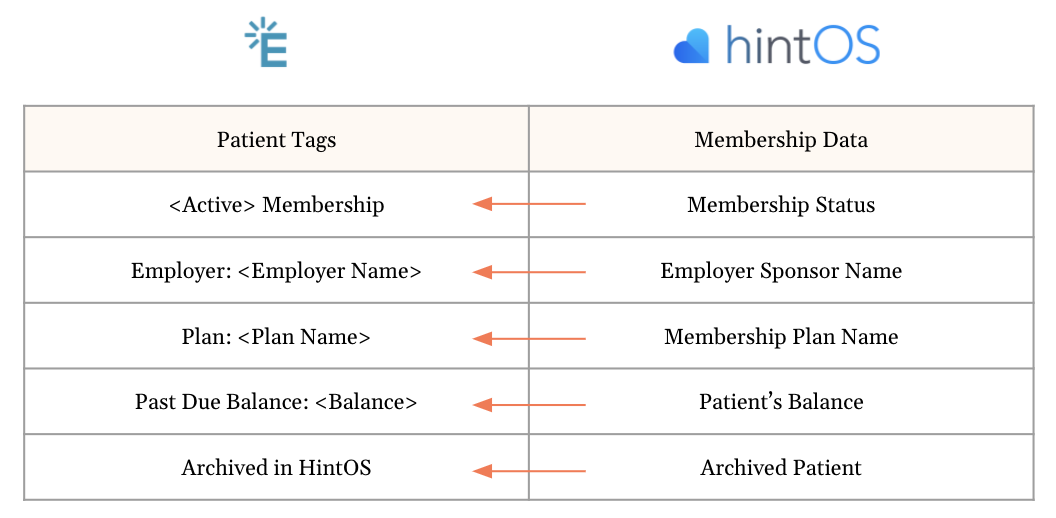
How to use the Integration
Patient Self-Registers in HintOS
This workflow is optimal if you would like memberships and insurance information for new patients synchronized in both Elation and HintOS.- Patients self-registers in HintOS and patient information is collected during this enrollment. If HintOS creates a new chart for patient in Elation, the Elation chart will include insurance information if it is available. If a chart already exists in Elation, insurance information will not be synced.
- Edit patient demographics in either Elation or HintOS.
- Maintain and edit insurance information in Elation
- Maintain the patient’s membership information in HintOS. The Patient Tags in the Elation patient chart will update based on the patient’s membership information in HintOS.
Practice Enrolls Patients
This workflow is ideal if patients only have memberships in HintOS and you do not need insurance information saved in HintOS.- Create new patient chart in Elation or HintOS. Any new patient charts created in one system will trigger a chart to be created in the other system.
- Edit patient demographics in Elation or HintOS.
- Maintain and edit insurance information in Elation.
- Maintain the patient’s membership information in HintOS. The Patient Tags in the Elation patient chart will update based on the patient’s membership information in HintOS.
How to merge duplicate charts
Deleting or merging patients in either system will not synchronize. The deletion or merge needs to be completed in both systems. First, in Elation:- Go to the losing duplicate patient chart you would like to remove.
- Click on the patient’s name to edit patient details and click the Merge Chart button at the bottom right-hand corner.
- Enter the name of the winning chart you would like to keep and click Merge Chart. Everything except for the demographics and losing HintOS ID will be merged into the winning chart.
- Go to the losing or inactive patient chart you would like to remove.
- Click Edit Patient and click Merge.
- Select which fields you would like to keep on the winning chart. You will have the option to choose the winning Elation ID as part of this flow. To successfully complete the chart merge, the Elation ID chosen here needs to belong to the winning chart in Elation.
- Click Merge