
Overview
What is Elation Connect?
Elation Connect is a secure portal that allows recipients of correspondence from Elation users to view messages. Recipients can also download records for transfer to another location, such as their own EHR.What does a Connect account look like?
A Connect account closely resembles a paid EHR account, but with certain clinical features deactivated. Patient charts are created in Connect accounts to store correspondences or records sent from Elation users.What does the recipient have access to in their Connect account?
Recipients can access only the information you send them through their Connect account, reflecting data from that specific moment. They do not have access to a live version of your patient charts. However, they can reply to your correspondence and send data back to you from their Connect account.What triggers a recipient to be invited to Connect?
Recipients will receive a Connect invitation if they are saved as a Contact (and not an Elation EHR or existing Connect user) and chosen from the To field in your Provider Letter or Referral. What happens next depends on whether that Contact has a fax number or an email address on file.Fax-based invitation
1
Recipient has a fax number on file
The recipient’s Contact Details include a fax number.
2
Recipient is notified by fax
Elation notifies the recipient that information has been shared with them, by fax.
3
Recipient enters the Reference Code
The recipient goes to app.elationemr.com/efax and enters the Reference Code printed on the fax.
4
Recipient registers for Connect
The recipient registers for a Connect account.
5
Recipient views the correspondence
The recipient views the correspondence in Connect.
Email-based invitation
1
Recipient has an email on file
The recipient’s Contact Details include an email address.
2
Recipient is notified by email
Elation notifies the recipient that information has been shared with them, by email.
3
Recipient opens the link in the email
The recipient clicks View Shared Clinical Information in the email.
4
Recipient requests the Provider Security Code
The recipient calls your practice for the Provider Security Code.
5
Recipient registers for Connect
The recipient registers for a Connect account.
6
Recipient views the correspondence
The recipient views the correspondence in Connect.
When is a recipient required to log in to Connect to review what you sent them?
The diagram below outlines the circumstances in which a recipient is required to log in to Connect.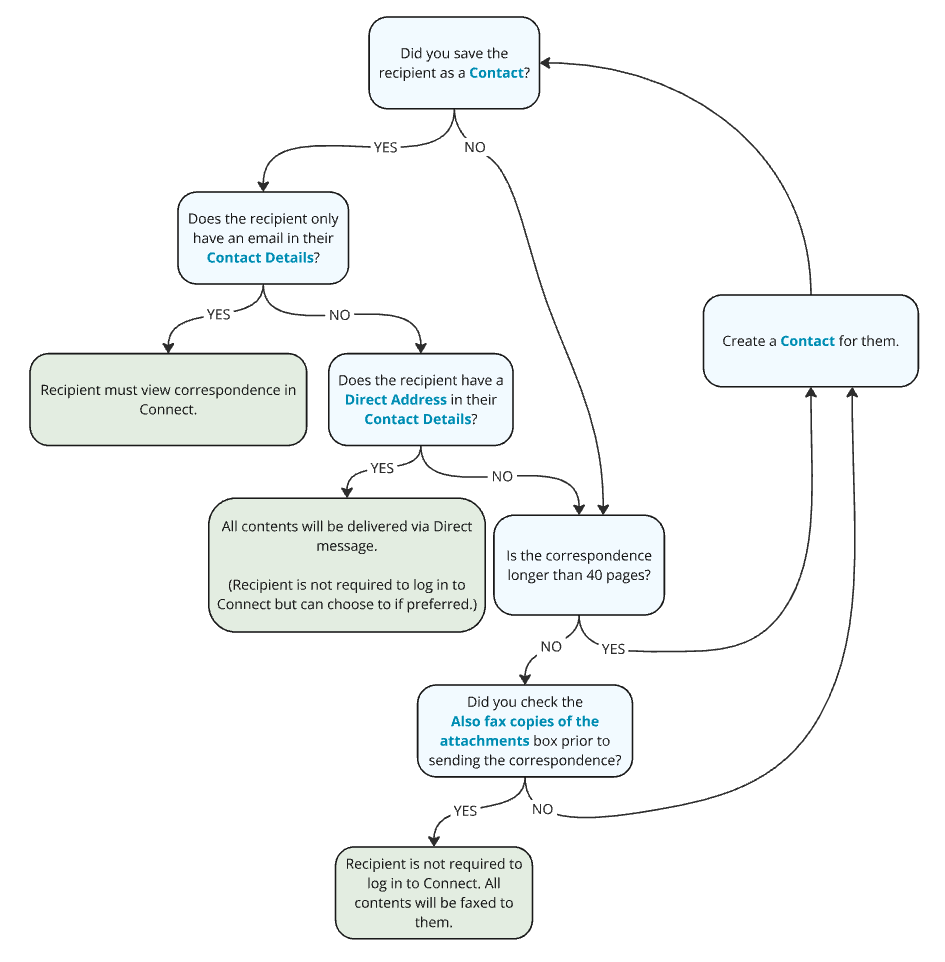
Workflow Instructions
Sending a fax or email invitation for a Connect account
To send a fax or email invitation for a Connect account:Sending correspondences to a Connect user
To send correspondences to a Connect user, simply follow the same workflow steps above for sending them a Connect account invitation. Afterwards, the recipient will be prompted to log in to their Connect account to view your correspondences.Managing sent correspondences
Viewing sent correspondences
To view sent correspondences:- Locate any Provider Letters in the Chronological Record.
- Locate any Referrals in the Chronological Record or Reports.
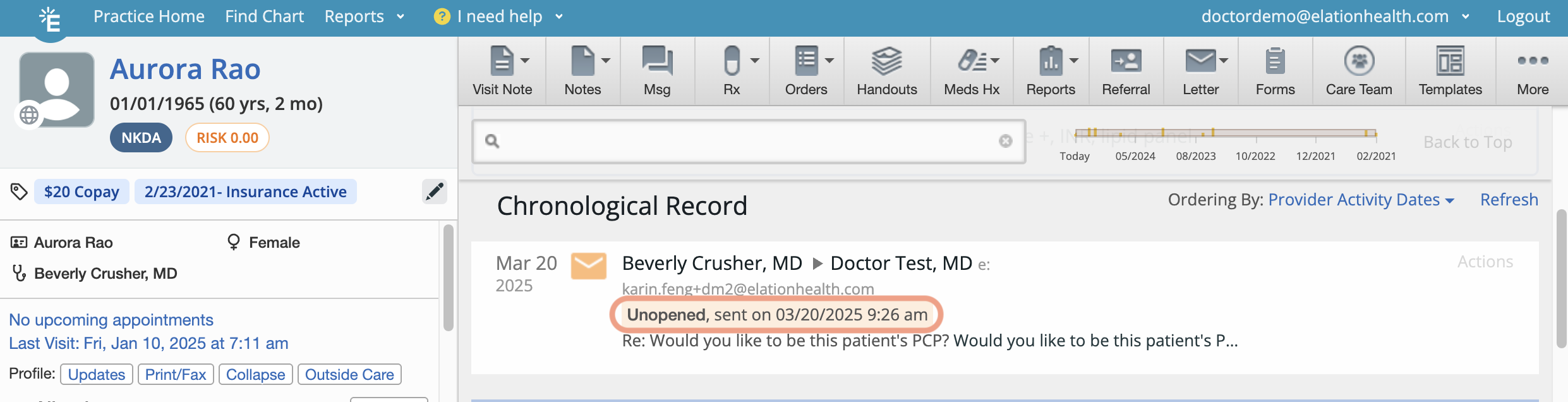
Tracking the status of sent correspondences
Check the Provider Letter or Referral in the Chronological Record to see if the recipient has viewed your correspondence. Statuses include:- Opened/Unopened
- Sent/Failed
Sharing your practice’s Provider Security Code for email invitations
If the recipient receives an email invitation, they will be prompted to enter a 6 digit Security Code, as part of 2-Factor Authentication, in order to complete Connect account registration. This Provider Security Code is a unique code that you must share with the recipient. To locate the Provider Security Code for your practice:Assisting Connect users with accessing sent records
To assist a Connect user with accessing sent records, copy and paste this Help Center Article into the body of your letter. This will guide them through registering for an account.Frequently Asked Questions
Can I choose to not send a Connect account invitation?
As long as the Contact meets the Connect invitation requirements then they will receive a Connect account invitation. To send correspondences without sending a Connect account invitation, you must enter a plain 10 digit fax number in the To field (instead of selecting a Contact) and limit your attachments to 40 pages or less.Will I be notified once the recipient registers for a Connect account?
No, you will not receive a notification when a recipient completes Connect account registration. However, there are other indicators that will tell you they are now a Connect user. The indicators are:- They sent a reply back to you from their Connect account.
- The status on the correspondence says Opened at….
- There is a P icon in their profile when you select their Contact from the To field of a Provider Letter or Referral.
A recipient says they cannot access the referral link I sent. How can I help them?
If an external provider reports they cannot access a referral or letter you sent via Elation Connect: Check the status of the correspondence Locate the Provider Letter or Referral in the patient’s Chronological Record or Reports section. Check if the status shows Opened or Unopened. Confirm the delivery method- If sent via fax, the recipient needs the Reference Code from the fax cover page to access records at app.elationemr.com/efax.
- If sent via email, the recipient needs to click View Shared Clinical Information in the email and enter your practice’s 6-digit Provider Security Code.
Each Security Code automatically expires after 2 weeks.
Related Articles
- Letter & Referral Introduction
- Letter & Referral Guide - Auto-drafting letters and referrals with Wordsmith
- Letter & Referral Guide - Sending correspondences to other Elation EHR Users
- Letter & Referral Guide - Sending and receiving Direct messages
- Letter & Referral Guide - Sending a fax
- Letter & Referral Guide - Accessing patient information sent by an Elation EHR user
- Letter & Referral Guide - Managing & searching the provider directory
- Letter & Referral Guide - Fax Usage Settings
- Support Guide - Whitelisting Elation’s web domain for email communications