
01 — SANDBOX
Start free
1
Request a sandbox
To request sandbox access, please submit the form below. Sandbox access is open to current Elation customers and to organizations looking to partner with Elation.
Once you submit the form, you will receive an email with your sandbox credentials shortly from our Technical Solutions team.
What the sandbox is
The sandbox is a blank replica of Elation EHR. You create your own users, sample patient charts, and account settings. It runs with the same security controls as production and is simply designated non-PHI. Sandbox and production stay permanently separate. There is no way to copy data or configuration between them in either direction, so don’t plan a cutover that depends on promoting sandbox content. Production credentials are also newly generated rather than carried over.02 — API CREDENTIALS
Generating and managing keys
Practice admins manage API credentials from Settings > API Access. You can issue multiple credentials rather than reusing one, which is worth doing: separate keys per integration, per vendor, or per internal service mean you can revoke one without breaking the rest.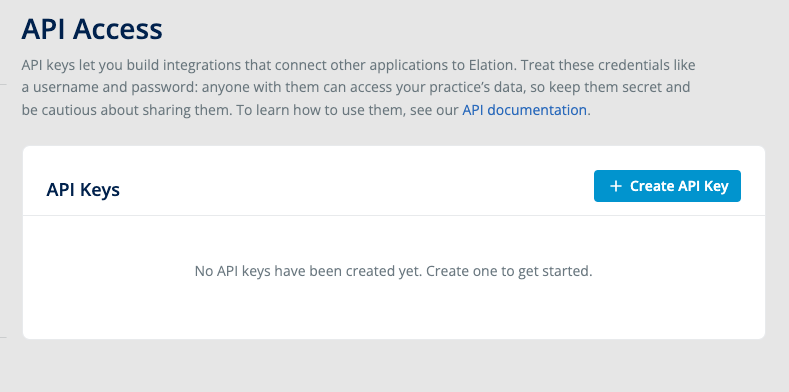
Settings > API Access, before any keys exist.
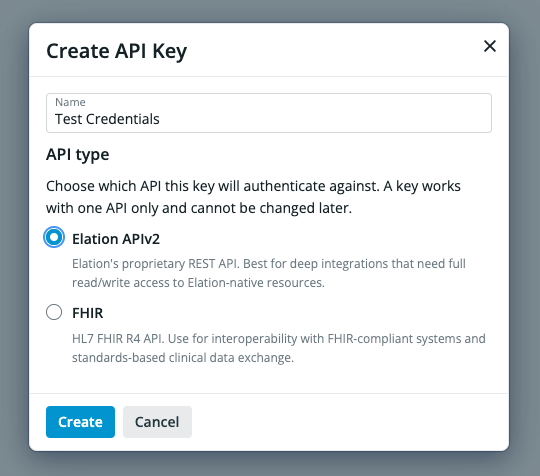
Choose APIv2 or FHIR R4 when you name the key. This choice is permanent.
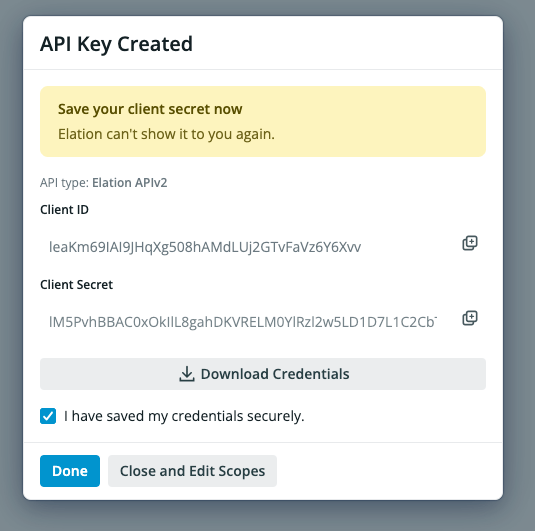
The secret appears once, at creation. Save it before closing.
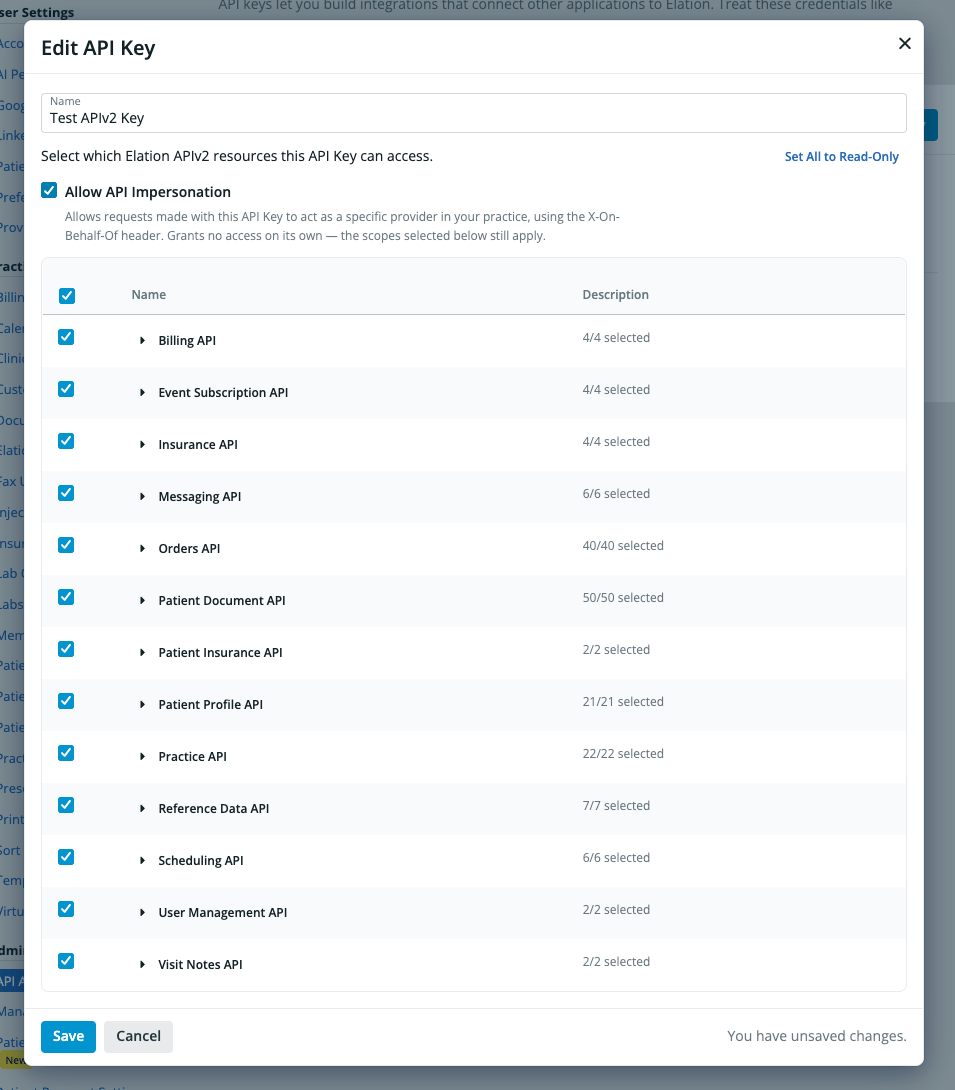
Scopes are editable after creation, per API family, with read and write separated.
03 — YOUR FIRST CALL
Get a token, then call an endpoint
Elation uses the OAuth2 Client Credentials grant. Exchange your client ID and secret for an access token, then send that token as a Bearer token on every request.expires_in, typically 3600 seconds, so request a new token when the old one lapses rather than caching it indefinitely. See Scopes if you are limiting what a credential can reach.
Try it in the API reference
Opens the token endpoint with its playground expanded. Paste in your sandbox client ID and secret to get a real token back, no local setup.
04 — WEBHOOKS
Get notified when data changes
If your workflow needs to react to changes rather than poll for them, create a subscription through the Event Subscription API. No separate enablement request is required.05 — HOSTED DATABASE
Run your first query
Hosted Database access is provisioned separately from API credentials. You will use either an Elation-managed Reader Account or a Direct Share into a Snowflake account your organization owns. Reader Account credentials arrive over a secure channel rather than in the app; see Hosted Database access for how they are delivered. Once you are logged in, set your database and schema context in a worksheet, then confirm your data is there:Set up access
How to request a Direct Share into your own Snowflake account, including the 30-day window before you lose access to your Elation Reader Account.
Snowflake walkthrough
Step-by-step with screenshots: selecting your database, schema, and warehouse, then running a query.
Browse the schema
Every table, column, and relationship in an interactive diagram. No login needed.
06 — ELATION AI
Build and explore faster
07 — RUNNING IN PRODUCTION
Keeping your integration healthy
Handle rate limits
The API License and Usage Agreement limits usage to fewer than 3 calls per second and fewer than 150,000 calls per 24 hours, and Elation may adjust those limits. The API returns429 when you go over. Build in retry with exponential backoff, and reuse an access token until it expires rather than requesting a fresh one per call. See errors.
The budget is counted per credential, not per endpoint, so every call your integration makes draws from the same pool. If one integration is genuinely constrained by the ceiling, contact support@elationhealth.com about splitting the work across additional credentials.
Confirm what’s switched on for your account
Granular API scopes and user impersonation are available on request, and Elation Analyst is in Beta and not yet enabled on every account. Ask Support what is active for your practice before you design around any of them.Watch for changes before they reach you
The API 2.0 Changelog and the Hosted Database Release Notes both publish RSS, so wire them into Slack or a feed reader. See Subscribe to Elation Release Feeds. Hosted Database schema changes carry advance notice: 30 calendar days for breaking changes, 7 for behavior changes, and an announcement at release for additive ones. See change management for the policy, or Early Release to test a change against your pipelines before it goes GA.Check status before opening a ticket
Live platform status is at elation.status.io. For anything account-specific, email support@elationhealth.com.Related articles
- Core Developer overview — what it is and who it’s for
- Pricing and add-ons — cost, seat rules, and add-ons
- API Overview — the API 2.0 categories and the resources each exposes
- Authentication — exchanging credentials for a token
- Webhooks — event models, signature verification, retries
- Hosted Database access — how your Reader Account credentials are delivered
- Hosted Database schema — every table and column
- Snowflake documentation — SQL syntax, connectors, and warehouse concepts