
Self-service credential management is available now in the sandbox environment. In production it is available on request — contact Elation Support to have it enabled for your practice.
Overview
Self-Service API Credential Management lets practice admins create, scope, and revoke API credentials directly from practice settings, without contacting Elation Support. You can issue keys for either the Elation APIv2 or the FHIR R4 API, assign scopes that control exactly what each key can read or write, and revoke keys immediately if they are no longer needed or may have been compromised.Who can use this
- Availability: Sandbox, and production on request
- Access: Practice admins
- Location: Practice settings
How to manage API credentials
Generating API credentials
- Navigate to Settings > API Access.
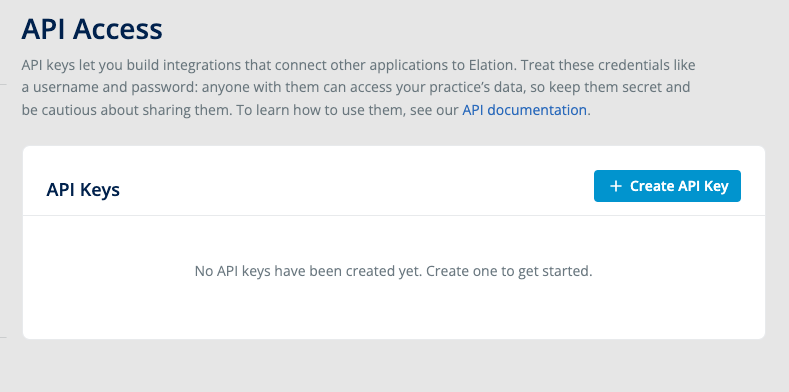
- Click + Create API Key. In the dialog that appears, enter a Name for the key and select the API type — either Elation APIv2 (Elation’s proprietary REST API) or FHIR (HL7 FHIR R4 API). The API type cannot be changed after creation.
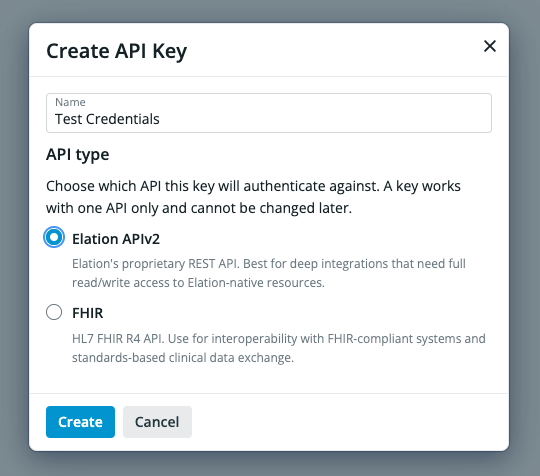
- Click Create. You will be shown your Client ID and Client Secret. Copy these values or click Download Credentials to save them to a file.
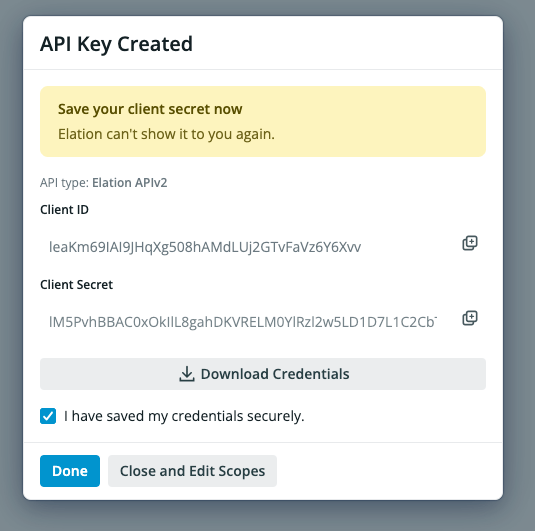
- Check the I have saved my credentials securely checkbox, then click Done to return to the API Access page, or click Close and Edit Scopes to configure scopes immediately.
Managing existing credentials
- Navigate to Settings > API Access. Your existing API keys are listed with their name, API type, Client ID, and creation date.
- To edit the scopes for a key, click on the ‘Scopes’ button to open the scope editor.
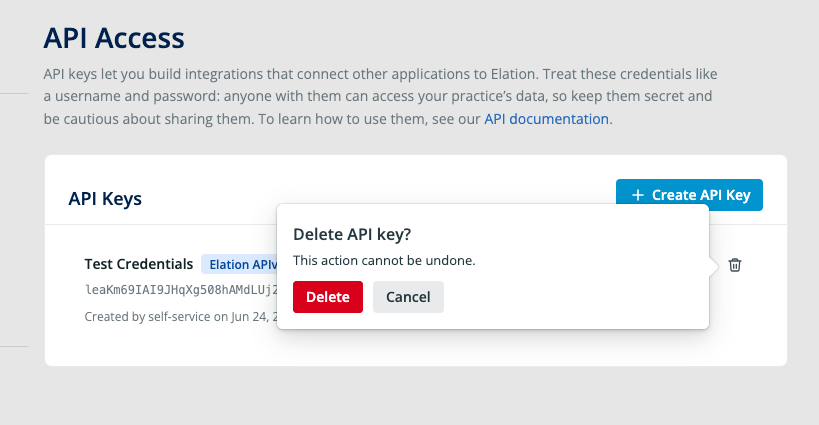
- To delete a key, click the trash icon next to the key.
Selecting scopes
When creating or editing API credentials, you will choose which scopes to assign. Scopes control what data the credentials are permitted to read or write. For a full explanation of how scopes work and the available scope options, see Token Scopes. In the Edit Scopes dialog, scopes are organized by API category (e.g., Billing API, Patient Profile API, Scheduling API). Expand each category to select individual scopes, or use the checkbox next to the category name to select all scopes within it. You can also click Set All to Read-Only to quickly restrict the key to read-only access across all categories.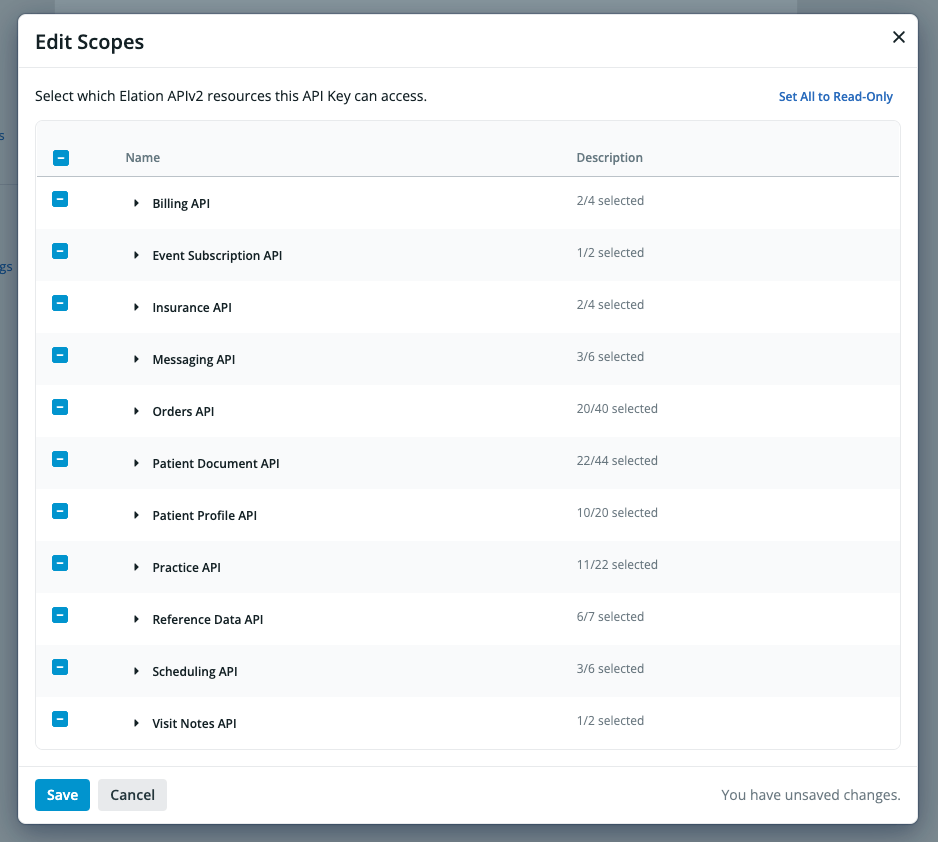
Revoking credentials
If you no longer need a set of credentials, or if you believe they may have been compromised, you can revoke them from the API Access page.- Navigate to Settings > API Access.
- Click the trash icon next to the key you want to revoke.
- A confirmation dialog will appear warning that this action cannot be undone. Click Delete to permanently revoke the credentials, or Cancel to go back.
Important Security Considerations
API credentials function like a username and password for your practice’s data. Anyone with access to your credentials can read and modify all of the data in your practice that the assigned scopes permit.- Store credentials securely. Use a secrets manager or encrypted vault. Do not store credentials in plaintext, in email, or in shared documents.
- Do not share credentials through insecure channels such as email, chat, or sticky notes.
- Revoke credentials immediately if you suspect they have been compromised.
- Use the narrowest scopes possible when creating credentials to limit the impact of accidental exposure.