
Overview
Who is this guide for?
This guide is for practice owners and administrators preparing for:- Practice closure
- Transitioning to a different EHR system
- Major practice changes requiring patient notification and record export
What is offboarding?
Offboarding refers to the process of closing your Elation account or transitioning away from Elation EHR. This includes exporting patient clinical data, notifying patients of changes, and ensuring continuity of care.Why is a proper offboarding process important?
A well-planned offboarding process ensures:- Patients receive their medical records as required by law.
- Patients are informed about the transition, as required by applicable regulations, and know how to access their records.
- No clinical data is lost during the transition.
- Your practice meets regulatory requirements for record retention.
Workflow Instructions
Checklist: Offboarding and data export
- Export the patient records you need to retain Use bulk C-CDA export for multiple patients, or export individually from a patient’s chart.
- Request a full practice data export if needed Contact Elation Support for bulk EHI exports covering your entire patient panel.
- Identify which patients need to be notified Use the Patient List Report to build your notification list.
- Send a Bulk Letter to notify patients Explain the change, how to request records, and a cutoff date for Passport messages.
- Invite patients to Passport so they can download their own records Reduces the number of individual record requests you need to fulfill.
- Complete the full offboarding checklist Covers departing providers and administrative reports you’ll need after closure.
Exporting patient records
You can export patient clinical summaries in C-CDA (CCDA) format, which is a standardized file type that allows secure transfer of medical records between EHR systems.Exporting C-CDA files for multiple patients
Admin Level Users can export C-CDA files in bulk for multiple patients using the Patient List Report.- Navigate to Patient List - Click Reports in the blue navigation bar, then click Patient List.
- Apply filters - Apply filters to narrow down the list of patients, or click Generate List to view all patient charts.
- Download CCDA files - Click Download → Download CCDA.
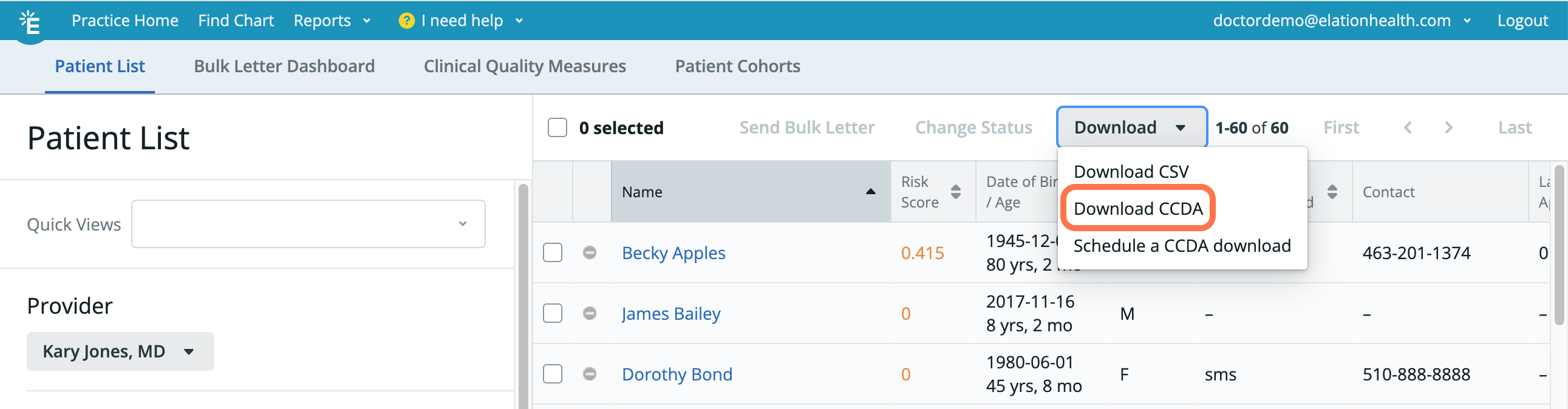
- Create a password - Create and enter a password (twice) to protect the .ZIP file that will be created.
You will need to securely share this password with the recipient of the C-CDA files if applicable.
- Wait for download - If there are many patient charts or a lot of clinical information, it may take more than a few minutes for the bulk C-CDA file to be generated.
Exporting individual patient records
You can export C-CDA files for specific patients directly from the patient’s chart. Options include:- Entire Health Information (EHI) - Exports all patient health information stored at time of export, aligned with regulatory requirements for patient data requests.
- Complete Record - Exports the full clinical record.
- Customized Record - Allows you to select specific sections to share.
- Referral Record - Shares relevant information for referring a patient to another provider.
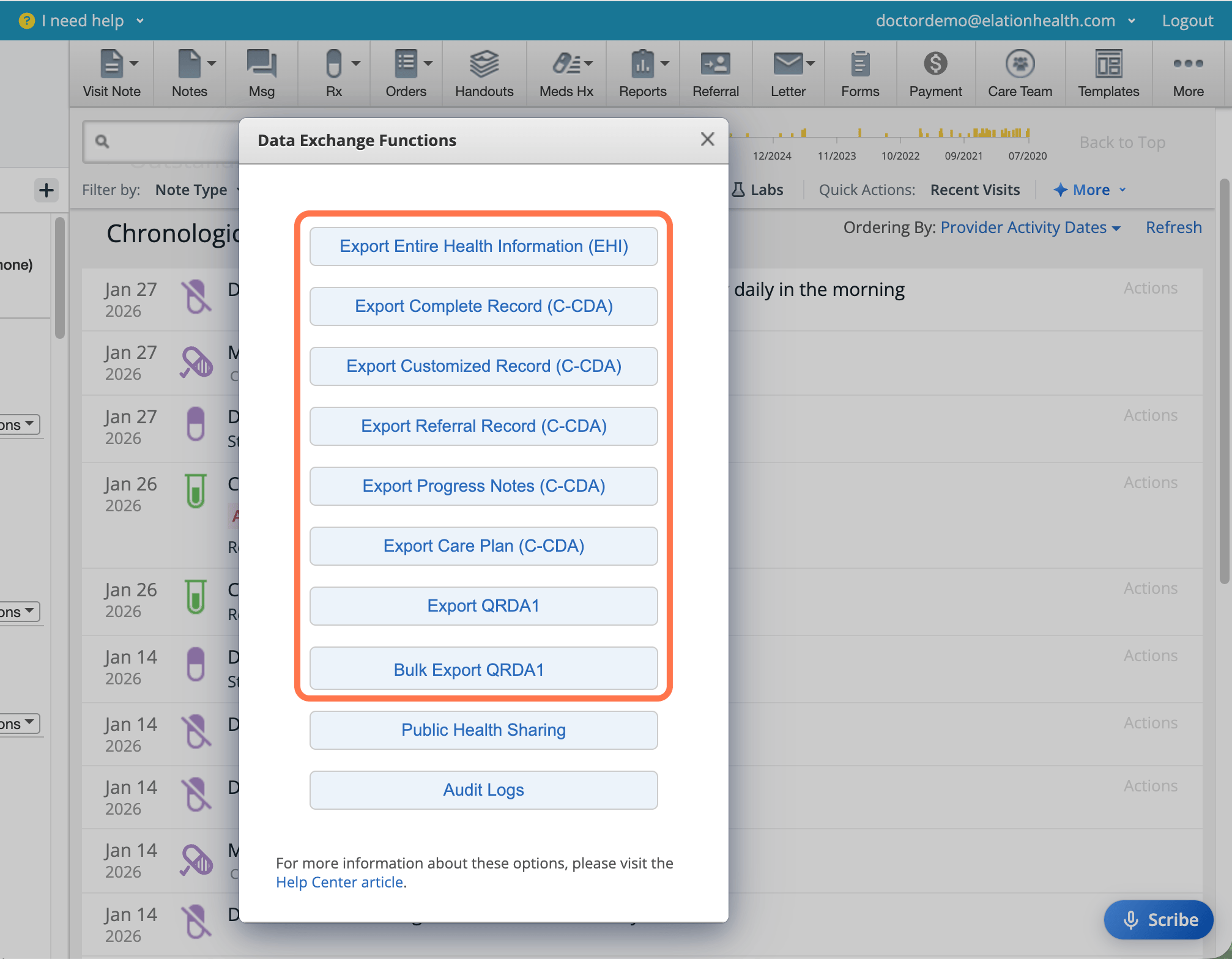
You must have Admin level privileges to export EHI data. To become an Admin, ask an existing Admin level user in your practice to grant you privileges via the Manage Accounts Settings page.
Requesting a full practice EHI data export
For an EHI data for your entire patient panel, self-service bulk export isn’t available — you’ll need Elation Support’s help.- Contact Elation Support - Reach out to your Customer Success Manager, use the I need help → Contact Elation Support button in the EHR, or submit a request.
- Provide the following information:
- Your practice name
- The date range for the export (if applicable); the default is all time
- Who should receive the export — an authorized Elation user at your practice; the export is delivered to that person’s Elation-registered email
- Your timeline for the transition
Bulk EHI exports for entire patient panels require Elation Support involvement. Expedited or customized exports may include additional costs.
When to contact Support
Contact the Elation Support Team using the I need help → Contact Elation Support button for:- Exports beyond what is available through self-service
- Questions about offboarding timelines or authorization requirements
- Assistance with large-scale patient reassignments
Notifying patients about practice changes
When closing a practice or transitioning to a new EHR, notify patients so they can request their records and understand how to continue receiving care.Using Patient List to identify affected patients
Use the Patient List Report to find patients who need to be notified.- Navigate to Patient List - Click Reports in the blue navigation bar, then click Patient List.
- Apply filters - Apply filters to identify the relevant patient cohort:
- Provider - Filter by the provider’s patient panel.
- Last Seen (Last Signed Visit Note) - Filter by patients seen within a specific timeframe.
- Patient Status - Filter for active patients.
- Patient Passport Status - Identify patients who are registered, invited but not registered, or not invited to Passport.
- Generate the list - Click Generate List to view the results.
- Download for analysis - Download the list as a CSV file for further analysis or to prepare mailing lists for patients without Passport accounts.
Using Bulk Letter to communicate with patients
The Bulk Letter feature allows you to send the same message to a group of patients at once.- Select patients - After generating your Patient List, select the patients you want to contact by checking the box next to their name, or check the box at the top to select all patients.
- Start Bulk Letter - Click the orange Send Bulk Letter button.
- Complete the form - Complete the Bulk Letter form:
- Give your Bulk Letter a short description - For example, Practice Closure Notice – [Date]. This is for internal reference only.
- Compose the Letter - Add a subject and body explaining the practice change, how patients can request their records, and any next steps for their care. Since Patient Passport accounts aren’t disabled in bulk, include a date after which patients should stop sending new messages through Passport, as messages sent after your transition may not be monitored.
- Send this as a Patient Passport letter to… - Select patients already signed up for Passport and/or patients who can be invited to Passport.
- Generate printable PDFs of letters for… - Select patients who cannot receive Passport letters (no email or mobile number on file) to generate paper letters for mailing.
- Preview the letter - Click Next to preview the letter and confirm your sending options.
- Send the letter - Click Send Bulk Letter.
Sample Bulk Letter content for practice closure
Consider including the following in your patient notification:- Announcement of closure/transition with the effective date.
- Options for obtaining medical records:
- Download records through Patient Passport (if applicable).
- Request records by calling or writing to the practice.
- Referral information for ongoing care.
- Timeline for when records will remain accessible.
- Contact information for questions.
Enabling patients to download their own records via Passport
Patients with active Patient Passport accounts can access several types of records directly. To help patients access their records:- Invite patients to Passport - Invite patients to Passport if they are not already registered. Use the Bulk Letter feature to send Passport invitations to eligible patients (those with an email address and mobile phone number on file).
- Explain access in your communication - In your Bulk Letter or Patient Letter, explain that patients can log in to their Passport account to view and download their health information.
- Send additional records as needed - For patients who need additional records (such as lab reports or orders), send those records via a Patient Letter with attachments.
Records patients can access via Patient Passport
Patients with Passport accounts can access the following records:- Demographics — date of birth, emergency contact, and assigned provider
- Clinical Profile — allergies, drug intolerances, medications, and vaccines. Depending on your practice’s sharing settings, additional Clinical Profile sections may also be visible.
- Visit summaries — automatically generated when a provider signs a visit note, including vitals, procedures, tests/treatments, care plan, and follow-up details
- Records manually shared via Patient Letter — lab reports, documents, and other attachments are only available if explicitly sent by the provider
- Downloadable health summary — available in C-CDA (CCDA) format via “Share my records,” designed for import into another EHR
- Immunization history — available to download or print separately
Lab reports and chart documents are not automatically visible in Passport. They must be attached to a Patient Letter by the provider before patients can access them.
Completing the offboarding process
Before finalizing your practice closure or EHR transition, use this checklist to ensure you have completed all required steps:1
Export patient records
Export all patient records you need to retain using EHI or C-CDA format.
2
Notify patients
Send notifications to all active patients via Bulk Letter.
3
Enable Patient Passport access
Invite patients to Passport so they can access their records.
4
Request bulk exports (if needed)
Contact Elation Support if you need bulk EHI exports for your entire panel.
5
Handle departing providers
Follow the Best practices for disabling accounts guide.
6
Download administrative reports
Save copies of all reports (e.g. Patient List, Billing Report, Appointment Report, and Patient Payment Report) for your records.
Checklist Summary
Use this quick reference to understand which tasks you can complete yourself and which require Support assistance.Frequently Asked Questions (FAQ)
Can I export all patient records at once?
Yes, Admin Level Users can use the Patient List Report to export C-CDA files for multiple patients in bulk. The export generates a password-protected .ZIP file.What file format are patient records exported in?
Self-service exports are available as C-CDA (CCDA) files or as an Electronic Health Information (EHI) export, depending on your needs. C-CDA is a standardized format for securely transferring medical records between EHR systems. A full practice-wide export requested through Support can also be provided as a PDF. See What format should I request for data exports? below for guidance on choosing.How do I notify patients who do not have Passport accounts?
Use the Bulk Letter feature to generate printable PDF letters for patients who do not have Passport accounts or do not qualify for an invitation. You can then mail these letters to patients.Can patients download their own records?
Patients with active Passport accounts can access their demographics, Clinical Profile, visit summaries, downloadable health summary, and immunization history — see Records patients can access via Patient Passport for the full list. Lab reports and other documents must be sent via a Patient Letter before patients can access them.Who should I contact for questions about offboarding timelines?
Contact the Elation Support Team using the I need help → Contact Elation Support button for questions about offboarding timelines, authorization requirements, or bulk data exports.Can I use Bulk Letters to notify patients of practice closure or EHR transition?
Yes, Bulk Letters are an effective way to notify patients about practice closure or EHR transition. Use the Patient List Report to identify affected patients, then send a Bulk Letter explaining the change and how patients can request or access their records.How long does it take to receive a full practice data export?
Timelines vary based on the size of your patient panel and the type of export requested. Contact Elation Support to discuss your specific needs and timeline.Can I export data for patients assigned to a specific provider?
Yes. Use the Patient List Report to filter by provider, then use the Download CCDA option to export records for those patients. For EHI exports of a specific provider’s panel, contact Elation Support.What format should I utilize for data exports?
- C-CDA (CCDA) - Best for importing records into another EHR system.
- EHI Export - Best for comprehensive data retention, includes electronic health information in computable format, excluding Confidential Notes by default.
- PDF - Available for full practice-wide exports requested through Support; best for a straightforward, human-readable copy of records rather than importing into another EHR.
Can patients request their own records through Elation after the practice closes?
No, patients will no longer be able to request additional records. Patients will retain access to records that have already been shared through Passport prior to your practice being disabled (unless you revoked their access). We still recommend encouraging patients to download their records before the closure/disabled date to give patients sufficient time to verify they have all the records they need — see Records patients can access via Patient Passport for what’s included by default.Can I disable all patient Passport accounts at once when closing my practice?
No. Currently, Elation does not support disabling Patient Passport accounts in bulk — each account must be disabled individually from the patient’s chart. If you don’t plan to disable every account before your closure date, use your closure Bulk Letter to tell patients to stop sending new messages through Passport after a specific date, since replies sent to open threads may not be monitored once your account transitions.Do I need to notify Elation before closing my practice?
Yes. Contact Elation Support to notify them of your planned closure date. This ensures proper account handling and allows time to coordinate any bulk data exports you may need.What happens to my Elation fax number if I close my practice or switch EHRs?
If you want to keep using your Elation fax number, contact Elation Support before your account closes to request a proof-of-ownership document. Your new fax carrier uses this document to port the number away from Elation. See Receiving faxes in your Elation Fax Inbox for more information on porting fax numbers.Related Articles
- Patient Chart Guide – Sharing clinical care summaries with collaborating providers using C-CDA (CCDA) format
- Electronic Health Information (EHI) Export Criteria
- Patient List Report Guide – Searching your patient panel
- Bulk Letter Guide – Mass communication with Patients
- Elation Patient Passport Guide
- Elation Patient Passport Guide – Inviting Patients to Passport in bulk
- User Accounts Guide – Best practices for disabling accounts
- Fax Inbox Guide – Receiving faxes in your Elation Fax Inbox