Overview
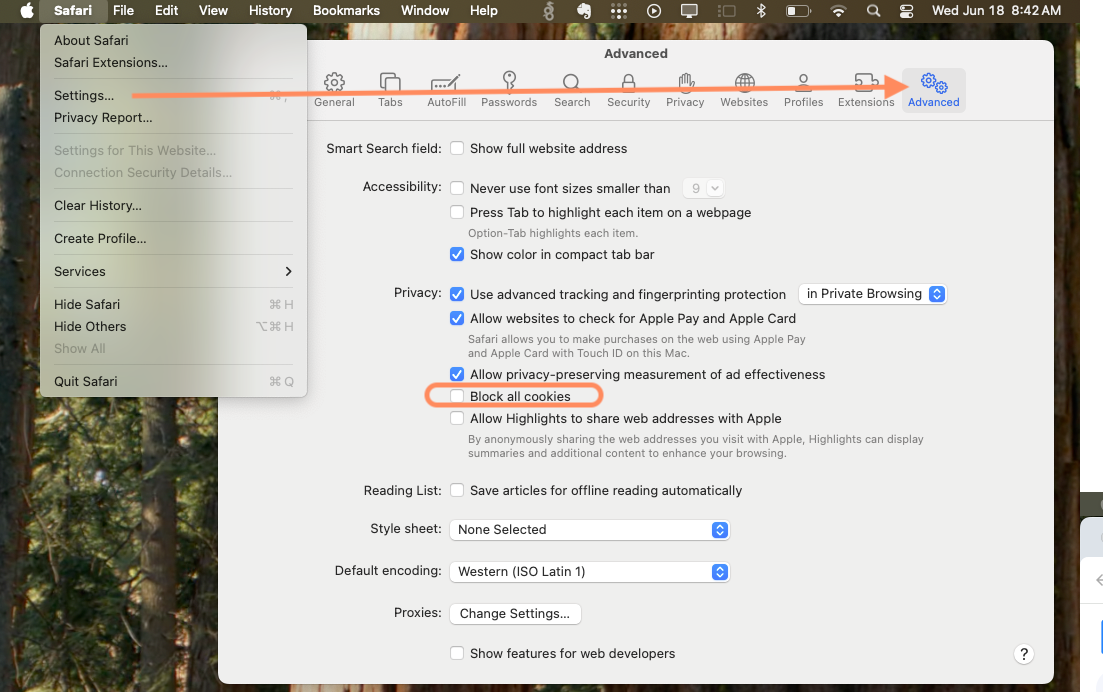
Certain Elation features (e.g. electronic prior authorizations for prescriptions) require you to allow third-party cookies in your web browser. Follow the instructions below to enable third-party cookies for your browser of choice.Workflow Instructions
Google Chrome
Allowing only Elation to use third-party cookies
To only allow Elation to use third-party cookies: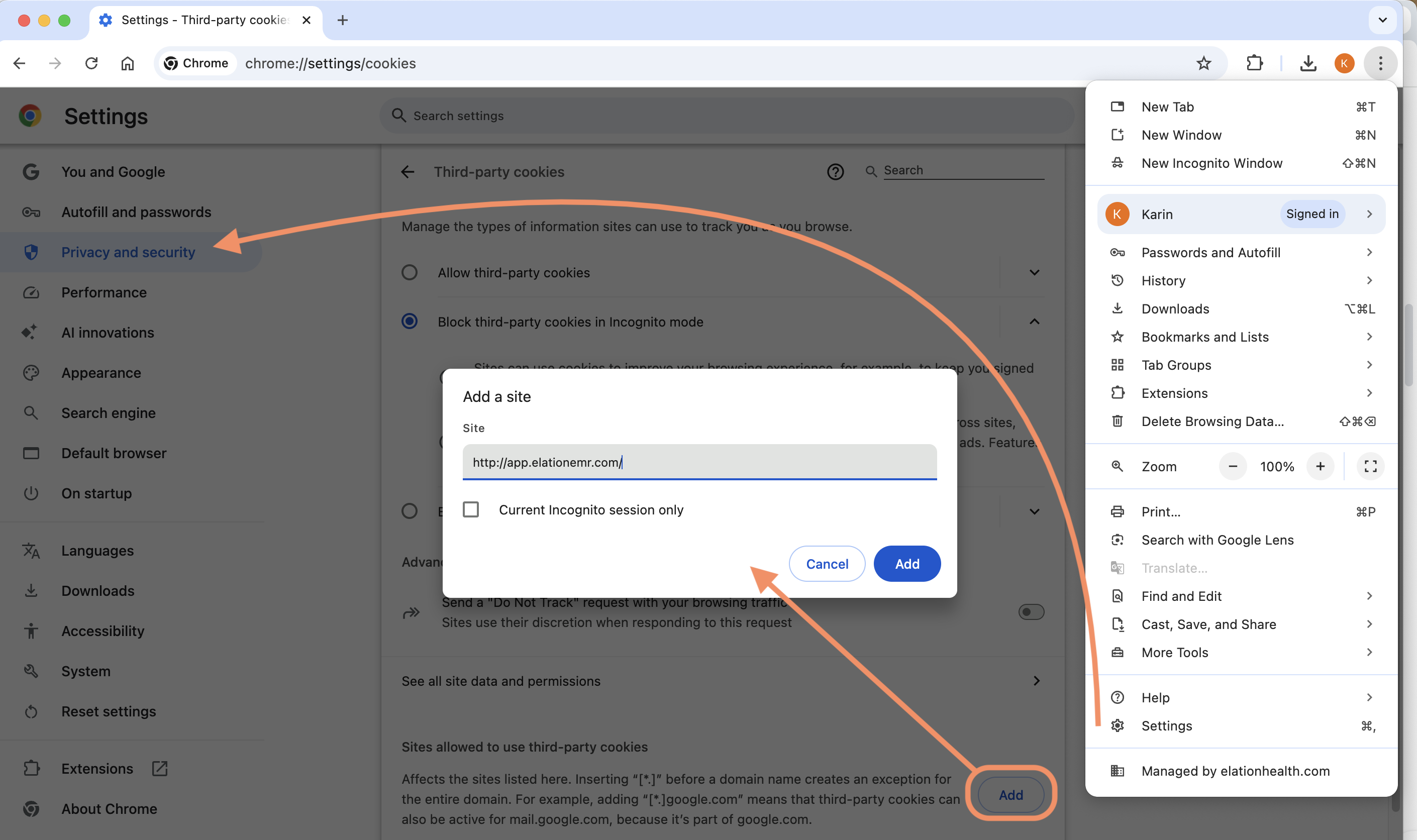
Allowing third-party cookies from all sites
To allow cookies from all third-party sites: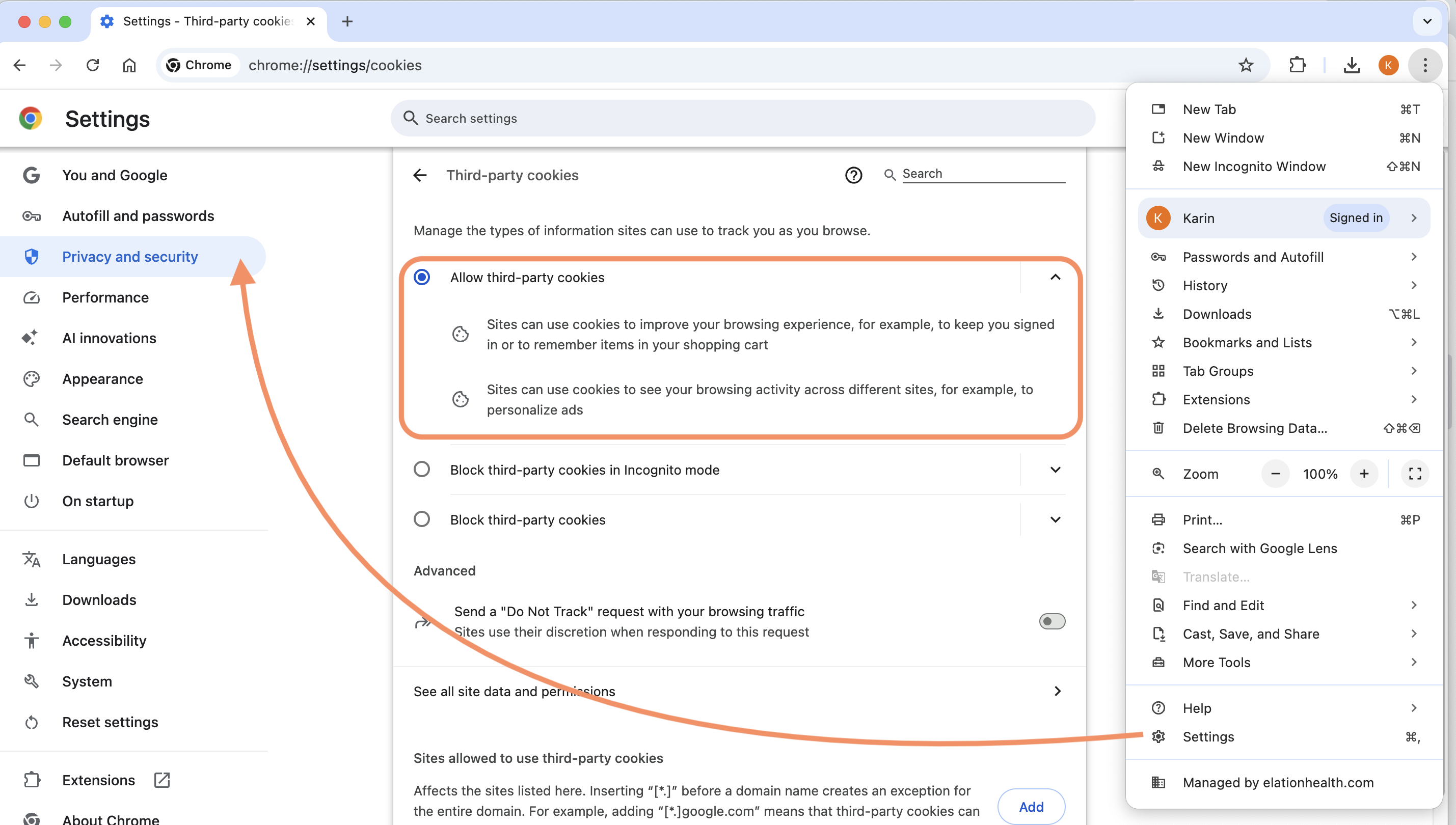
Enabling third-party cookies only when accessing specific pages in Elation
To only allow third-party cookies while you’re on specific pages in Elation:| 1 | Click the View site information button next to Elation’s URL. 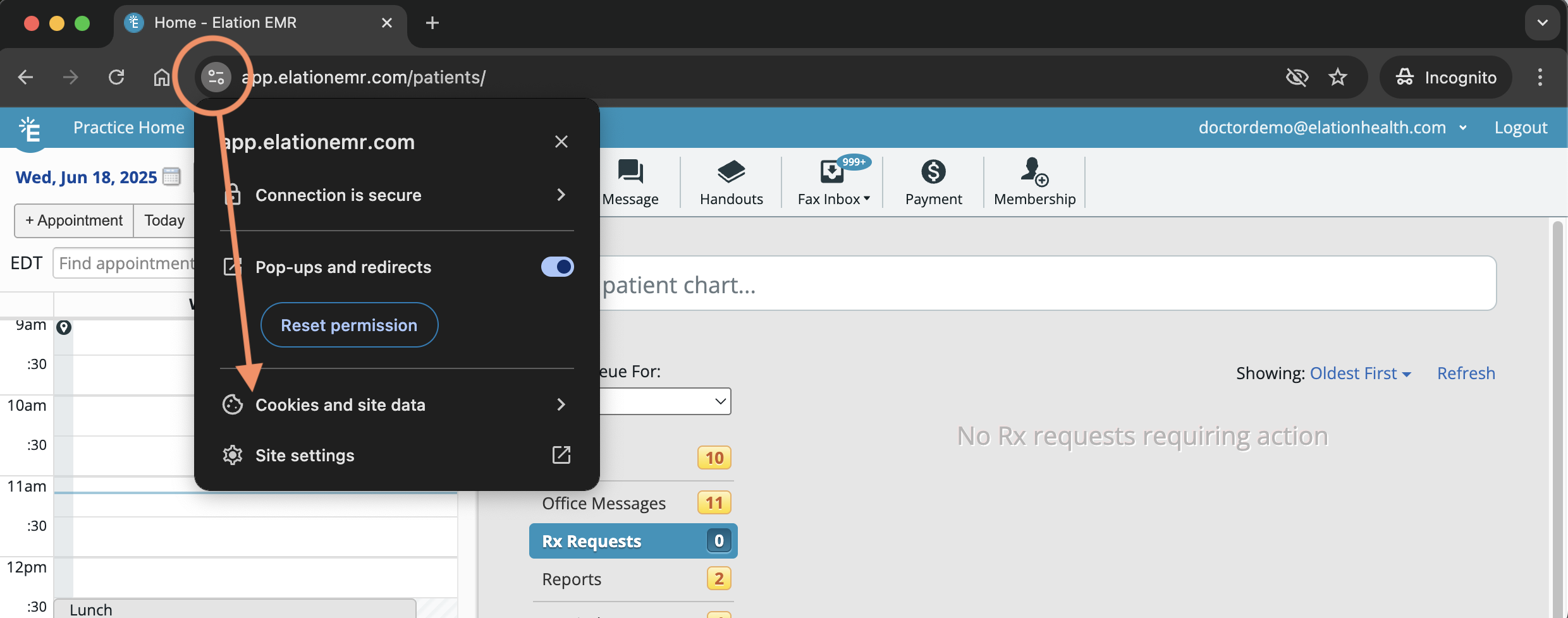 |
|---|---|
| 2 | Click Cookie and site data . |
| 3 | Toggle on Third-party cookies. 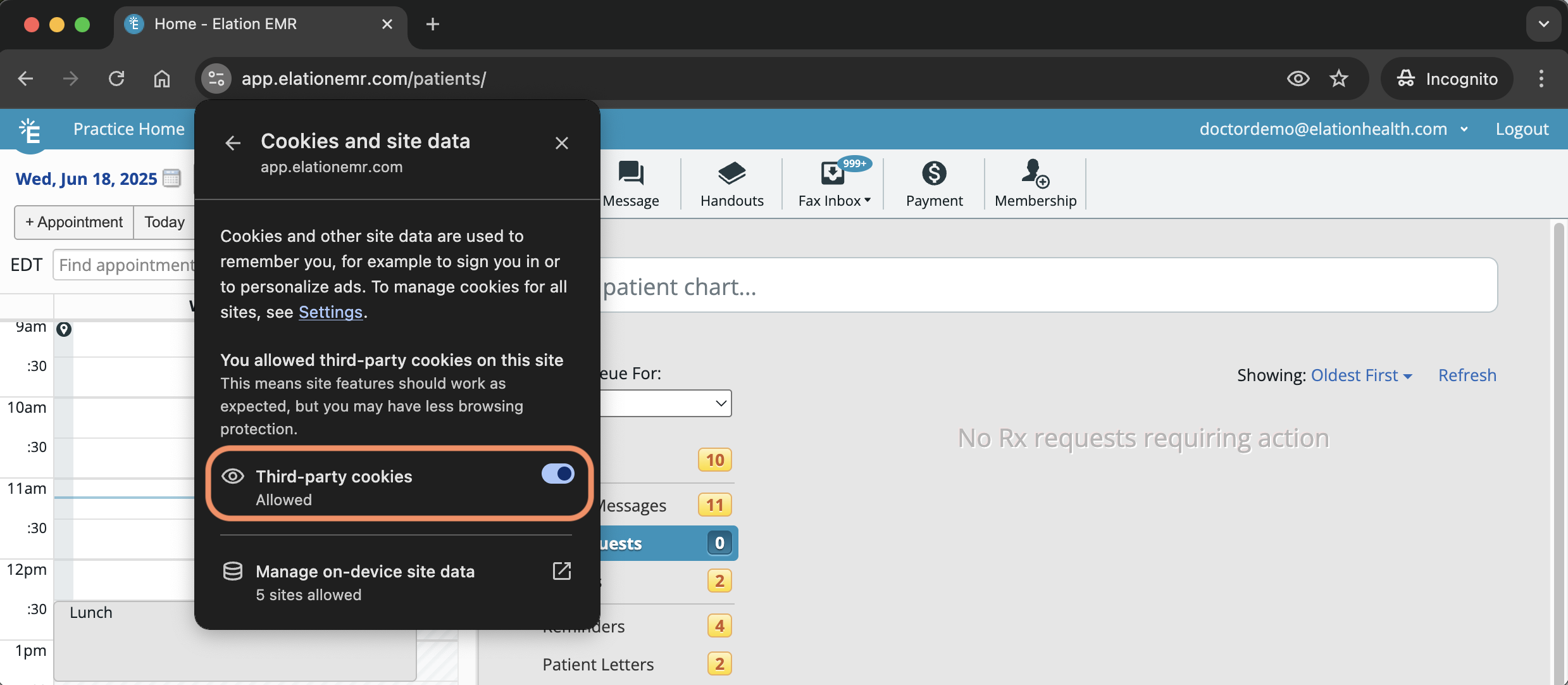 |
Microsoft Edge
| 1 | Click the button that looks like three horizontal dots in the top right-hand corner of Edge. |
|---|---|
| 2 | Click Settings . |
| 3 | Click Cookies and site permissions. If your browser is too small, expand your browser to see the Settings Menu or click on the button that looks like three horizontal lines at the top left corner. |
| 4 | Click Cookies and site data . |
| 5 | Turn off Block third-party cookies. 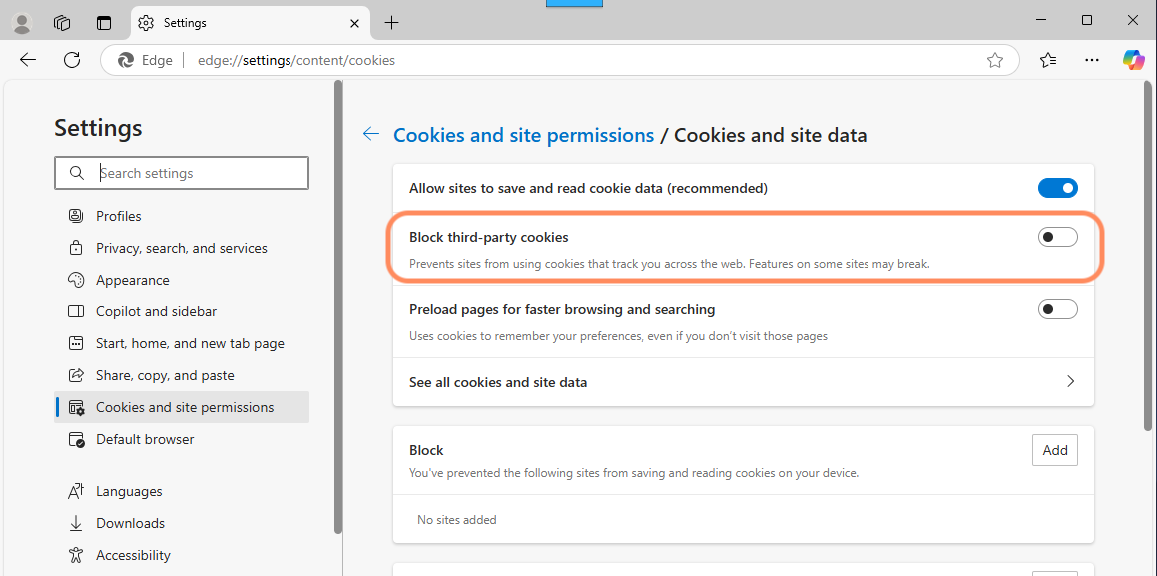 |
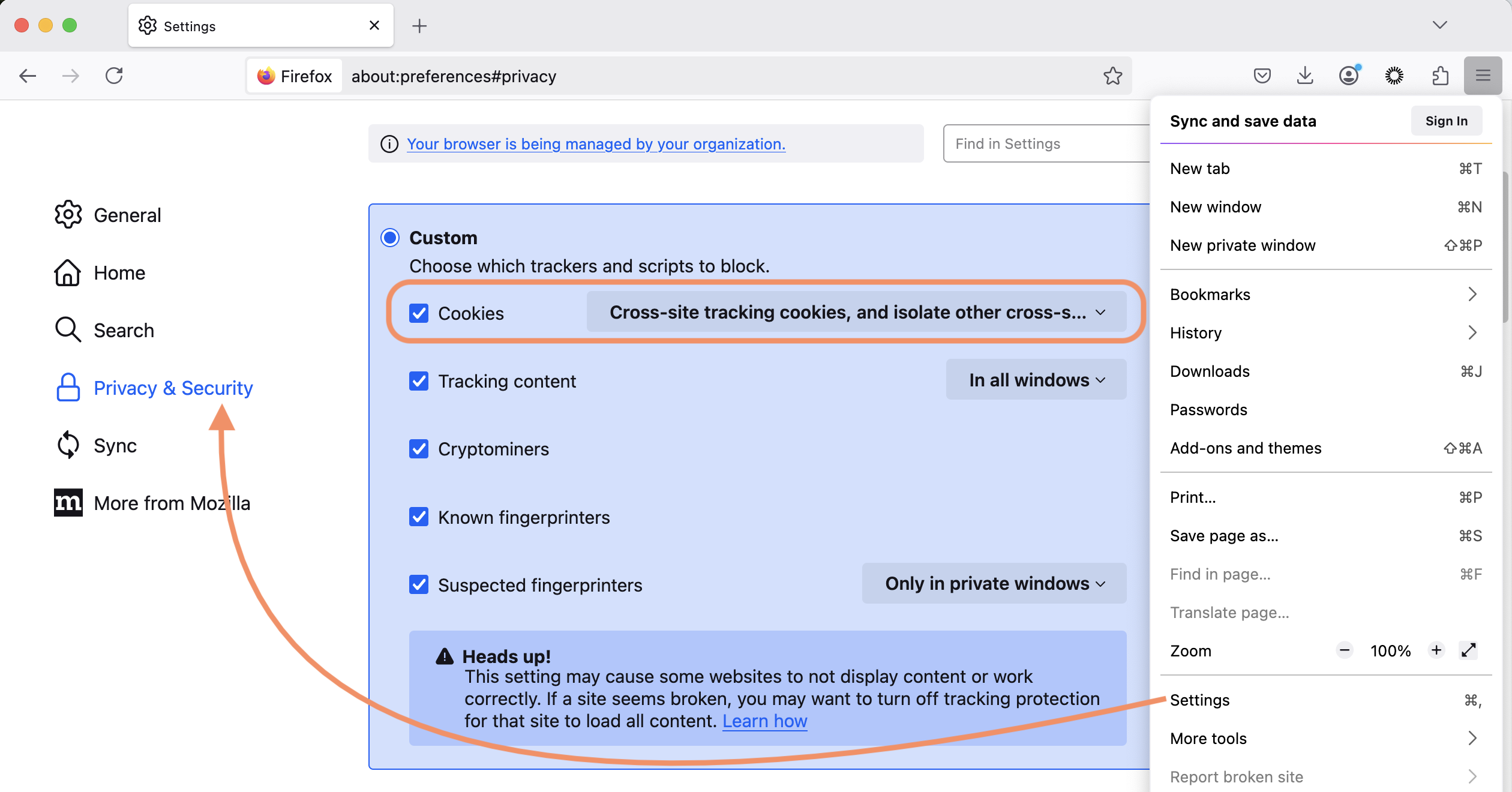
Mozilla Firefox
Safari