
Overview
This article will guide you through documenting a patient encounter using the Elation Note. Along the way, you’ll learn how to use features like templates, dynamic macros and rich text formatting to make your documentation more efficient, clear, and consistent. You’re free to explore these workflows and choose the ones that feels most comfortable and efficient for your style. There’s no need to use them all—just what works best for you.Workflow Instructions
Starting a new Elation Note draft
The Calendar is designed to provide an intuitive experience for managing appointments and providing visibility into each Provider Level User’s schedule.1
Open the patient’s chart.
2
At the top of the chart, click Visit Note -> Elation Note. Click on the patient’s name from their appointment today to open an Elation Note draft if you are using Elation Note with the visit note automation feature.
3
A new draft note will open on the right-hand side of the chart.
Addressing Clinical Reminders
Review the Clinical Reminders at the top of the visit note draft to address/dismiss any relevant reminders.Clinical Reminders are only available for Health Maintenance measures and customers using custom Care Gaps at this time.
Writing a visit note
Using a template
In the Elation Note, you can export templates created with Elation’s legacy Visit Note Template feature or the Elation Note Templates feature. Click here to learn more about how to create the new Elation Note Templates. Multiple templates (both legacy and new) can be applied to the same visit note draft. The contents of the template will simply add to what’s already been documented in the draft.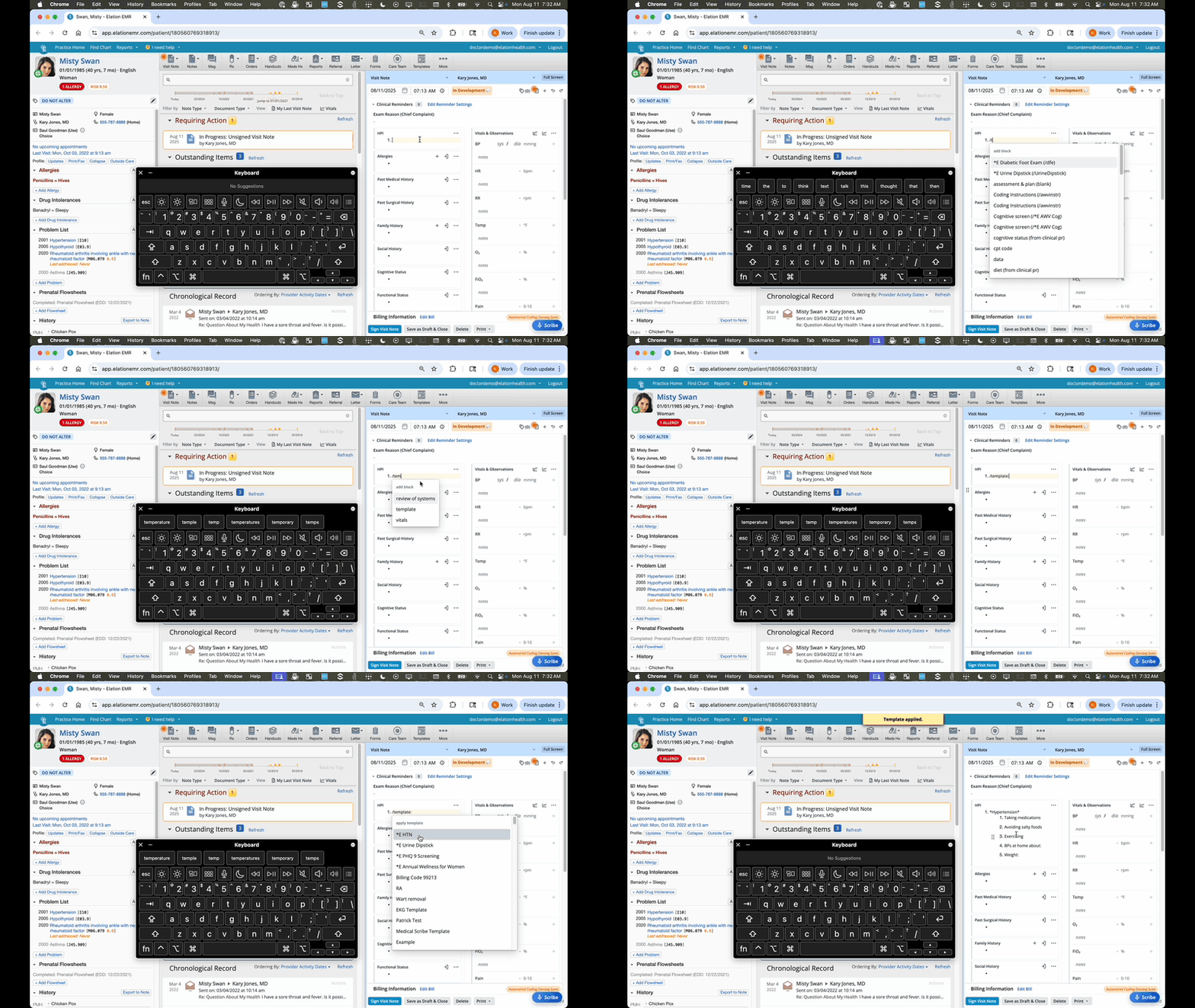
Option 1: Exporting a legacy template
As a recommendation, keep all of the default blocks that appear when you start your draft note. Doing so helps ensure the contents of your legacy template appear in the expected order. The data will populate in their corresponding blocks, wherever they are in the note. If the blocks don’t exist, then we will append the block to the bottom of the note (respecting their right or left location in the template).1
Follow any of these 3 workflows to insert the Template block into your visit note.
2
Search for and select the template you want to add.
When exporting a legacy template to the Elation Note, you must use one of the workflows in the above link. You cannot export them from the Visit Note Templates shortcut at the top of the chart.
Option 2: Exporting an Elation Note Template
If you haven’t written anything in the draft yet:1
Delete all of the default blocks from your draft first.
2
Once the note has no more blocks, click the Templates icon at the top of the Visit Note.
3
Search for & select the template you want to add.
1
Click the Templates icon at the top of the Visit Note.
2
Search for & select the template you want to add. The blocks from the recently added template might not appear in the expected order (i.e. blocks may get appended to the bottom of the note). If needed, use the Grid icon to drag-and-drop the blocks to the right position.
EXCEPTION Elation Note Templates aren’t supported when setting up visit note automation . Click on the white space to open the appointment popover and then click Chart to open the chart and avoid visit note automation if you plan to use an Elation Note.
Typing directly into the note
You can place your cursor into any text field within a block or outside of a block to type new content.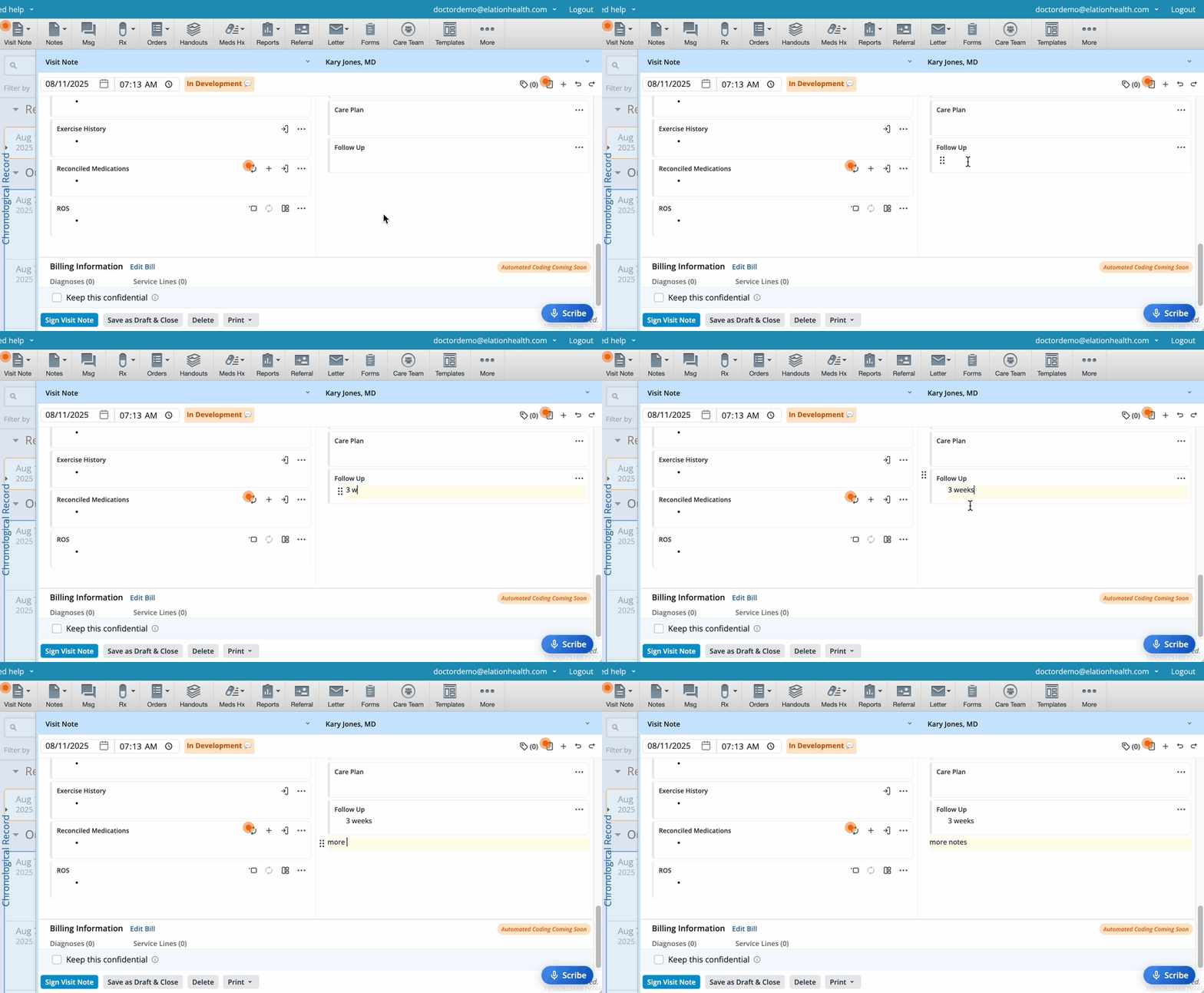
Creating a text field outside of a block
Option 1: Add a text field above or below a block1
At the top of any existing block, click the Grid icon  on the left or the More Actions icon
  on the right.
on the left or the More Actions icon on the right.2
Select Add block above or Add block below depending on where you want the new text field to appear.
3
When the dropdown menu appears, delete the forward-slash ( / ) so that you’re left with a regular text field that you can type in.
1
In an existing block, place your cursor at the end of the last line of text.
2
Press Return / Enter on your keyboard twice. With the first keystroke, you’ll create a new line, and with the second, you’ll create a text field outside the block.
Importing content from outside the note
For the blocks that are associated with the subjective data, there are a few workflows to transfer data from the Clinical Profile or Patient Demographics to the draft note.Option 1: Using the import button found at the top of the block
Exception: Only certain blocks will feature an Import icon.
1
Click the Import icon to import the content from the corresponding section of the Clinical Profile.
Option 2: Inserting a block whose name ends with (from Clinical Pr) into the note
Exception: Blocks ending with (from Clinical Pr) are only available for certain sections of the Clinical Profile.
1
Follow any of these 3 workflows to search for and enter a block that ends with (from Clinical Pr).
2
The block will appear pre-populated with content from the corresponding section of the Clinical Profile.
If you administer an updated Clinical Questionnaire, any previously imported results will remain visible in read-only mode for reference.
Option 3: Initiating an export from the Clinical Profile
1
Scroll to the section of the Clinical Profile that you’d like to export.
2
Hover over the heading name or a specific line-item under the heading until you see an Actions button appear.
3
Click Actions and in the dropdown menu, select the type of import that you’d like to perform.
EXCEPTION Currently, exporting the synopsis of a diagnosis from the Problem List isn’t supported, but this functionality is planned for a future update.
Option 4: Applying a Dynamic Macro
1
Use the @ shortcut to insert any of the following chart data into a standard block or text field: Clinical Profile (Allergies) • Clinical Profile (Medications) • Clinical Profile (Problems) • Patient age • Patient DOB • Patient name
Exception: Dynamic macros cannot be used in custom blocks, Vitals blocks, structured PE and ROS fields or anywhere outside of the Elation Note draft or template builder.
Using the + button in certain blocks
The Allergies, Reconciled Medications, and Assessment & Plan blocks have a + button that allows you to simultaneously add structured information to the draft note and Clinical Profile.1
At the top of one of the 3 blocks mentioned above, click the + button.
2
A pop-up window that corresponds with the block will appear.
3
Complete the fields within the pop-up window.
4
Click Save.
Exception: The Family History block also has a + button, but it can only be used to add information to the note daft.The Procedures Administered block also includes a + button, but it can only be used to add a procedure to the visit note along with any related CPT codes to the billing section.
Deleting content from your note
Aside from pressing the Delete/Backspace key on your keyboard to delete individual text, you can also use the methods below when appropriate.Option 1: Using buttons to remove an entire block
1
At the top of any existing block, click the Grid icon on the left or the More Actions icon on the right.
on the left or the More Actions icon on the right.2
Select Delete from the dropdown menu.
Option 2: Highlighting content to delete
1
Highlight text from the visit note with your cursor. The highlighted portion can span across blocks.
2
Press the Delete / Backspace key on your keyboard to delete the highlighted text.
Copying forward a signed Elation Note
1
In the Chronological Record, locate the signed visit note.
2
Click Actions -> Export to New Note (All Sections).
3
A new draft will appear with the contents of the prior visit note.
Exception: You can only copy forward a signed Elation Note to an Elation Note draft (i.e. you cannot copy forward a legacy visit note into an Elation Note draft).
Undo-ing or redo-ing actions
The Undo button at the top of the note lets you undo the last action as long as you never saved the note or exited the chart since taking the last action. This includes undo-ing a delete action.
- You can also press Ctrl/command + z on your keyboard.
 lets you redo the last action that was undone.
- You can also press Ctrl/command + y on your keyboard.
Applying rich-text formatting with keyboard shortcuts
Within any text field (inside or outside a block), you can use the following keyboard shortcuts to achieve more detailed formatting.| Action | Steps |
|---|---|
| Create a heading | #+space+ type your heading text |
| Bold | Ctrl/command+b |
| Italicize | Ctrl/command+i |
| Bold and Italicize | Ctrl/command+b+i |
| Undo | Ctrl/command+z You can also click the Undo button at the top of the note. |
| Redo | Ctrl/command+y You can also click the Redo button at the top of the note. |
| Copy | Ctrl/command+c |
| Cut | Ctrl/command+x |
| Paste | Ctrl/command+v |
| Create a bulleted list | Press the dash- key followed by** space**. Use the Tab key to indent. • Press Shift + Tab to un-indent. |
| Convert an empty bullet to a paragraph | Press the Enter/Return key. |
| Create a numbered list | Press a number+ the period.key +space key Use the Tab key to indent. • Press Shift + Tab to un-indent. |
| Convert an empty numbered list to a paragraph | Press the Enter key |
| Move cursor to the start of a line | Ctrl+a |
| Moving between blocks | Press the up ↑ or down ↓ arrow. |
| Select all contents in the note | Command/Windows key +a |
Amending an Elation Note
Provider Level Users can amend visit notes they sign. All changes will be tracked and logged for auditing and legal purposes.1
In the Chronological Record, locate the signed visit note.
2
Click Actions -> Amend Visit Note -> Continue.
3
The visit note will appear in draft form for you to edit.
4
Click Sign Amended Visit Note to save your amendments.
Printing a note, Patient Summary, or Care Plan
To print- an Elation Note draft, click Print and then select one of the print options.
- a signed Elation Note, click Actions -> Print Note and then select one of the print options.
Print Options
- Bill
- By default, diagnosis codes are included in the printout. Unselect the Include dx codes box from the Print Selection to exclude diagnosis codes from the printout.
- Patient Summary
- By default, the Exam reason, Vitals, Procedures administered, Care plan and Follow up sections will be printed, if available. You can uncheck the corresponding boxes to exclude that data from the printout.
- Select Bill, Active medications or Active problems to include the corresponding data in the printout.
- Note
- By default, all sections of note, excluding the billing information is included in the printout.
- Select Bill to included billing data in the printout.
How the patient is identified on the printoutWhen you print directly from the note (Print, or Actions -> Print Note), the patient’s preferred name (or legal name if no preferred name is set) appears once at the top of the document. If the patient has a preferred name, their legal name is also shown in smaller text below it. The name is not repeated on each page of a multi-page printout, and there is no setting or dynamic macro that adds it to every page of that printout.If you need the patient’s legal name, date of birth, and page number to appear on every page—for example, so no page of a multi-page note can be mistaken for another patient’s—generate the note as a PDF instead by faxing, sharing, or exporting it. Elation automatically adds a footer with the patient’s legal name, date of birth, and “Page X of Y” to every page of those PDFs.