Overview
What are blocks?
The Elation Note is built from modular parts called blocks, which you can customize to fit the visit. Add, remove, or rearrange blocks based on what you need to document. This flexibility helps you organize your notes in a way that works best for your workflow.What types of blocks are there?
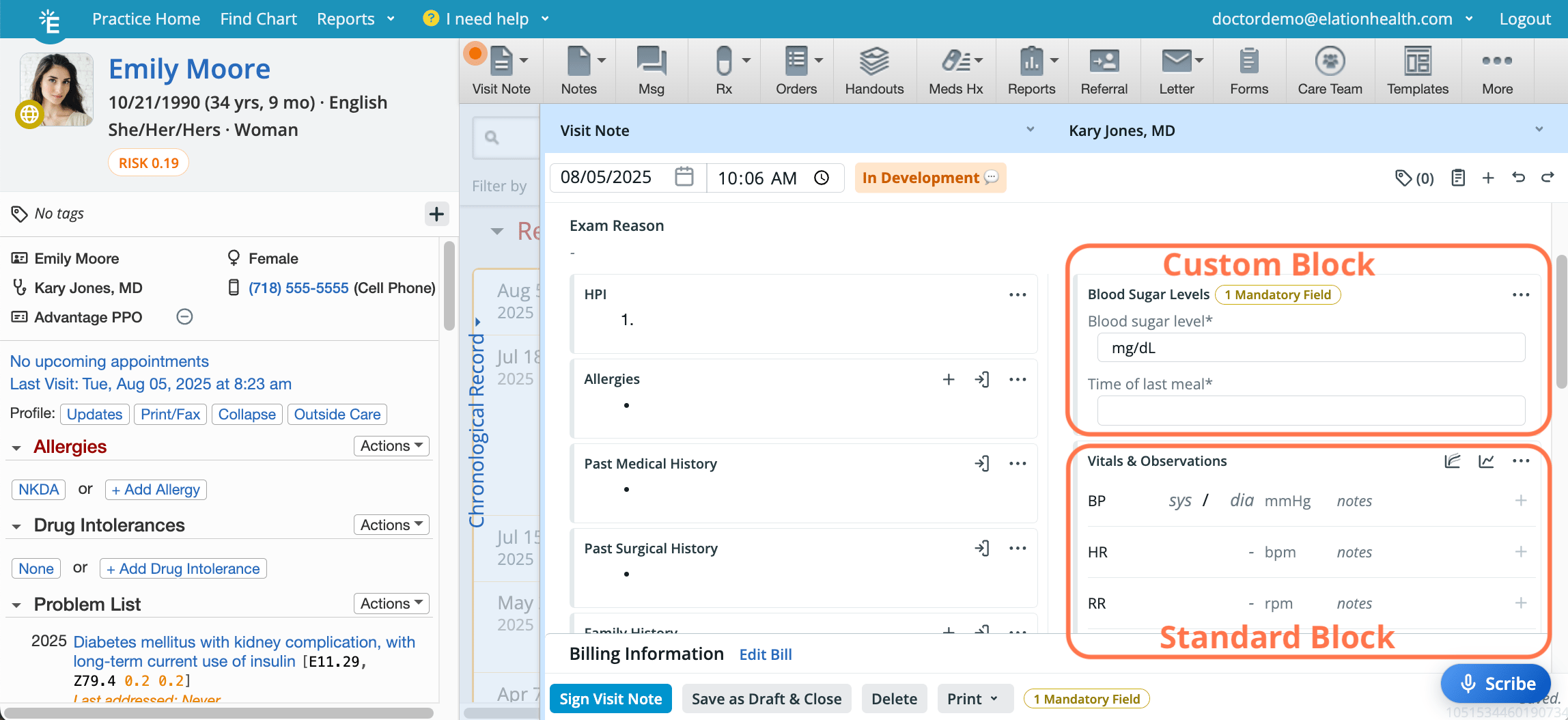
There are two types of blocks:- Standard blocks
- These are created and managed by Elation.
- They represent the common parts of a SOAP note.
- A default set of standard blocks will be available.
- Use a standard block when you want to include commonly used, structured sections in your note—such as History of Present Illness (HPI), Vitals, Physical Exam, or Assessment and Plan. Standard blocks help ensure consistency across documentation
- Each standard block can only be added once to an Elation Note with the exception of:
- lab order
- imaging order
- prescription
- PopulatesUSCDIdata classes.
- Included in CCDA exports if corresponding standard blocks are used.
- Custom blocks
- These are created and managed by you and your practice.Click here to learn more about Custom blocks.
- Use a custom block when the standard options don’t quite fit what you need to document across multiple patients.
- Custom blocks can be added multiple times to an Elation Note.
- Populates theUSCDIdata class for data.
- Custom blocks must be nested inside standard blocks to ensure ensure that custom block data is included in the parent block’s data class for USCDI/CCDA. For example, a custom block nested in allergies will have its results included in the allergies data class for the CCDA export.
Any data your practice needs or relies on for CCDA or FHIR will not include data from custom blocks unless the custom block is nested in a standard block.
What does a standard block look like?
Standard blocks display the block name and several quick action icons, allowing you to perform common tasks directly from the block.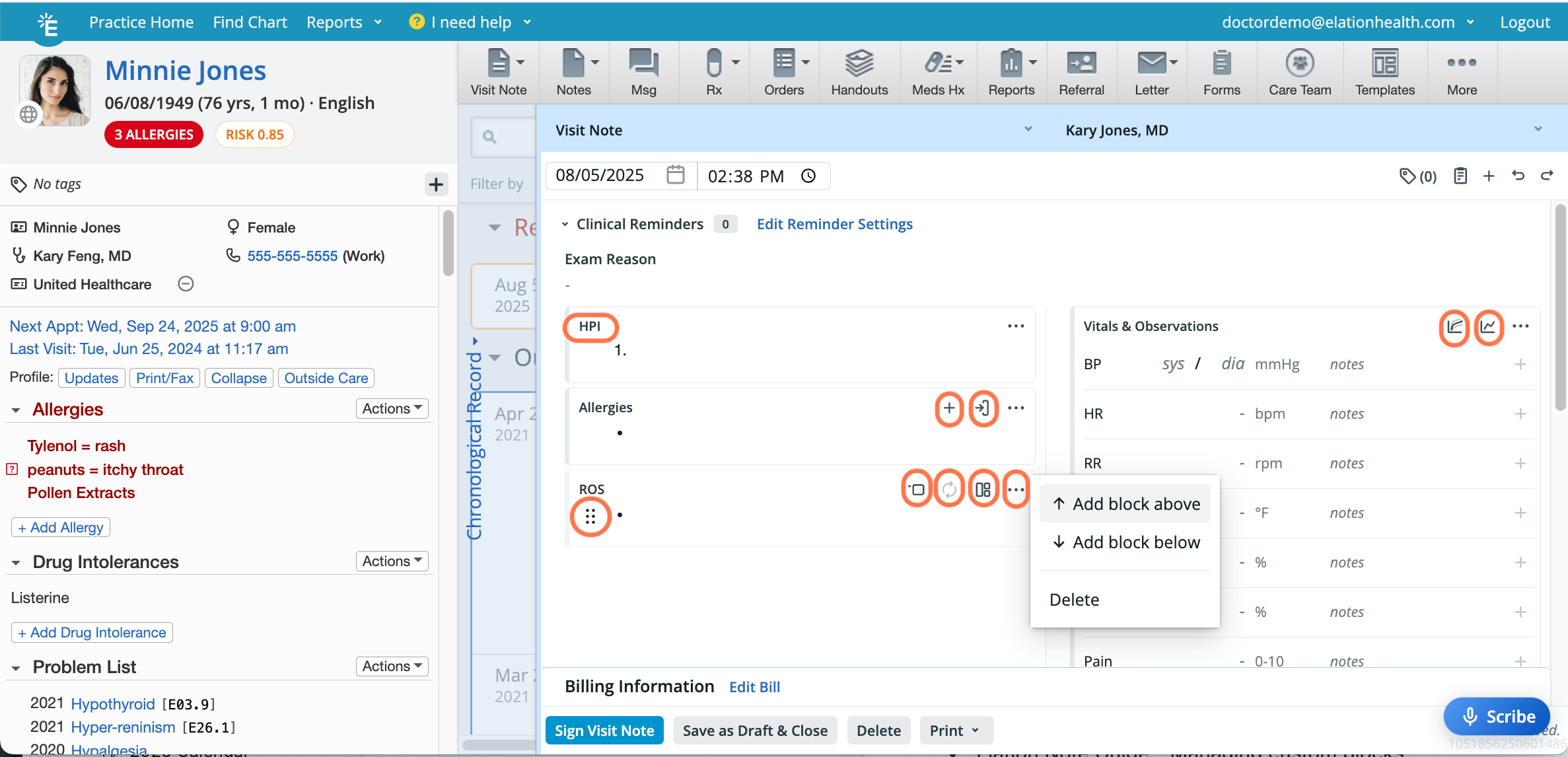
| Icon | Name | Description | Availability |
|---|---|---|---|
| Name | Name of the block. | All blocks | |
 | More Actions | Reveal the actions menu. | All blocks |
 | Grid | Appears when you hover near the top of the block. Allows you to click-and-drag the block to a different position and access the same actions menu as the … button. | All blocks |
 | Add | Opens a form to add new information to both the block and the Clinical Profile simultaneously. • For Procedures Administered - Opens a form to add a procedure code to both the block and the billing information simultaneously. | Allergies, Family History, Reconciled Medications, Assessment & Plan, and Procedures Administered blocks only. |
 | Import | Imports data from the corresponding Clinical Profile section to the block. | Clinical Profile related blocks only. |
 | Reveal | Reveals the systems within the ROS and PE blocks. | ROS and PE blocks only. |
 | Hide | Hides the systems within the ROS and PE blocks. | ROS and PE blocks only. |
 | Clear | Deletes all content from the block. | ROS and PE blocks only. |
 | Templates | Opens the template selector for the block. | ROS and PE blocks only. |
 | Growth Chart | Opens the growth chart. | Vitals block only. |
 | Vitals Trend | Opens the vitals trend table. | Vitals block only. |
 | Delete | Deletes the order placeholder. | Prescription, Lab Order and Imaging Order blocks only. |
- allergies
- assessment & plan
- care plan
- cognitive status
- data
- diet
- exercise history
- family history
- follow up
- functional status
- habits
- hpi
- past medical history
- past surgical history
- physical exam
- procedures administered
- psychological status
- reconciled medications
- review of systems
- social history
- vitals
What does a custom block look like?
Custom blocks display only the block Name, the Grid icon , the More Actions icon
  , and the contents within the block. If a custom block contains any mandatory fields, you’ll see an indicator at the top of the block to let you know.
Click here to learn more about Custom blocks.
, and the contents within the block. If a custom block contains any mandatory fields, you’ll see an indicator at the top of the block to let you know.
Click here to learn more about Custom blocks.
Workflow Instructions
Adding a block
The Calendar is designed to provide an intuitive experience for managing appointments and providing visibility into each Provider Level User’s schedule.Option 1 (Recommended for inserting a block between existing blocks)
| 1 | At the top of any existing block, click the Grid icon on the left or the More Actions icon on the right. |
|---|---|
| 2 | Select Add block above or Add block below depending on where you want the new block to appear. |
| 3 | From the dropdown menu, select the block that you want to add. |
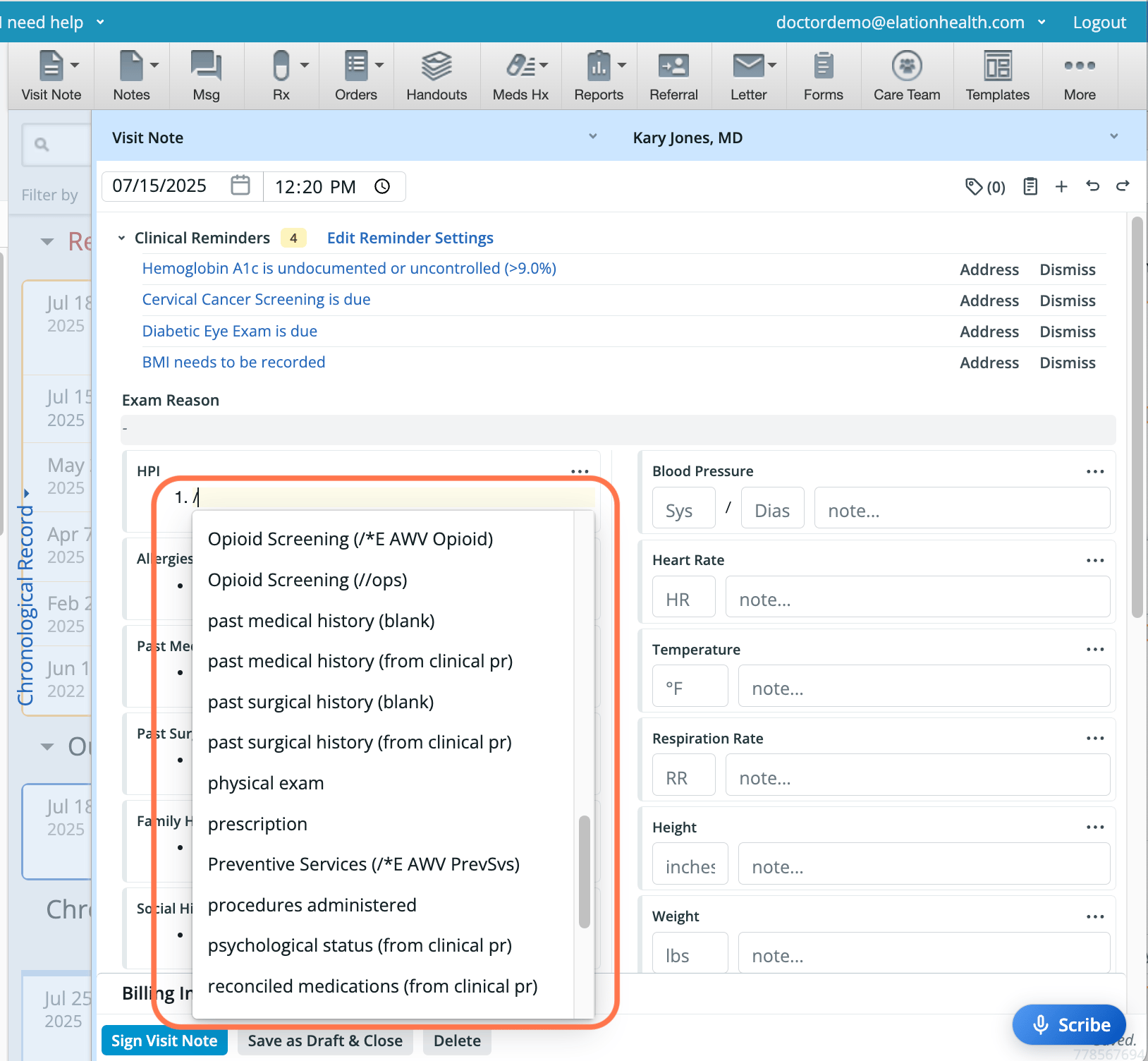
Option 2 (Recommended for placing a block in a specific text field or location within the note)
Option 3 (Recommended if you prefer using your keyboard over your mouse)
Deleting a block
Option 1 (Recommended for deleting one block at a time)
| 1 | At the top of the block that you wish to delete, click the Grid icon on the left or the More Actions icon on the right. |
|---|---|
| 2 | Select Delete . |
Option 2 (Recommended for deleting more than one block at the same time)
Option 3 (Recommended if a block is empty and you prefer using your keyboard over your mouse)
Option 4 (Recommended for deleting all blocks from the note)
Moving a block
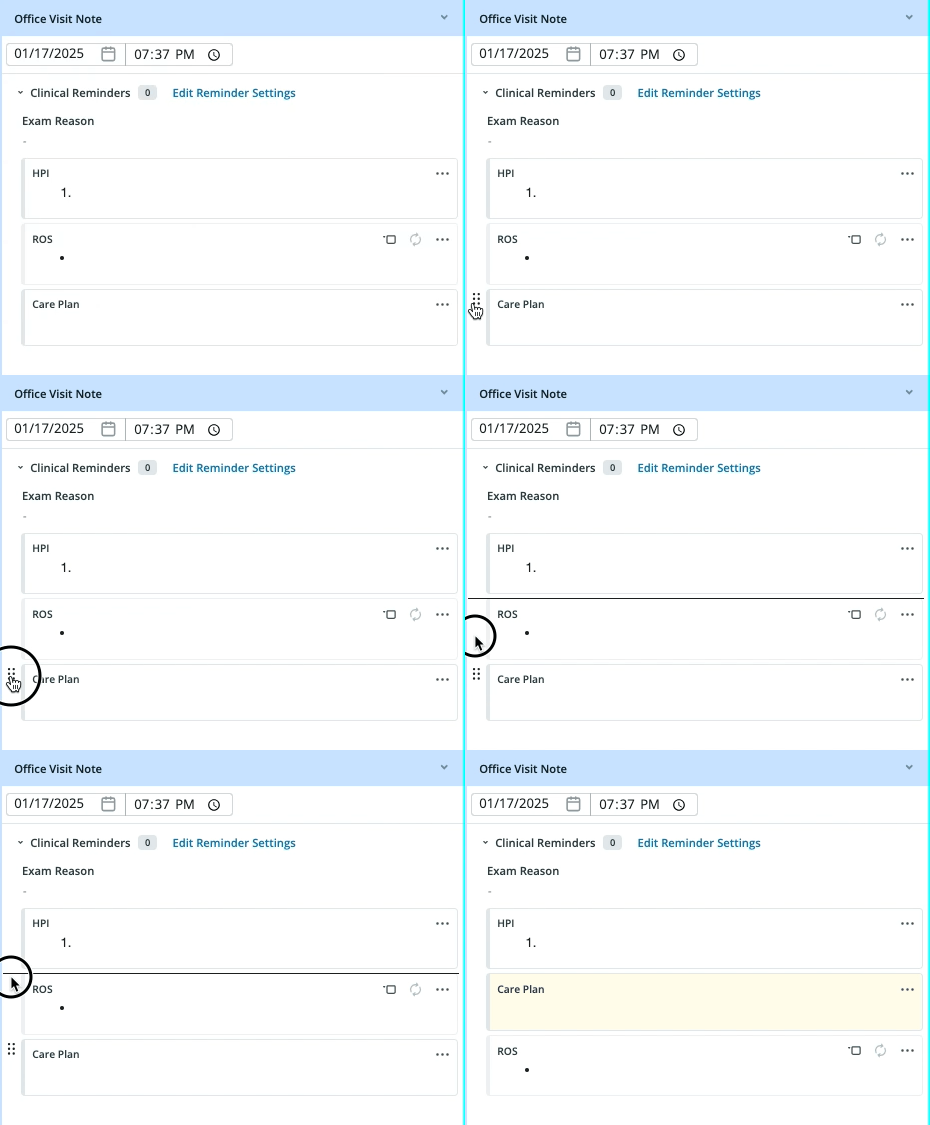
You can change the position of your blocks within the visit note. They can be stacked or embedded in text fields.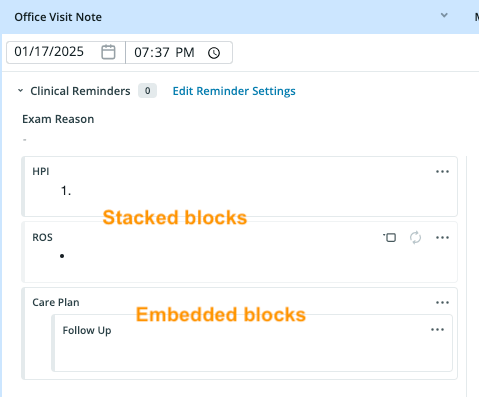
| 1 | Hover over the name of the block until you see the Grid icon on the left. |
|---|---|
| 2 | Click and hold the Grid icon as you drag the block to a different location. A line will temporarily appear to show where the block’s new location will be. |
| 3 | Let go of your mouse to lock in the new location. |