
What is Spruce?
Spruce is a secure, HIPAA compliant communication platform that enables patients and their providers to readily connect. With Spruce, patients and providers can seamlessly discuss symptoms over messages, then have a phone call or virtual video appointment with their provider - all in one space. Both patients and providers can have peace of mind knowing that they can receive and give care in a secure, simple and adaptable way.What is the Elation-Spruce integration?
The Elation-Spruce integration allows you to- automatically create charts for patients in Spruce when you create their chart in Elation
- easily keep patient contact information up to date in both systems
- automatically transfer your messages (especially telehealth related) from Spruce into Elation so that all of the patient’s clinical data is easily stored in one place for billing purposes.
See the Elation-Spruce- Message Sync Integration Guide for more detailed information about the integration features.
Quick tips for using Spruce with Elation
Do I need to sign up for the integrated Spruce option to be able to provide and bill for telehealth?
No, you do not! The benefit of using the integrated experience with Spruce is that you will not need to individually create patients in Spruce and you can more easily sync copies of conversations from Spruce to Elation. However, you can still use Spruce for telehealth visits alongside Elation without using the integration. Please see the Transferring your conversations into Elation without an integration section for more information.What virtual services can I bill for by using Spruce?
There are 3 main types of virtual services recognized by Medicare and commercial payers. The following table covers which services you can deliver with Spruce.Please refer to this help center article for more information about virtual services.
What workflow would you recommend for Telehealth visits?
- In Elation, schedule the patient for a virtual visit. Remind them to install and set-up their Spruce account prior to the visit date.
- When you are ready to start the virtual visit, message your patient with Spruce to check if they are ready. Next, initiate your video call in Spruce.
- Create your visit note in Elation. Update the visit note category to Telehealth.
- Apply the Telehealth visit note template to document the details of the video call.
- Bill for the E/M code that you would have used for an equivalent in-office visit. Depending on the patient’s insurance, make sure you add any necessary modifiers and Place of Service. (See Elation’s Telehealth Billing Guidelines here to understand the latest Telehealth billing requirements.)
Inviting your patients to communicate via Spruce
Spruce allows providers to communicate with their patients via SMS and/or Secure Messaging directly within Spruce. SMS communications will be sent to patients mobile phone as text messages, while Secure Messaging will take place in the Spruce application and requires the patient to install the Spruce application on their mobile device.Contacts in Spruce
Patients must have a Contact in Spruce in order to be invited to communicate. To add a new contact:- Click on the Contacts icon
- Click New Contact
- Enter the patient’s name, date of birth, contact information and another other demographics details
- Click Save
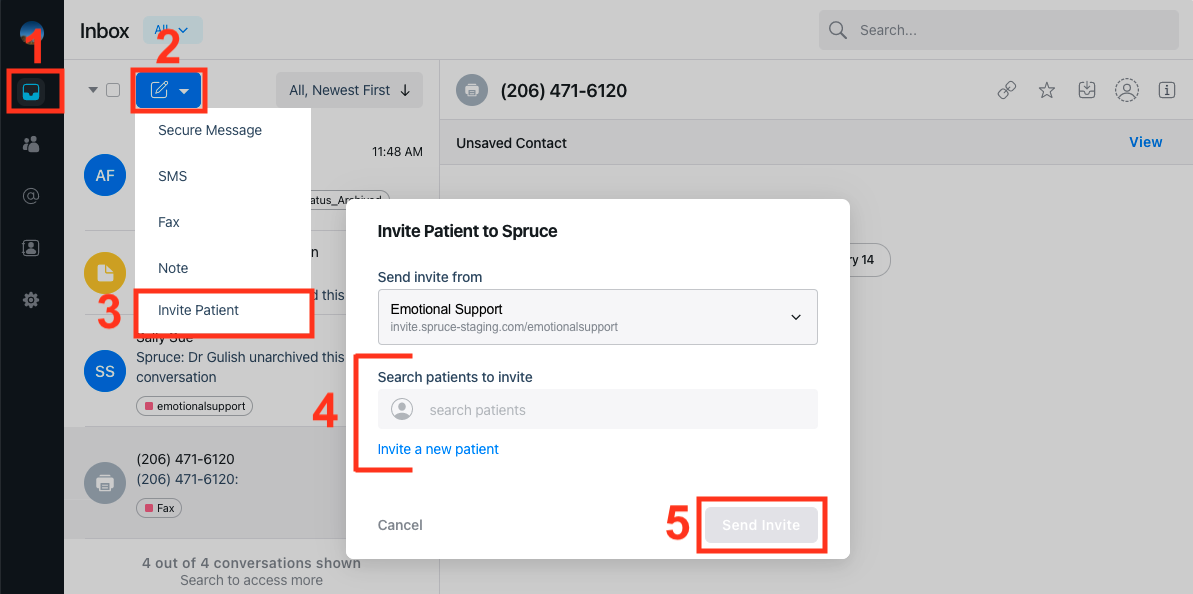
Inviting your patients from the Inbox
- Click the Inbox icon in the menu bar
- When the Inbox opens, click the Compose icon.
- Click Invite Patient from the dropdown
- Select the type of invitation method you need to use
- Use the search box to search for an existing patient
- Click the Invite a new patient button to invite a new patient
- Enter the patient’s name, phone number, and/or email address
- Click Send Invite
- A new conversation window will open for you and the patient
Inviting your patients from a new message
- Click the Inbox icon in the menu bar
- When the Inbox opens, click the Compose icon.
- Click Secure Message or SMS depending on the conversation method you want to use.
- SMS communications will be sent to patients mobile phone as text messages, while Secure Messaging will take place in the Spruce application and requires the patient to install the Spruce application on their mobile device.
- Search for the patient in the to: field.
- Patient who have already been invited to a conversation will display in Blue. Patients who need an invite will display in Gray.
- Select the patient you want to invite
- Spruce will automatically send the patient an invite.
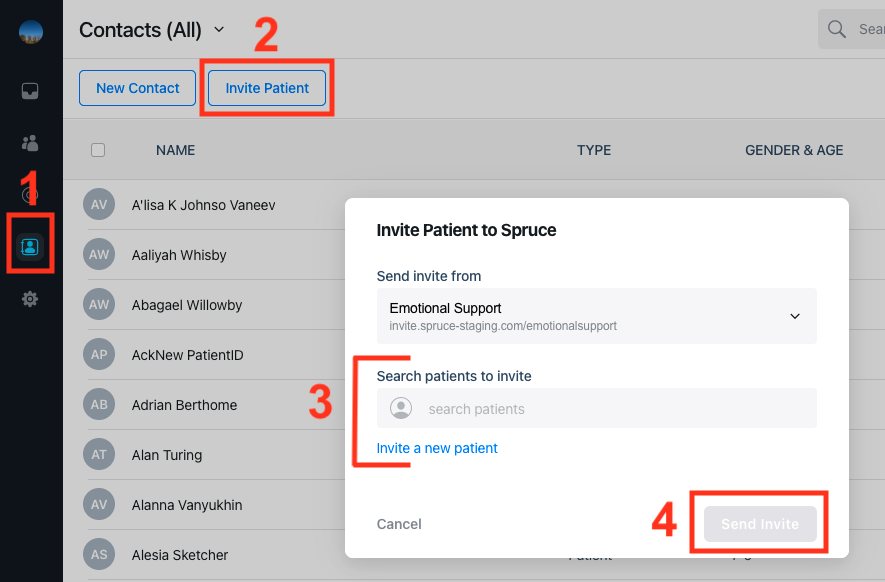
- Click on the Contacts icon
- Click Invite Patient
- Select the type of invitation method you need to use
- Use the search box to search for an existing patient
- Click the Invite a new patient button to invite a new patient
- Enter the patient’s name, phone number, and/or email address
- Click Send Invite
- A new conversation window will open for you and the patient
Composing messages in Spruce
Starting messages
- Click the Inbox icon in the menu bar
- When the Inbox opens, click the Compose icon.
- Click Secure Message or SMS depending on the conversation method you want to use.
- SMS communications will be sent to patients mobile phone as text messages, while Secure Messaging will take place in the Spruce application and requires the patient to install the Spruce application on their mobile device.
- Search for the patient in the to: field.
- Patient who have already been invited to a conversation will display in Blue. Patients who need an invite will display in Gray and an invitation will automatically be sent to them if they need one.
- Start typing your message in the *Type a message…*box
- Click Send > to send your message
Adding attachments
- For both SMS and Secure Message, you are able to attach files like photos, videos, and PDFs.
- For Secure Messages, you are able to attach additional items, such as a Spruce Visit or a Payment Request (if you are using Spruce’s integrated payments)
Using Saved Messages
- Use your Saved Messages for quick actions or responses
- You can be creative with these, but common uses are for booking an appointment, reminding patients about an appointment, quick check-ins, and sharing contact information.
Scheduling a message
- If you’d like to send out a message at a specific date or time, simply compose your message and schedule the preferred date/time and press the Schedule button. You will see the message queued in the patient conversation dialog box.
Having a video call with your patient
Before the Video Call
To initiate a video call with the patient, the patient must be invited to Secure Message and have the Spruce mobile app downloaded on their phone. For best practices, we recommend recording the appointment or scheduled video call in Elation and then sending a message to the patient a few minutes prior to the start of the video call to ensure the patient is prepared and the video call is not missed.Starting the Video Call
Once ready, the provider can begin a video call by clicking on the patient’s name from the Secure Message and then click the **Video ** icon.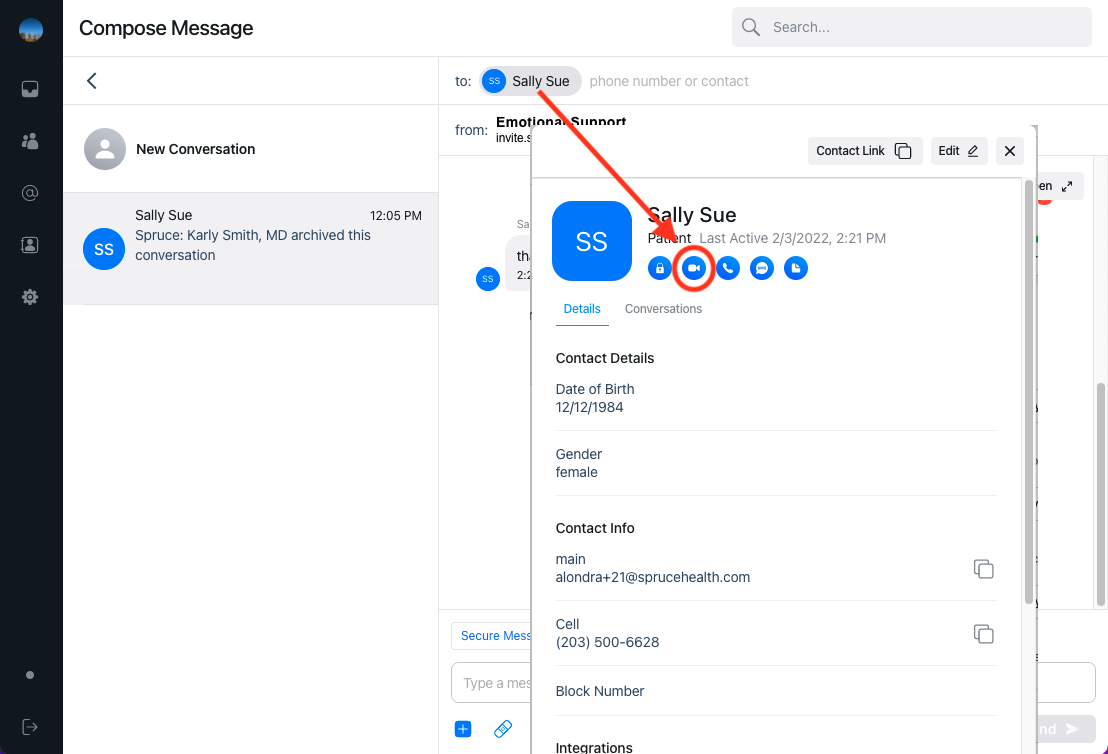
After the Video Call
Once the call has ended, Spruce will automatically log the date and duration of the video call. Providers can then use the Internal notes section to document the visit from the video call directly in Spruce and use either the manual transfer method or Elation-Spruce integration to transfer the information to Elation to begin billing.Transferring conversations into Elation without an integration
Using Spruce without the Elation-Spruce integration, providers and staff can transfer Telehealth visit documentation from Spruce to Elation using the following methods: Formatted Copy & Paste and Conversation Links.Formatted Copy & Paste
To make the transfer for patient communications easy, Spruce has a conveniently formatted copy and paste feature. To copy specific messages from Spruce to Elation:- Open the patient’s conversation in Spruce.
- Highlight the relevant messages and copy, or click the three dots icon next to a specific message, then click Select Message >> Copy Messages
- In Elation, open a visit note or the desired location, and paste the message content. The formatted text will include the timestamp of the message, the sender of the message, and the channel in which it was sent.

Conversation links
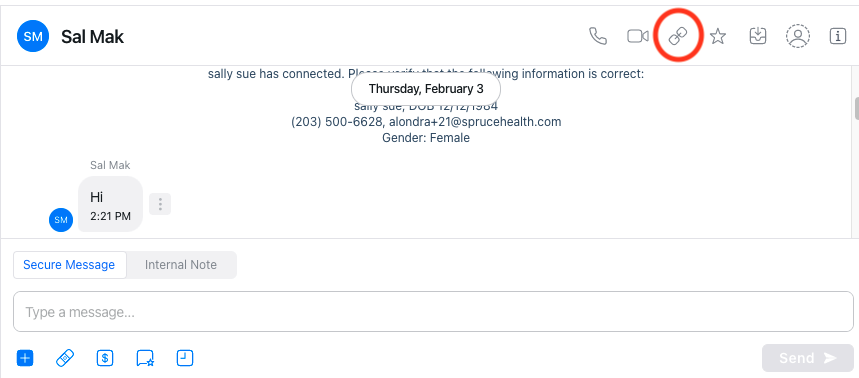
Spruce also has conversation links, which are unique links that allow providers and staff to seamlessly access the conversation that took place. To copy the conversation link from Spruce to Elation:- Open the patient conversation in Spruce.
- Press the Conversation Link icon at the top of the Spruce conversation
- Paste the Conversation Link into Elation using your preferred note format.

Elation-Spruce Integration- How syncing works
Integrating Spruce to Elation offers additional benefits, such as Spruce Contact creation from Elation, contact information sync between systems, and correspondence syncing. If you are interested in these additional benefits, please click here to notify Elation.Creating Contacts in Spruce from Elation
Patients must have a Contact in Spruce in order to be invited to communicate via SMS, Secure Message or Video. When you create a new chart in Elation, a new Contact for the patient will be created in Spruce immediately and this will also create the patient link. You will receive a message in your Spruce Inbox with a note describing this automation for record keeping purposes.Creating a new Contact in Spruce does not automatically create a new chart Elation chart. Patient/Contact creation only occurs from Elation to Spruce.
Linking patients
- Select the patient’s contact in Spruce to open the contact card.
- Scroll down to Integrations and click Link Contact to EHR.
- Select Elation from the drop down menu.
- Search for the patient by the name or the Chart ID number** used for that patient in Elation.
- This search must have the full first or last name in order to pull up the patient. It is not case sensitive.
- Once the correct chart appears, select it and verify that the information from Elation matches the information you have in Spruce.
- Click** Link** to connect the Elation chart with the Spruce contact.
To see Spruce’s demonstration of this workflow, please click here .
Message Syncing
There are two ways messages from Spruce can sync into Elation: Selective or Automatic.Selective Sync (Recommended)
Selective sync allows you to choose one or more messages you would like to sync into Elation. This option allows you to control which messages you would like to copy to Elation. When using this option, you can select which patient chart in Elation the messages are filed under. The patient you are currently viewing in Spruce will be the default. The message(s) chosen for syncing will populate into Elation as a Simple visit note and you will be able to add Telehealth billing information directly to the Simple visit note directly. To use Selective Sync:- Open the conversation in Spruce
- Hover over any messages until three small vertical dots** appear to the right of the message and click on them.
- Select the Select Message option from the menu.
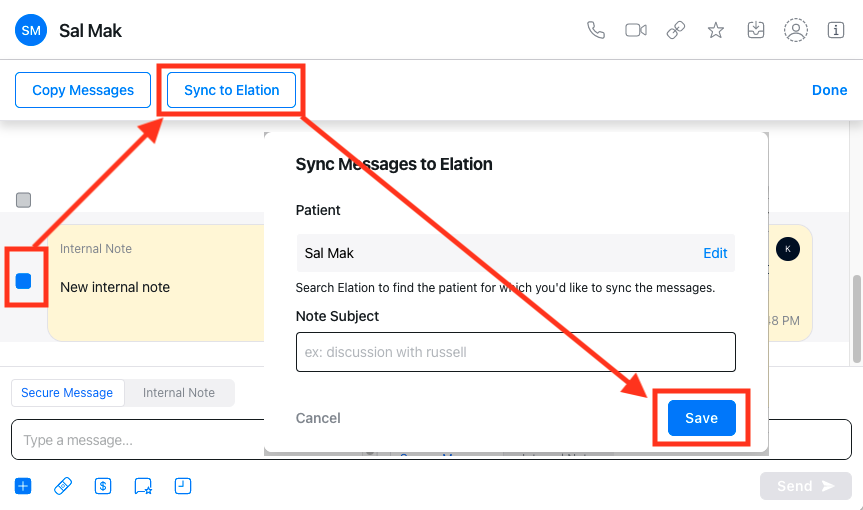
- Squares will appear to the left of each message that you can click to select the individual messages you would like to copy to Elation, they are selected when blue.
- Click Sync to Elation at the top of the conversation, below the patient name
- A box will pop up and if this patient is already linked to their patient chart in Elation it will be populated under patient
- If the patient name is blank, search for the patient by full first and/or last name.
- You can also edit to a different patient than what was prefilled
- Enter a Note Subject if desired.
- Click Done in Spruce to exit the select message view
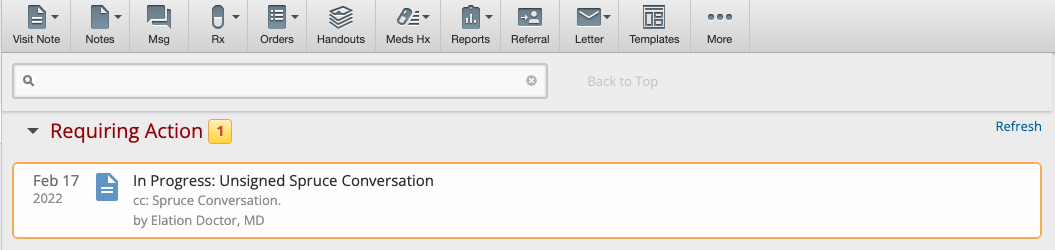
- Open or refresh the patient’s chart in Elation and sign off on the visit note in the Requiring Actions queue.
To see Spruce’s demonstration of this workflow, please click here .
Automatic Sync
Automatic sync will sync all new SMS and Secure Messages in Spruce automatically to Elation every 24 hours. With automatic sync, the messages from Spruce will populate into Elation as Miscellaneous (MISC) Reports. This option can be used to attach supporting documentations when billing for Virtual Check-Ins. To access in Elation, click on the Reports tab, then the MISC category to access all Spruce conversation reports for a patient.
Helpful Videos and Links About Using Elation and Spruce
- Spruce Integration Help Center article: https://help.sprucehealth.com/article/470-elation-integration
- Elation-Spruce Link Charts Video: https://www.loom.com/share/9a83b4ae4501408ca52c889f789abcc3
- Elation-Spruce Selective Sync Video: https://www.loom.com/share/ae02d980185e41a684cbafb225c94195
- Spruce Help Site: https://help.sprucehealth.com/
- Elation Support: Click here to contact Support
- Spruce Support: support@sprucehealth.com
- In-App Spruce Support: Search for Spruce Support