
What is Spruce?
Spruce is a secure, HIPAA compliant communication platform that enables patients and their providers to readily connect. With Spruce, patients and providers can seamlessly discuss symptoms over messages, then have a phone call or virtual video appointment with their provider - all in one space. Both patients and providers can have peace of mind knowing that they can receive and give care in a secure, simple and adaptable way.What is the Elation-Spruce integration?
The Elation-Spruce integration allows you to- automatically create charts for patients in Spruce when you create their chart in Elation
- easily keep patient contact information up to date in both systems
- automatically transfer your conversations from Spruce into Elation so that all of the patient’s clinical data is easily stored in one place, your Elation EHR.
How do I get started?
If you are interested in using the Elation-Spruce integration please click here to notify Elation and a member of the Implementation Team contact you about next steps.What information is synchronized?
Integrating Spruce to Elation offers additional benefits, such as Spruce Contact creation from Elation, contact information sync between systems, and correspondence syncing.Creating Contacts in Spruce from Elation
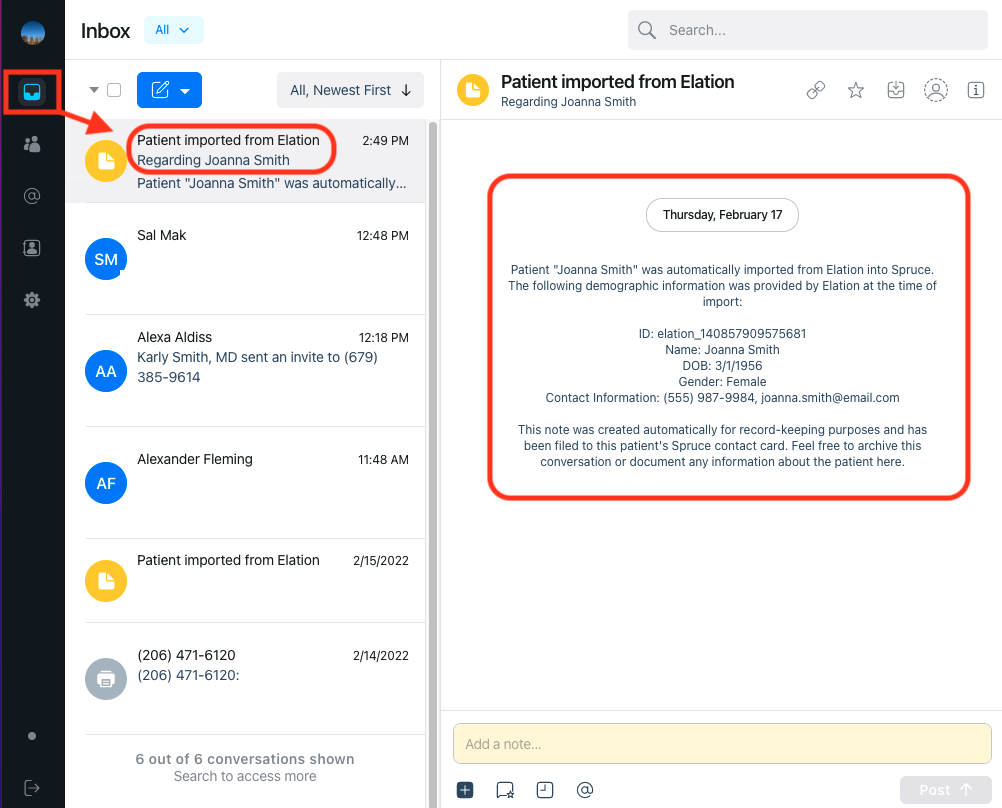
Patients must have a Contact in Spruce in order to be invited to communicate via SMS, Secure Message or Video. When you create a new chart in Elation, a new Contact for the patient will be created in Spruce immediately and this will also create the patient link. You will receive a message in your Spruce Inbox with a note describing this automation for record keeping purposes.Creating a new Contact in Spruce does not automatically create a new chart Elation chart. Patient/Contact creation only occurs from Elation to Spruce.
Linking patients
If you have a Contact in Spruce for a patient that already has a chart in Elation, link these two together by following the steps below. This will ensure the Spruce messages for the patient will sync to the correct Elation Chart.- Select the patient’s Contact in Spruce to open the contact card.
- Scroll down to Integrations and click Link Contact to EHR.
- Select Elation from the drop down menu.
- Search for the patient by the name or the Chart ID number** used for that patient in Elation.
- This search must have the full first or last name in order to pull up the patient. It is not case sensitive.
- Once the correct chart appears, select it and verify that the information from Elation matches the information you have in Spruce.
- Click Link to connect the Elation chart with the Spruce contact.
To see Spruce’s demonstration of this workflow, please click here .
Demographics Updates
Once the patient is linked between Elation and Spruce, any updates in either system for the following demographics fields will be pushed to the other system immediately:- Patient first and last name
- Phone numbers (up tp 2 different phone number types)
- Email address
- Date of birth
- Gender
Message Syncing
There are two ways messages from Spruce can sync into Elation: Selective or Automatic.Selective Sync (Recommended)
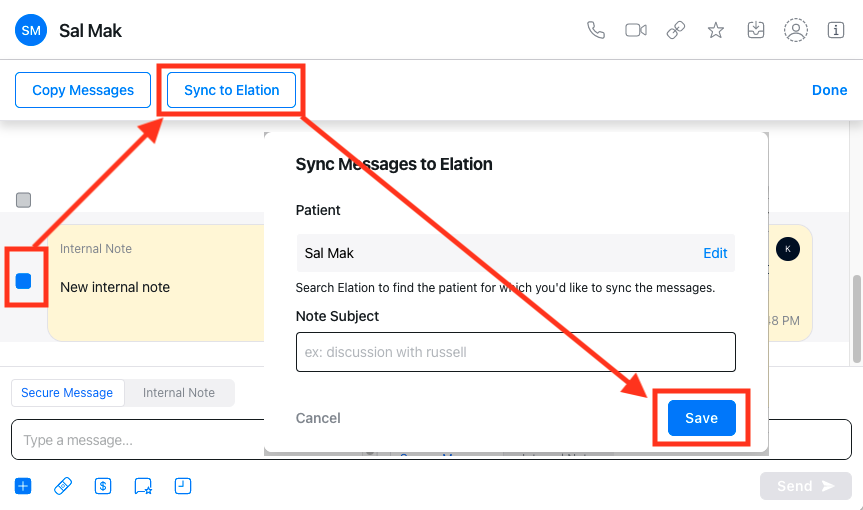
Selective sync allows you to choose one or more messages you would like to sync into Elation. This option allows you to control which messages you would like to copy to Elation. The message(s) chosen for syncing will populate into Elation as a Simple visit note. When using this option, you can select which patient chart in Elation the messages are filed under. The patient you are currently viewing in Spruce will be the default. To use Selective Sync:- Open the conversation in Spruce
- Hover over any messages until three small vertical dots** appear to the right of the message and click on them.
- Select the Select Message option from the menu.
- Squares will appear to the left of each message that you can click to select the individual messages you would like to copy to Elation, they are selected when blue.
- Click Sync to Elation at the top of the conversation, below the patient name
- A box will pop up and if this patient is already linked to their patient chart in Elation it will be populated under patient
- If the patient name is blank, search for the patient by full first and/or last name.
- You can also edit to a different patient than what was prefilled
- Enter a Note Subject if desired.
- Click Done in Spruce to exit the select message view
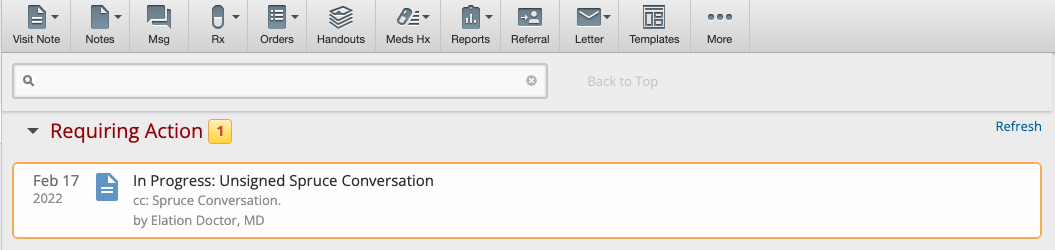
- Open or refresh the patient’s chart in Elation and sign off on the visit note in the Requiring Actions queue.
To see Spruce’s demonstration of this workflow, please click here .
Automatic Sync
Automatic sync will sync all new SMS and Secure Messages in Spruce automatically to Elation every 24 hours. With automatic sync, the messages from Spruce will populate into Elation as Miscellaneous (MISC) Reports. To access in Elation, click on the Reports tab, then the MISC category to access all Spruce conversation reports for a patient.
Helpful Videos and Links About Using Elation and Spruce
- Spruce Integration Help Center article: https://help.sprucehealth.com/article/470-elation-integration
- Elation-Spruce Link Charts Video: https://www.loom.com/share/9a83b4ae4501408ca52c889f789abcc3
- Elation-Spruce Selective Sync Video: https://www.loom.com/share/ae02d980185e41a684cbafb225c94195
- Spruce Help Site: https://help.sprucehealth.com/
- Elation Support: Click here to contact Support
- Spruce Support: support@sprucehealth.com
- In-App Spruce Support: Search for Spruce Support