Overview
Elation allows you to create and maintain a database of insurance carriers and plans, which can then be used to populate your patients chart with structured insurance details. Entering a patient’s insurance details is a prerequisite to many downstream workflows such as eligibility checks, orders, and fee-for-service billing. Learn how to update these details with the instructions below.
Workflow Instructions
If you are using an integrated Practice Management System (PMS) partner with Elation, we recommend reviewing your PMS User Manual for instructions on how to maintain carriers and patient insurance details. The required workflows, supported fields, and syncing behavior for each vendor can differ.
Managing carriers & plans in Settings
Reference this Billing Guide- Managing Carriers & Plans in Elation article to learn how to create and maintain your practice’s insurance carriers and plans.
As a best practice, carriers should be added to your Settings in advance so that they’re readily accessible when it comes time to update a patient’s insurance details. As needed, new carriers still can be created at any time.
The Insurance settings page can be set to ‘Admin Only’ so that only users with Admin privileges can make changes. If you find that you’re unable to add new insurance carriers or plans, you may not have sufficient privileges. Please check with an Admin Level User in your practice for assistance.
Accessing a patient’s insurance details
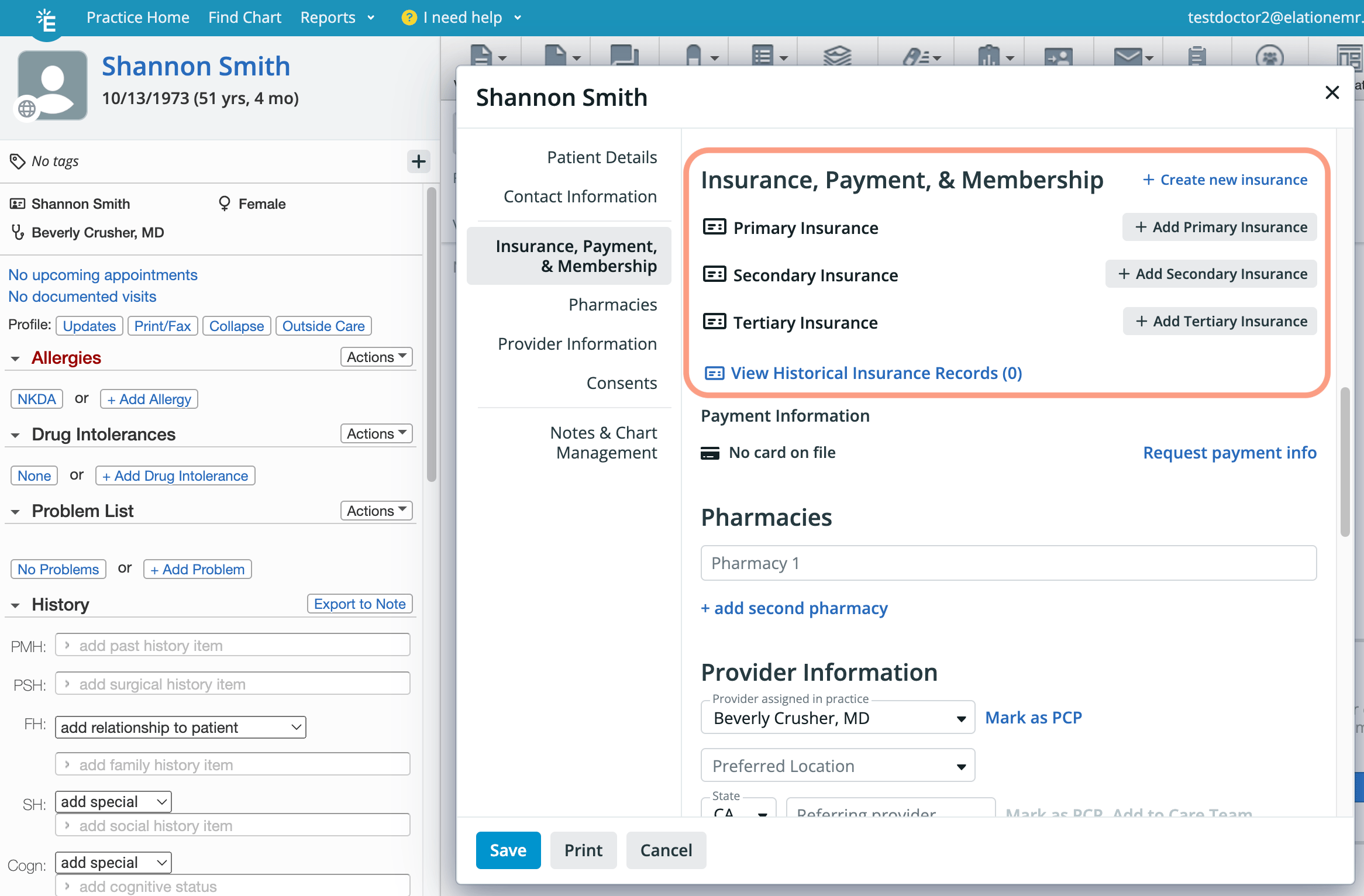 You can access a patient’s insurance details using any of the following workflows:
For a brand new patient:
You can access a patient’s insurance details using any of the following workflows:
For a brand new patient:
- Click the New Chart button on the homepage. In the demographics window, scroll down to the Insurance, Payment, & Membership section.
For an existing patient:
- Open the patient’s chart and click on the patient’s name. In the demographics window, scroll down to the Insurance, Payment, & Membership section.
- If the patient has an appointment, click the appointment. In the pop-over, click Demographics and scroll down to the Insurance, Payment, & Membership section.
- If the patient has an appointment, update the Status to Checked-in and the Demographics window will automatically open. Scroll down to the Insurance, Payment, & Membership section.
Entering a new active insurance record
| 1 | Under the Insurance, Payment and Membership Section, click + Create new insurance. |
|---|
| 2 | If you’d like to upload a copy of the patient’s insurance card from your computer, click the Upload Front and/or Upload Back buttons. Select the file from your computer and optionally crop and rotate the image before clicking Confirm. |
| 3 | In the Carrier name field, search for the payer’s name and select it from the dropdown menu. The dropdown menu will only display options that have been added to your practice’s Insurance settings page. Refer to this section for more information on how to maintain these carriers. |
| 4 | Fill in the following fields: Plan name • Member ID • Group ID • Insurance Rank: choice of Primary, Secondary, Tertiary, Primary (Inactive), Secondary (Inactive), and Tertiary (Inactive) • Coverage Type: choice of Commercial, Medicare, Medicaid, or Worker’s Compensation • Copay • Deductible • Effective Date • End Date • Relation to policyholder: choice of Self, Child, Spouse, or Other |
| 5 | Click Save . |
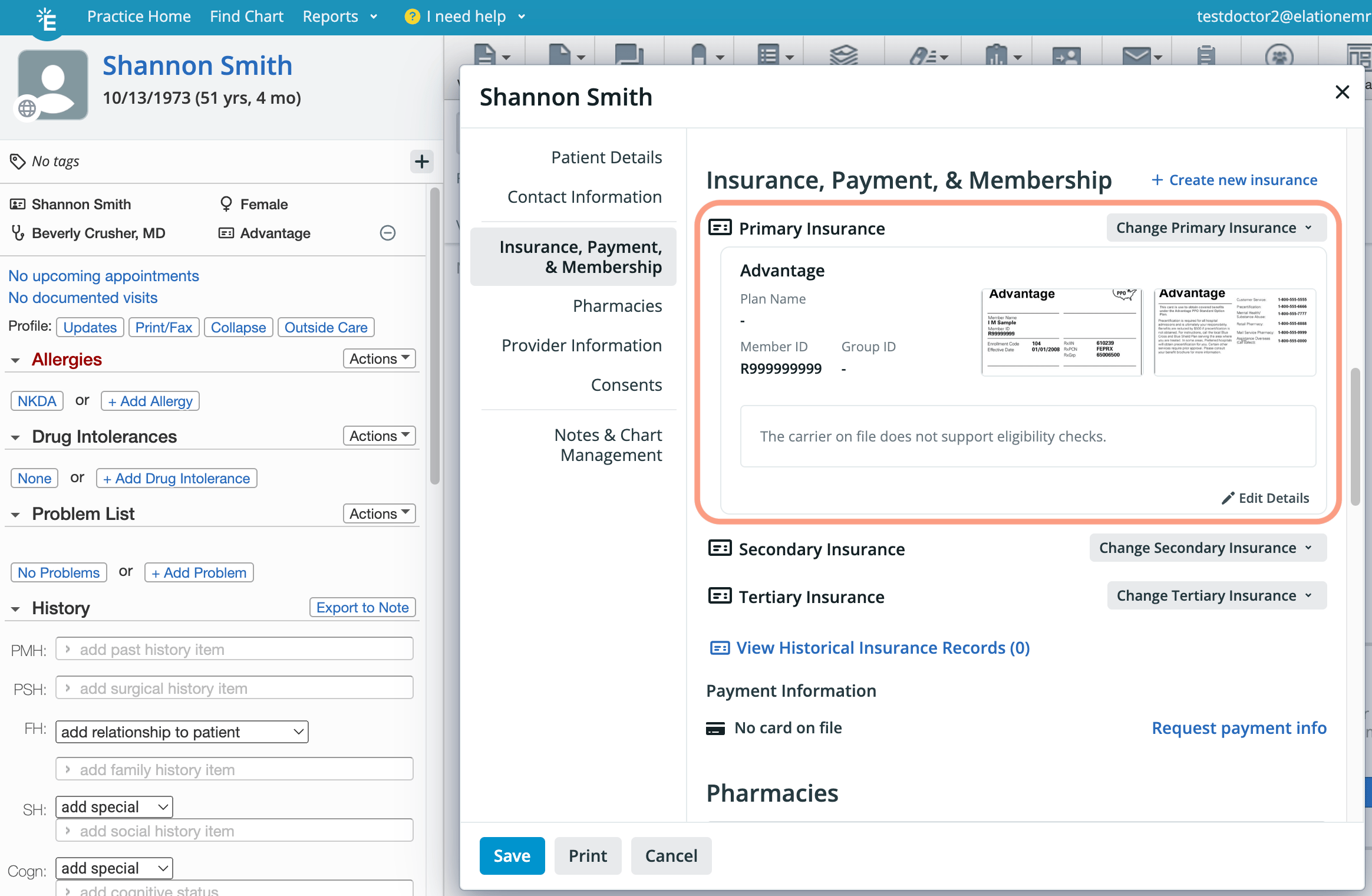
Uploading/viewing/updating scanned insurance cards
Insurance cards can be uploaded while you enter insurance information for the patient.
To add a scan after insurance details have already been saved
| 1 | Scroll to the insurance record in the Patient Demographics window. |
|---|
| 2 | Click the Upload Front and/or Upload Back button. |
| 3 | Select the file from your computer and optionally crop and rotate the image before clicking Confirm . |
To zoom-in on an uploaded scan
| 1 | Click on the insurance card image. |
|---|
| 2 | An enlarged version will appear in a pop-up window. Click the X button to close. |
To crop/rotate an uploaded scan
| 1 | Hover over the insurance card image and click the pencil icon. |
|---|
| 2 | Use the crop and rotate buttons to perform your edits. |
| 3 | Click Done . |
To change a scan to a different image
| 1 | Hover over the insurance card image and click the trash can icon. |
|---|
| 2 | Click the Upload button to select a new file from your computer. |
Editing an existing insurance record due to a typo
| 1 | In the bottom righthand corner of the record, click the Edit Details link. |
|---|
| 2 | Make the necessary edits. |
| 3 | Click Save Changes to Insurance . |
Editing an existing insurance record due to a change in coverage
| 1 | In the top right corner of the record that is no longer valid, click the Change … Insurance button. |
|---|
| 2 | The dropdown menu will show a list of any other insurance details that were once recorded for this patient - both active and historical. If any of these insurances should be selected as the patient’s current coverage, select it from the dropdown menu. • Otherwise, click + Create new … Insurance to enter brand new insurance details. |
| 3 | Complete the fields within the Create window and click Save . |
| 4 | Once the new information is saved, the previous insurance record will move to the Historical Insurance Records section. |
Viewing historical insurance records
| 1 | Click the blue View Historical Insurance Records link. |
|---|
| 2 | A pop-up window will appear with any historical records. |
| 3 | Towards the right, click the down arrow to see full details for the record. |
| 4 | Click Close to exit the window. |
This workflow should only be used if you want to completely remove this insurance record from the patient’s chart. Alternatively, if you need to change a record from active to historical, use this alternate workflow.
| 1 | In the bottom righthand corner of the record, click the Edit Details link. |
|---|
| 2 | At the bottom of the Edit window, click Delete This Insurance . |
Frequently Asked Questions
Why can’t I edit an insurance record that’s under Historical records?
You will need to move a historical record to an active record first if you need to edit the details.
What type of files can I upload for the insurance card?
The supported image file types are JPEG (JPG/JPE), PNG and PDF (single page only).
Does running eligibility automatically add insurance to the chart?
No. Real-time eligibility validates existing structured insurance information; it does not automatically create or update insurance records.
Recommended workflow:
- Add or update the patient’s insurance record under Demographics (Carrier name, Plan name, Member ID, Group ID, and Insurance Rank).
- Run eligibility to confirm coverage.
- Use the validated record for billing.
If insurance seems “missing” in billing, check:
- That Primary insurance is present and not marked inactive.
- That the Carrier and Plan used for billing matches the Carrier and Plan used for eligibility.
Related Articles
