
What is Patient Status?
The Patient Status feature allows you to apply a marker to a patient’s chart to designate their status within your practice. The following statuses are offered:- Active
- Inactive
- Prospect
- Deceased
Why is Patient Status useful?
Setting Patient Status allows you to keep an accurate record of your patient panel. The status of a chart is visible at the top of the chart and in the various areas where you search for patients. Insight into the patient’s status allows you to take appropriate actions when a workflow involves a non-active patient. You can also utilize the Patient Status feature in your Patient List Report to ensure accurate reporting. The reporting will also allow you to send communication to patients based on their status such as inviting prospective patients to schedule an appointment with you once your availability opens up.The Patient Status is only a marker and does not impact the ability to edit contents in the chart.
Setting a Patient Status
To set a Patient Status, follow the steps below:- Open the chart for a patient who needs their status updated
- Click on the patient’s name to open their demographics
- Go to the Note & Chart Management section of the demographics
- Click on the Status dropdown to select one of the statuses below. A new notes field will be visible if you choose any status besides “Active”, allowing you to enter additional notes about the status selected
- Active - this is the default status for all patients
- Inactive - a Reason option will appear. You can select one of the following reasons:
- Other
- Patient Left on Bad Terms
- Patient Left on Good Terms
- Practice Ended Relationship
- Unknown
- Prospect
- Deceased - a new Date field will appear allowing you to note the deceased date
- Click the Save & Close or Print & Close button at the bottom of the demographics box to save your changes
Viewing a Patient Status
The Patient Status will be visible in the following areas with the exception of the Active status (default)- at the top of the Clinical Profile as a yellow banner

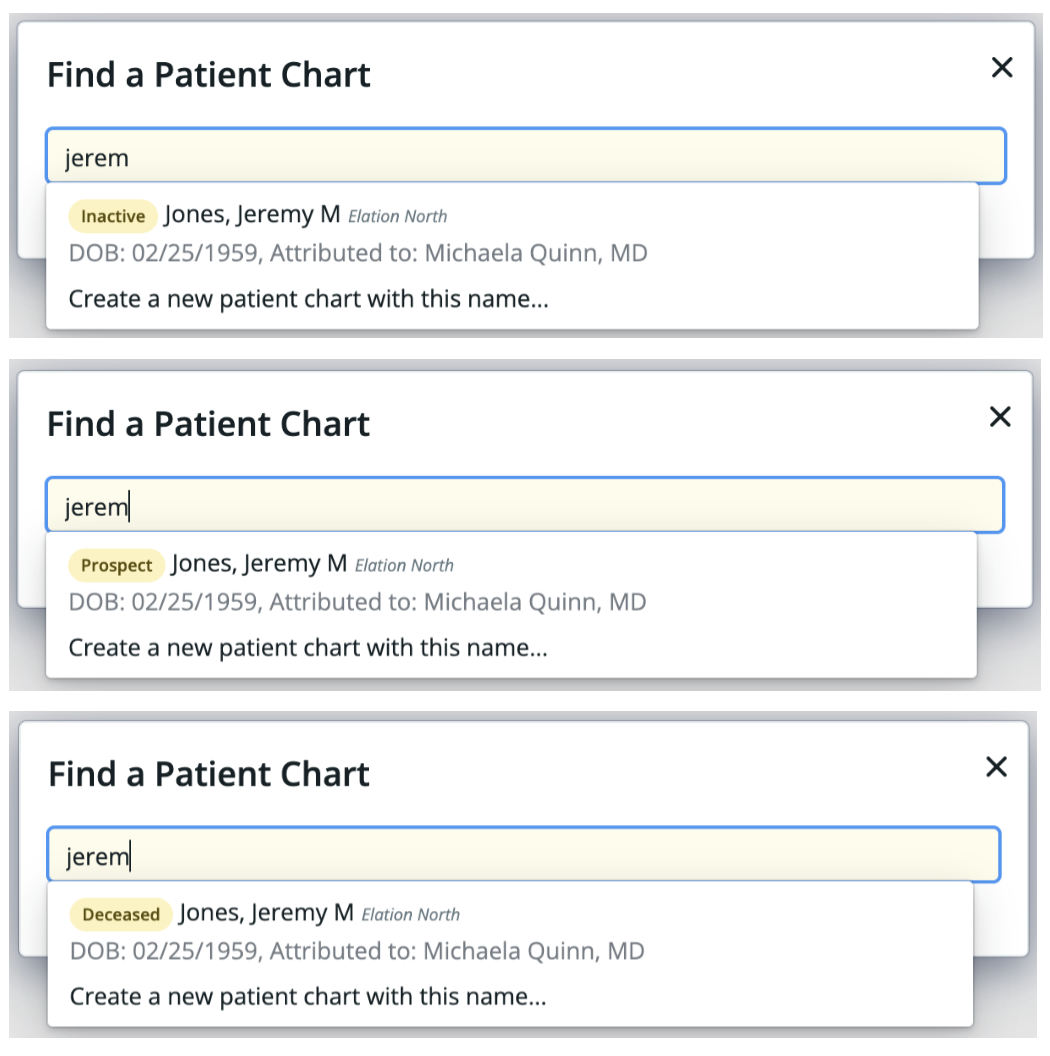
- in all patient search features
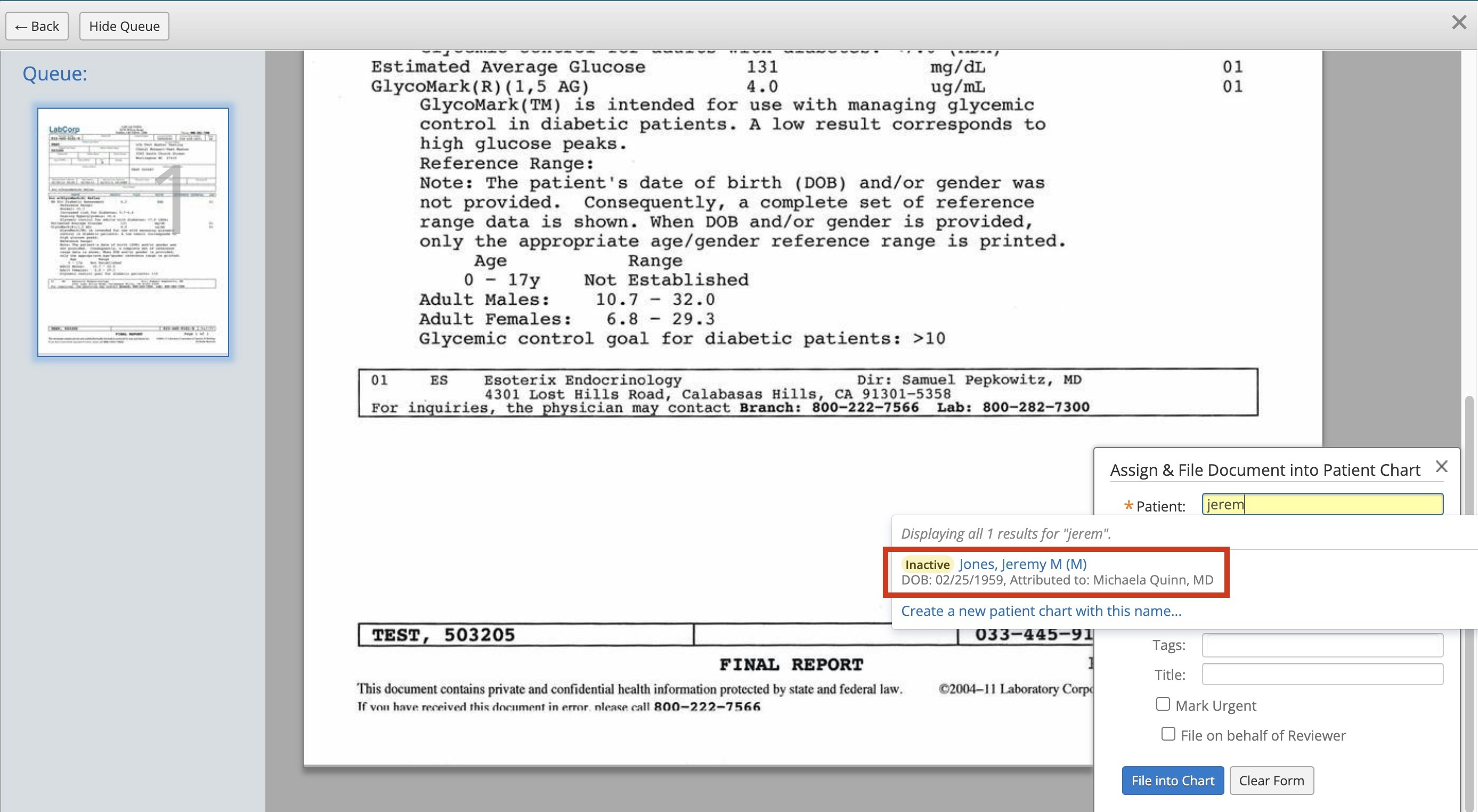
- when you are filing documents in the Fax Inbox
Utilizing Patient Status in reporting
The Patient Status is also a filter in the Patient List Report. You can include or exclude patients of a specific status in your reports.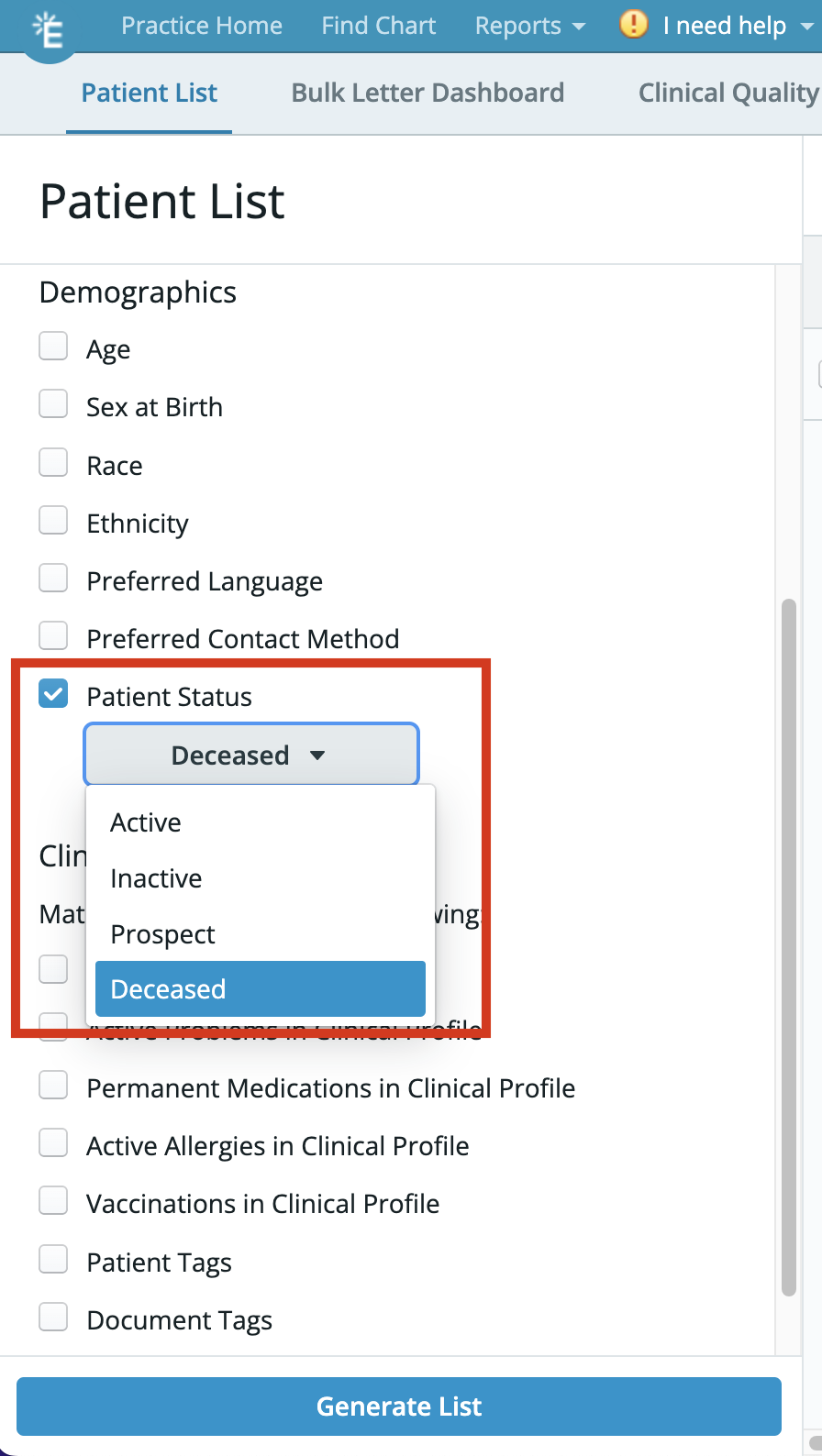
Frequently Asked Questions (FAQ)
Can I add additional statuses of my own?
Customers will not be able to add additional statuses of their own. We recommend using the additional notes regarding patient status field to enter additional information about the Patient Status selected.I previously used Patient Tags to mark different statuses. Should I convert to using the Patient Status feature?
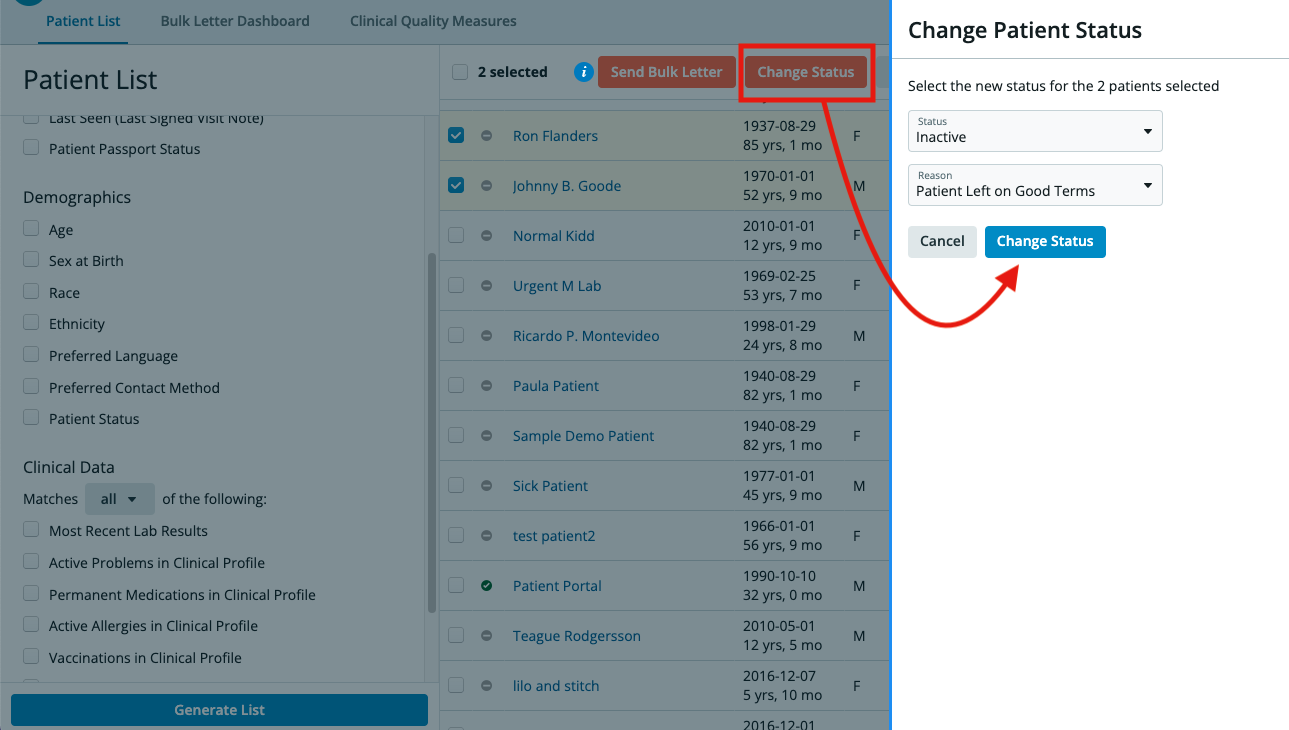
If you need to mark a patient as Inactive, Prospect or Deceased, we recommend using the Patient Status feature instead of the Patient Tags feature due to the broader visibility of the Patient Status feature. To easily convert to the Patient Status feature, use the Patient List Report to find all the patients you previously tagged and then use the Change Status button at the top of the report to apply the appropriate status to the chart.How long will it take to change status in bulk using the Patient List?
Bulk status changes will initiate immediately, but it may take some time to process all the changes, especially if a large number of patients are selected. Confirmation text will appear at the top of the Patient List Report when the update is completed. If you refresh the Patient List Report or navigate away from the page before seeing the confirmation, the bulk status change will still execute.If you filter for patients in a specific status (ex: Active) and then run a bulk status change for those patients, they will continue to appear in the same status (ex: Active) until you refresh the Patient List Report or re-run the search in the Patient List Report.