Common questions about Elation Patient Passport (the patient portal), including how to sign up, log in, manage your account, and access your health information.
For patients and caregiversHave a specific question about Elation Patient Passport — also called the patient portal? Use the jump links or common questions below to find your answer. If you don’t find what you need, contact your provider’s office directly.
How do I get access to Patient Passport?
Register for an account if you don’t have one yet or use your existing credentials to log in.
How do I log in?
Use your email and password at app.elationpassport.com.
What can I do in Patient Passport?
Messages, appointments, health records, and more.
Can a caregiver access my chart?
Yes, with an invitation from your provider’s office.
No. If you already have a Patient Passport account, your login email and password still work. You do not need to sign up again.
How do I get access to Patient Passport?
If you don’t have an account yet, then your provider’s office sends you an invitation by email. Click the link in the email to get started. If you have not received an invitation, contact your provider’s office and ask them to send one.The invitation email comes from a do-not-reply address — do not reply to it. If you have questions or need a new invitation, contact your provider’s office directly.
What does signing up look like?
It takes less than two minutes. You will:
Select the link in your invitation email
Create an account with your email address and a password
Confirm your identity using your date of birth
You’re in
What if I never received my invitation email?
Check your spam or junk folder first. If it is not there, contact your provider’s office to confirm the email address they have on file, and they can resend the invitation.
What is the difference between Patient Passport and the booking site?
These are two separate tools:
Patient Passport (app.elationpassport.com) is your secure health portal — for messaging your care team, viewing visit summaries, accessing your health records, and managing your account.
The booking site is a separate page where you can request or schedule appointments online. Your provider’s office may share a link to it directly.
Your Patient Passport login and the booking site are separate. If you have trouble with one, it does not affect the other.
To login, go to https://app.elationpassport.com and enter your email address and password.If you are using the Elation Passport app on iPhone, you can also use Face ID or Touch ID. On Android, you can use fingerprint authentication. Enable biometric login from your device settings after your first login.
What if I forgot my password?
Select Forgot Password on the login screen. A reset link will be sent to your email address. Use it right away as it expires quickly. If you do not receive the email, check your spam or junk folder first. If the email is not there, contact Elation Support directly at https://app.elationpassport.com/support/?persona=passport_user.
What if I am locked out of my account?
Contact your provider’s office. They can confirm your email address is correct and resend access from your chart.
I never received my invitation email or password reset email. What should I do?
If you did not receive your invitation email, check your spam or junk folder first. If the email is not there, contact your provider’s office — they can send you a fresh invitation. If you are still unable to receive the invitation email, contact Elation Support directly at https://app.elationpassport.com/support/?persona=passport_user.If you did not receive your password reset email check your spam or junk folder first. If the email is not there, contact Elation Support directly at https://app.elationpassport.com/support/?persona=passport_user.
How long does a login session last?
Your session lasts until you log out or there have been two hours of no activity. After two hours of inactivity, you will be taken back to the login screen.
How do I log out?
Select your initials or profile icon in the top right corner, then select Log out from the dropdown menu.
Send and receive secure messages with your care team (depending on practice settings)
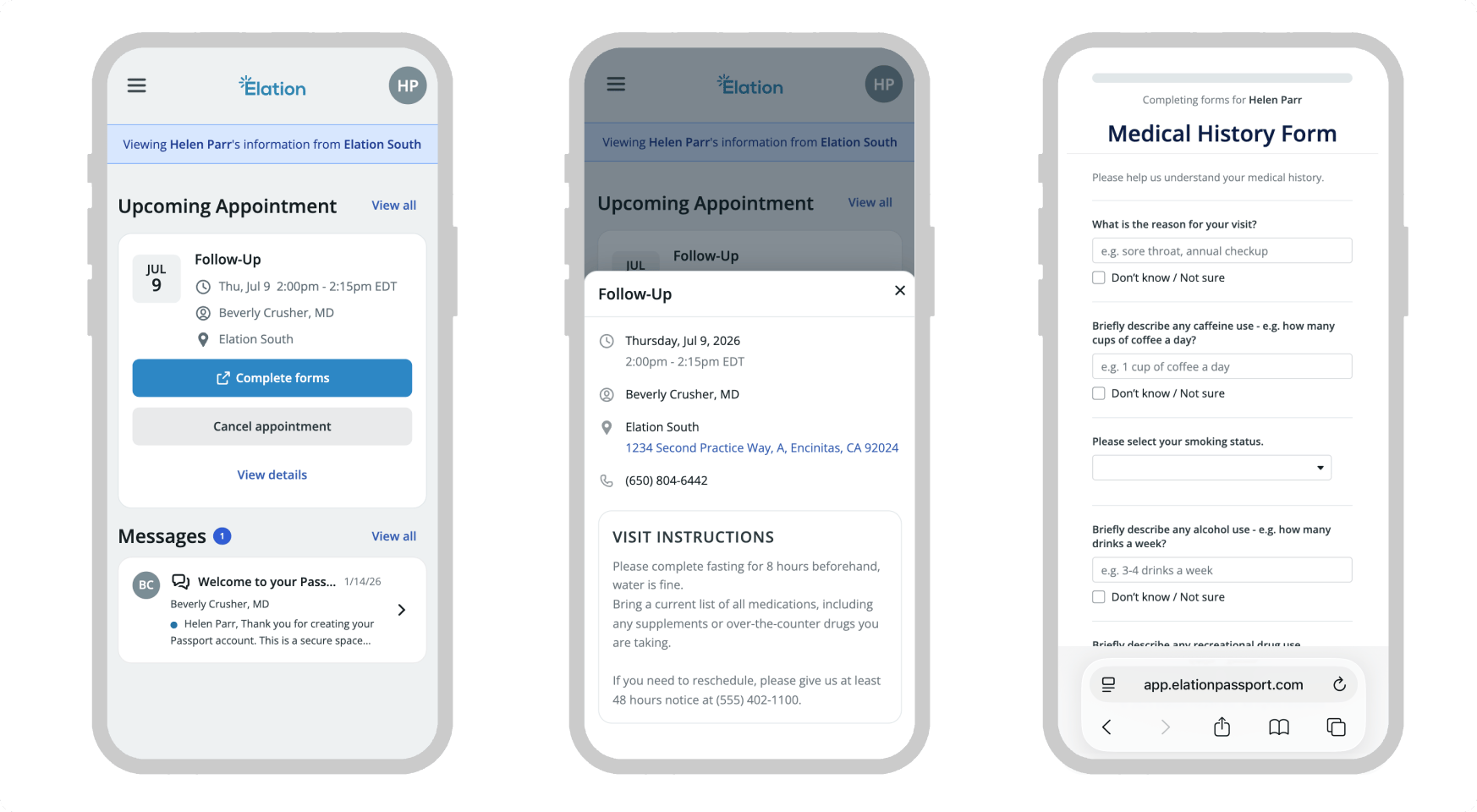
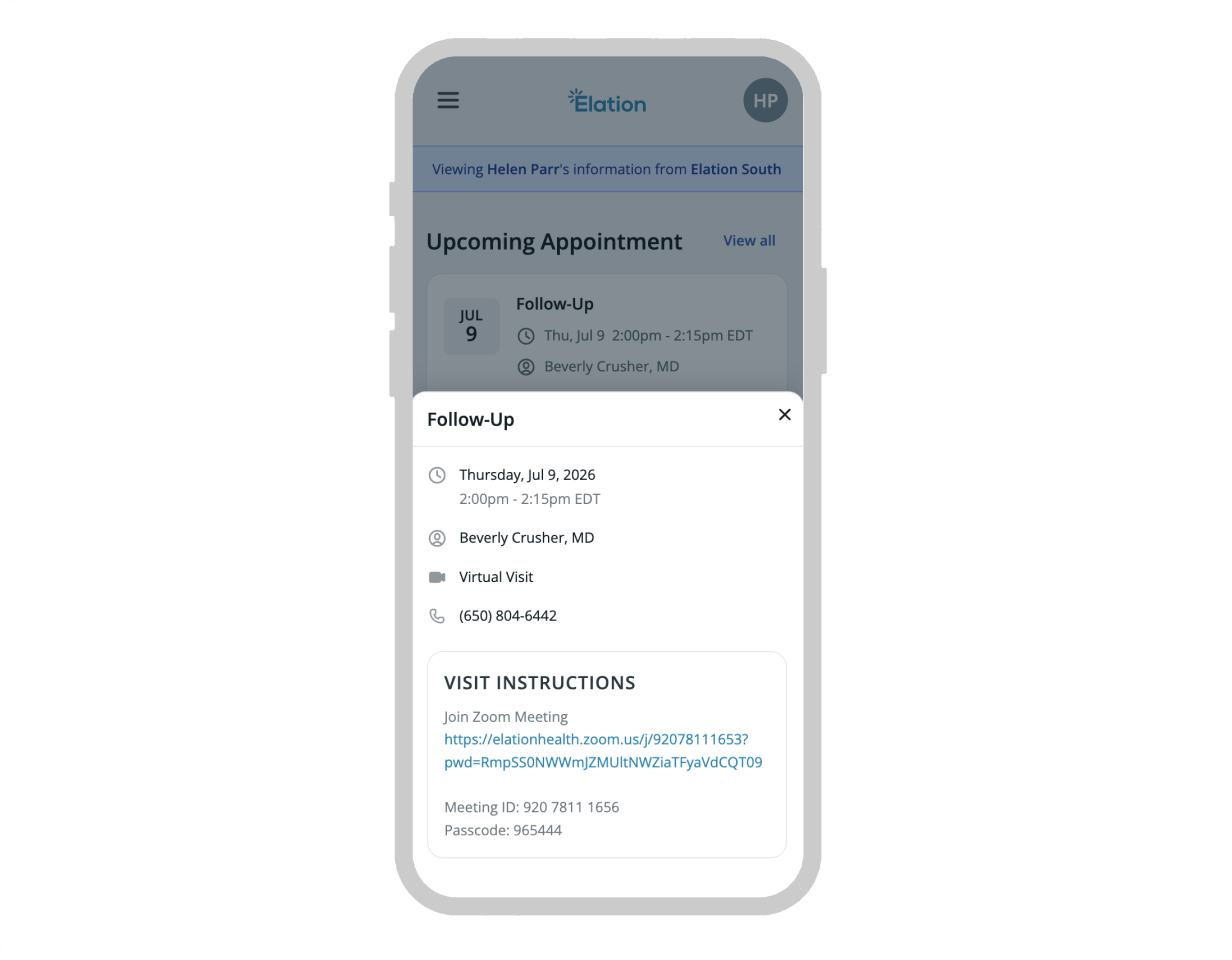
View upcoming and past appointments, including visit instructions, patient forms, and — for virtual appointments — the meeting join link
View your health summary, medications, allergies, and vaccines
Read visit summaries after each signed visit
View, download, email, fax, or print records and documents your provider has shared with you
Print message threads from your inbox
Update your demographics, contact details and account information
Can I manage my appointments?
You can view all of your upcoming and past appointments. When you open an appointment, you may also see:
Visit instructions your provider’s office has added to help you prepare for the visit
A meeting join link if the appointment is virtual — tap it to open the video call
Patient forms attached to the appointment, with their completion status — you can open and complete any incomplete forms directly from this view
Depending on your provider’s settings, you may also be able to cancel an upcoming appointment from the portal. Rescheduling is not available through Patient Passport — to move an appointment to a new time, contact your provider’s office directly by phone or through Messages. To schedule a new appointment, use the Book Appointment link (if available) or call the office directly.
Can I send messages to my provider?
You can reply to messages your provider sends you. Depending on your provider’s settings, you may also be able to start a new message. If you do not see a button to start a new message, contact your provider’s office.When you start a new message, Patient Passport asks What do you need help with? and shows a list of topics. Each topic shows who the message routes to — topics that go to a provider show that provider’s name (for example, Routes to Michaela Quinn, MD), and other topics show Routes to practice staff. Select the topic that matches your question and select Continue to write your message.
Can I send attachments?
Yes. You can attach files such as photos, forms, or documents to messages you send to your care team. The maximum file size is 25 MB per file. Attachments can only be added to a new message, not to an existing message thread.
The Elation Passport mobile app only supports attaching photos/images. To attach a PDF or other document file, log in from a web browser at app.elationpassport.com instead.
How do I share my insurance information with my provider's office?
If your provider’s office sends you a Patient Form with an insurance card upload question, use that form to submit your insurance information.If you have not received a form and want to share your insurance information, send it as an attachment through Messages: log in to Patient Passport, start a new message to your care team, and attach photos of your insurance card before sending.
Can I download an attachment my provider sent me in a message?
Yes. Open the message with the attachment and look for the Download all attachments button. Attachments download in PDF format.
How do I complete patient forms my provider sent me?
If your provider has attached forms to your upcoming appointment, you can find and complete them directly from the appointment details in Patient Passport.
Go to Appointments and open the upcoming appointment.
Find the Complete patient forms link and click it to complete any incomplete forms.
You will also receive an email with a link to your forms. Either method takes you to the same form — completing it once marks it as done in both places.
Image needed: Screenshot of the Patient Passport appointment detail card showing the patient forms section.
Can I download my records?
Yes. From Patient Profile → Share my records you can:
Download my records — Downloads a structured data file containing your health summary — including medications, allergies, diagnoses, and immunizations. This file is in a technical format called a C-CDA (Clinical Document Architecture), which is designed to be imported into another provider’s electronic health record (EHR) system, not opened and read like a regular document.
Email my records — Send your clinical summary directly to another provider’s email address.
Download or print immunization history — Save or print just your immunization history separately, useful for school enrollment or sports physicals.
Fax my clinical profile — Send your clinical profile to a fax number.
Print — Print a copy of your clinical profile.
“Download my records” does not download lab reports or documents.This file is in a technical format designed for electronic health systems to read, not for people to read directly. When you open it, you may see a blank page or a file full of code — this is expected and normal. It is not broken. The file is meant to be imported into another provider’s electronic health record (EHR) system.If you are looking for a specific lab report, your provider sends those as attachments in a message through Patient Passport. Go to Messages and open the message from your provider — the lab report will be attached there. If you have not received a message with your results, contact your provider’s office directly.
Can I comment on visit summaries?
No. You can reply to messages your provider sends, but you cannot add comments directly to visit summaries.
Can I delete messages?
No. Messages cannot be deleted, as this keeps a complete record for your care.
I replied to an email from Patient Passport but my doctor didn't respond. Why?
Emails from Patient Passport — including appointment reminders, new message alerts, and visit summary notifications — are sent from a do-not-reply address. Replies to these emails do not reach your care team and will not receive a response.To send a message to your provider’s office, log in to Patient Passport, go to Messages, and send your message from there.
Where do I find my visit summary after my appointment?
After your provider signs your visit note, a summary is automatically added to Patient Passport. To find it:
Log in to Patient Passport
Select Visit Summaries in the navigation
Summaries are listed most recent first — select any entry to read the full details
If you received a notification but do not see the summary yet, wait a few minutes and refresh the page. If it still does not appear, contact your provider’s office.
Can I print my messages?
Yes. Open the message thread you want to print and select the Print option within the thread. This opens your device’s standard print dialog.
How do I join my virtual appointment?
If your upcoming appointment is a virtual visit, tap “view details” and you will see a meeting join link in the appointment details in Patient Passport. Tap or click it to open the video call.You will also receive the meeting link in your appointment reminder email. Either method takes you to the same call.
Image needed: Screenshot of the Patient Passport appointment detail card showing the virtual meeting join link.
Go to the Patient Demographics section in the portal. You can update the following:
Contact Information
Email
Primary phone number and phone type
Address
Emergency contact
Patient Details
Full Name (if different from legal) — the chosen name for the patient, shown throughout Passport and visible to the care team
Pronouns
Gender identity
Sexual orientation
Any changes will be reflected in your chart right away. Note that your legal name, date of birth, and sex at birth can only be updated by the practice.
Can I add or change my profile picture?
That depends on your provider’s office. Each practice decides whether patients can upload or change their profile picture from Patient Passport.If the option is turned on, you can add or update your profile picture from your Profile, Demographics, or Clinical Profile page. In the Elation Passport app, you can take a new photo with your camera or pick one from your library.If the option is turned off, the edit photo button does not appear. Any picture already on file stays visible, but you cannot add or replace it from the portal. Contact your provider’s office if you need to update it.
How do I change my email address or password?
Log in to Patient Passport, select your name or profile icon in the top right corner, and go to Account Settings. From there you can update your email address, password, and phone number.To change your email address, select Change Email Address, enter the new address, and follow the verification steps sent to your new email. Once verified, use the new email to log in going forward.
If you no longer have access to the email address connected to your Passport account and cannot log in, contact your provider’s office. They will need to disable your current Passport access and send you a new invitation using your updated email address.
What languages are supported?
Patient Passport is available in English, Spanish, Chinese, Japanese, Korean, Tagalog, and Vietnamese. You can set your preferred language in Account Settings.
Only Passport’s built-in interface (menus, buttons, labels, and system messages) is translated. Content your care team sends you — including messages, visit summaries, patient letters, attached documents, and educational materials — is delivered in the language your provider wrote or uploaded it in and is not translated by Passport. If you need materials in another language, contact your provider’s office.
How do I use Patient Passport on my phone?
Patient Passport works on any web browser on your computer, phone or tablet. Open your browser and go to https://app.elationpassport.com.If you are an iOS or Android user, you can also download the Elation Passport app from the App Store or Google Play.
Why does my old name still appear on my messages?
The name that appears on your messages is your Account Name — it is separate from the patient’s chosen name in Demographics. You can update your Account Name anytime by selecting your profile icon in the top right corner and going to Account Settings. Changes take effect immediately in both Patient Passport and your provider’s view of your messages.The first time you log in to Patient Passport, you’ll be asked to confirm your Account Name as part of the welcome flow. If you missed that step or your old name is still showing, update your Account Name in Account Settings to fix it.
What is the difference between my Account Name and the patient's chosen name?
Passport keeps two kinds of names separate. The person signed in and the patient whose chart is open may not be the same person — for example, a parent managing care for their child. Neither name has to match a legal name.
Account Name — Your name as the person signed in to Passport. It appears on every message you send to your care team. You set it during your first login and can change it in Account Settings.
Patient’s chosen name — The name shown for the patient throughout Passport. This is the Full Name (if different from legal) field on the patient’s chart. You can update it in Patient Profile > Patient Demographics > Patient Details. Changes flow back to the practice.
Updating one does not change the other. If you want both to match, update each one separately.
Which name appears on my downloaded immunization history?
Your preferred name (the Full Name (if different from legal) field in Patient Profile → Patient Demographics → Patient Details) appears as the primary name at the top of the download, with your legal name in smaller text just beneath it. If your preferred name matches your legal name, or you do not have a preferred name on file, only your legal name is shown.When you start the download, Patient Passport shows a confirmation dialog letting you know the document will include both your legal and preferred name if they differ. Your legal name is always retained so the record stays valid for schools, employers, travel, insurance, and other official uses.
Removes your access to all charts linked to that account.
Closing your Patient Passport account does not delete your medical records. Your medical chart is maintained by your provider’s office as part of their legal medical record. To request changes to your medical record itself, contact your provider’s office directly.
Can a parent or caregiver access Patient Passport on behalf of a patient?
Yes. Your provider’s office can give a parent, guardian, or caregiver delegate access to a patient’s chart. Contact your provider’s office to request this.
Can one person manage records for multiple family members?
Yes. A single login can have access to more than one patient chart. Use the Switch patient view menu in the top right corner to move between charts.
What is the 'confirm your relationship' step?
After logging in to Passport, you may be prompted to specify your relationship with the patient. Choose from one of the following options and then click Continue:
This is me — You are the patient.
I manage their care — You are the parent, guardian, or caregiver.
Remove this chart — You do not recognize it or do not want access.
Does a parent or guardian's access automatically end when a minor reaches a certain age?
No. Elation doesn’t automatically enforce age-based cutoffs for parental or guardian access — the system won’t remove a parent’s proxy access just because the child reaches a certain age. Deciding how long a parent or guardian keeps proxy access, and when a teen should get their own login, is up to your provider’s office policy and applicable state law, not Elation. Contact your provider’s office if you have questions about your access.
I see records from an old doctor. How do I switch to my new doctor?
Select your profile icon in the top right corner and look for the Switch patient view menu. Select the correct practice from the list. If you do not see your new provider listed, contact their office to confirm your account is set up correctly.If you want a specific chart to load first every time you log in, select your profile icon and select Manage access. From there, set your current provider’s office as your Primary chart — it will load by default going forward, and your other linked charts remain available from the same menu. If you no longer want access to an old chart at all, you can also remove it from the Manage access page — see How do I remove an old provider’s chart from my account?
How do I remove an old provider's chart from my account?
If you no longer see a doctor and want to remove their chart from your account — sometimes described as unlinking a chart or removing a practice — you can do this yourself. You do not need to contact support or delete your whole account.
Log in to Patient Passport and select your profile icon in the top right corner.
Select Manage access.
Remove the chart for the provider you no longer see.
Removing a chart only affects that one provider. Your login and your access to any other linked charts stay the same. It also does not delete your medical record — the practice keeps your chart as part of their legal medical record.If you want to close your entire Patient Passport account instead, see How do I delete my Patient Passport account?
How do I share my health information with another doctor?
From the Share my records section of the Patient Profile, you can fax your clinical profile directly to another provider or print it to bring with you. You can also download or email your health record as a C-CDA file — a standardized format that can be imported into another provider’s EHR system. Note that the C-CDA is not a PDF and is not human-readable on its own.
Yes. Patient Passport is HIPAA-compliant and uses encryption to protect your health information. All messages are secure and intended for non-urgent communication. Only authorized people in your provider’s office can access your information.
How do I stop receiving messages from a provider?
Contact your provider’s office and ask them to disable your portal account.